So verbindest du dich mit deinem Counter-Strike-Server
So verbindest du dich mit deinem Counter-Strike-Server: Über die Entwicklerkonsole, Steam-Favoriten oder den Server-Browser. Inklusive Fehlerbehebung!
Willkommen in der ultimativen taktischen Arena von Counter-Strike! Das Einrichten deines eigenen Private-Match-Servers ist der beste Weg, um Taktiken zu trainieren, Custom Maps zu spielen oder intensive Scrims mit deiner Community zu veranstalten. Auch wenn der Einstieg ins Spiel extrem aufregend ist, kann es für Anfänger manchmal eine Herausforderung sein, den eigenen Server unter Tausenden von öffentlichen Einträgen zu finden. Zum Glück ist das Verbinden mit deiner CS-Welt kinderleicht, wenn du erst einmal weißt, wie es geht.
Egal, ob du die Schnelligkeit der Entwicklerkonsole nutzen oder deinen Server für den schnellen täglichen Zugriff direkt in deinen Steam-Favoriten speichern möchtest – dieser Guide zeigt dir alles, was du wissen musst.
Schritt-für-Schritt-Anleitung zum Verbinden
Es gibt verschiedene Wege, um deinem aktiven Server beizutreten. Wir empfehlen dringend die Methode über die In-Game-Konsole, da sie die Haupt-Serverliste komplett umgeht und sofort eine direkte Verbindung herstellt.
Methode 1: Verbinden über die In-Game-Konsole (Empfohlen)
Dies ist der schnellste und zuverlässigste Weg für Spieler, sich direkt zu verbinden, da hierbei die genauen Adressdaten deines Servers verwendet werden.
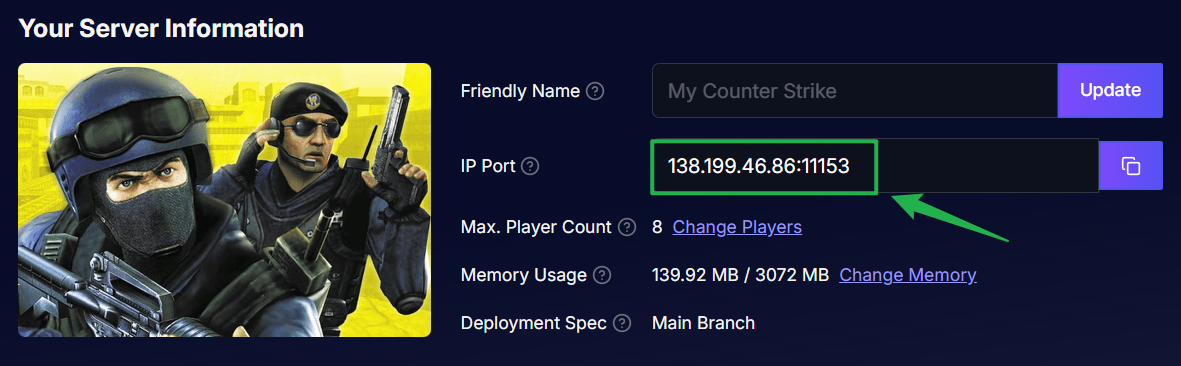
Logge dich in dein Server-Panel-Dashboard ein und suche deine eindeutige IP-Adresse und den Port. Kopiere oder notiere dir diese Daten.
Starte Counter-Strike und drücke die Tilde-Taste (normalerweise die Taste
~oben links auf deiner Tastatur), um das Entwicklerkonsolen-Fenster im Spiel zu öffnen.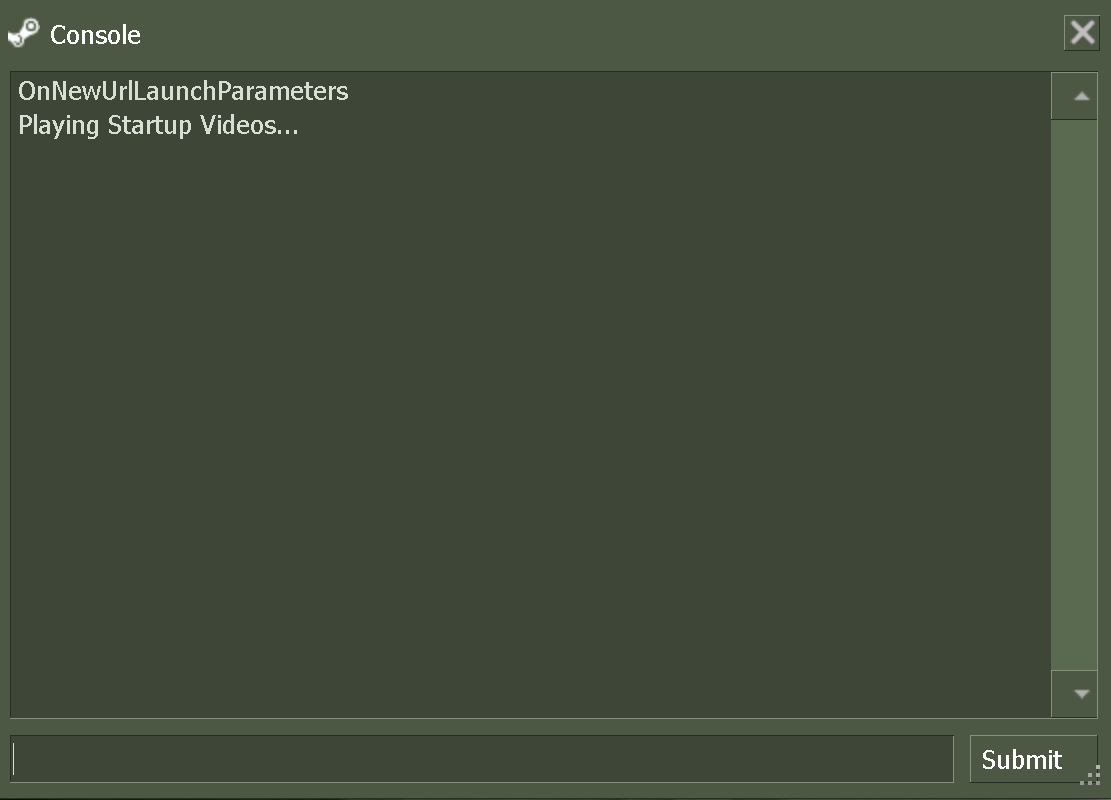
Wenn dein Server kein Passwort hat, gib
connect IP:PORTin die Konsole ein (ersetze dabeiIP:PORTdurch die tatsächlichen Verbindungsdaten deines Servers aus dem Panel).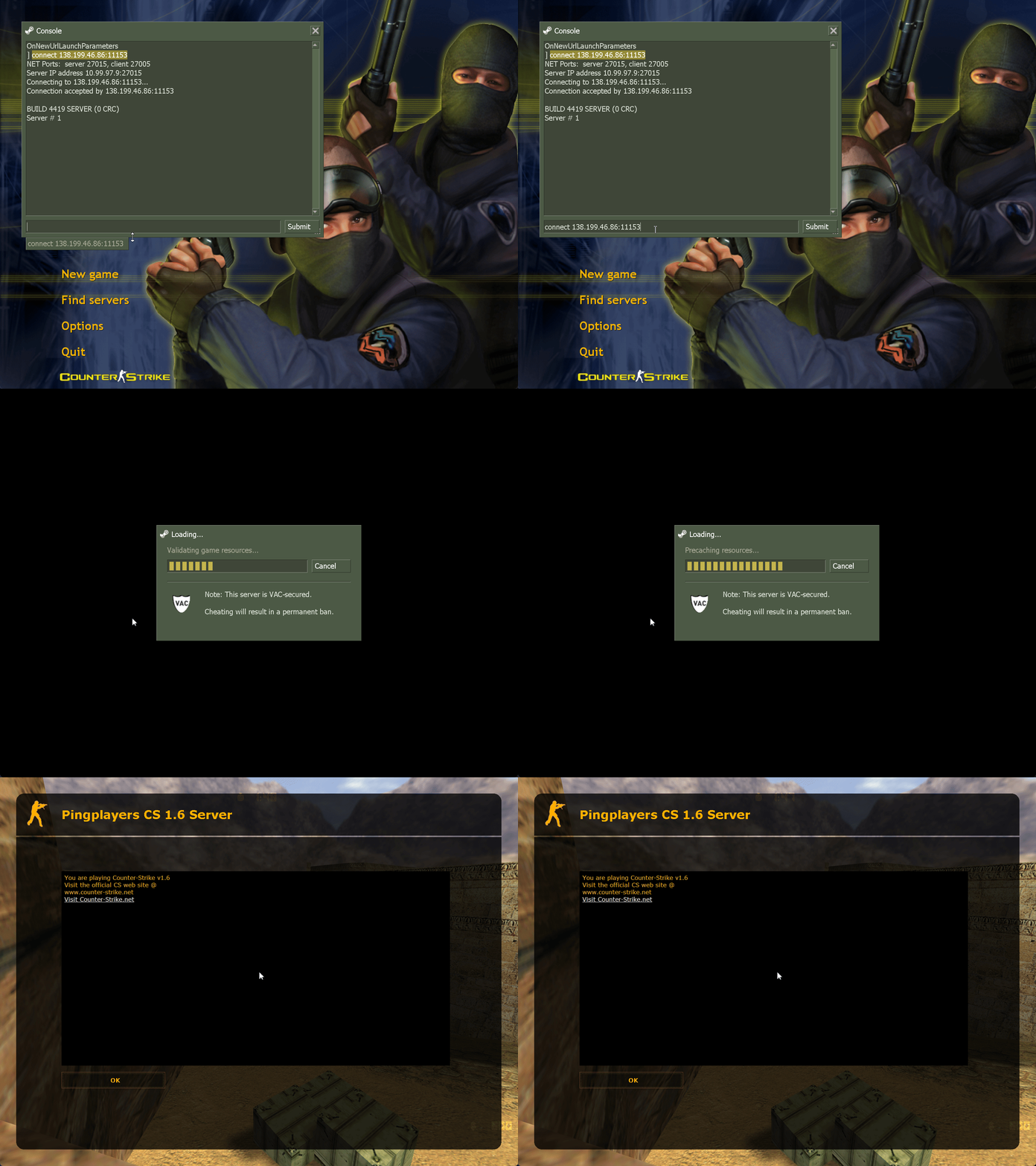
Gib den Direct-Connect-Befehl mit der Server-IP und dem Port in die Entwicklerkonsole ein.
Falls dein Server ein Passwort erfordert, gib stattdessen
connect IP:PORT;password YOURPASSWORDin die Konsole ein (ersetzeYOURPASSWORDdurch dein tatsächliches Server-Passwort) und drücke Enter, um dem Match beizutreten.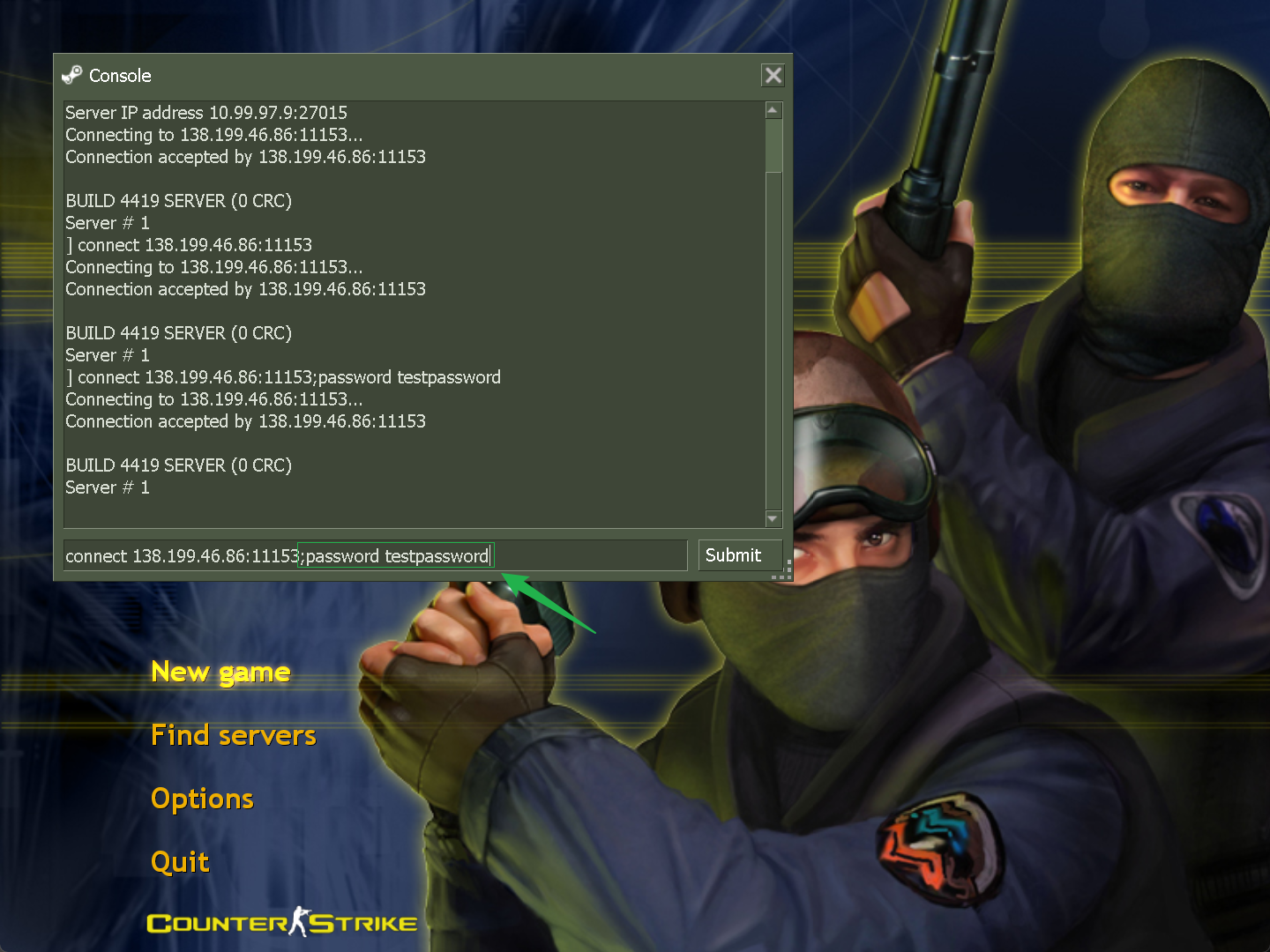
Methode 2: Den Server zu den Steam-Favoriten hinzufügen
Wenn du und deine Freunde nach einem einfachen Weg sucht, täglich auf euren CS-Server zu joinen, ohne euch Zahlen merken zu müssen, ist das Speichern in den Steam-Favoriten die perfekte Lösung.
Öffne deinen Steam-Client auf dem Desktop, bevor du das Spiel startest.
Klicke ganz oben in der Menüleiste des Steam-Clients auf Anzeige > Gameserver.
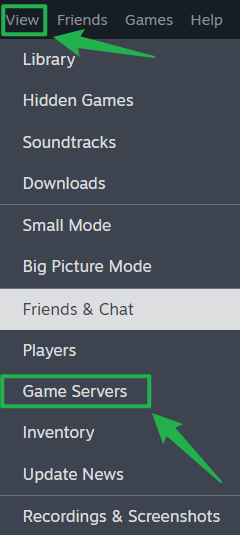
Klicke auf den Reiter Favoriten oben im geöffneten Server-Fenster.

Klicke unten rechts im Menü auf das Plus-Symbol, um einen Server hinzuzufügen.
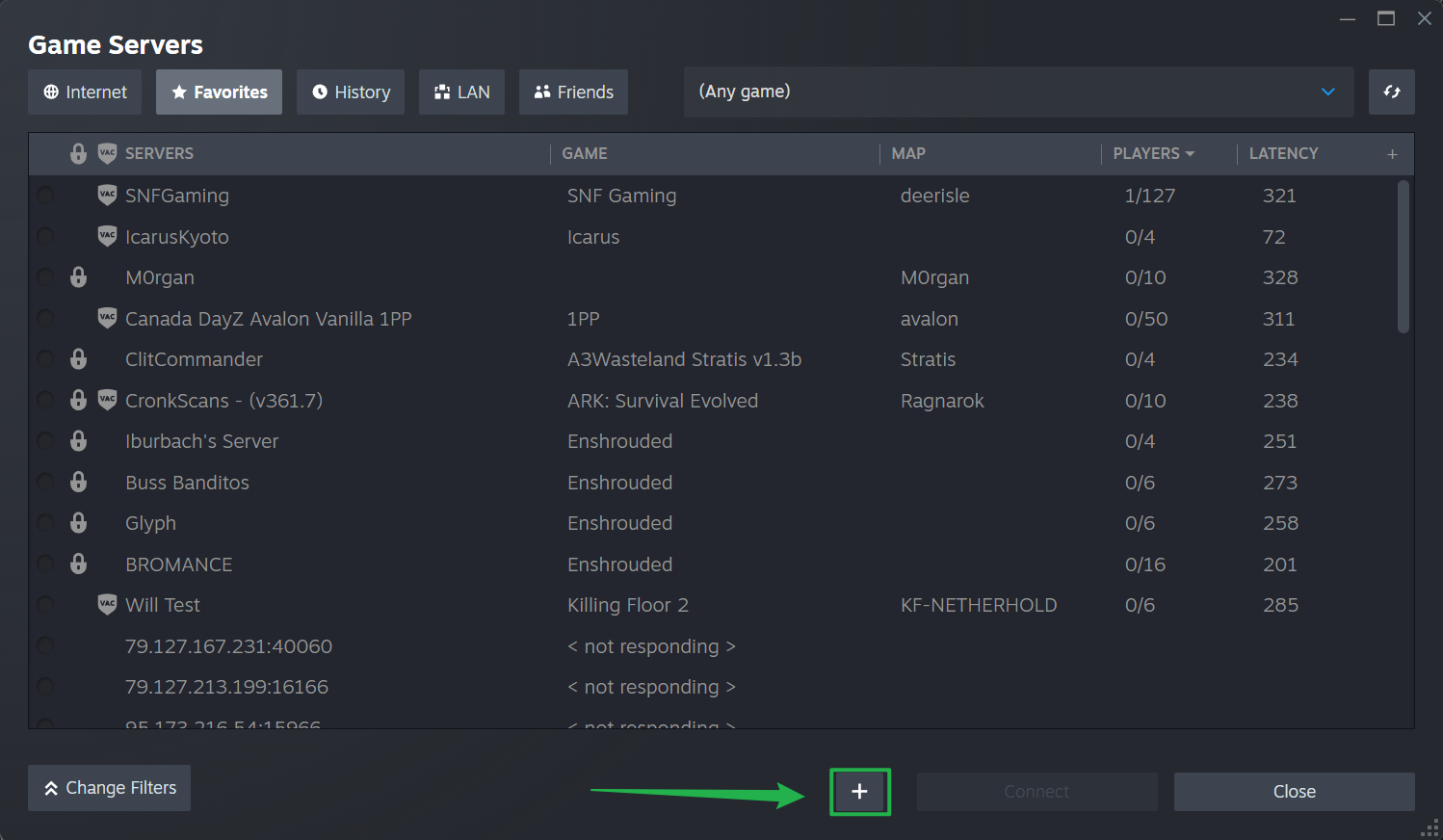
Trage die IP und den Port deines Servers genau so ein, wie sie im Dashboard angezeigt werden, und klicke dann auf OK.
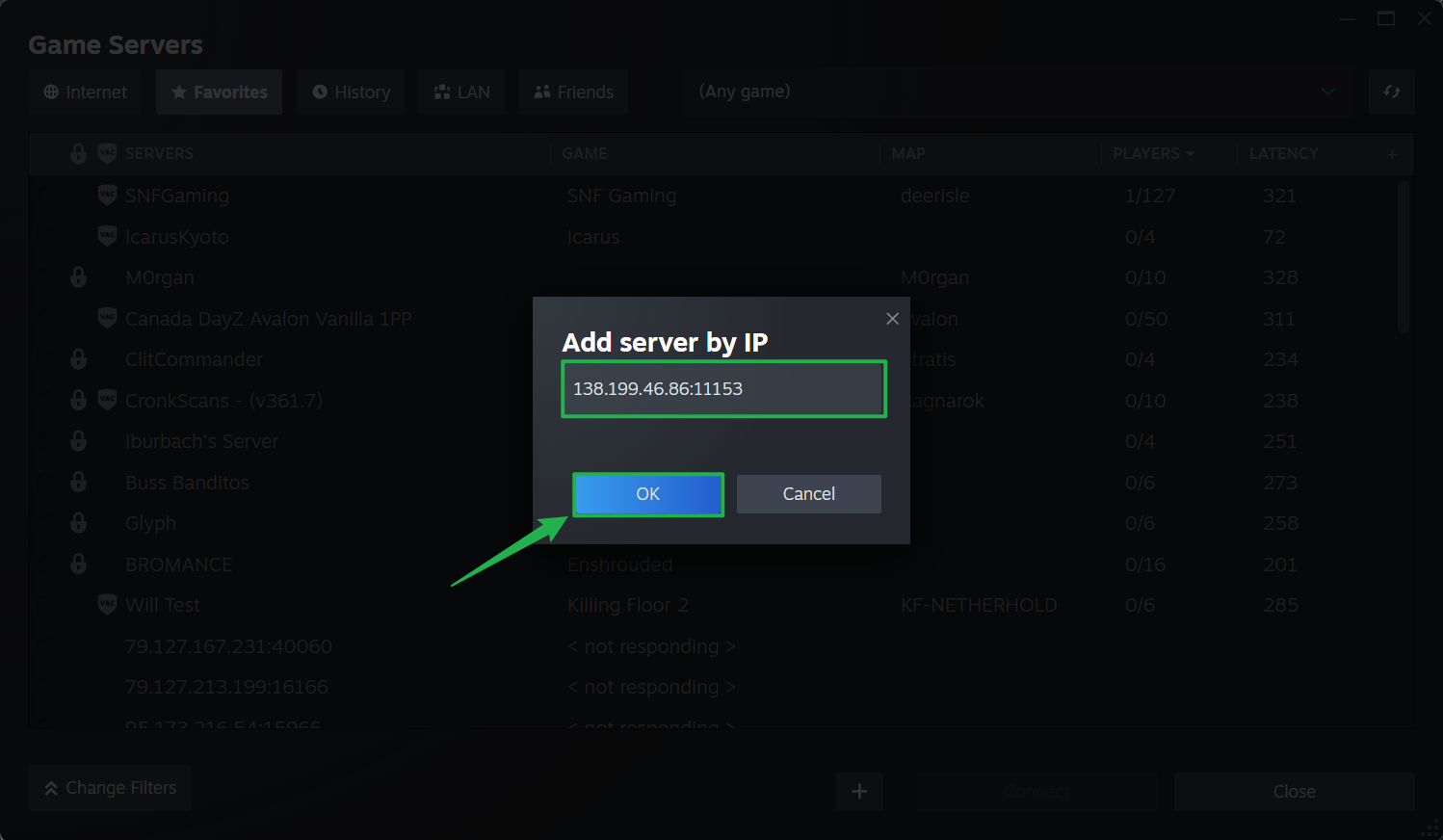
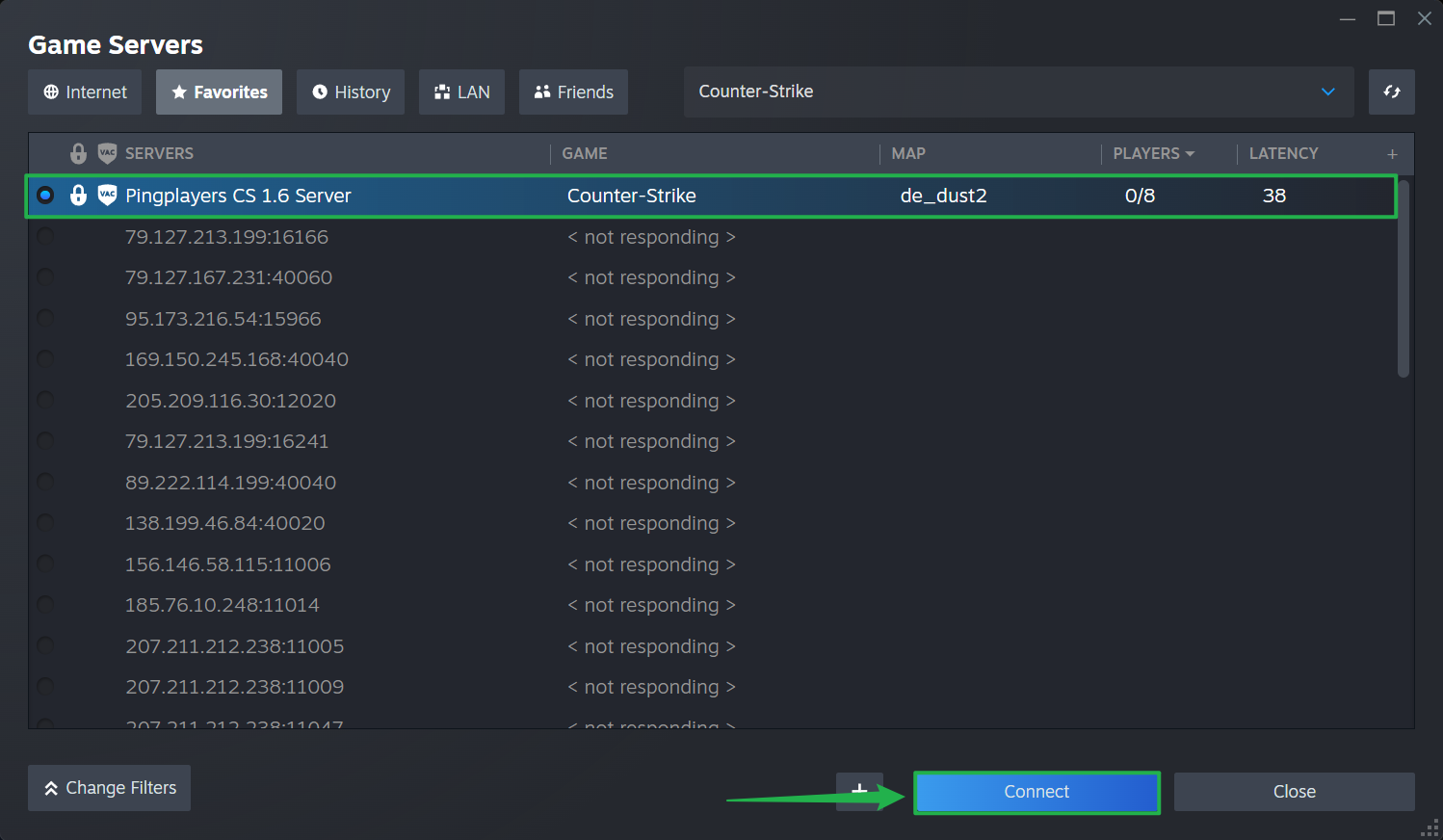
Sobald er hinzugefügt wurde, erscheint dein Server in der Liste unter dem Reiter Favoriten. Klicke einfach auf den Servernamen, wähle Verbinden und das Spiel startet automatisch und lädt dich direkt ins Match.
Methode 3: Den klassischen Server-Browser nutzen
Du kannst dein Match auch direkt über die Server-Browser-Tabs im Spielmenü suchen, allerdings kann die Filterung nach Namen in der öffentlichen Master-Liste manchmal etwas unzuverlässig sein.
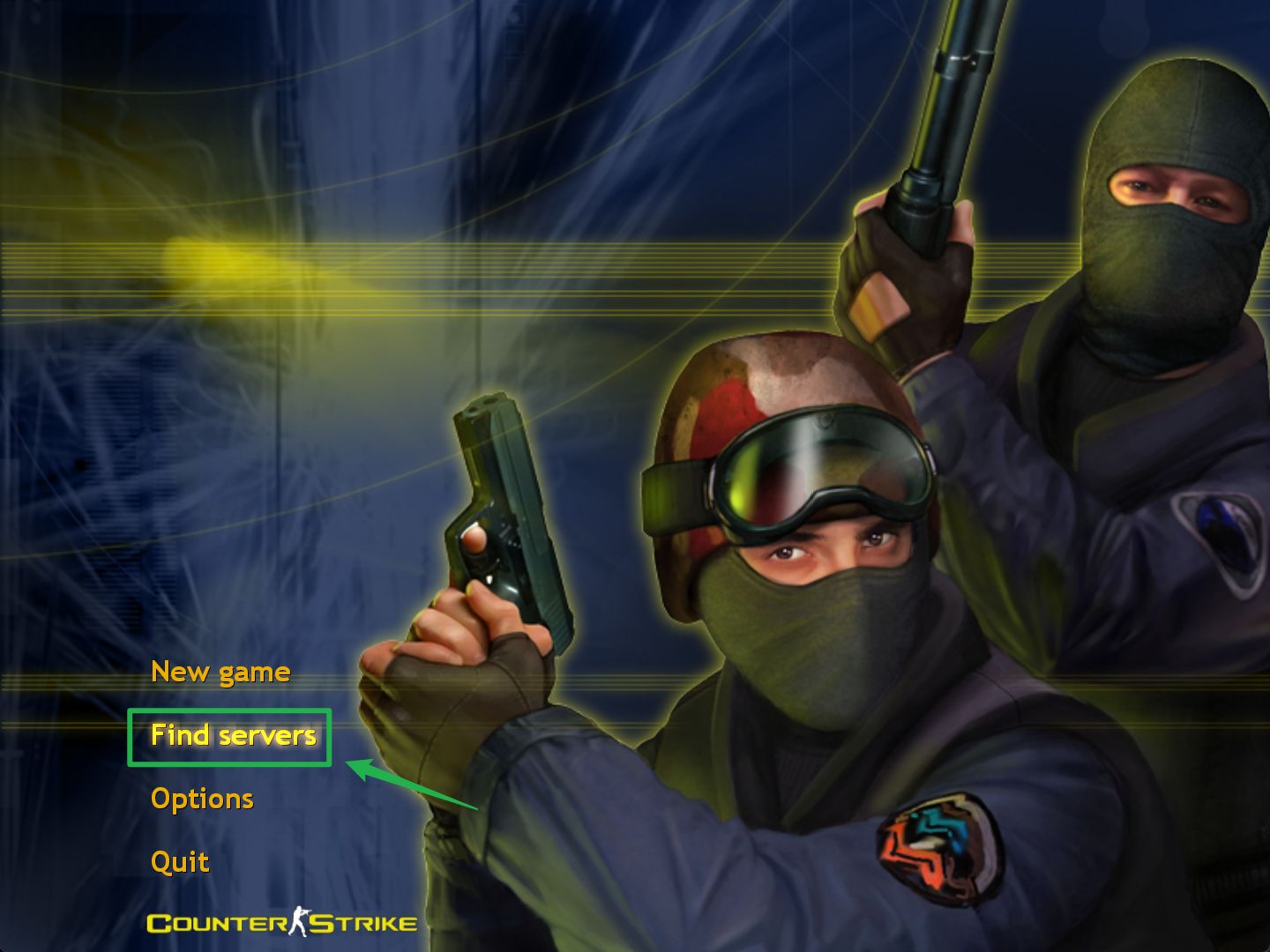
Starte das Spiel und klicke auf dem Hauptbildschirm auf die Option Server suchen.
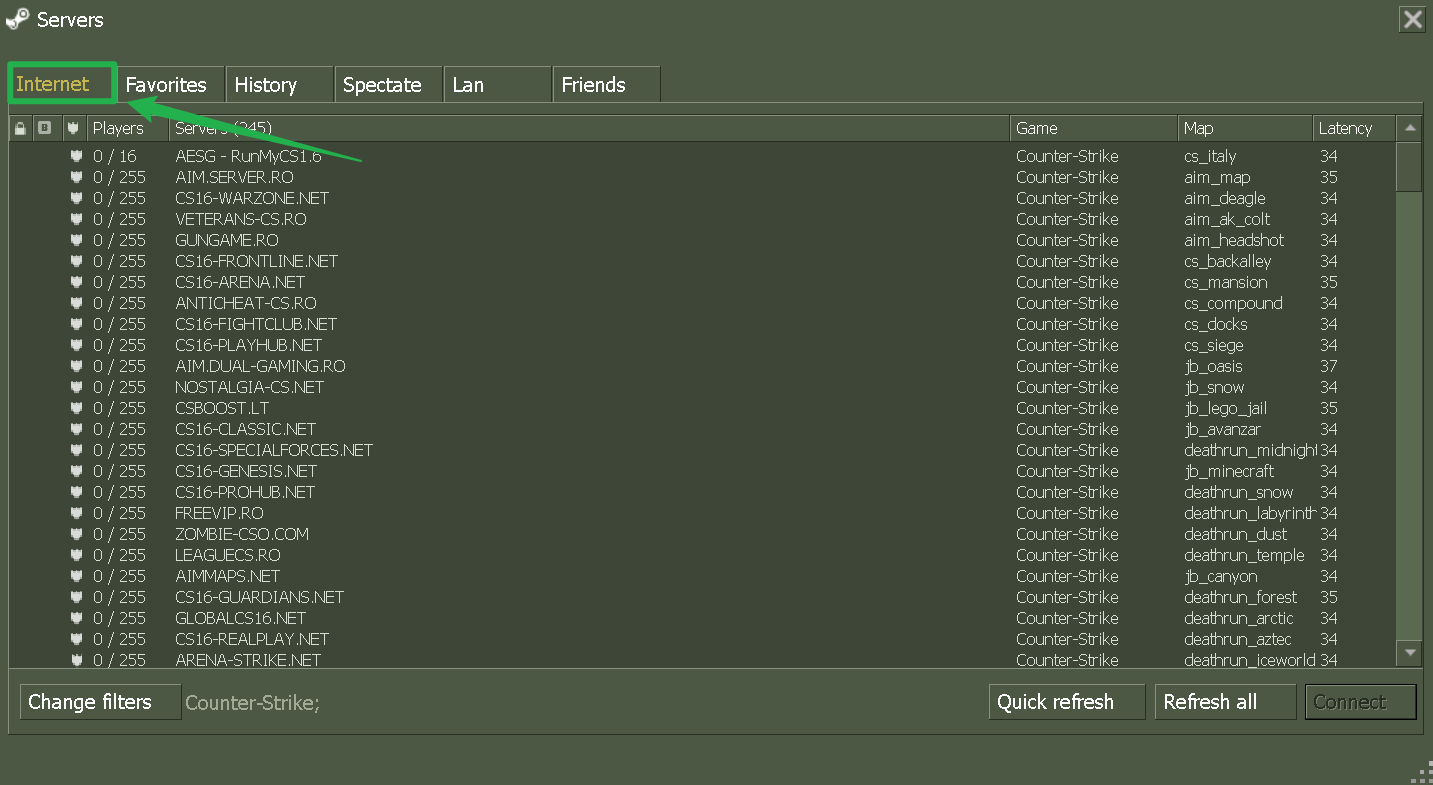
Klicke auf den Reiter Internet, um die öffentliche Community-Liste zu öffnen.
Da die Namensfilterung in der Master-Liste nicht immer perfekt aktualisiert wird, solltest du dir die Optionen unten ansehen und grobe Filtereinstellungen verwenden.
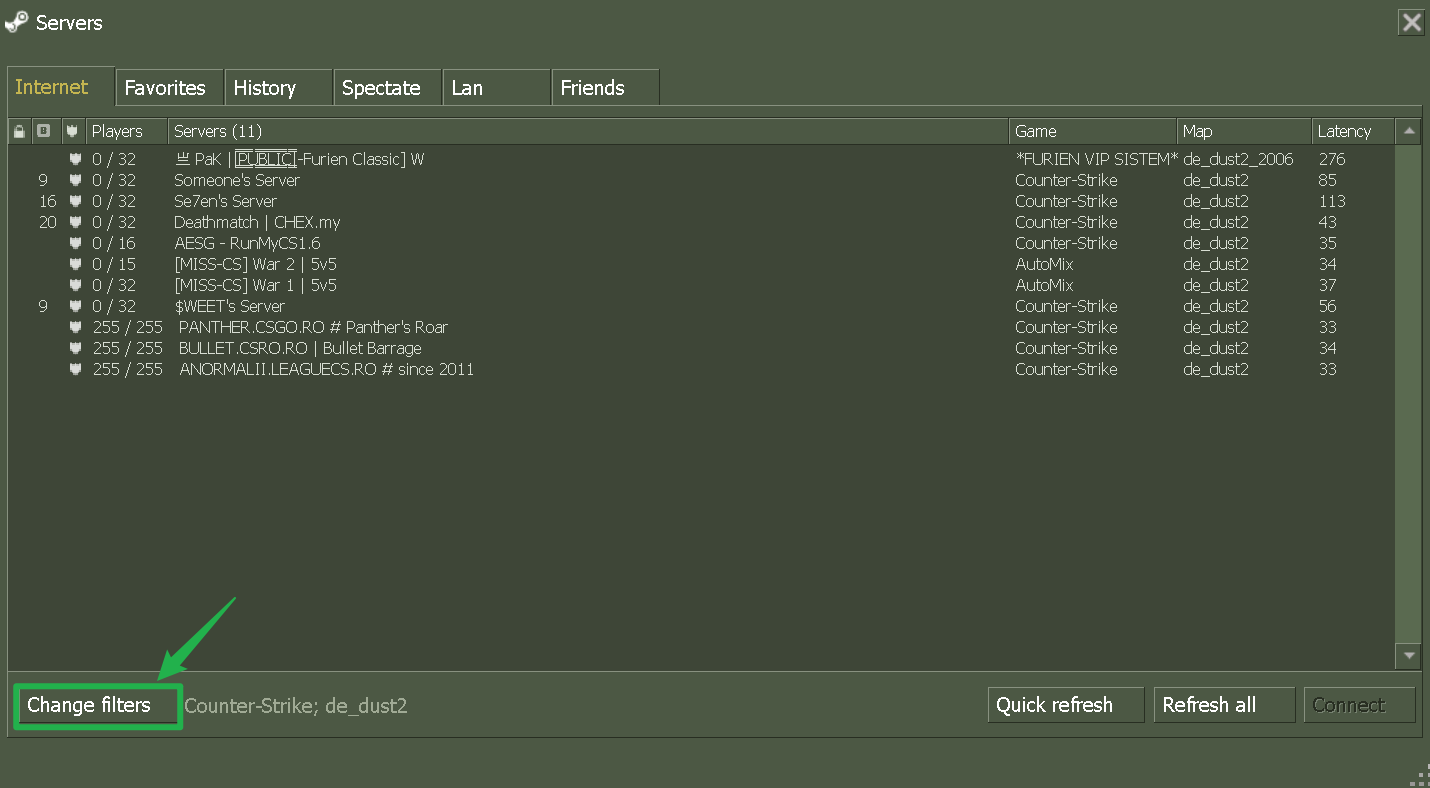
Setze deine Suchfilter auf niedrige Latenzwerte oder passe deine Anti-Cheat-Einstellungen an, um die Auswahl einzugrenzen.

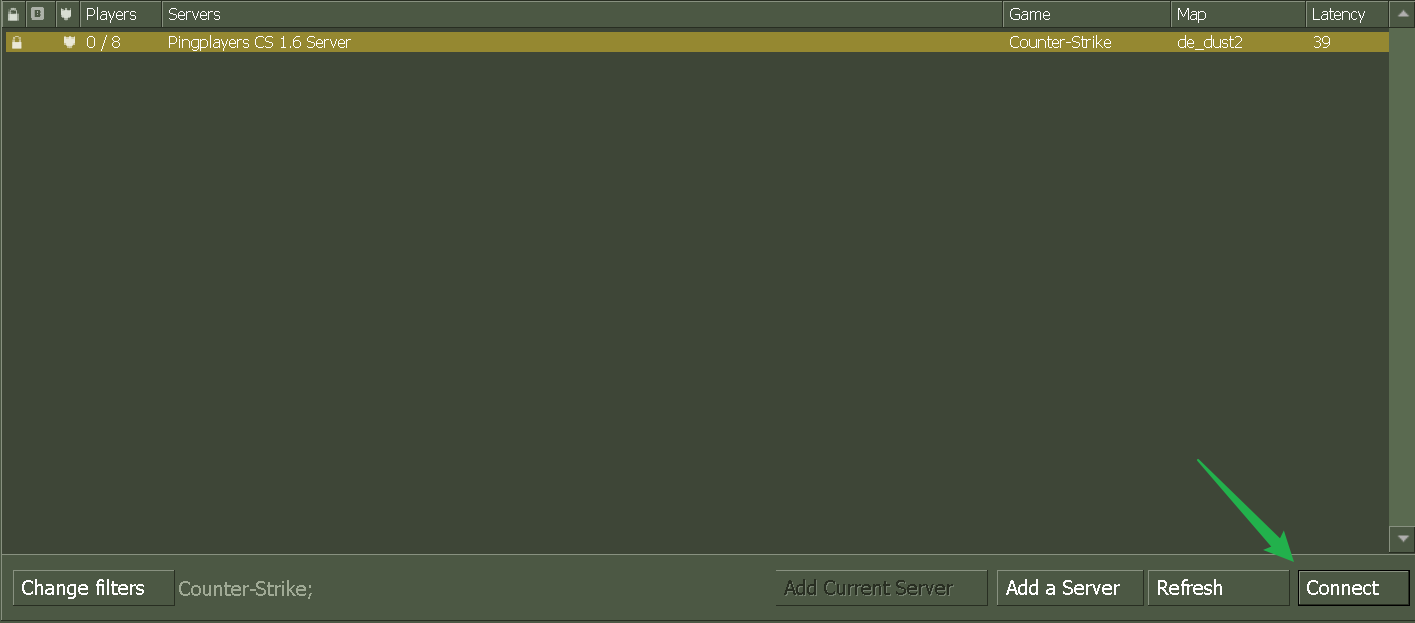
Scrolle durch die gefilterte Liste, klicke auf deinen Servernamen und wähle Verbinden.
Fehlerbehebung und Tipps
Wenn du oder deine Teammitglieder Probleme beim Laden der Map oder beim Herstellen einer stabilen Verbindung haben, helfen diese bewährten Lösungen:
Gib dem Server Zeit zum Starten: Überprüfe dein Dashboard im Webinterface, um sicherzustellen, dass die Statusanzeige auf Running steht. Wenn du gerade den Map-Pool aktualisiert oder einen schnellen Neustart durchgeführt hast, kann es ein bis zwei Minuten dauern, bis die Serverkonsole vollständig geladen ist und die Verbindung zulässt.
Keine Leerzeichen in der Befehlszeile: Achte bei der Methode über die Entwicklerkonsole darauf, dass keine versehentlichen Leerzeichen zwischen der IP, dem Doppelpunkt und dem Port stehen. Leerzeichen führen dazu, dass der Konsolenbefehl fehlschlägt.
Client- und Server-Versionen abgleichen: Counter-Strike erhält regelmäßig Sicherheits- und Community-Updates. Wenn dein Server im Backend ein automatisches Update erhalten hat, dein lokaler Steam-Client den Download im Hintergrund jedoch pausiert hat, erhältst du beim Verbindungsversuch eine Fehlermeldung wegen unterschiedlicher Versionen (Version Mismatch).
Aktive Filter zurücksetzen: Wenn du über den In-Game-Browser sucht, stelle sicher, dass keine widersprüchlichen Filter aktiv sind – wie das Ausblenden voller Server oder die Suche nach dem falschen Map-Präfix.
Fazit
Dein Server ist jetzt startklar und für deine Community voll erreichbar. Egal, ob du die Schnelligkeit der Entwicklerkonsole nutzt oder deinen Server für den täglichen Komfort in deinen Steam-Favoriten speicherst – du hast jetzt alle Tools, um dein Team zusammenzutrommeln. Besprecht eure Taktiken, wählt eure Seite und holt euch die Runde!
Falls du auf Probleme stößt oder weitere Fragen hast, kannst du dich jederzeit an unser Support-Team wenden!