How to Join on Your Team Fortress 2 Server
Join your custom Team Fortress 2 server using the developer console - type connect IP:Port and ask Ping AI for instant details and fixes.
Whether you are pushing the payload, rocket jumping across the map, or defending the intelligence room with a sentry nest, Team Fortress 2 is infinitely better when you play by your own rules. Hosting a dedicated server gives you complete control over map rotations, class limits, and custom game modes.
However, finding your brand new server in the massive public server browser can sometimes feel like searching for a cloaked Spy. Fortunately, TF2 runs on the Source engine, meaning you can use the built-in developer console to force a direct connection instantly. This guide will walk you through unlocking the console and joining your custom server in just a few simple steps.
Step-by-Step Guide on How to Connect
Connecting to your server directly via the developer console bypasses the public browser completely. Here is exactly how to open the console and load into your game:
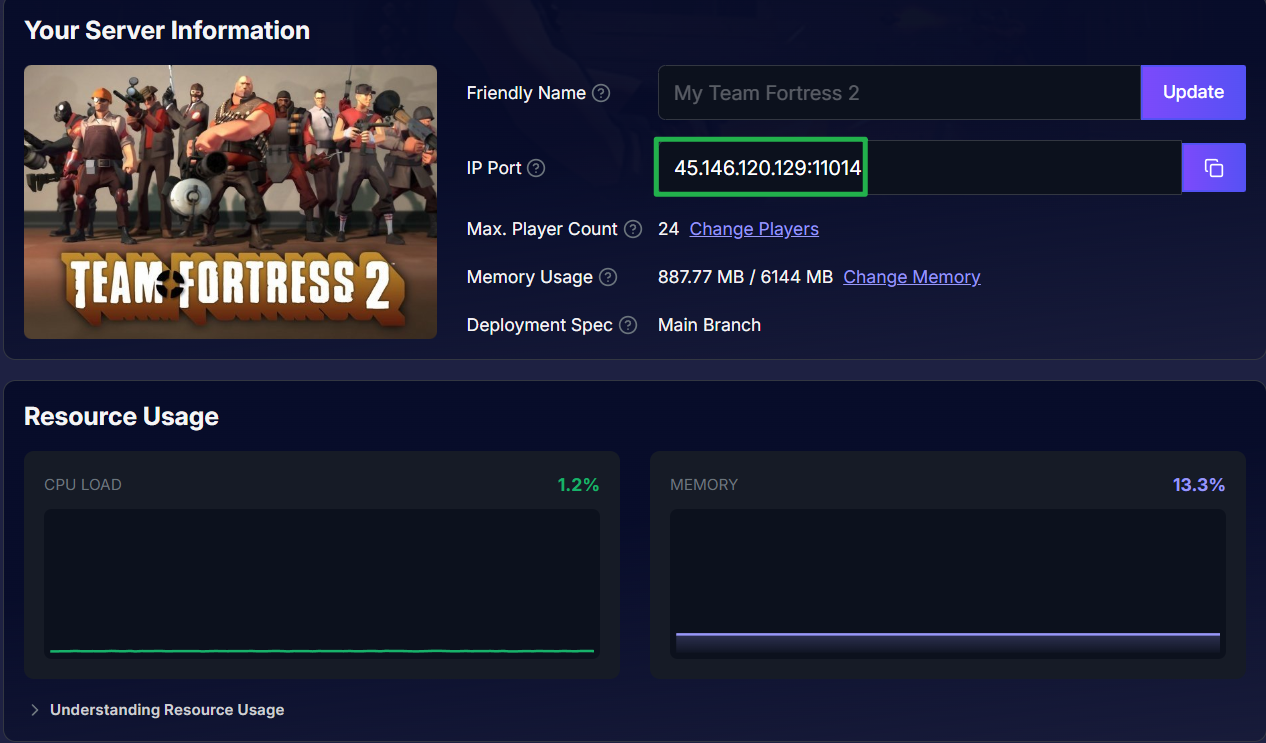
Log in to your server dashboard and locate your unique IP Address and Port number on the main page. If you want a quick shortcut, you can leverage Ping AI right from the panel dashboard. Just ask it for your server connection details, and Ping AI will pull your exact IP and port instantly!
Launch Team Fortress 2 through Steam and wait for the main menu to load. Then press the ~ (tilde) key on your keyboard (usually located directly under the Escape key). This will slide open the developer console window. If the console does not open automatically, you may need to quickly enable it by going to Options > Keyboard > Advanced and checking the Enable developer console box.
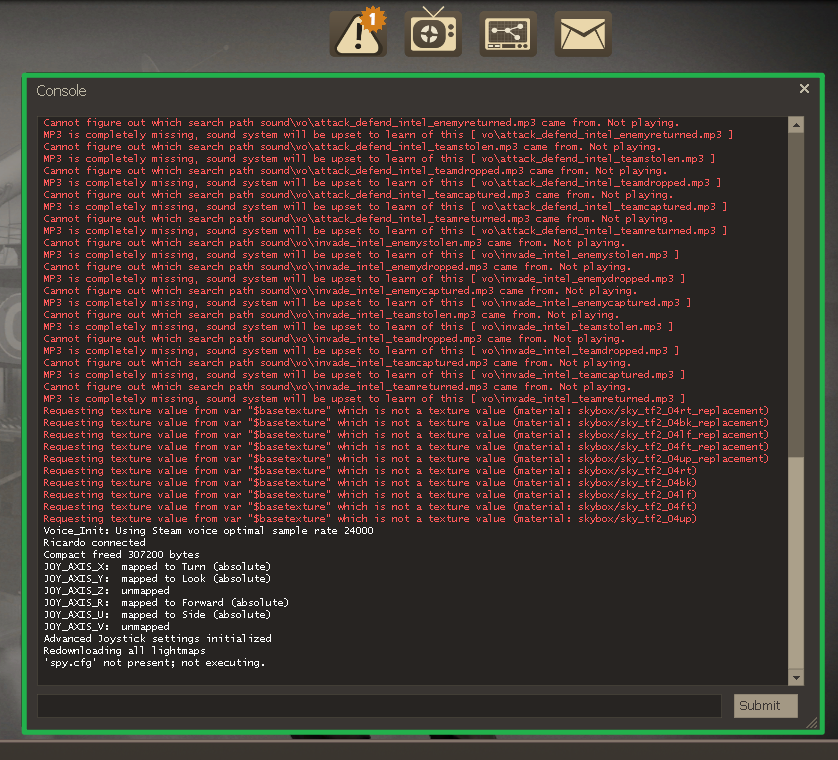
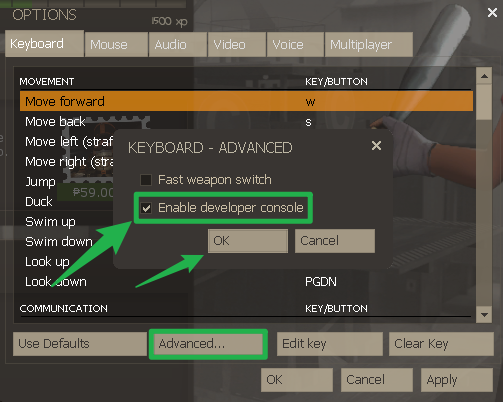
Developer Console must be enabled on the settings. Click inside the console text box, type
connect IP:Port(replacing the placeholder with your actual server digits, likeconnect 192.168.1.1:27015), and press Enter. Your game will immediately start loading into your custom multiplayer server!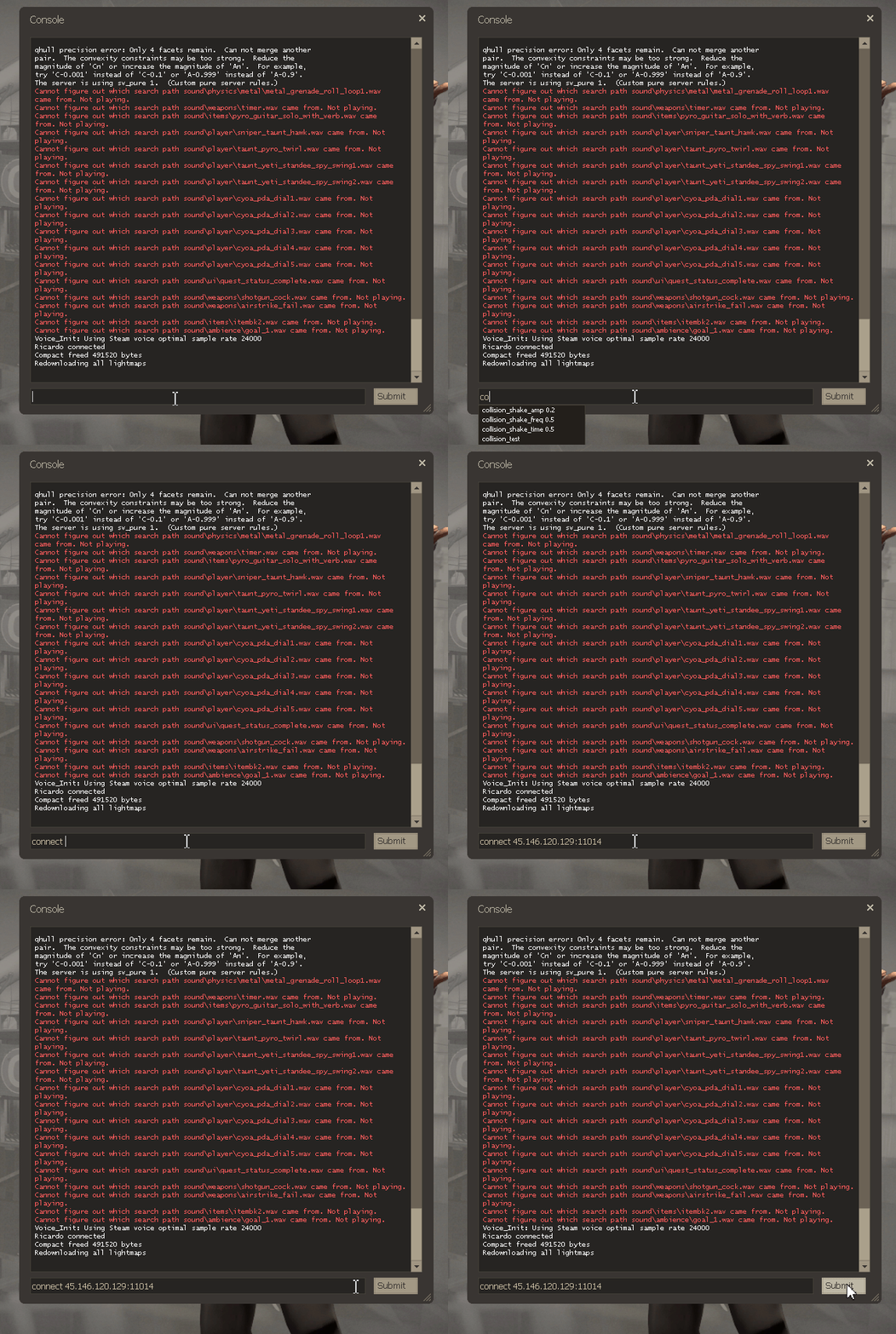
Joining a Password Protected Server: If you or your friends have set a password on your server to keep random players out, simply connecting with the IP will reject your connection. To join a locked server, you need to string the password command into the console at the same time. Type
connect IP:Port; password yourpasswordinto the console and press Enter.
Troubleshooting and Tips
If the console is acting up or your connection gets rejected, check out these quick pointers to get back into the fight:
- The Console Will Not Open: If pressing the tilde key does nothing, verify that you actually enabled it in your advanced keyboard options. Some non-English keyboard layouts do not have a standard tilde key. If this happens, check your Keyboard options, scroll down, and rebind the toggle console option to a different key like F10.
- Connection Failed Error: Head back to your Server Panel and ensure your game instance is displaying as Running. Your server must be fully booted up before anyone can join.
Instant Ping AI Fixes: If your server is running but connections are still failing, do not panic! Open your panel chat and ask Ping AI to read your latest console logs. The assistant will scan your files, find the exact error causing the connection issue, and tell you exactly how to fix it.
Conclusion
Getting your entire mercenary team into your Team Fortress 2 server is incredibly fast once the developer console is unlocked. By utilizing the built-in command tools and letting Ping AI handle your connection digits, you can skip the clunky server browser and focus entirely on capturing the intelligence!
If you encounter any issues or have further questions, feel free to contact our support team for assistance!