How to Enable Automatic Backups for Your Avorion Galaxy
Enable automatic Avorion backups: create a 'backups' folder in galaxy save, shut down, restart server, and follow tips for custom names.
Losing your hard-earned titanium dreadnoughts or your favorite mining sectors to a sudden crash is every captain's worst nightmare. Thankfully, Avorion has a built-in system that automatically creates emergency backup files to keep your universe safe. However, depending on how you set up your server, this feature might need a tiny bit of manual configuration to start working properly. This guide will show you exactly how to make sure your automatic backups are rolling!
Step-By-Step Guide
Securing your save data only takes a few moments. Follow these steps to ensure your universe is being backed up correctly:
Log into your server panel and navigate to Actions > Shutdown to safely turn off your server. Modifying server files while the engine is running can cause data corruption, so always make sure your game is offline!

Open the File Manager tab on the left navigation menu or connect via your preferred SFTP client.
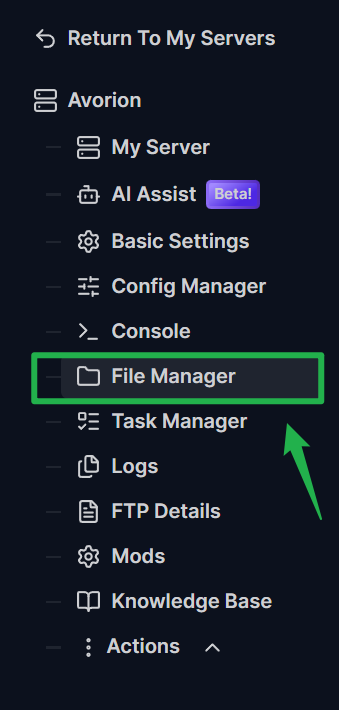
Navigate to your specific galaxy save by opening
Server, thenAvorion, and finally clicking on your active galaxy folder (for example,MyGalaxy).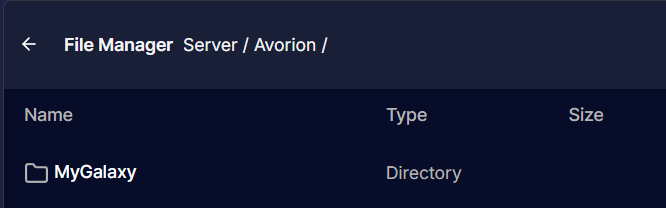
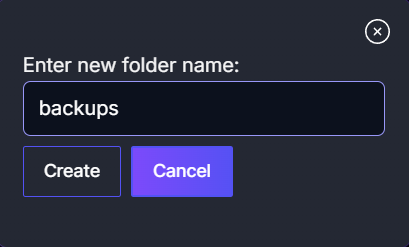
Once inside your active galaxy folder, click the button to create a new directory. Name this new folder exactly
backupsand save it. The file path should look like this:Server/Avorion/MyGalaxy/backups/.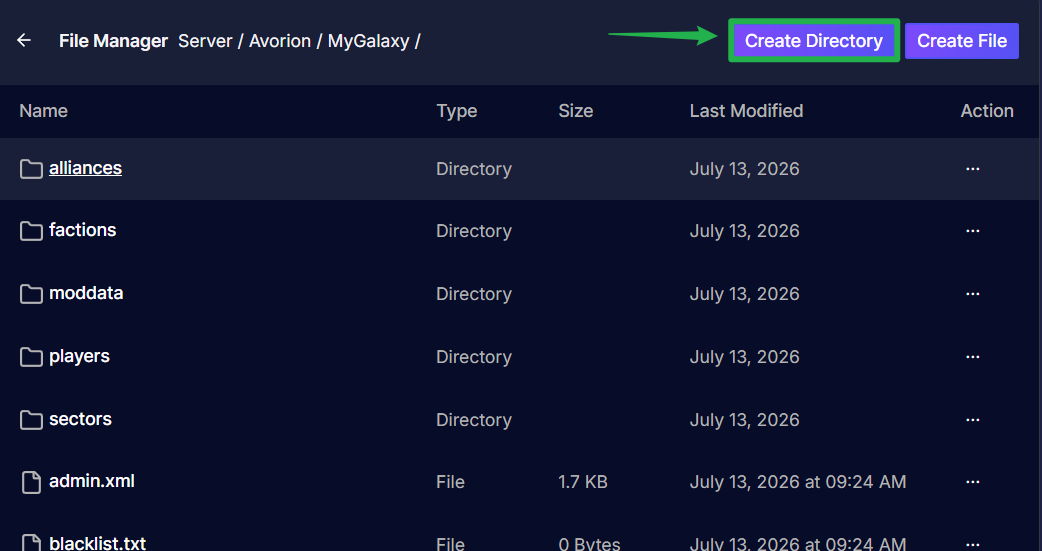
Navigate back to the Actions menu and click Restart to boot your server back up. The game will now automatically write emergency files to this new folder!
Troubleshooting and Tips
If you notice your server is not saving backup files to your dashboard, keep these details in mind:
- The Default Galaxy Exception: If you are running the standard, default galaxy name (
avorion_galaxy), you do not need to do any of this! The default world already includes thebackupsfolder right out of the box. - Custom Galaxy Names: If you changed your galaxy name in your basic settings to generate a fresh universe, the game does not automatically generate a
backupsfolder for it. You absolutely must create thebackupsfolder manually before expecting automatic backup files to appear. - Check Your Spelling: The folder must be named
backupsentirely in lowercase. If you misspell it or capitalize it, the server might not recognize it as the correct destination for your emergency saves.
Conclusion
Protecting your galactic empire only takes a few seconds of file management. By ensuring your save folder has a designated spot for emergency files, you can explore the outer rim and jump into massive faction wars with complete peace of mind. Get your fleet fueled up, double check your files, and get back to conquering the stars!
If you encounter any issues or have further questions, feel free to contact our support team for assistance!