
How to Join On Your Custom Avorion Server
Learn how to join your Avorion server via IP or server browser, set passwords, restart after changes, and troubleshoot connection issues.
Exploring a vast, procedurally generated galaxy and building massive block ships is always a better experience with a dedicated crew. Whether you are running a massive public PvP sector or a private cooperative universe, getting your friends connected to your Avorion server is incredibly simple.
Players have two main ways to connect to the server: searching for it in the in-game server browser or connecting directly using your server's IP address. Connecting directly is usually the fastest and most reliable method. This guide will walk you through exactly how to get your fleet online.
Step-By-Step Guide to Join
Getting into the game takes just a few clicks. Follow these steps to connect directly to your multiplayer universe:
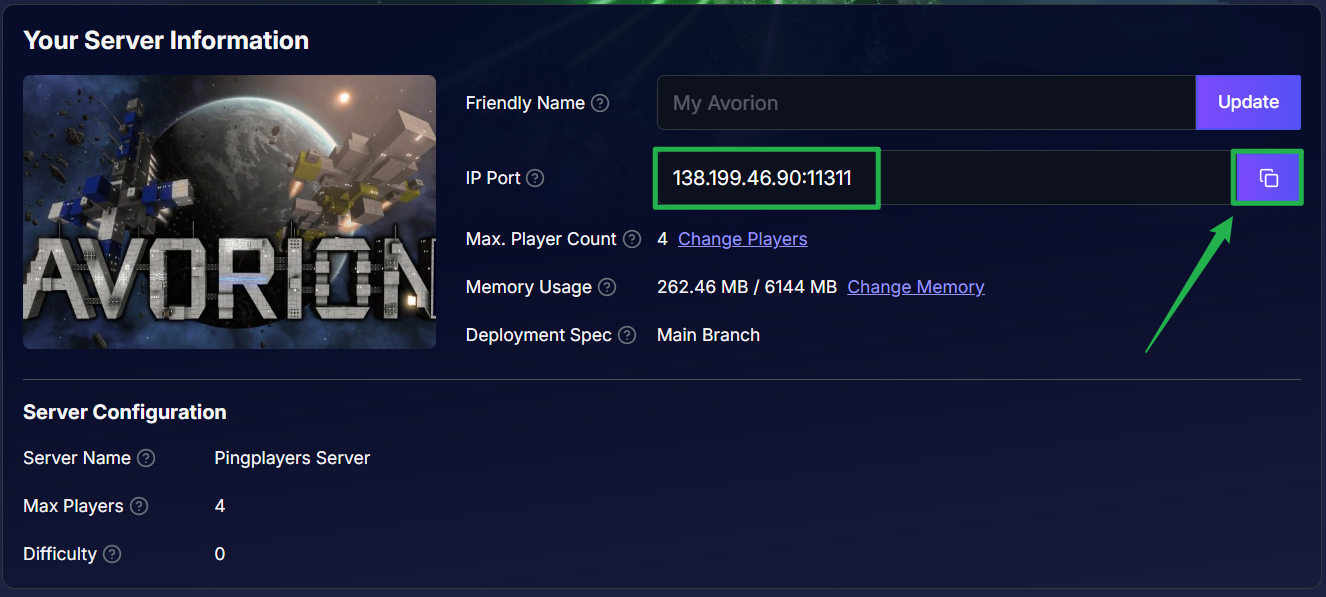
Log into your server panel and locate your server's IP address and port number on the main dashboard. Copy this information.
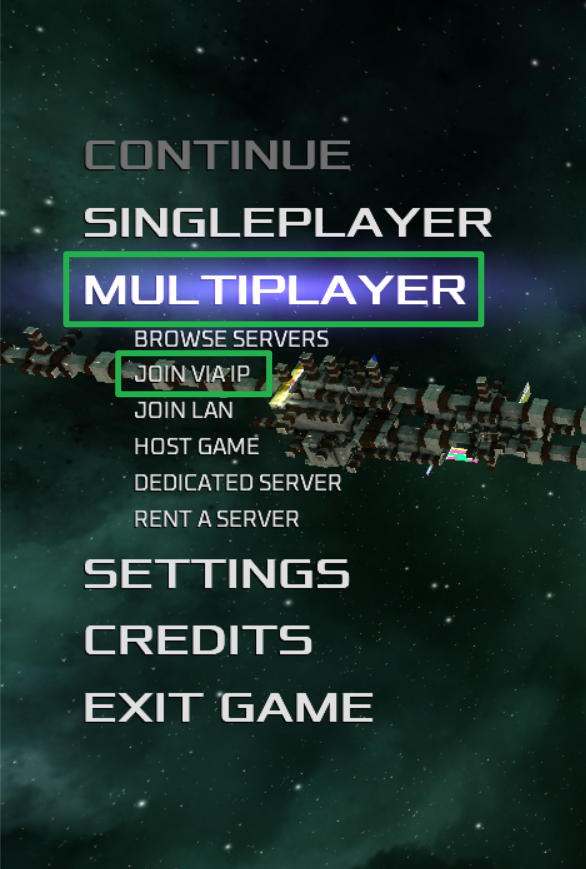
Launch Avorion from your Steam library and from the main menu, click on Multiplayer and then select Join via IP.
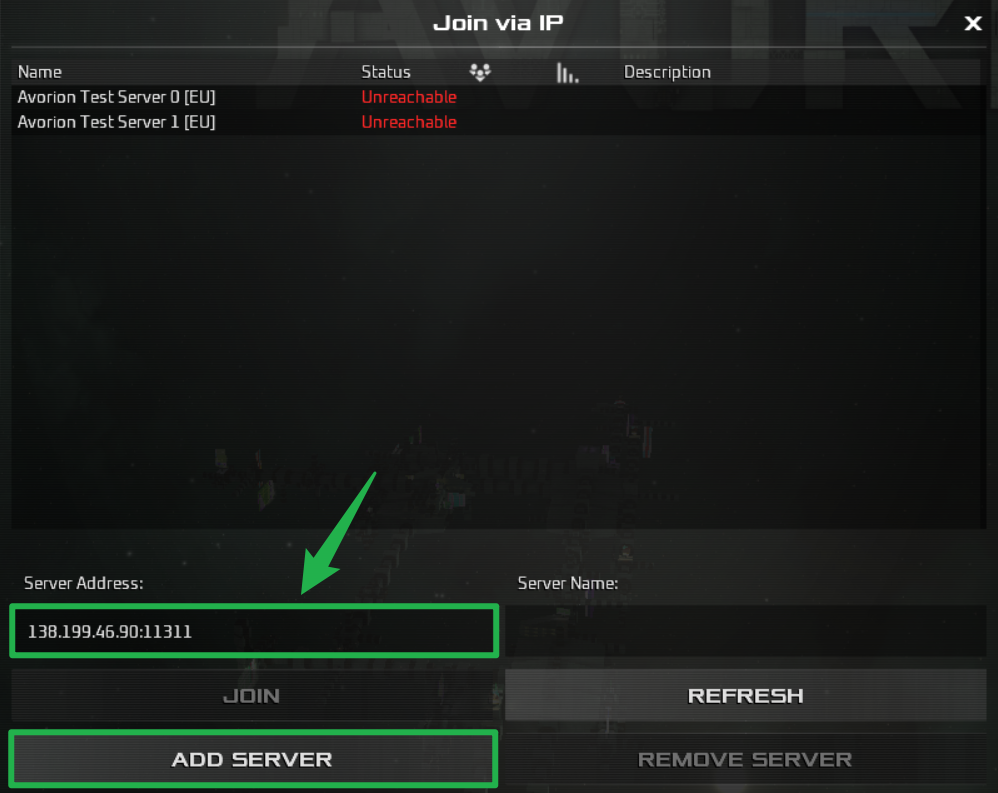
Paste your server IP and port into the address box and add a Server Name, then, click Add Server.
If your server is password-protected, a prompt will appear. Type in your password and hit enter to load into the galaxy!
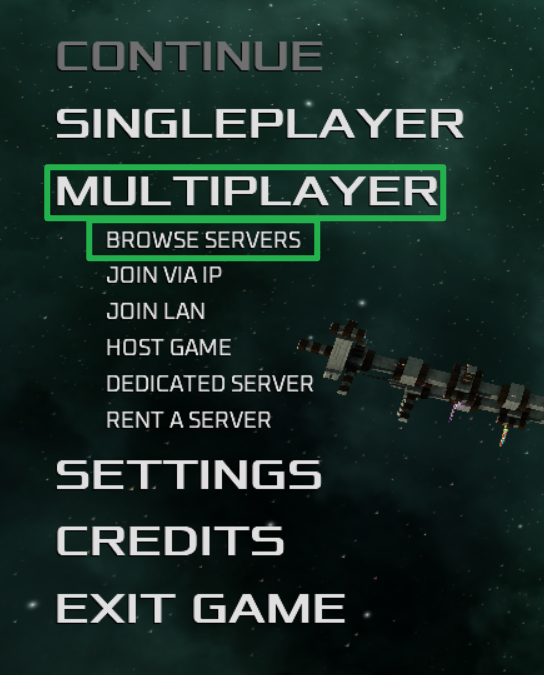
Using the Server Browser: Alternatively, you can click on Multiplayer and select Browse Servers. Simply type your server's display name into the search bar, click on your server when it appears on the list, and hit connect.
Troubleshooting and Tips
Sometimes space travel hits a few bumps. Keep these tips in mind if you or your friends are having trouble joining the server:
- How to Set a Password: Want to keep random players out of your sectors? You can easily set a server password through your panel's Basic Settings tab or by editing the
server.iniconfiguration template. - Always Restart After Changes: If you just added or changed your server password, the changes will not take effect immediately. You must navigate to Actions > Restart in your server panel to apply the new security settings.
- Connection Timed Out: If the server is not showing up in the browser or the direct IP connection fails, double check that your server is fully booted and marked as "Running" in your dashboard. Avorion can take a minute or two to generate the universe on startup.
Conclusion
Getting your crew together is the first step toward dominating the galactic core. Now that you know how to connect to your Avorion server and lock it down with a password, you can focus on mining resources, designing the ultimate dreadnought, and surviving the unknown!
If you encounter any issues or have further questions, feel free to contact our support team for assistance!