
How to Migrate and Backup Your Avorion Server
Step-by-step guide to backup, restore, and migrate your Avorion server: secure galaxy saves, copy configs, and reboot your instance safely.
Building massive fleets, securing rich resource sectors, and establishing a dominant galactic empire in Avorion takes a massive amount of time. The last thing any captain wants is to lose their progress due to a server crash or a messy host transfer. Whether you are moving an existing save from another host, uploading a local co-op universe, or just creating a routine backup to keep your block ships safe, managing your save files is crucial.
Our server panel makes handling your files a breeze. This guide will walk you through exactly how to back up, restore, and migrate your Avorion galaxy so you can jump back into hyperspace without missing a beat.
Creating a Manual Backup
Before making major changes or trying out risky new mods, it is highly recommended to back up your universe. Here is how to secure your files:
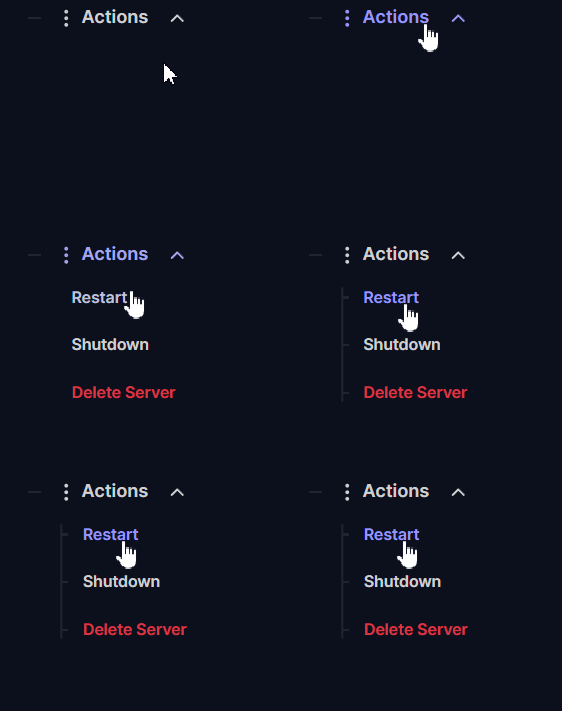
Navigate to the Actions menu and click Shutdown to safely turn off your server. Modifying or downloading files while the server is active can cause data corruption, so always make sure your server is offline!

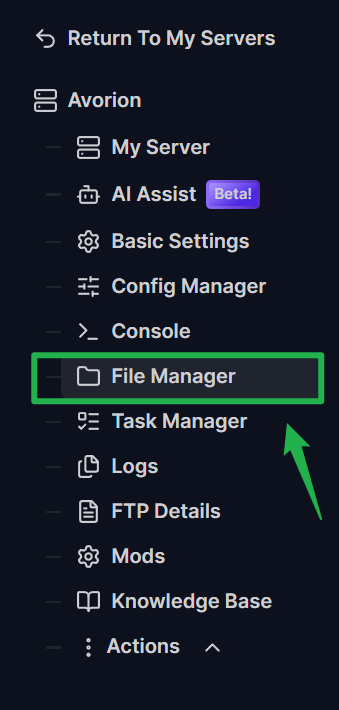
Open the File Manager tab on the left side menu or connect to your server using SFTP.
Navigate into the
Server/Avoriondirectory and locate your current galaxy folder.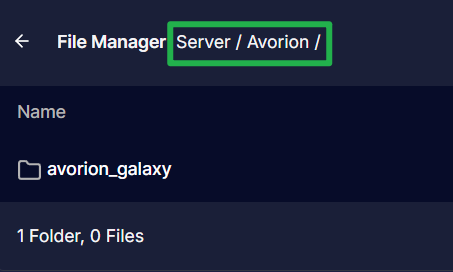
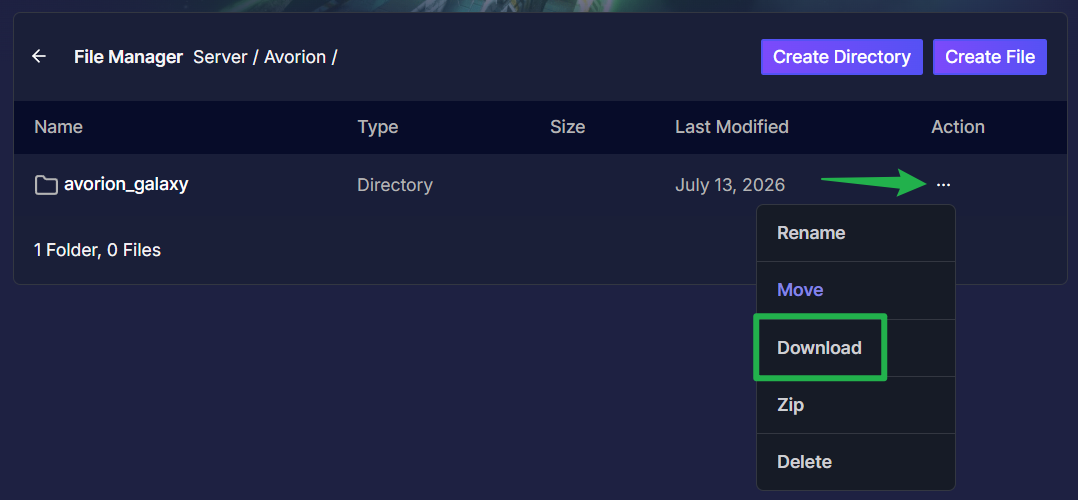
Download the entire folder to your local computer by clicking on the 3 dots on the right side, then press Download. This guarantees that all of your sectors, player data, and configuration files are perfectly preserved.
Migrating or Restoring a Galaxy
If you are moving over from a previous host or simply restoring a backup you made earlier, you just need to upload your files and tell the server where to look.
Make sure your server is completely offline by clicking Actions > Shutdown.

Open the File Manager (or your SFTP client) and navigate to the
Server/Avoriondirectory.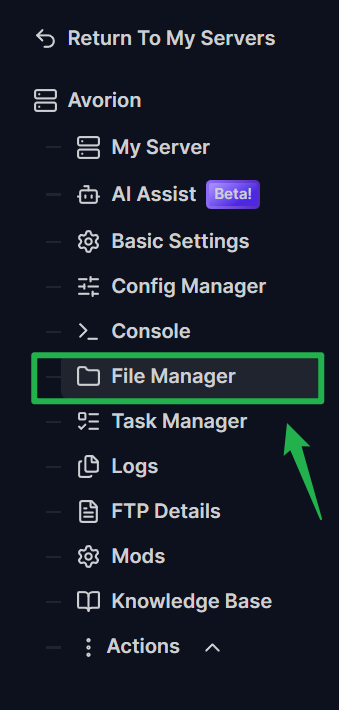
Upload your backed-up Galaxy folder into this directory by dragging and dropping on the upload bubble above the path.

If you are migrating a server from another host, you need to bring your configs over too. Copy your existing
modconfig.luafile into the newly uploaded galaxy folder. Then, copy the contents of your oldserver.inifile and paste them into the Config Manager template in your panel by clicking first on Create new config.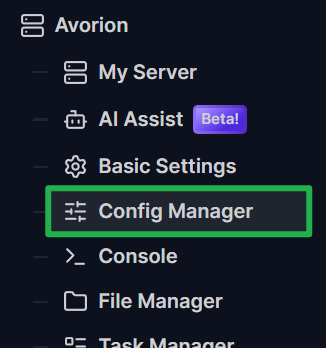

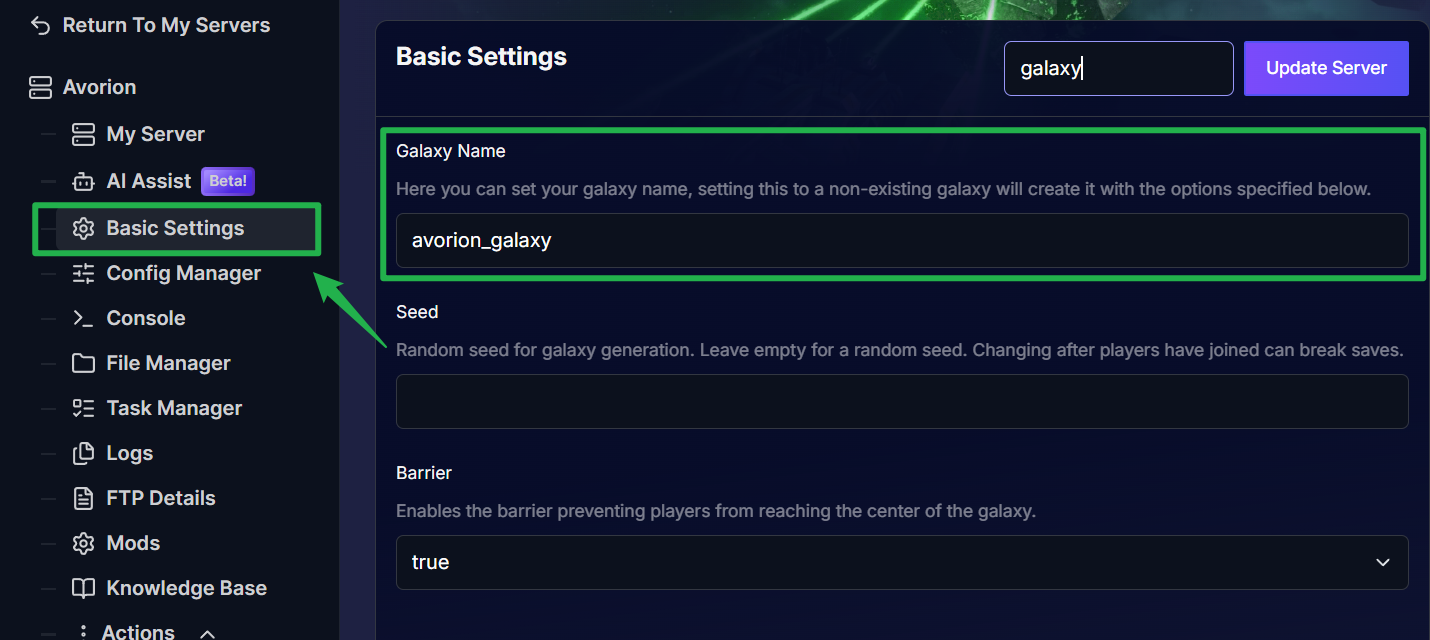
Open your Basic Settings tab. Find the Galaxy Name setting and change it to match the exact name of the folder you just uploaded.
- Navigate back to the Actions menu and click Restart to boot up the server. The engine will automatically detect and load your uploaded galaxy!
Troubleshooting and Tips
Navigating server files can sometimes feel as complex as building a titanium dreadnought. Keep these tips in mind to ensure your server boots up perfectly:
- Exact Name Matching: When restoring a backup or uploading an existing save, the folder name you place in
Server/Avorionmust match the Galaxy Name in your Basic Settings exactly. This setting is case sensitive, so double check your spelling if the server tries to load a blank universe. - Generating a Brand New Galaxy: Want a completely fresh start? You do not need to delete any files. Simply go to your Basic Settings and change the Galaxy Name to a title that does not already exist in your files. When you start the server, Avorion will automatically generate a brand new universe using that name.
Conclusion
Your galactic empire deserves a safe harbor. By utilizing the File Manager to pull routine backups and properly routing your configuration files, you can easily migrate your progress from any host or keep your hard earned sectors safe from unexpected disasters. Gather your crew, load up your turrets, and get ready to expand your territory!
If you encounter any issues or have further questions, feel free to contact our support team for assistance!