How to Update Mods Using the Mod Manager
Quickly update your game server mods with the built-in mod manager: shut down, update outdated mods, restart, and use troubleshooting tips.
Modding your game server is the absolute best way to keep your community engaged, but when developers release patches or creators tweak their files, your active mods can quickly become outdated. If you are running an older version of a mod, your server panel will automatically mark it as outdated. Managing these updates might sound intimidating if you have never hosted a server before, but it doesn't have to be a grind.
This guide will show you how to quickly update your mods using the built-in mod manager so you can get back to gaming without any corrupted saves or compatibility issues.
Step-By-Step Guide to Updating Your Mods
Keeping your server assets synchronized is incredibly straightforward. We have condensed the process into just a few simple clicks so you can pull the latest versions directly to your world.
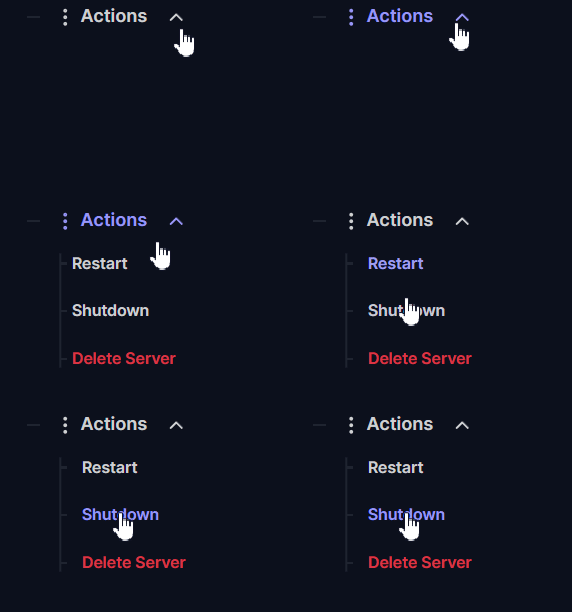
Navigate to your server panel, and click Actions > Shutdown to completely stop your server before modifying any files.
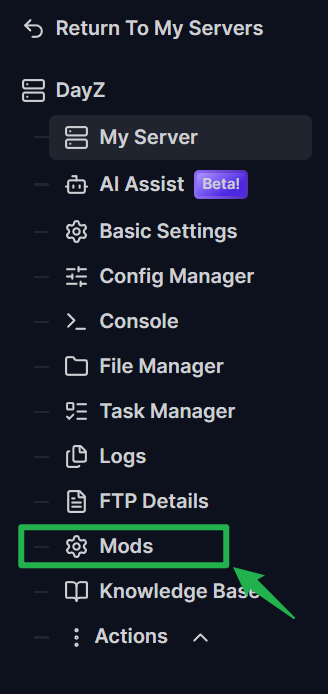
Navigate to the Mods menu on the left side and look for any installed content that the system has explicitly marked as outdated.
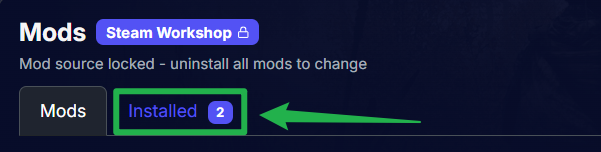
- Click the Update button next to the outdated mod to automatically pull the newest files. Once the download finishes, simply go back to the Actions menu and select Restart to bring your refreshed world back online!
Troubleshooting and Tips
If you or your community members run into issues loading into the server lobby after an update, check out these common troubleshooting steps:
- Verify Mod Dependencies: Some heavy total conversion modpacks require separate compatibility patches to function. If a core file updates, double-check the workshop page to ensure you do not need to update secondary dependent mods as well.
- Clear Client-Side Cache: If your server console shows that everything is running perfectly but your local game client throws a mismatch error, you might need to unsubscribe and resubscribe to the mod on your personal computer to force a clean local download.
- Watch Out for File Sizes: Massive asset overhauls can take a moment to completely overwrite old data on the server file system. Give the console stream a minute to fully finish processing the download before attempting to boot up the map.
Conclusion
Keeping your game server healthy and updated ensures your community can enjoy a smooth, lag-free experience. By leveraging the automated mod manager tools on your panel, you can skip the technical headache of manually wiping and replacing raw folder directories via FTP. Take control of your updates, keep those files current, and enjoy your customized world!
If you encounter any issues or have further questions, feel free to contact our support team for assistance!