How to Change Maps and Map Cycles on Your Left 4 Dead Server
Learn how to change maps and set map cycles on your Left 4 Dead server with console commands or by editing mapcycle.txt - beginner-friendly
Welcome to the zombie apocalypse of Left 4 Dead! Whether you are hosting a competitive Versus tournament or just trying to survive a co-op campaign with your friends, playing the exact same maps repeatedly can get old fast. Fortunately, rotating your L4D maps is incredibly simple.
This guide will show you two easy ways to swap maps on your server. You can either force an immediate map change or set up an automated cycle rotation so the Director knows exactly where to send your survivors next. The steps below are written for absolute beginners, so no previous server experience is required.
Step-by-Step Guide on How to Change Maps and Map Cycles
Depending on whether you want to instantly teleport your players to a new area or just set up an automated playlist, you can choose either of the two methods below.
Method 1: Change a Map Directly From the Server Console
The absolute quickest way to change a map right away is to use the server console inside your server panel.
Look at the left side of your server panel and click on the Console option.
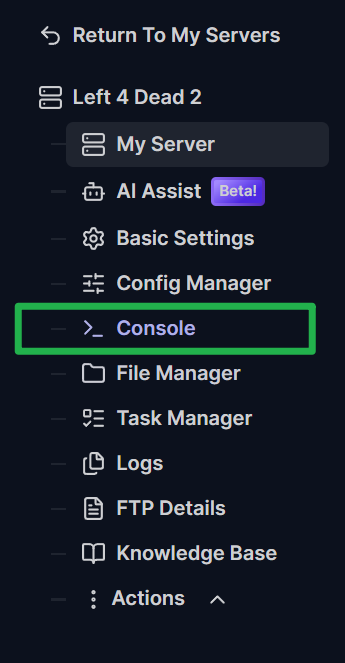
In this window, you can enter server commands. To change the map, type
changelevel MAPNAME(for example,changelevel c1m1_hotel) and hit enter. This command switches the level while keeping all players inside the server lobby.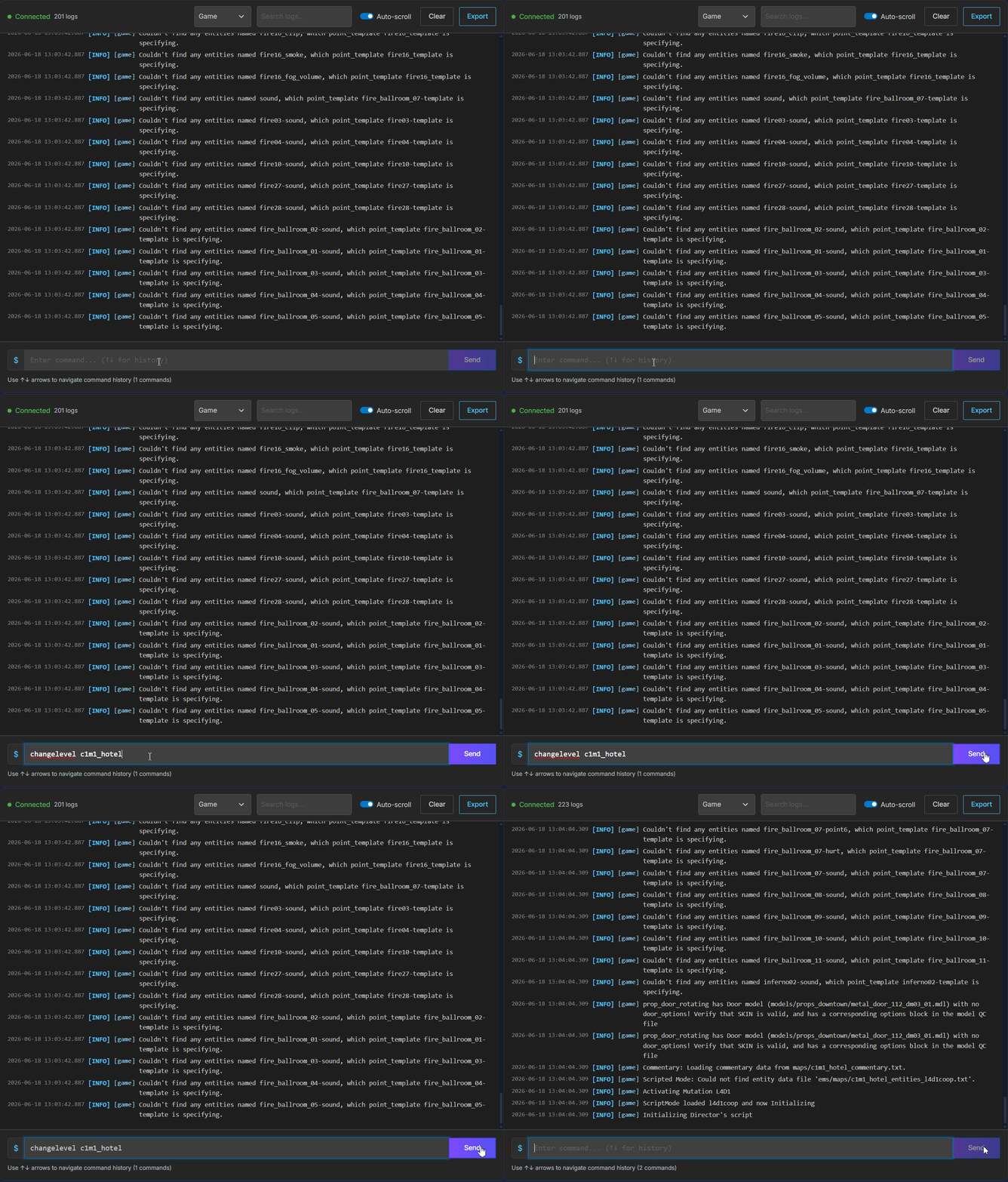
Enter the changelevel command in the server console to load a new campaign.
Alternatively, you can type
map MAPNAME. If you use the standard map command, be aware that all players will be kicked out to the main menu and will have to reconnect to the server.
Method 2: Change Your Map Cycle
If you want the server to automatically move through a specific list of campaigns, you can edit the mapcycle.txt file. This is the file the server reads when the current map ends.
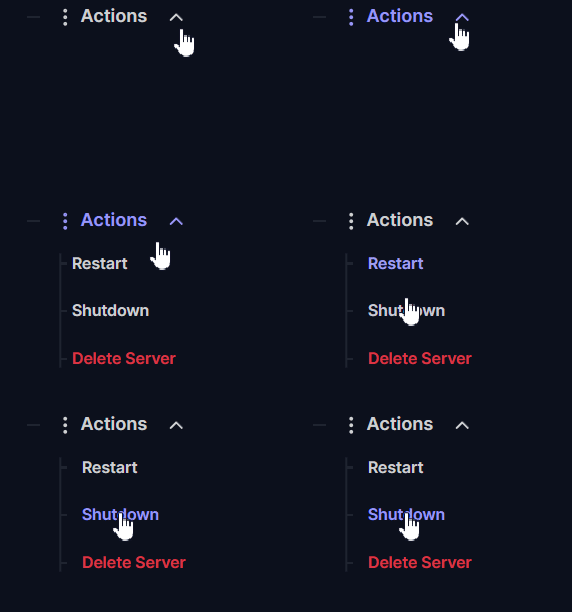
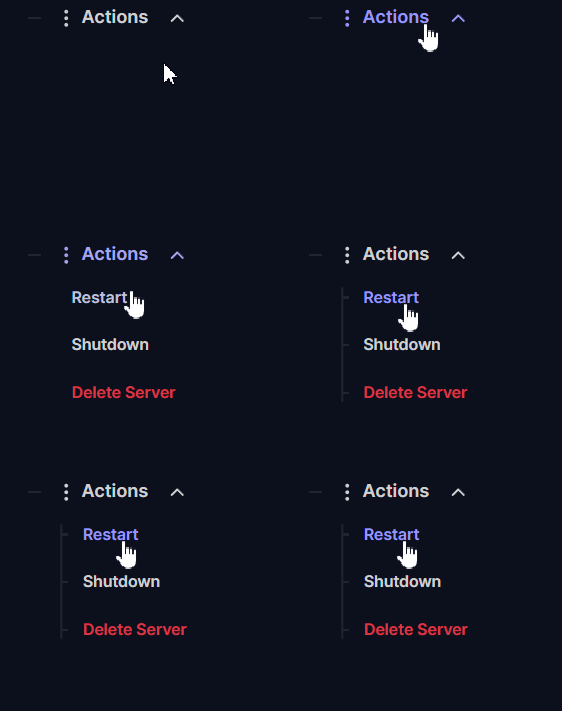
Go to your server dashboard and click Actions > Shutdown to completely stop your server before modifying any files.
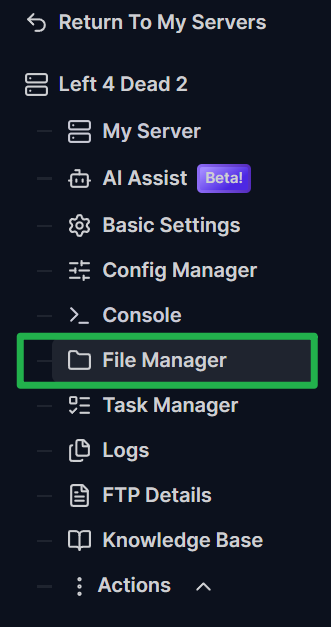
Find the File Manager option on the left panel inside your server configuration dashboard.
Navigate to
Server/left4dead2/mapcycle.txt(orServer/left4dead/mapcycle.txtdepending on your specific game version) and click to edit the file.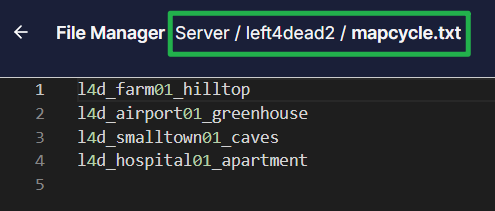
Inside this file, you will see the maps the server currently uses. List your desired maps in here, making sure each line contains a valid map name and there are no extra spaces or special characters. (Note: If you do not know the exact map names, go to the maps folder at
Server/left4dead2/maps/to check).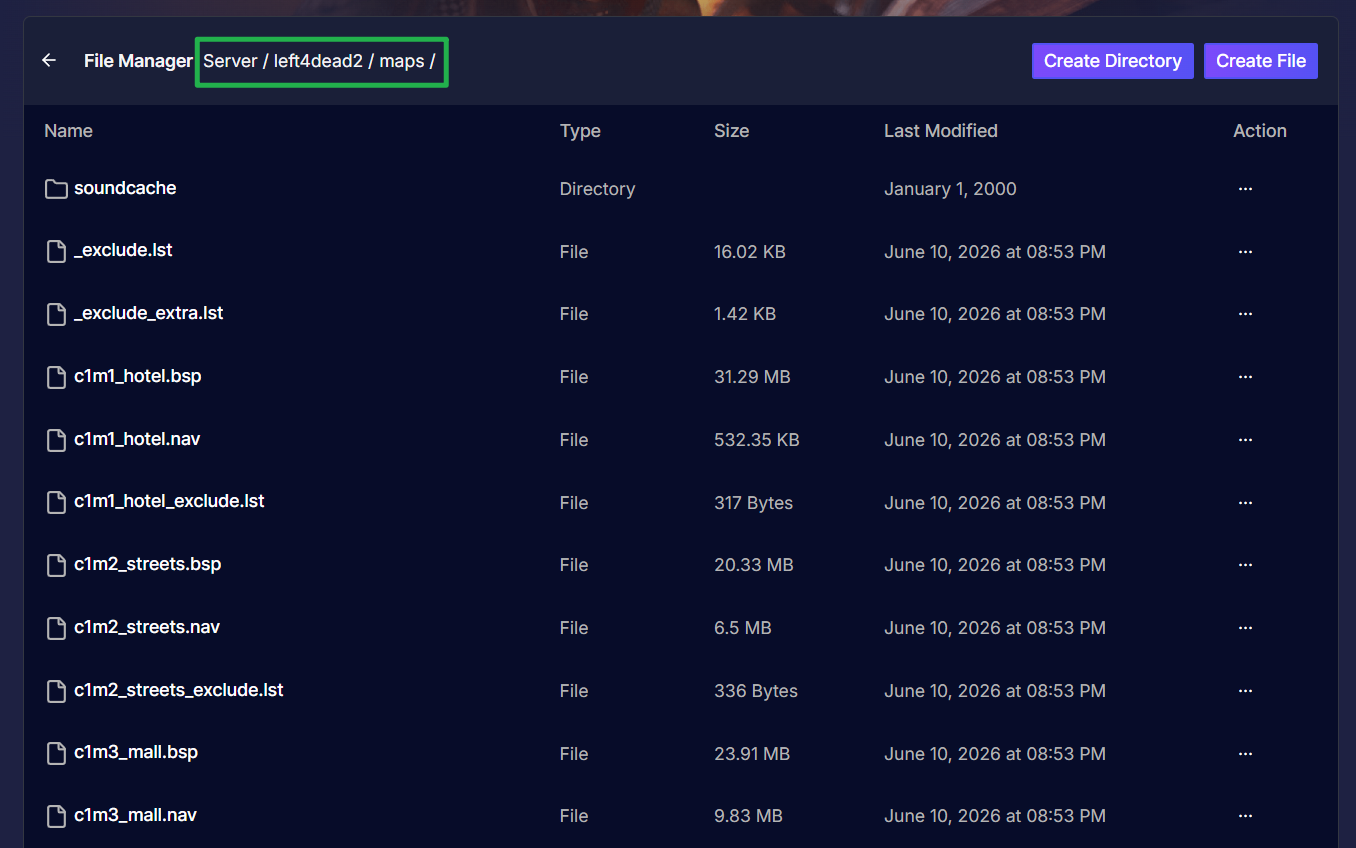
Save your changes on the map cycle by clicking on Save File on the bottom left part.

To immediately use the new map pool, you can either wait until the current map completes, force a map change from the Console to the first map in your list, or simply restart the server from Actions > Restart Server.
Troubleshooting and Tips
If your lobby refuses to load the next campaign, keep these helpful troubleshooting tips in mind:
Wrong Command Used: Make sure you use
maporchangelevelwithout a forward slash (/) in front of it, otherwise the console will not recognize the command.Map Cycle Changes Are Not Loading: Make sure you actually clicked save on the edited file in the File Manager panel. The server usually reads the map cycle at the end of a map; to apply it immediately, restart the server.
Missing Map Files: If you are trying to run custom workshop campaigns, confirm the custom
.bspmap files actually exist in the server's maps folder and the name is spelled correctly. Use exact map filenames, as they are case sensitive!Always Backup: Always keep a backup copy of your original
mapcycle.txton your computer before editing so you can easily restore it if something goes wrong.
Conclusion
Setting up your Left 4 Dead map rotation is the best way to keep your survival squad on their toes. Whether you are manually swapping to a final map via the console or letting the automated cycle guide your campaign, you are in full control of the horde. Grab your weapons, watch out for Hunters, and get to the safe room!
If you encounter any issues or have further questions, feel free to contact our support team for assistance!