How To Add Mods to Your Left 4 Dead 2 Server
Step-by-step guide to install MetaMod and SourceMod on your Left 4 Dead 2 server with PingPlayers. Add plugins, mods and verify setup.
Welcome! If you rented a Left 4 Dead 2 server from PingPlayers, this guide will walk you through adding MetaMod and SourceMod so you can run plugins and customize your server. This is mostly important if you'd like to get admin status or privileges in-game.
Make sure to always stop the server in your panel before making file changes.
We’ll keep things simple and use plain steps. Even if you’re not technical, you’ll be able to follow along.
How to add MetaMod and SourceMod to your Left 4 Dead 2 server
To add mods into the server, we need 2 different tools called Metamod and Sourcemod. They work together so both of them are required to be installed.
- Download both tools:
From their website, download the Linux version.- MetaMod website: https://www.sourcemm.net/
SourceMod website: https://www.sourcemod.net/
Combine both downloaded folders:
Now that we have both tools downloaded, we need to combine their content in a singular folder for them to share the same information. Create a new folder in your PC and extract the downloaded MetaMod and SourceMod ZIPs into that new folder so you have an addons folder and a cfg folder inside.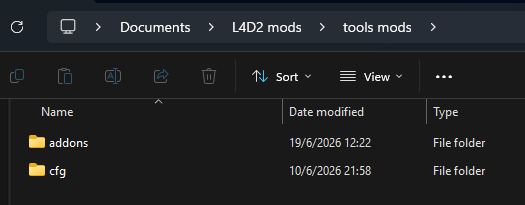
- Replace the metamod file:
In the extracted addons folder, delete the existingmetamod.vdffile. We'll create a new one to replace it.
Generate a new Metamod file:
Go to the MetaMod "Make a VDF File" page here. From the dropdown select Left 4 Dead 2 and click the button to generate a newmetamod.vdf.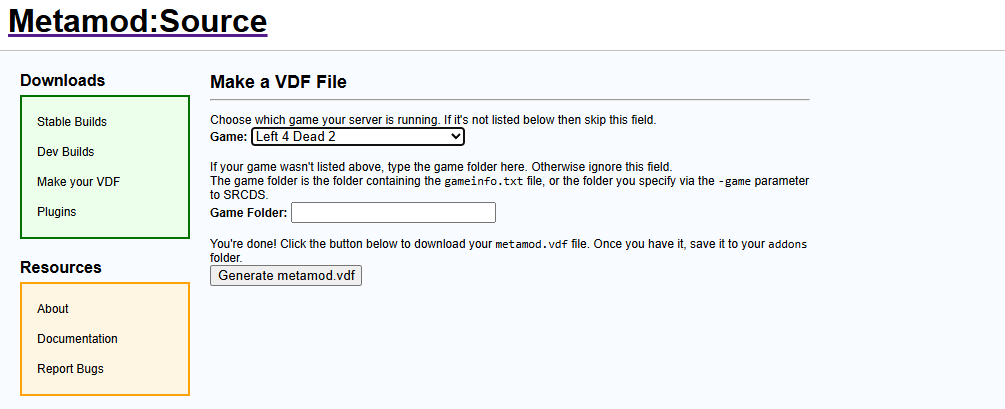
Once created, place the newly generated
metamod.vdfinto the addons folder, replacing the one you deleted.
Compress the folder:
Select both the addons and cfg folders in your new desktop folder, right-click and choose "Compress to" create a ZIP. You can set any name for this folder.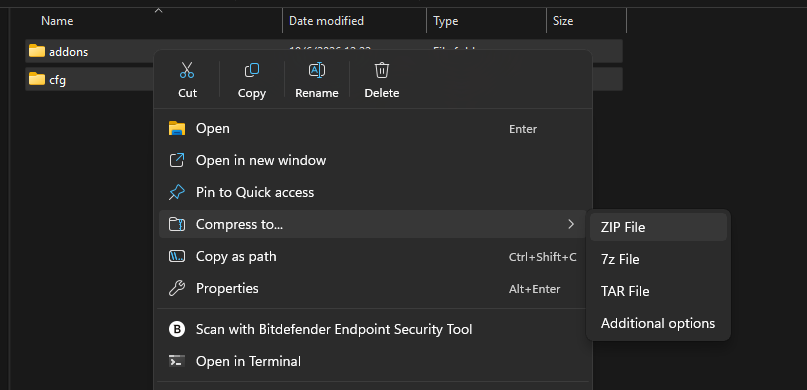
Shut down the server:
Open your server's configuration panel in our website at My Servers > Manage Server. Once here, click on Actions > Shut Down.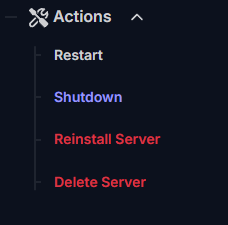
Locate the server files:
Click on the File Manager option on the left panel to access the server files. In here locate theleft4dead2folder, which will have the server's addons and cfg folders.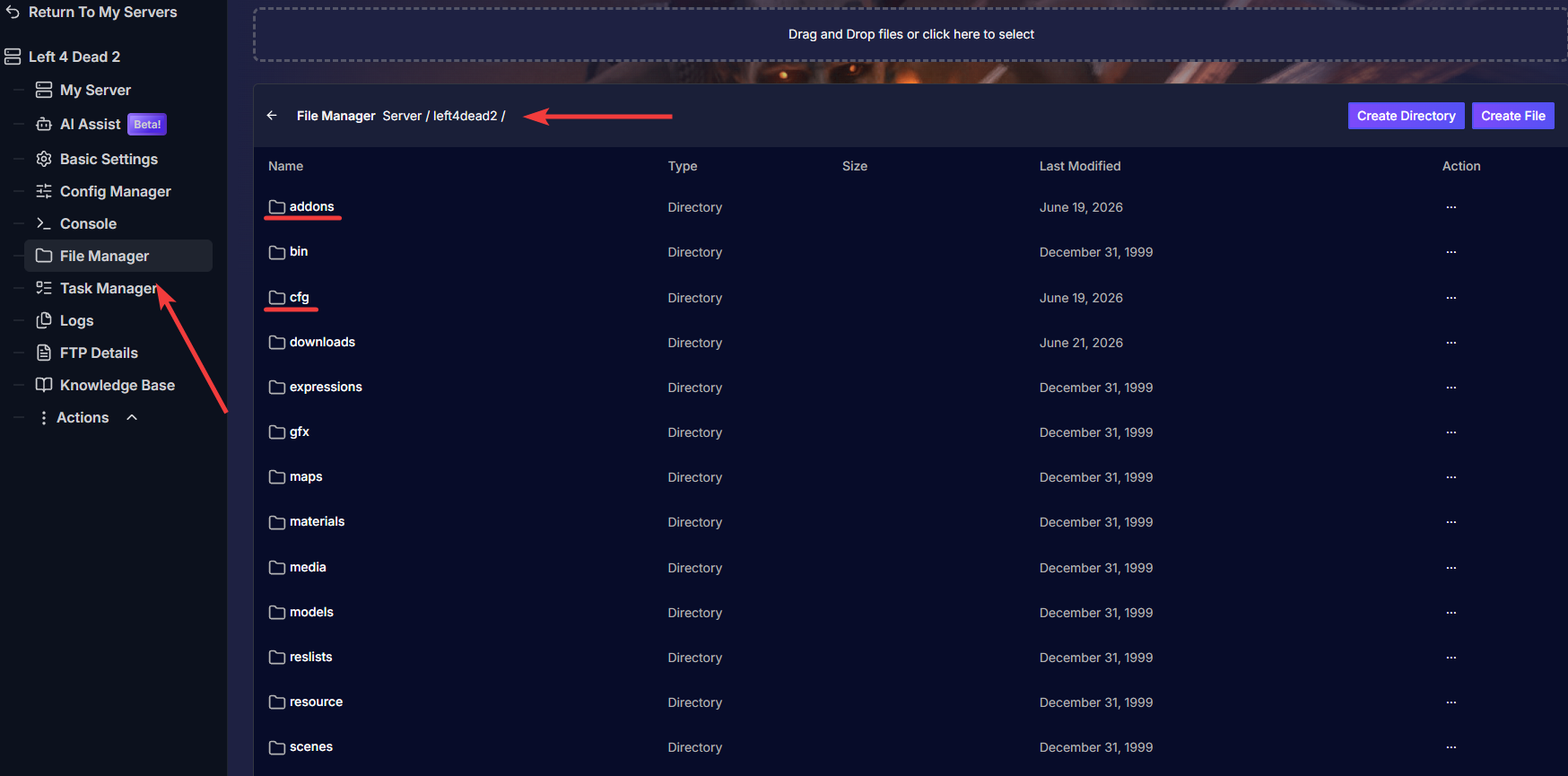
Upload the zipped folder:
Upload the ZIP folder you created into the server'sleft4dead2folder. Once uploaded, click on the 3 dots on the right side to unzip it.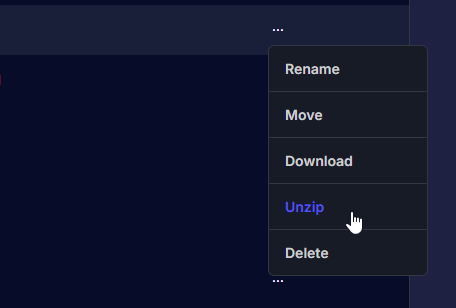
By unzipping the files in this particular location, the server will combine both addons and cfg folders, to contain the old and new files.Restart the server:
Make sure to check if the files were extracted correctly by opening the addons and cfg folders, which should now have the metamod and sourcemod folders inside.
Restart the server by clicking on the Actions option on the side panel.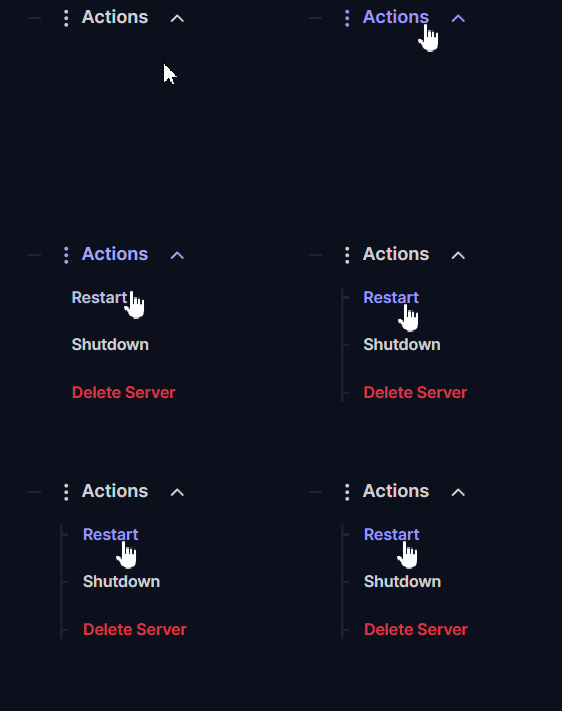
Verify installation:
If everything was set properly, you should have both tools installed inside the server. To check this, click on the Console option on the left side to open the server's live console.In here make sure you're under the Game panel (top right option) and type the following command:
meta– this check if metamod is running
sm version– this checks if sourcemod is running
If both commands return version info, installation succeeded.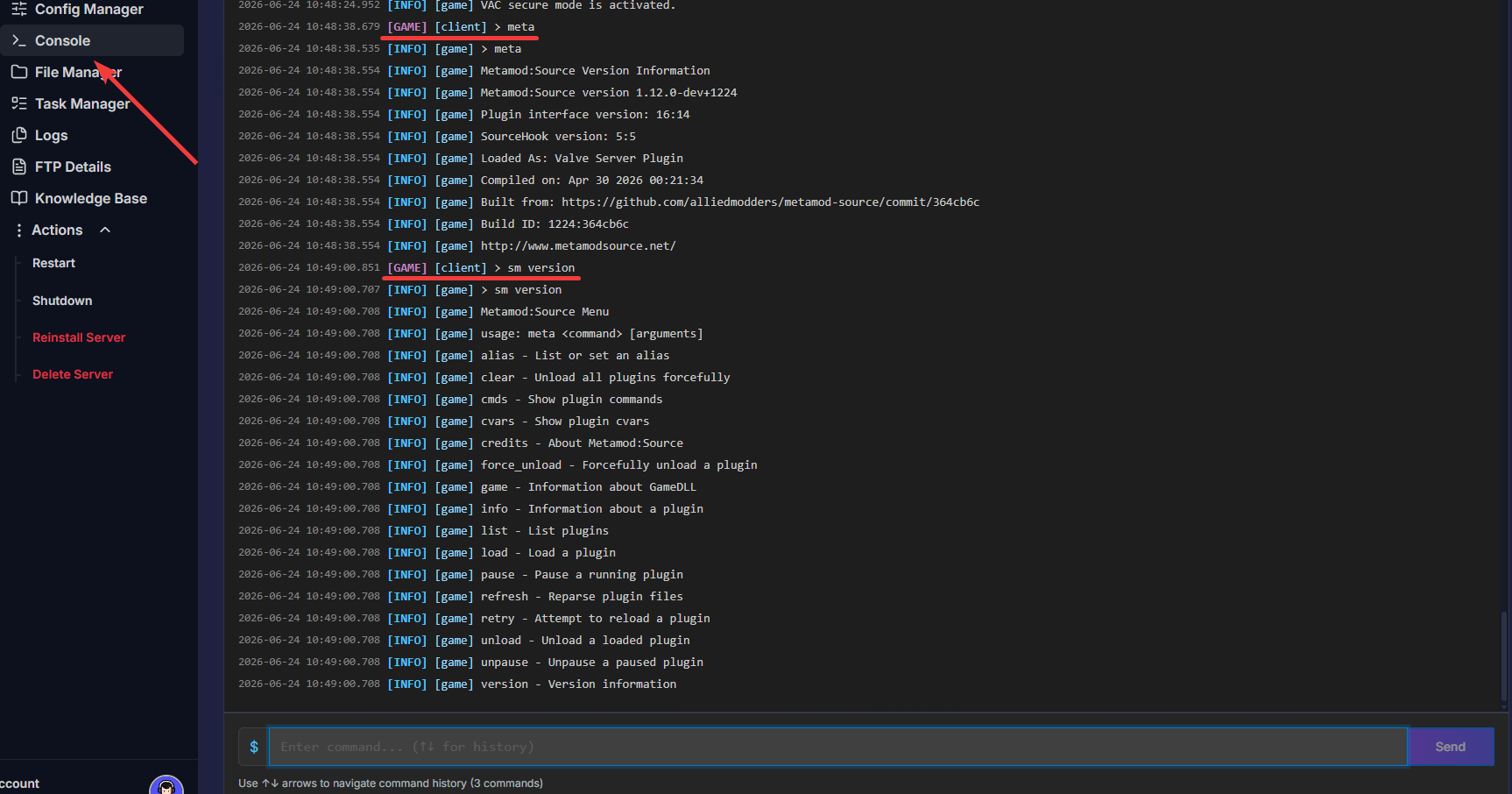
That's it, now you can run custom mods and plugins if needed!
Side note:
If you'd like to install mods, they should be placed inside the addons folder (Server/left4dead2/addons/) with the file format .vpk.
If you'd like to install plugins, they should be placed inside the plugins folder (Server/left4dead2/addons/sourcemod/plugins/) with the file format .smx.
Troubleshooting
If something didn’t work, here are common problems and how to fix them.
- Server still shows no mods or commands like "meta" or "sm" are not found:
- Make sure you stopped the server before uploading files and started it afterwards.
- Ensure the
metamod.vdfis located inleft4dead2/addons/and not nested in another folder after extraction.
- Files didn’t extract to the correct location:
- Open the file manager and manually move the
addonsandcfgfolders into theleft4dead2root if they are nested inside an extra folder.
- Open the file manager and manually move the
- Wrong build architecture errors
- Always download the Linux build for MetaMod and SourceMod. The server runs Linux, so Linux binaries are required.
- Always download the Linux build for MetaMod and SourceMod. The server runs Linux, so Linux binaries are required.
- Plugin errors on startup (SourceMod plugins crash or don’t load):
- Check the server live console for plugin error messages. Often plugins need specific SourceMod versions or extra dependencies.
Remove or move suspicious plugins from
addons/sourcemod/pluginsand restart to isolate the bad plugin.
If you have any questions or need assistance, feel free to reach out to our customer care agents through our live chat or email at support@pingplayers.com.