How to Connect to Your Left 4 Dead 2 Server
Join your Left 4 Dead 2 server using the developer console: direct connect with IP:PORT, enable console, commands and troubleshooting tips.
Welcome to the apocalypse! Whether you are setting up a competitive Versus match, trying to survive a punishing Realism campaign, or just looking to slay some special infected with your friends in Left 4 Dead 2, getting into your custom server is the first step.
Because the public server browser is notoriously flooded and sometimes buggy, attempting to locate your specific lobby through the in-game list can be a massive headache. The best and most reliable way to jump into the action is by using the Direct Connect method via the developer console. This guide will show you exactly how to join your L4D2 server in a matter of seconds.
Step-by-Step Guide in Connecting to your Server
Using the developer console is a staple for Source engine games. It bypasses the master server list entirely and connects your client straight to your IP. Here is how to set it up:
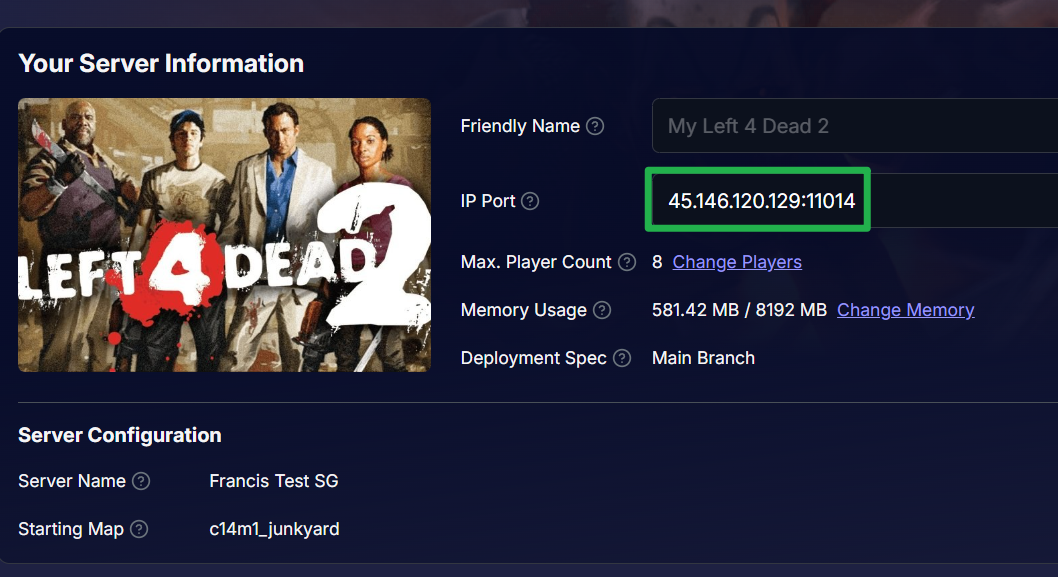
Log into your server panel, locate your unique IP Address and Port on the main dashboard, and copy them down.
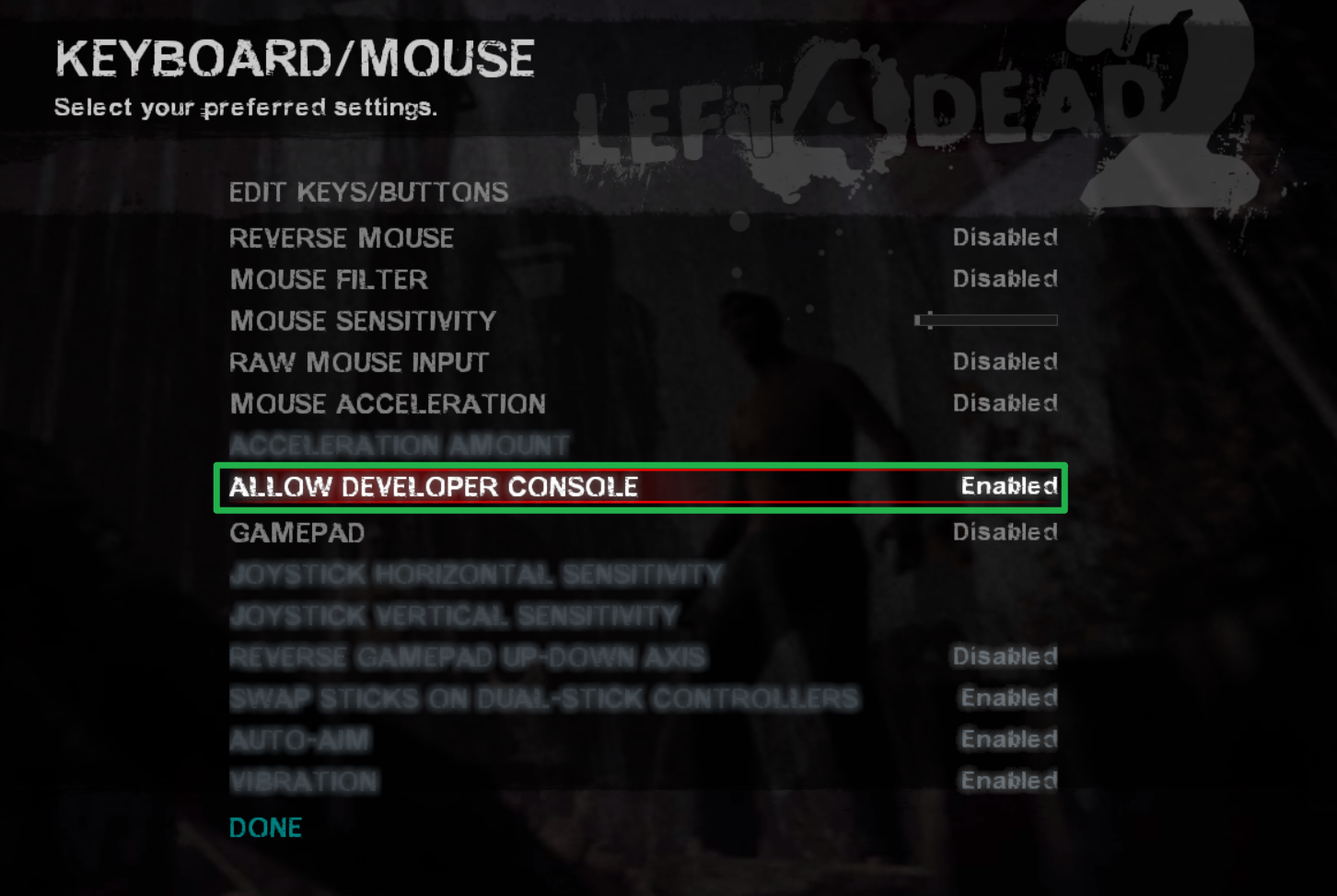
Launch Left 4 Dead 2 and before you can connect, you need to ensure your console is activated. From the main menu, go to Options > Keyboard/Mouse and set Allow Developer Console to Enabled.
Press the tilde key (usually the
~key located at the top left of your keyboard under the Escape key) to open the developer console window.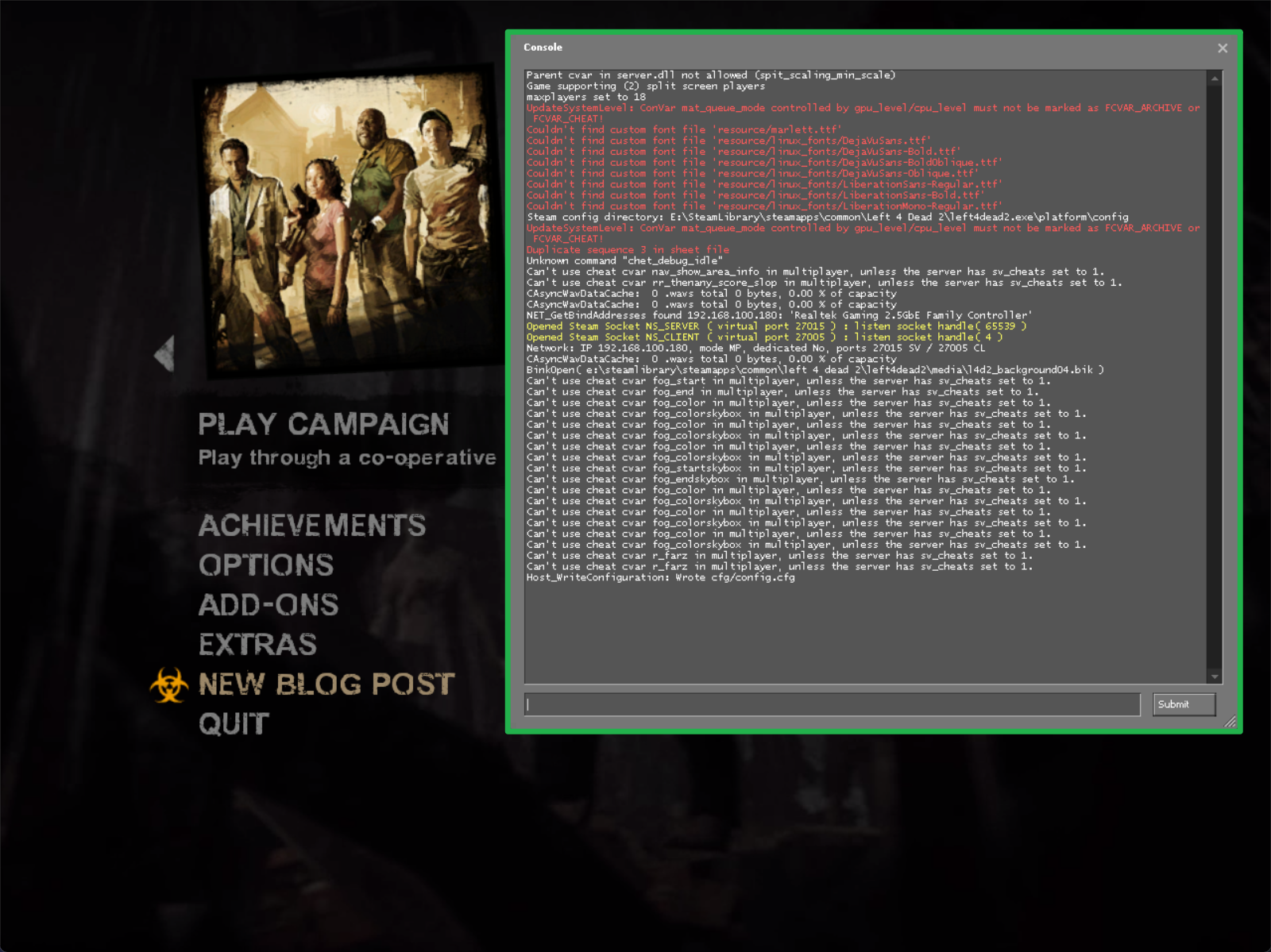
Type
connect IP:PORTinto the text box at the bottom of the console (make sure to replaceIP:PORTwith your actual server connection details) and press Enter to instantly join the lobby.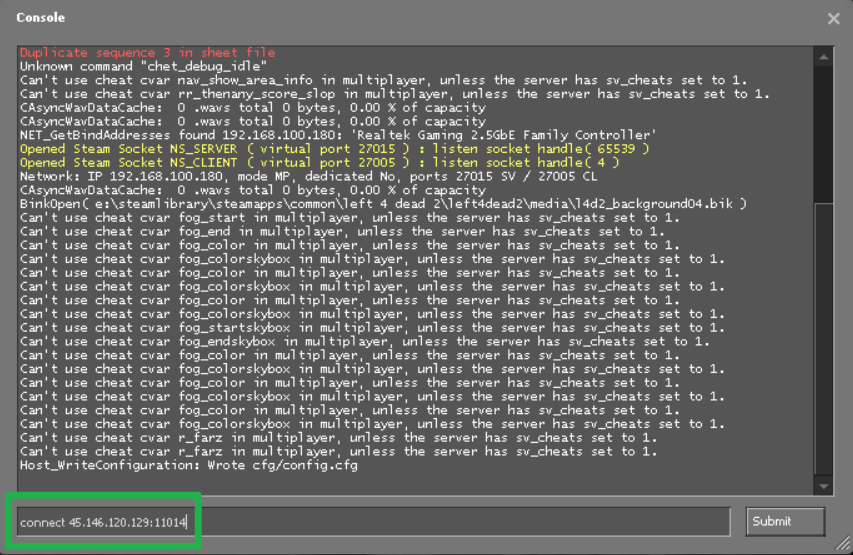
Password on servers are bugged, so don't use them or it'll end up stuck on an endless loading screen.
Troubleshooting and Tips
If you or your teammates are getting left behind during connection, keep these helpful troubleshooting tips in mind:
- Failed After 10 Retries Error: If the console drops a "Failed to connect after 10 retries" error, your game client cannot reach the server. Check your server to ensure the server status actively reads as Running. If you just restarted it, give the system a minute or two to fully boot up before trying again.
- Typo in the Console: The console is very strict with formatting. Make sure you do not have any accidental spaces between the IP address, the colon, and the port numbers.
- Custom Campaign Mismatches: If you are running custom maps or heavy workshop mods on your server, make sure everyone connecting has downloaded the exact same add-ons. If a player is missing a required map file, the server will kick them during the loading screen.
- Console Will Not Open: If pressing the
~key does not open the console after enabling it, check your keybindings in the options menu to ensure it is actually bound to the correct key on your specific keyboard layout.
Conclusion
Bypassing the clunky server browser using the developer console is the fastest route to the safe room. Now that you know how to connect directly, you can easily share your IP with your friends and get your survival squad together without any delays. Grab your pills, load your shotguns, and watch out for the Director!
If you encounter any issues or have further questions, feel free to contact our support team for assistance!