
How to Become an Admin on Your SCP: Secret Laboratory Server
Step-by-step guide to set up Remote Admin for SCP: Secret Laboratory - add your SteamID64, assign roles in the config file and restart server.
Running a successful containment facility requires a strong chain of command. In SCP: Secret Laboratory, administrators are granted access to a powerful tool known as Remote Admin. This system allows you to manage rounds, moderate players, and enforce the rules of your facility directly from the game.
Configuring your administration files might look intimidating at first glance, but setting up your permissions is incredibly straightforward. This guide will walk you through assigning yourself and your trusted staff the proper Remote Admin rights so you can take full control of your server.
Step By Step Guide on How to Become an Admin
User permissions are assigned through a specific configuration file using your unique Steam ID. Here is exactly how to set up your admin roles and let our assistant handle the code:
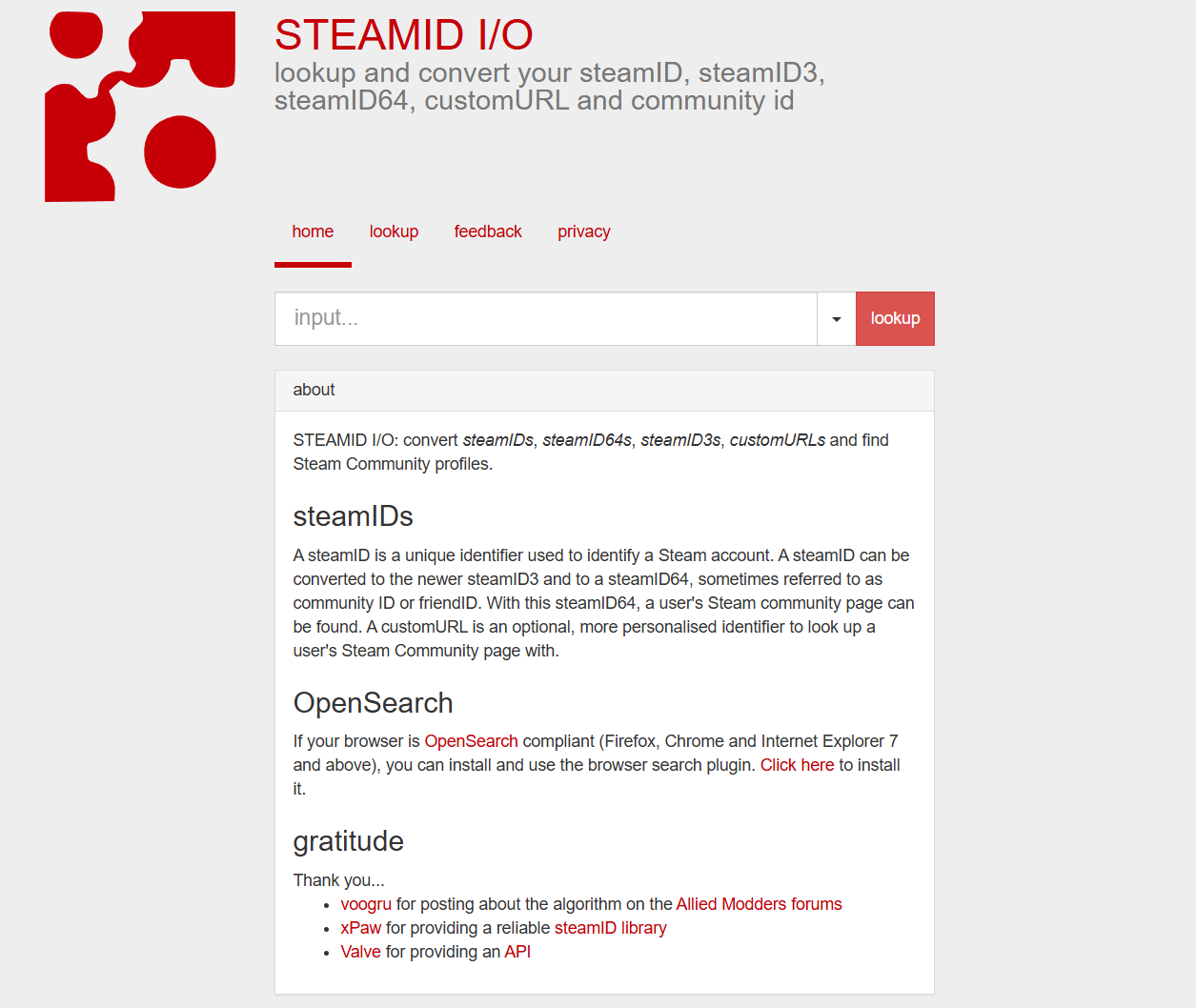
Retrieve your unique Steam ID number. You will need your SteamID64 (a long string of numbers) to identify your account. You can go to this link to get your SteamID64.
Open your File Manager from the side menu and locate the Remote Admin configuration file by going to this path:
Server/ServerConfiguration/config/11392/. Click on the file to open the built-in text editor.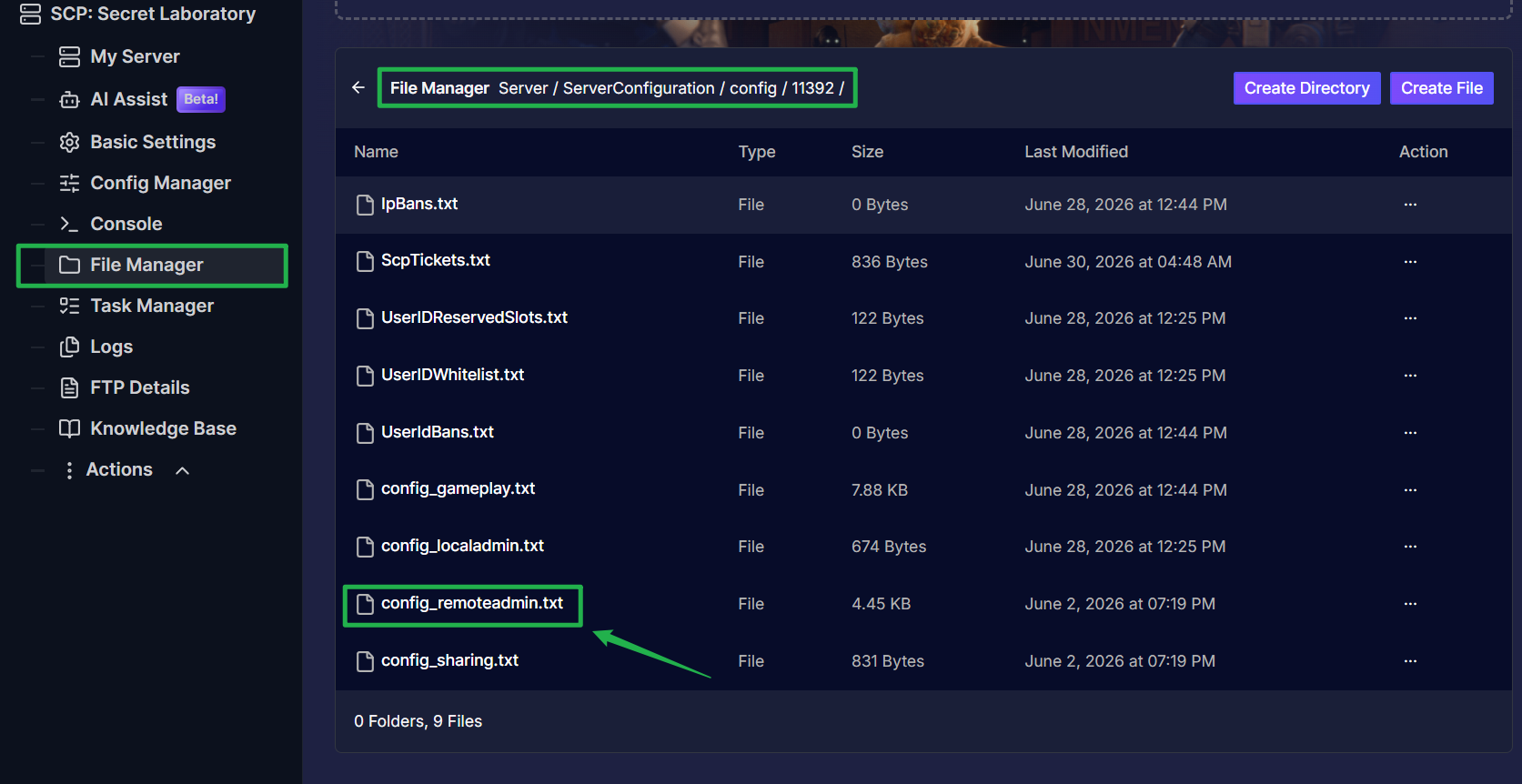
Scroll down to the
Members:section of the file. You will assign roles using a specific format:UserIDHere@platform: role. Paste your Steam ID into the list like this:SteamId64@steam: owner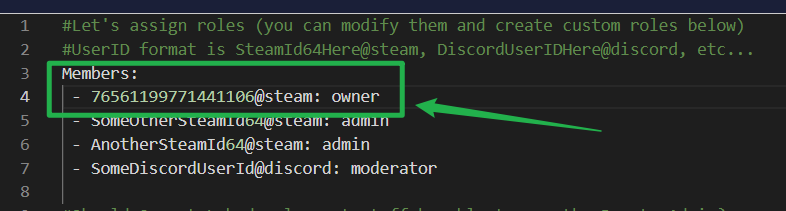
Save your file changes by clicking on Save File, navigate back to the Actions menu, and select Restart.

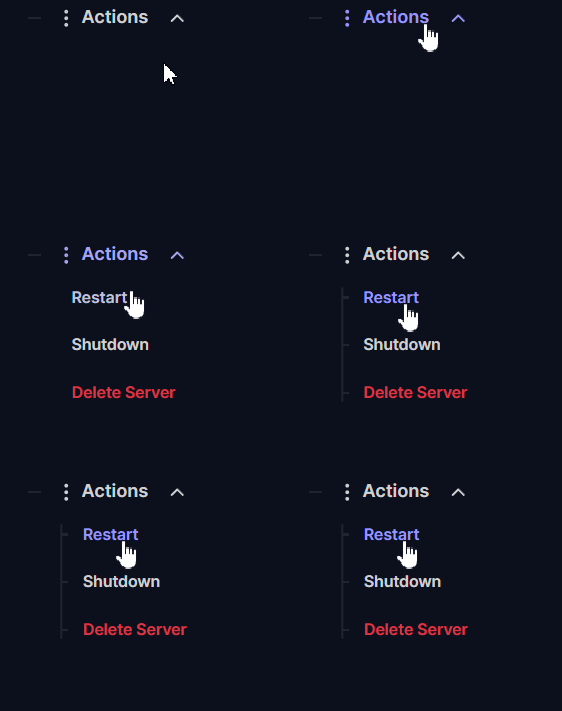
A server reboot is strictly required for any Remote Admin changes to take effect!
Troubleshooting and Tips
Setting up permissions is the most common hurdle for new SCP server owners. If your Remote Admin access is not working, check out these quick troubleshooting pointers:
- Watch Your Formatting: The configuration file is highly sensitive to spacing and indentation. Ensure you have not accidentally deleted a colon or added an extra space. If you are stuck, ask Ping AI to scan your text to find formatting errors!
- Verify Your ID and Role: Double-check that your Steam ID is perfectly accurate. Additionally, ensure the role you assigned yourself (like
owneroradmin) actually exists in the roles list above the members section. Assigning a user to a non-existent role will completely break their permissions. - Always Restart: The server only reads the Remote Admin configuration file during the startup sequence. Editing the file while the server is live will do absolutely nothing until you hit restart.
Conclusion
By mapping your Steam ID to the correct permission group, you grant yourself the ultimate power over your facility. Leveraging the clean text editor in your dashboard and the coding assistance of Ping AI makes assigning your moderators completely hassle free. You are now fully equipped to open your Remote Admin panel and manage the containment breach!
If you encounter any issues or have further questions, feel free to contact our support team for assistance!