
How to Verify and Join Your SCP: Secret Laboratory Server
Verify your SCP: Secret Laboratory server with static hosting in minutes, get it listed publicly, then join via server browser or Direct Connect.
Escaping the facility as a D-Class or hunting down personnel as a terrifying anomaly is an incredible experience, especially when playing with your own community. However, a multiplayer server is nothing without a healthy population of players. To ensure the highest quality experience, SCP: Secret Laboratory requires server owners to verify their instance before it can be listed publicly on the in-game server browser.
Fortunately, because our hosting platform provides static network conditions and is officially verified, getting your server approved and bringing your friends online only takes a few simple clicks. This guide will walk you through verifying your server for the public list, followed by exactly how you and your players can connect to the facility.
Step-by-Step Guide to Verifying Your Server
Connecting to the central master list and getting your server approved only takes a few minutes. Here is exactly how to verify your instance so it appears publicly:
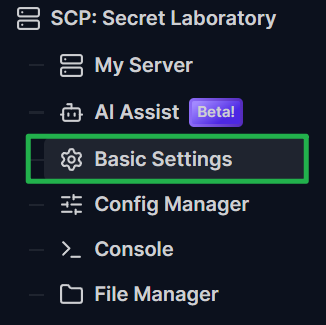
Log into your server dashboard, open your server panel, and navigate to the Basic Settings tab on the left side menu.
Scroll down inside your Basic Settings until you find the Contact Email input field. You must type a valid email address here so the Safety and Compliance team can reach you if necessary. This step is strictly required before running the verification command.

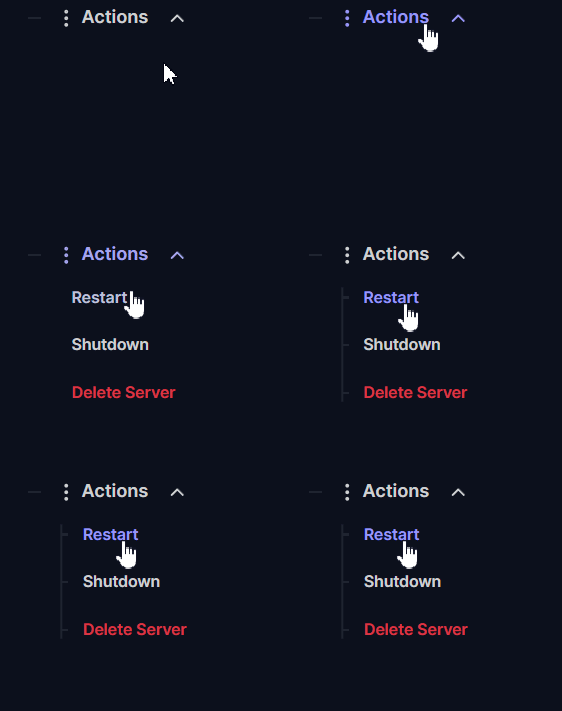
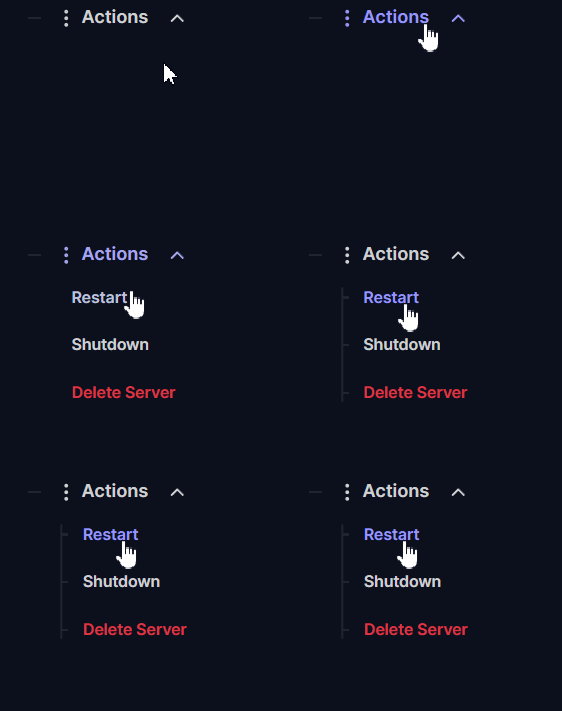
Once you have updated the Contact Email, restart the server by clicking on Actions > Restart.
Once the server restarts, navigate to the Console tab on your server panel. You will likely see a startup log message stating "Your server won't be visible on the public server list". To fix this, click the command input box at the bottom, type
!verify static, and hit the Send button (or press Enter) to ping the central master list.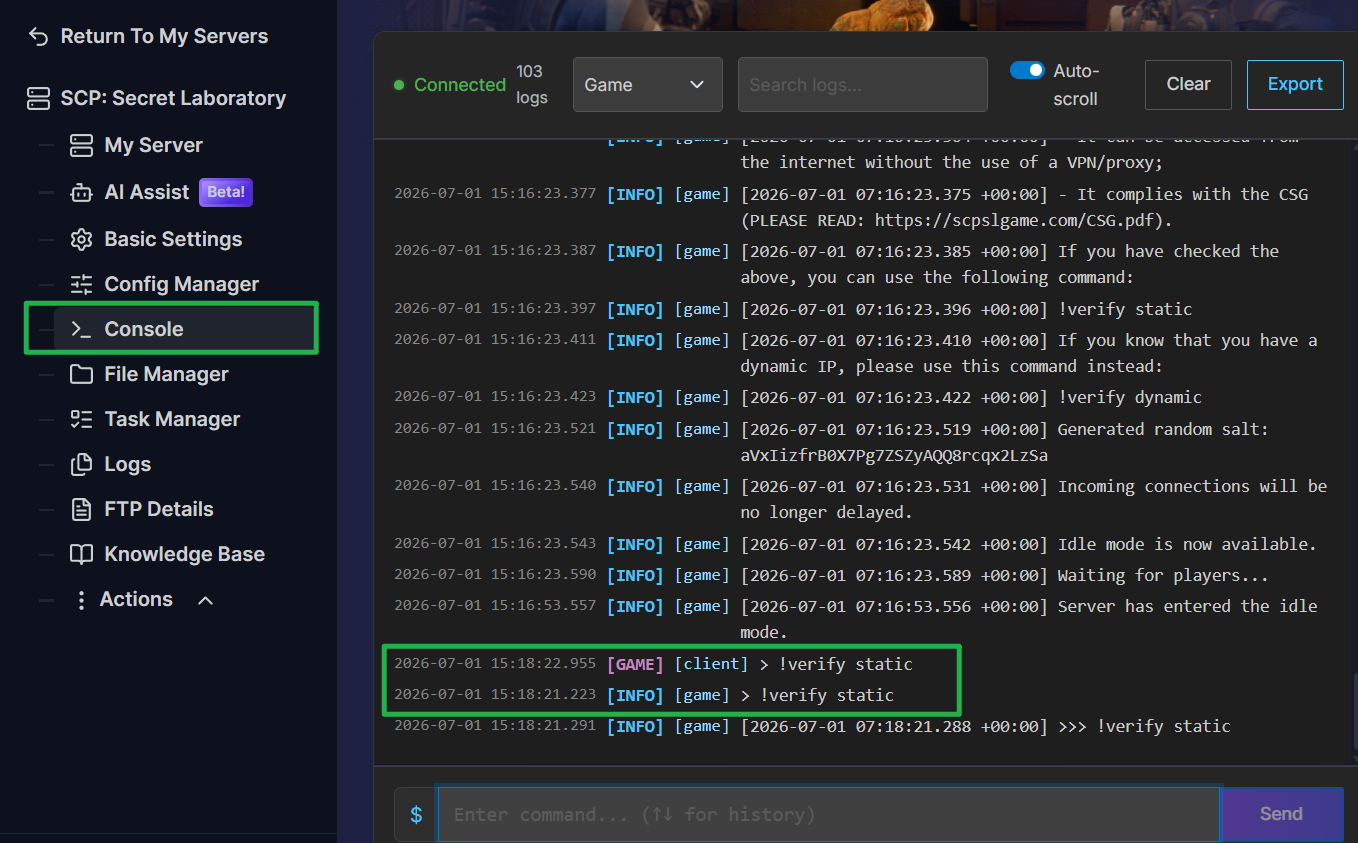
Review the console response. A message will immediately appear in your console logs reading "SERVER IS NOT VISIBLE ON THE LIST PLEASE READ BELOW." The console will generate a unique web link in the text. Copy and paste that exact link into your web browser.

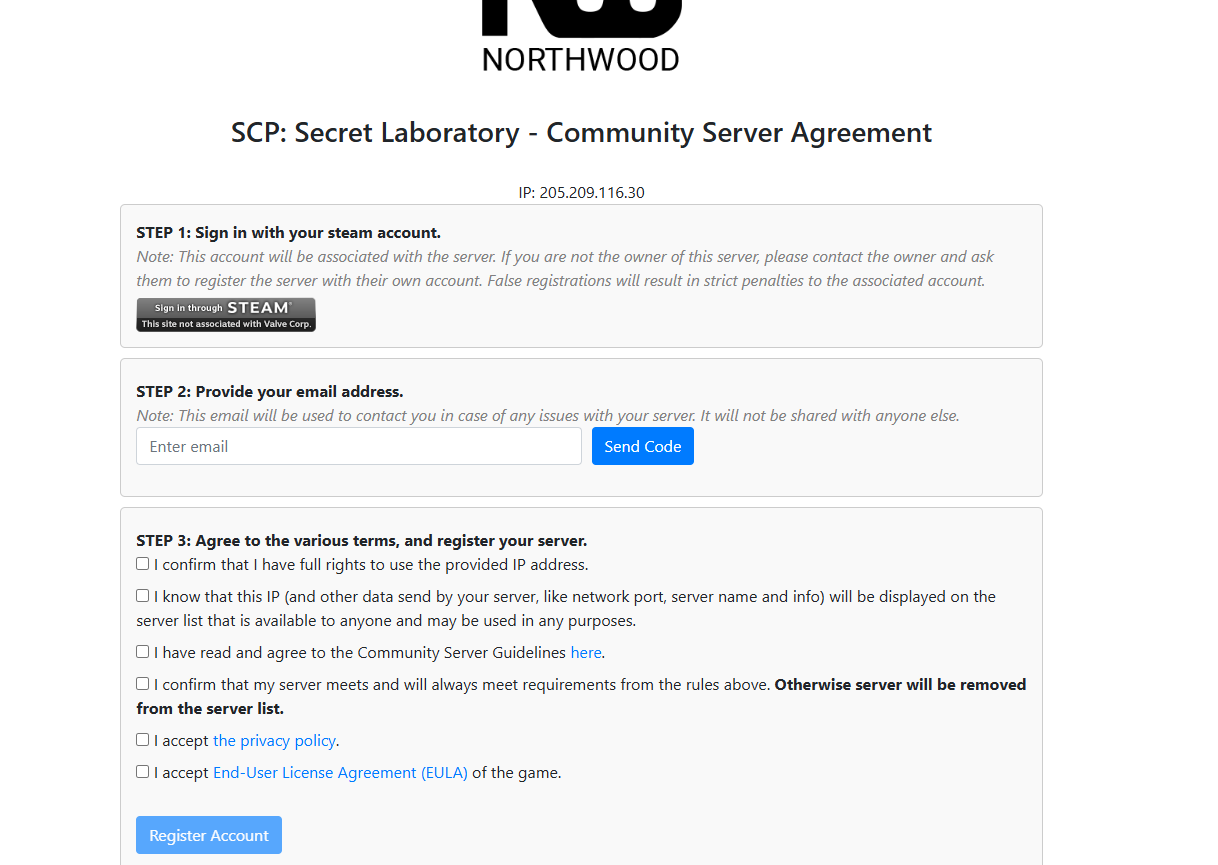
Complete the Northwood Registration. Once you load the link in your web browser, you will be taken to the official Northwood Community Server Agreement page. You will need to complete three quick steps here: sign in securely using your Steam account, provide your email address to receive a confirmation code, and check the boxes to agree to the community terms. Finally, click the Register Account button.
Restart your server again. Once your account is fully registered on their website, jump back to your server panel and go to Actions > Restart to reboot your machine. When the server fully loads, your facility will automatically be listed on the public server browser for anyone to join!
Step-by-Step Guide on How to Join
Now that your server is verified and public, getting connected takes only a few seconds. Here is exactly how to find your game in the server browser or connect directly:
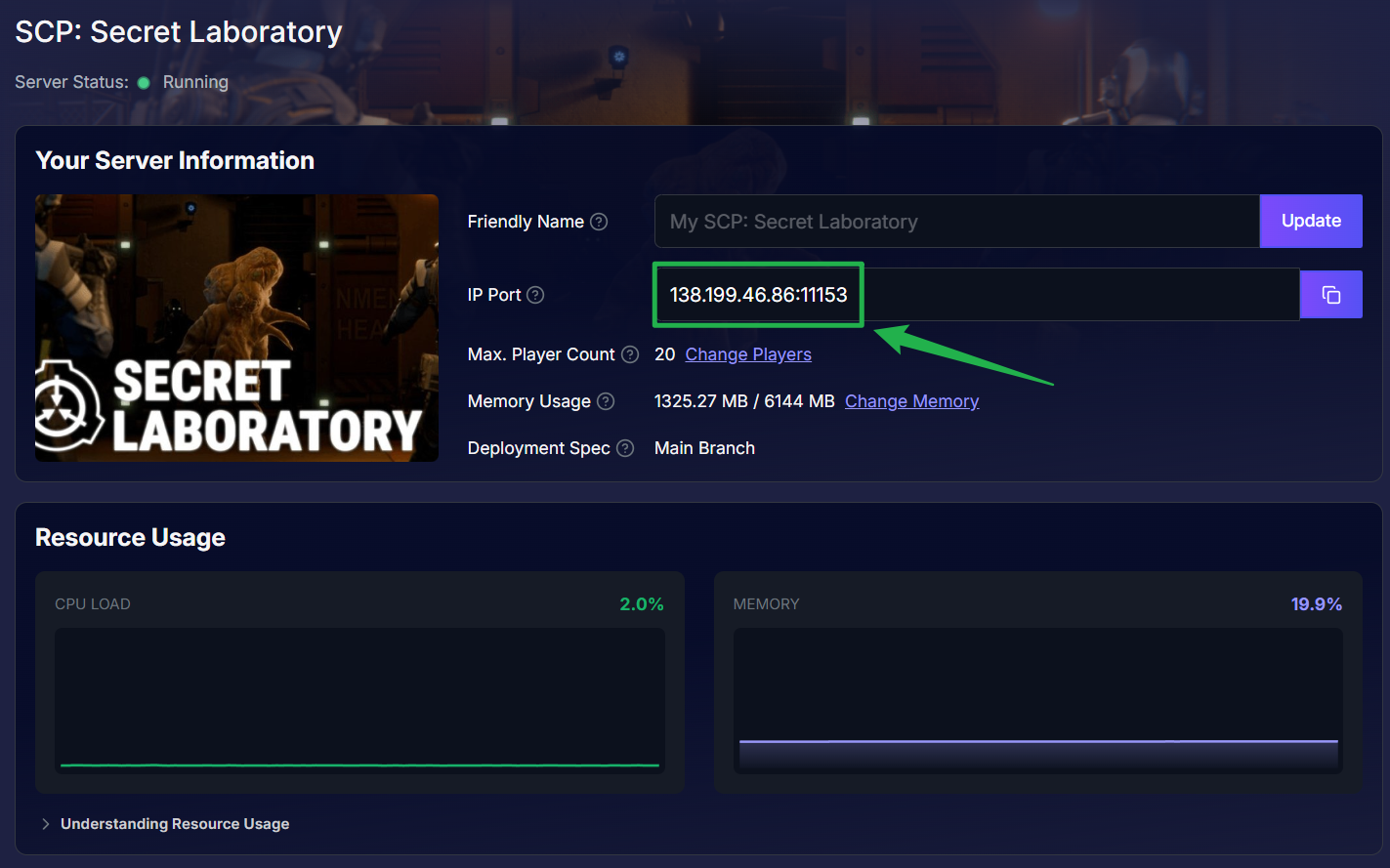
Log in to your server dashboard and locate your unique IP Address and Port number.
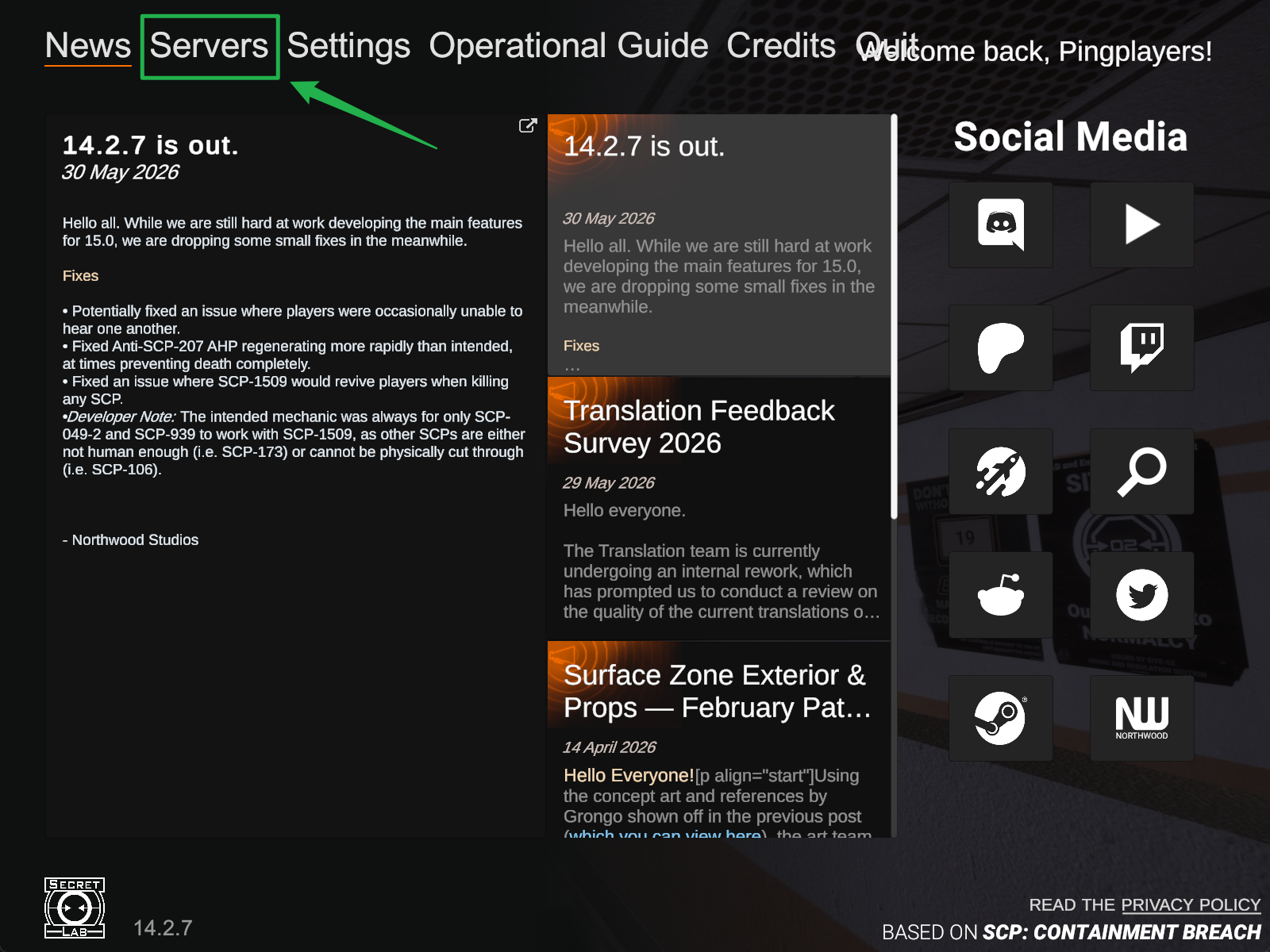
Launch the game and once you are on the main menu, click Server.
Click the Direct Connect button inside the server browser menu.

Carefully type your exact IP Address and Port into the entry box (formatted as
IP:Port), and click Connect to load straight into the lobby!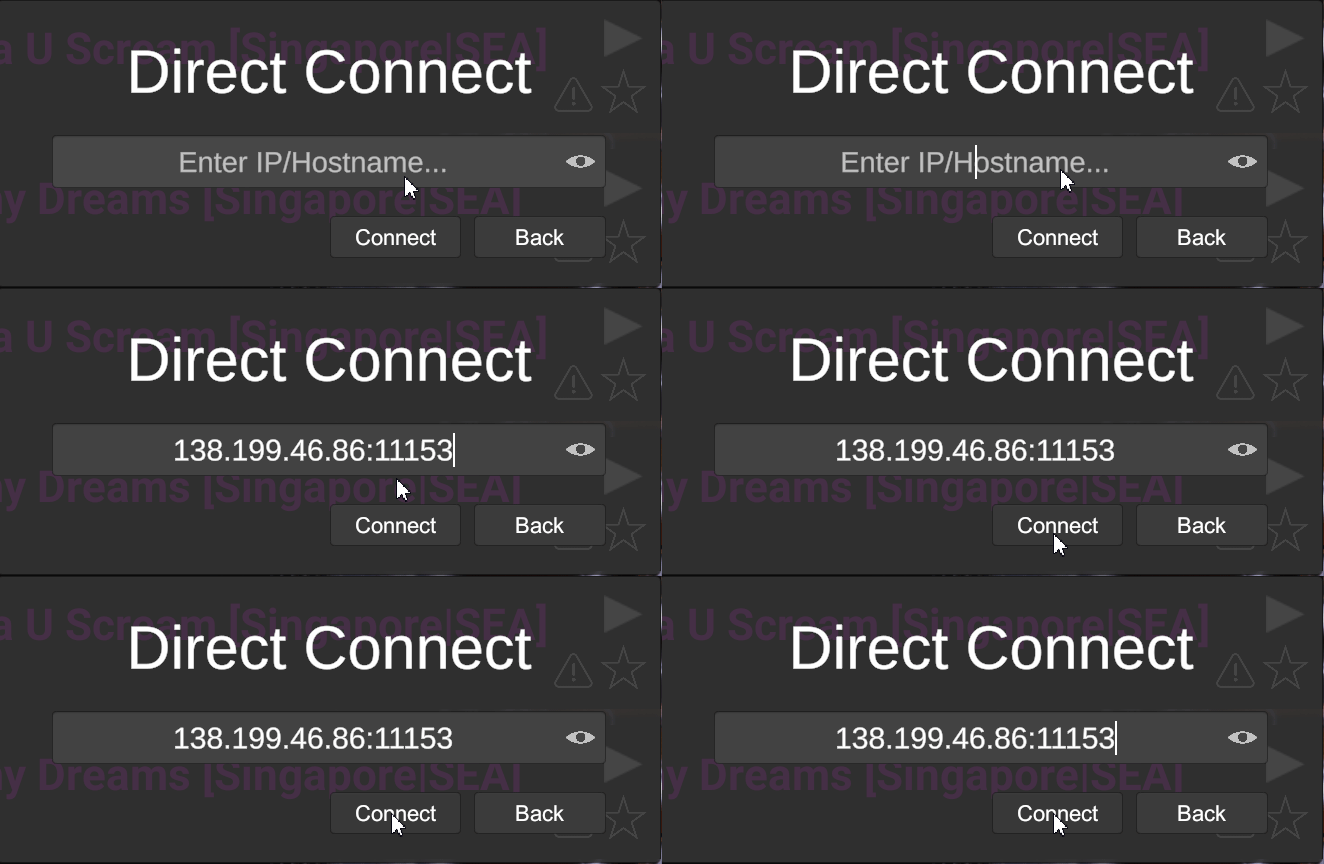
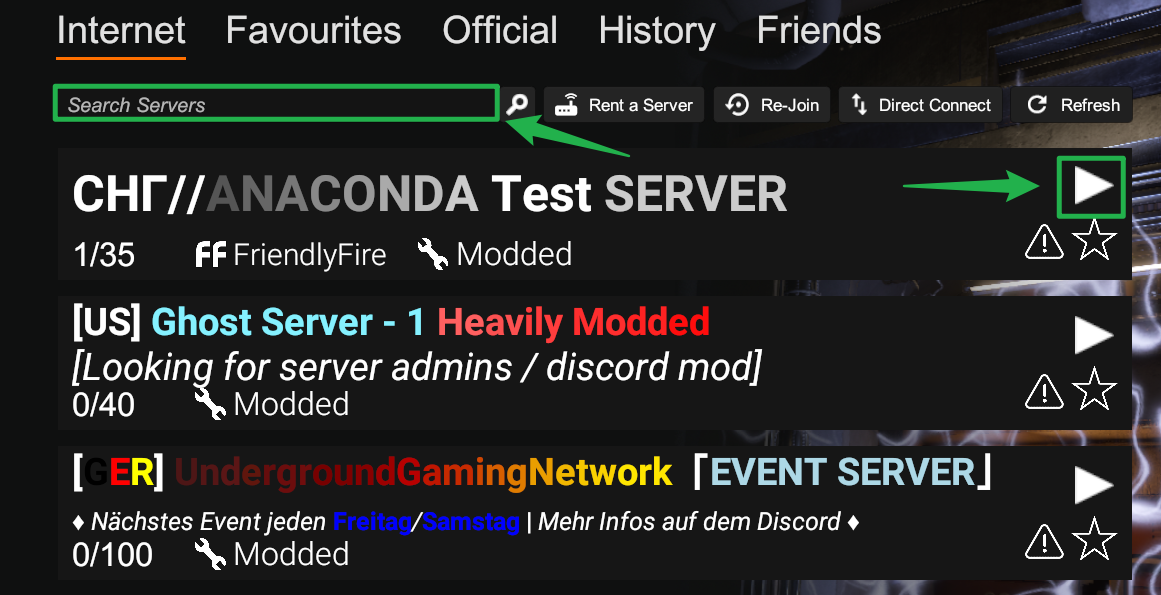
To find your server publicly, type your Server Name into the search bar. It will naturally populate in the public list without any extra configuration. Simply click on your server and hit the Play Button to connect.
Troubleshooting and Tips
If the master list rejects your server, or your friends are struggling to connect, keep these quick pointers in mind:
Email is Mandatory: If you skip entering your email address before typing the verification command, the central master server may reject your token or fail to index your server properly. Always fill out your Contact Email first.
Verify Server Status: If the Direct Connect method fails, head back to your Server Panel and ensure your game instance is displaying as Running. Your server must be fully booted up before anyone can join.
Direct Connection Always Works: The in-game server browser relies on the game's master list, which can occasionally experience caching delays or bugs. The Direct Connect method entirely bypasses the public master list and will always work regardless of your server's browser status.
Instant Ping AI Fixes: If your server is refusing to verify, connections are failing, or the console is throwing strange text, do not panic! Open your panel chat and ask Ping AI to read your latest console logs. The assistant will scan your files, find the exact error causing the issue, and tell you exactly how to fix it.
Conclusion
Getting your community into your SCP: Secret Laboratory server has never been this simple. By taking a moment to verify your server on the master list and utilizing the automated assistance of Ping AI to track your settings, you can skip the tedious manual setup and focus entirely on surviving the facility!
If you encounter any issues or have further questions, feel free to contact our support team for assistance