
How to Add Mods to Your Foundry Server
Learn how to add Steam Workshop mods to your Foundry server: download, upload mod folders, replace modList.json, sync clients and restart.
Welcome to the exciting world of modded factory building! Adding custom modifications to your server is a fantastic way to introduce brand new machines, exotic resources, and massive quality of life improvements to your gameplay. Whether you are a master architect with hundreds of hours or setting up your very first modded multiplayer session, this guide will show you exactly how to get your Steam Workshop mods running online.
Do not worry if this is your first time digging into game files; we will make the process incredibly easy to follow! By downloading the files, selecting them inside your local game menu, copying the configuration over, and uploading the config and mod folders, your server will be upgraded in no time.
Step-by-Step Installation Guide
Because the game currently does not have an automatic server-side mod manager, you will need to download the mods on your personal computer first and then copy them over. Here is exactly how to do it:
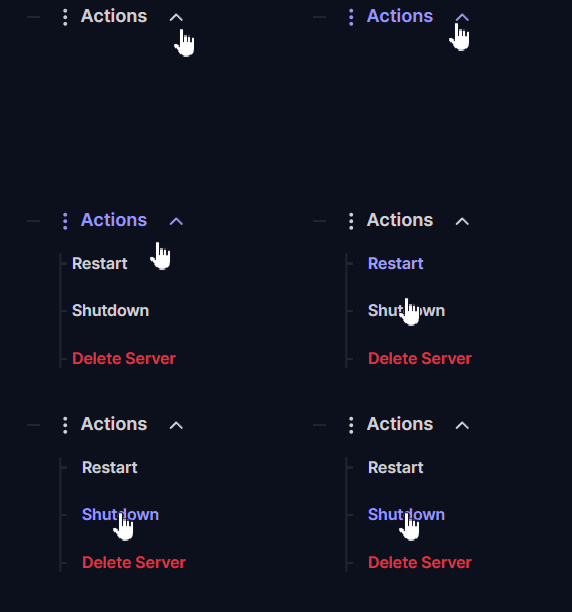
Log into your server panel and go to Actions > Shutdown to safely stop your server. You should never modify server files while the machine is running!
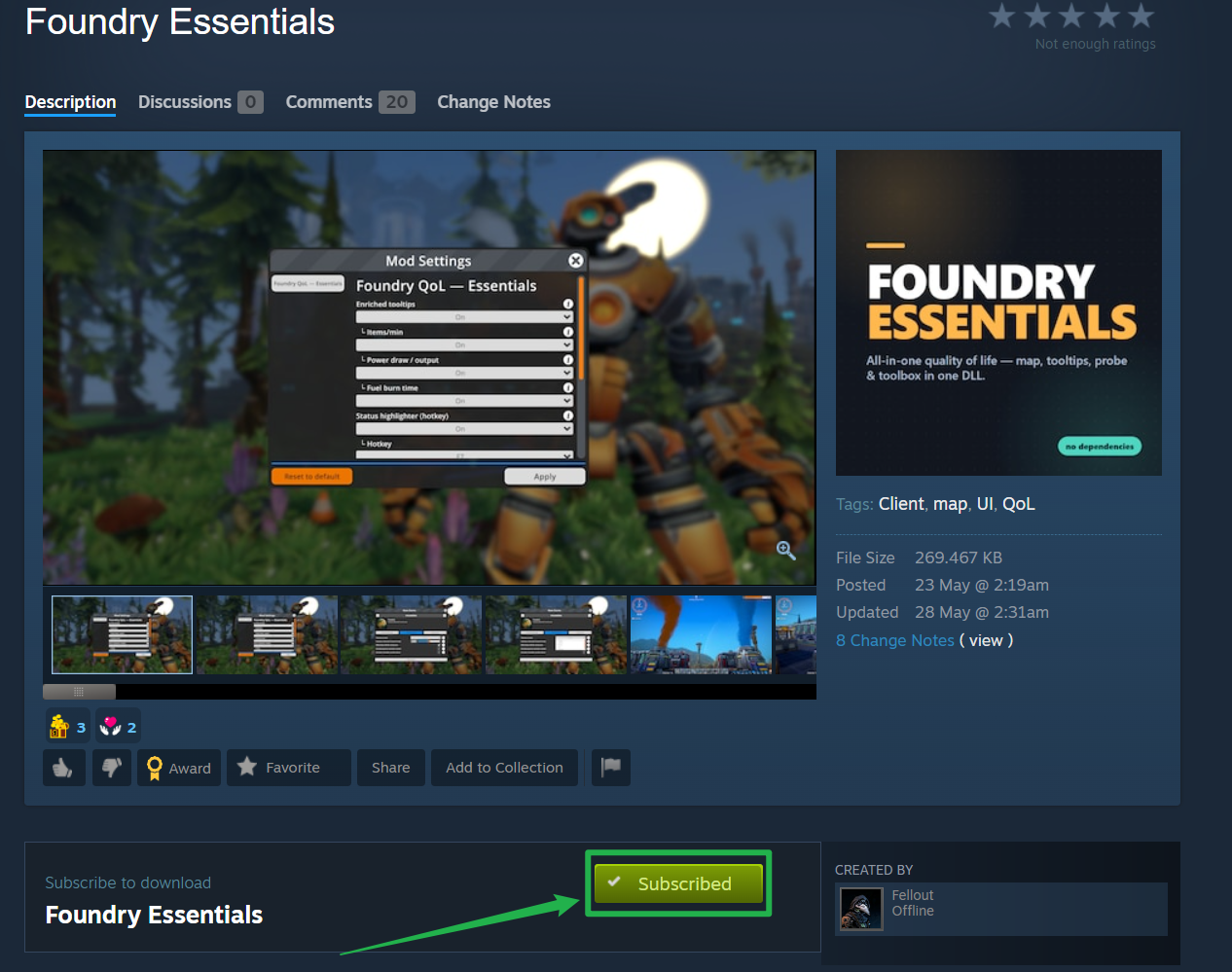
Open Steam on your personal computer, navigate to the Foundry Steam Workshop, and subscribe to all the mods you want to play with.
Locate your downloaded Workshop mods on your computer. This path is usually
C:\\Program Files (x86)\\Steam\\steamapps\\workshop\\content\\983870. Inside this directory, you will see folders with long numbers; these are your mod files.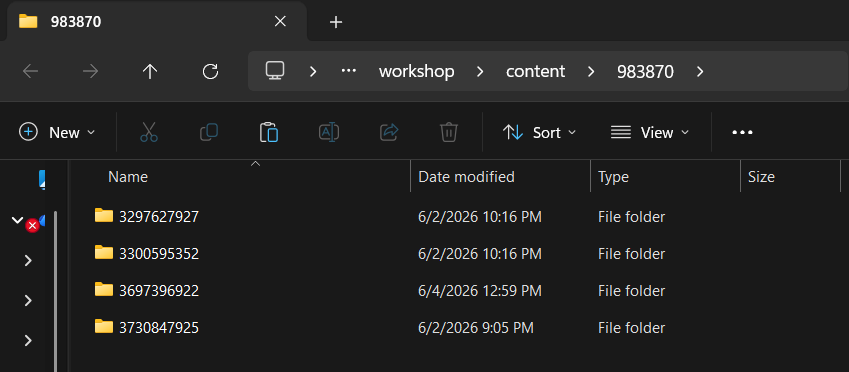
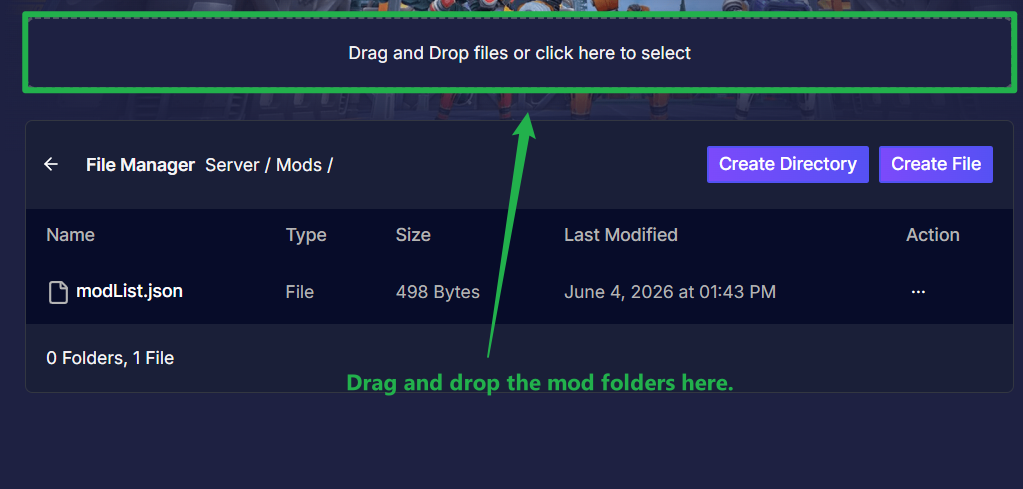
Open the File Manager on your server panel and navigate to the
Server/Modsdirectory. Upload all of those numbered mod folders from your computer directly into this server directory by dragging and dropping the folders into the upload bubble above the path.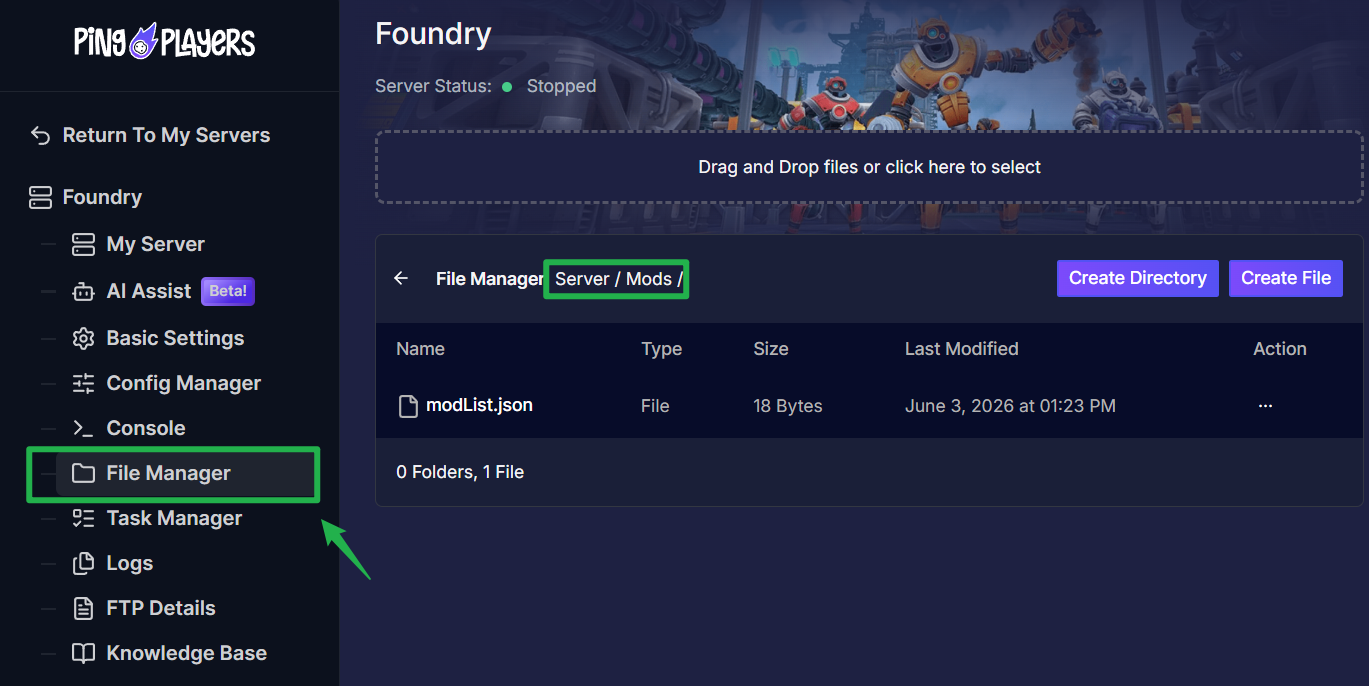
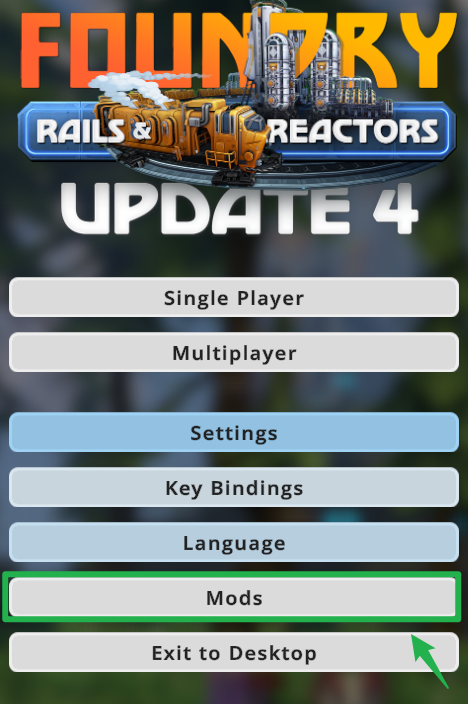
Once you are done uploading the mod folders, you need to choose the mods you want to enable by opening the game on your personal computer, then choosing Mods on the main menu. The mods section in-game allows you to toggle your desired modifications on or off.
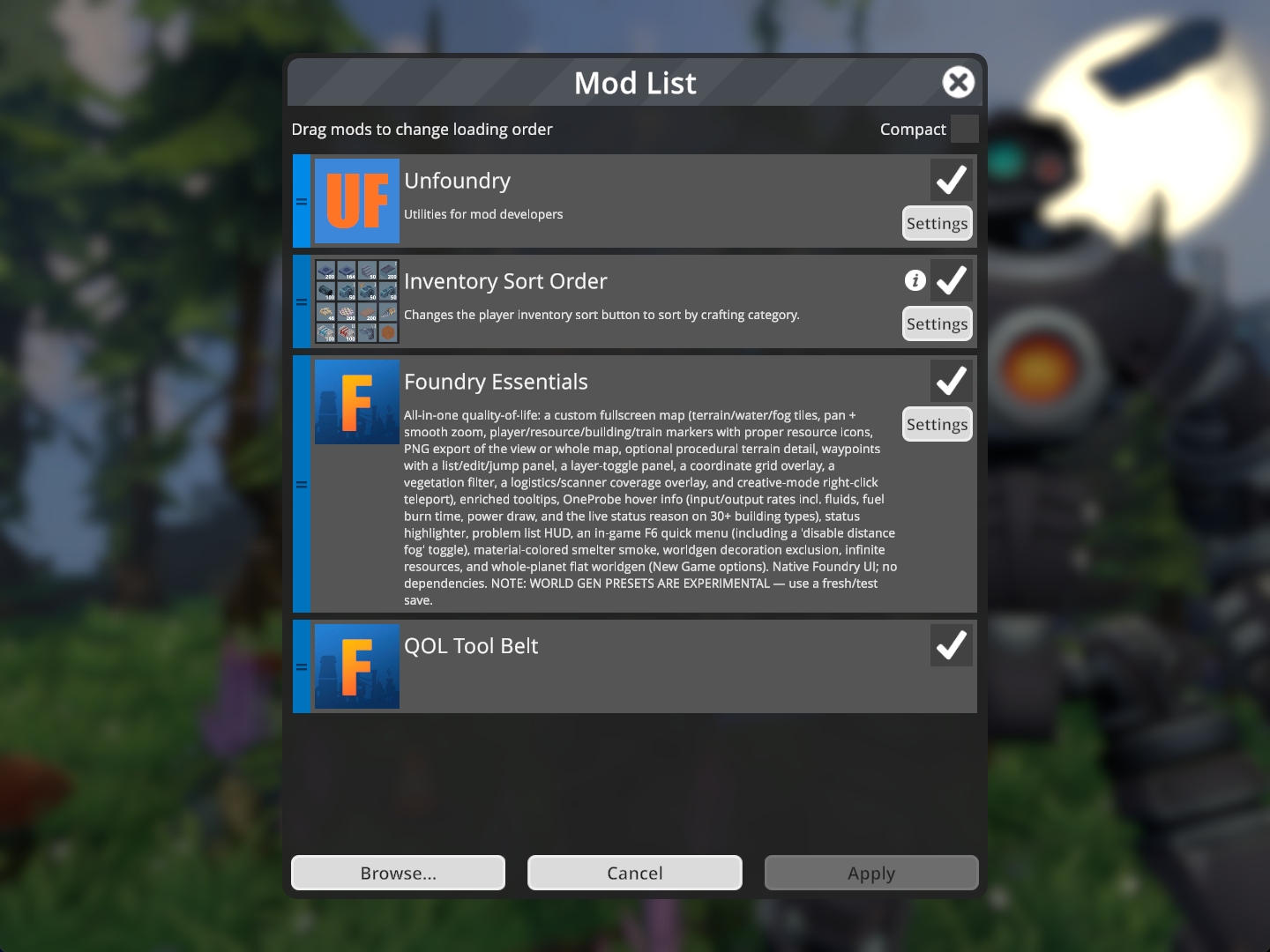
The mods section in-game should look something like this. - Next, you need the configuration file that tells the server exactly which mods to load. On your personal computer, locate your local Foundry mods folder, which is typically found at
C:\\Program Files (x86)\\Steam\\steamapps\\common\\FOUNDRY\\Mods. Locate the
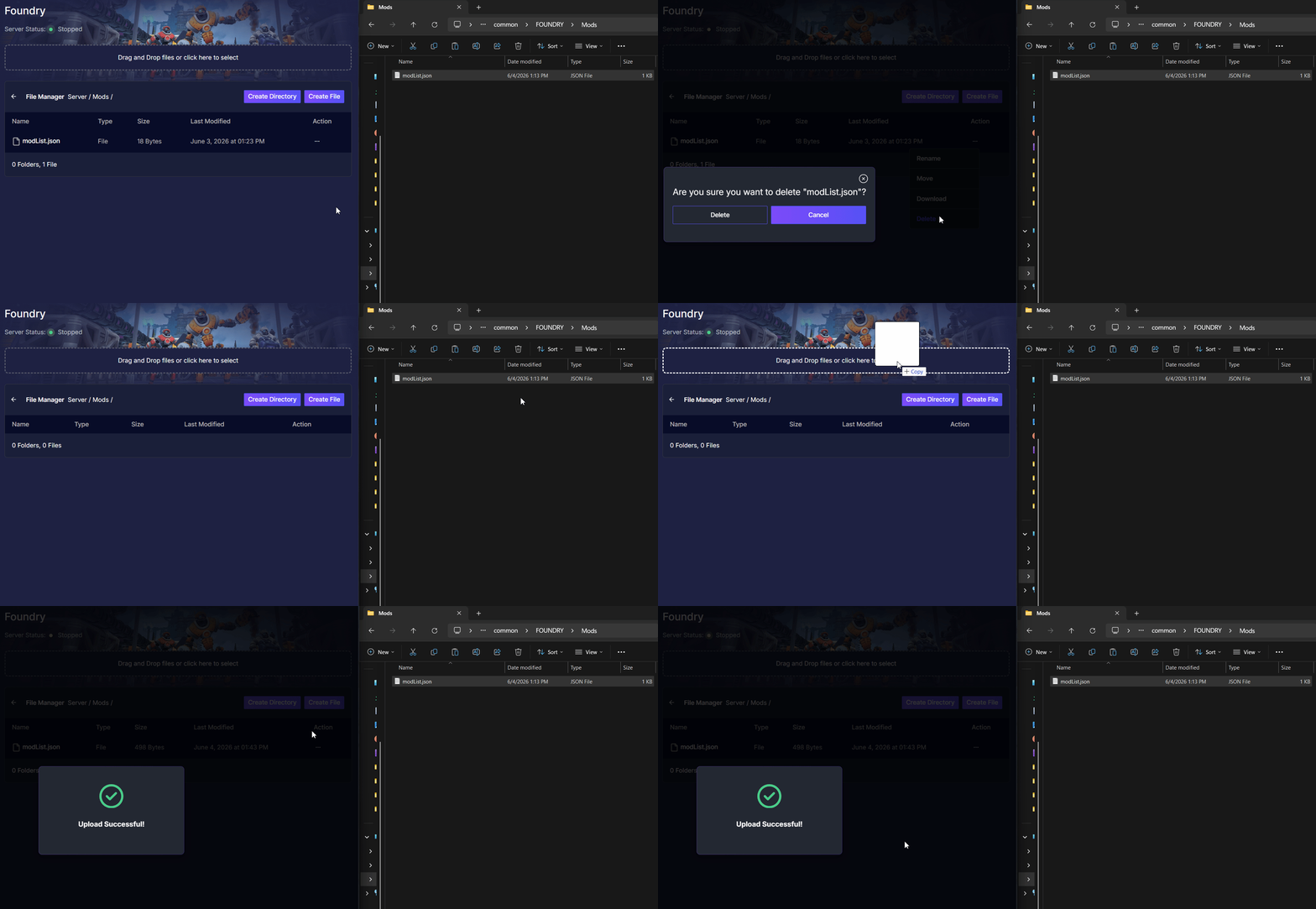
modList.jsonfile inside that folder. If there is already an older version of this file in your serverServer/Modsdirectory, delete the old one first by clicking on the 3 dots then choosing Delete. Then, upload your new localmodList.jsoninto theServer/Modsfolder.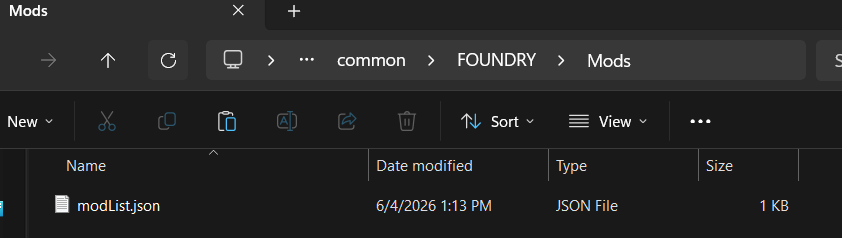
- Go to Actions > Restart to boot up your server. The mods will now load automatically!
Troubleshooting & Tips
Running into a glitch on the assembly line? Here are a few essential tips for managing your newly modded server:
- Client and Server Must Match: Do players need the same mods as the server? Yes! To avoid connection issues, ensure you and your friends install the exact same mods and versions on your local game clients. Steam Workshop usually downloads dependencies automatically, but having identical setups prevents errors.
- Keep Your List Updated: Every time you add or remove a mod from your server, you must generate a new
modList.jsonon your personal computer and upload it to the server. If this file does not match the numbered folders you uploaded, the server will not know what to load! - Always Stop Your Server: We cannot stress this enough; always use Actions > Shutdown before uploading or removing any mod files. Modifying these directories while the server is active is the fastest way to cause crashes and corrupt your factory.
Conclusion
Taking your factory to the next level with mods opens up endless possibilities for automation, creativity, and multiplayer fun. By ensuring your in-game selections, configuration files, and mod folders are perfectly synced up with your server, your machinery will run smoothly and efficiently. You are now fully equipped to build the ultimate modded assembly line!
If you encounter any issues or have further questions, feel free to contact our support team for assistance!