
How to Back Up, Restore, and Migrate Your Foundry Server World
Step-by-step guide to back up, restore, and migrate Foundry server worlds safely—stop server, upload saves/mods, and avoid name mismatches.
Building the ultimate automated factory in Foundry takes countless hours of planning and construction. Whether you are a veteran engineer or setting up your very first multiplayer world, keeping your save files safe is incredibly important. If you want to back up your progress, restore an older save, or move a local world onto your server so your friends can join, this guide will walk you through the entire process step by step.
Do not worry if you have never managed a server before; we will make it very simple!
Understanding How Foundry Saves Work
Before we move any files, it helps to understand how the game stores your data:
- Save Location: All world saves live in the
Server/Saves/Savedirectory on your server. - Folder Structure: Each world uses its own unique folder. The default world generated by the server is named
MyFancyFactory. - The Active World: The world your server actually loads is determined by the World Name variable located in your Basic Settings. This value must exactly match the name of your world folder. If you type a name for a folder that does not exist, the server will simply create a brand new world.
How to Back Up Your World
Manual backups are currently the safest and most reliable way to secure your Foundry progress.
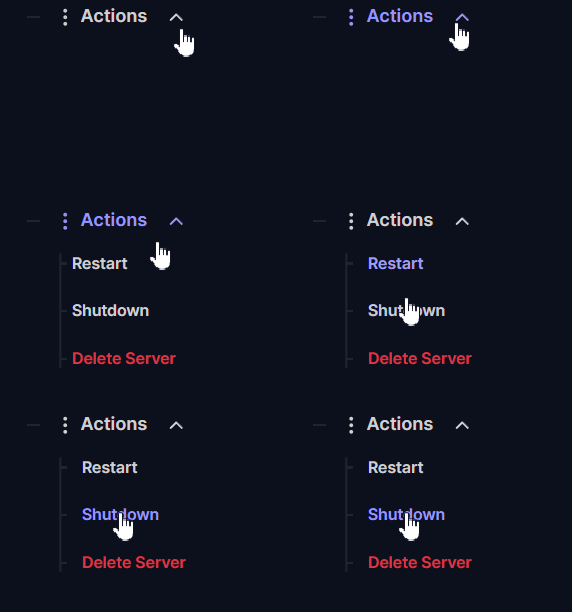
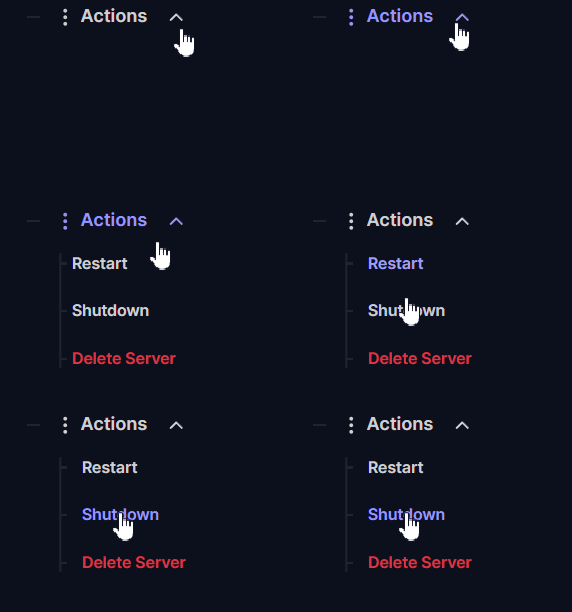
Log into your server panel and go to Actions > Shutdown to safely stop your server. You should never copy or move files while the server is running, as this can corrupt your data.
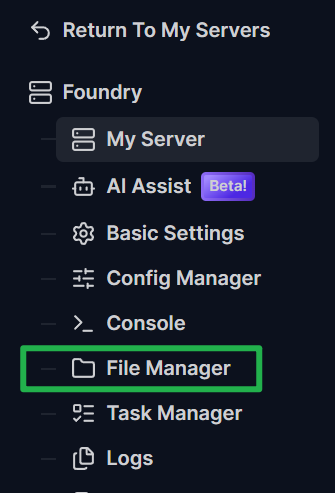
Navigate to your File Manager (or connect via FTP/SFTP if you prefer). You can follow this guide for FTP/SFTP: How to connect to FTP/SFTP
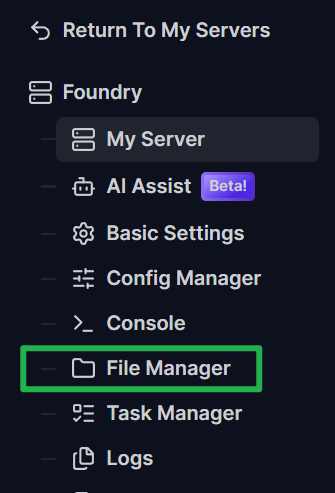
Open the
Server/folder, then open theSaves/folder, and finally open theSave/folder.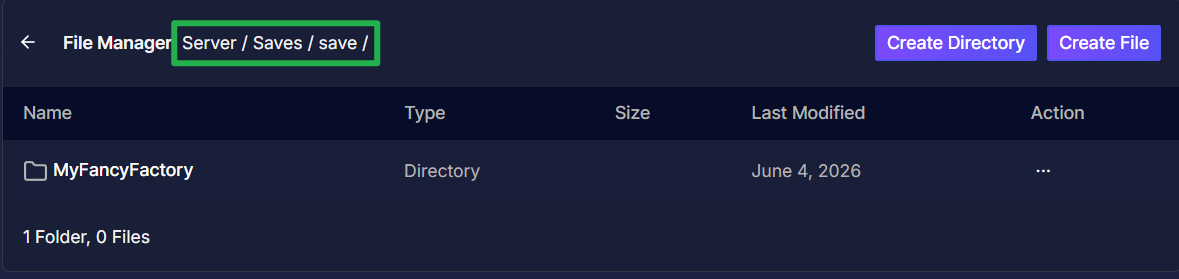
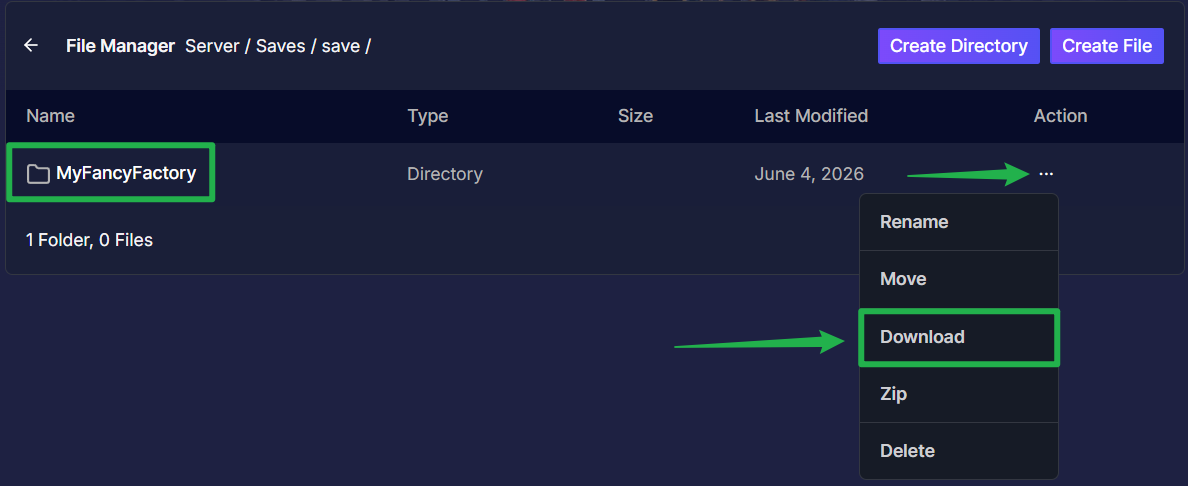
- Locate the specific folder of the world you want to back up (or select all of them to back up every world you have).
Download the folder directly to your personal computer for safekeeping by clicking on the 3 dots on the right side, then choose Download.
How to Migrate a Local Save to Your Server
Have you been building a massive factory on your own computer and now want to move it to your server so your friends can help? Here is how:
Open Foundry on your computer and under Single Player select Load Game from the main menu.
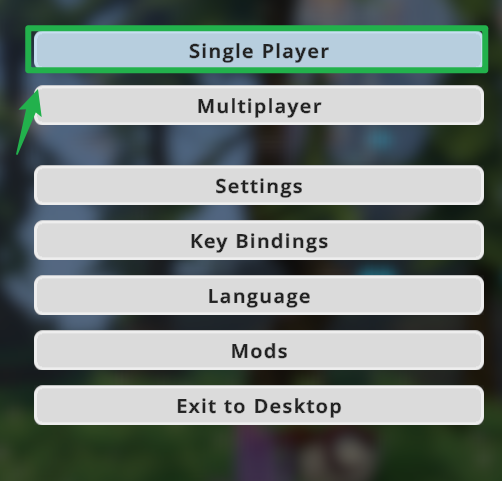
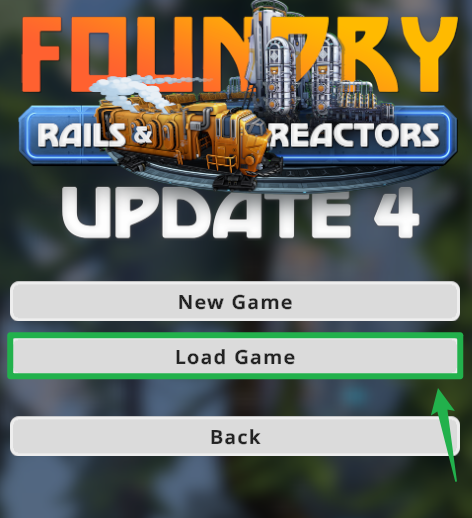
Click the Open Savegame Folder button. (Alternatively, press
Win+Ron your keyboard and enter%USERPROFILE%\\AppData\\LocalLow\\Channel 3 Entertainment\\Foundry\\saveto locate it manually).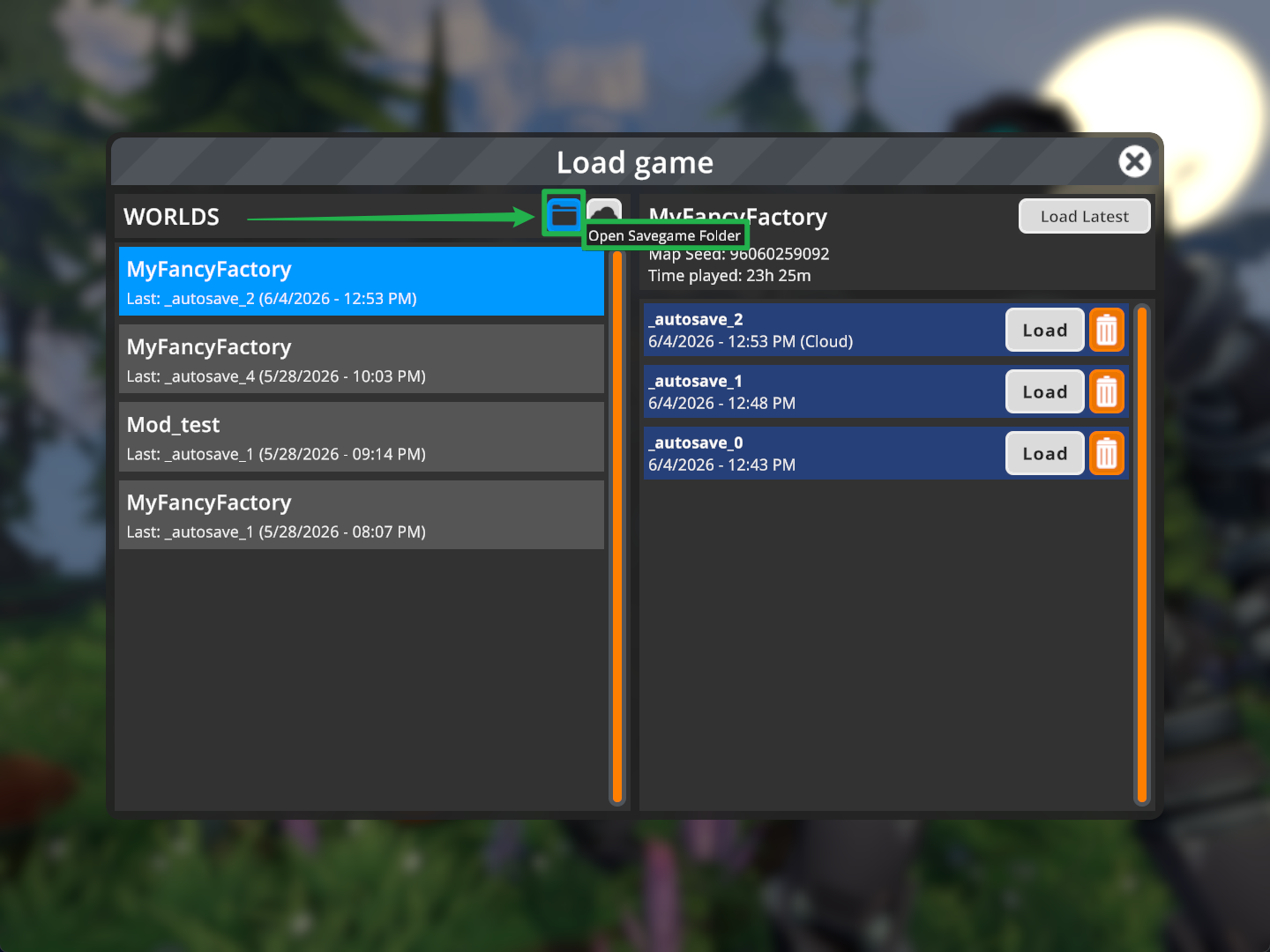
Ingame Option 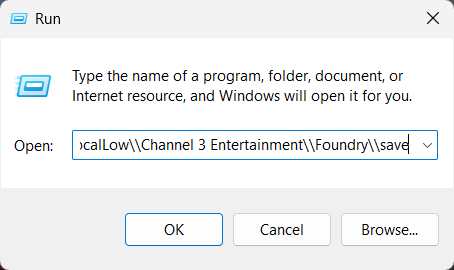
Windows Run Option - Locate and copy the folder of the world you want to move.
Log into your server panel, go to Actions > Shutdown to ensure the server is fully offline, and navigate to the File Manager.
Open the
Server/Saves/Savepath and upload your copied local world folder by dragging and dropping the folder to the upload bubble on the File Manager.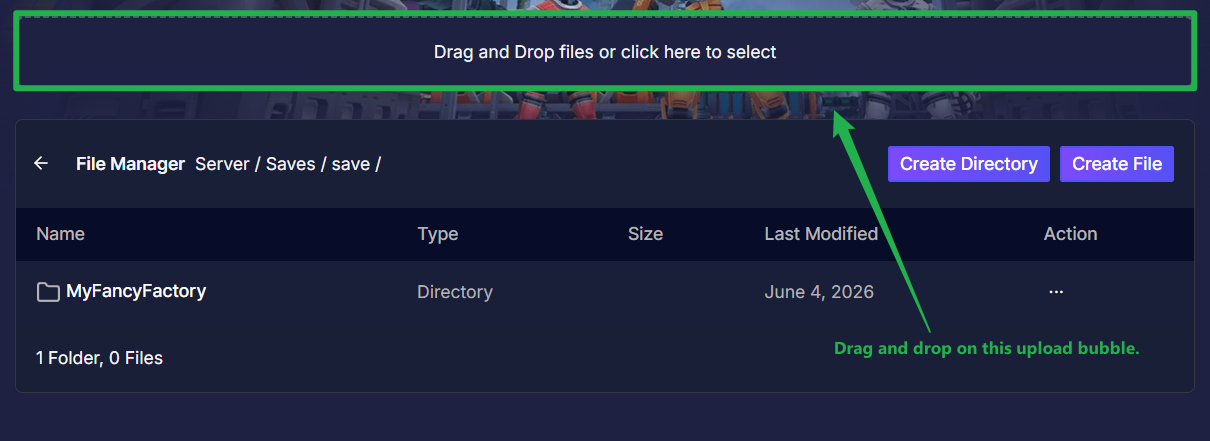
Go to the Basic Settings tab and change the World Name variable to match your newly uploaded folder exactly.

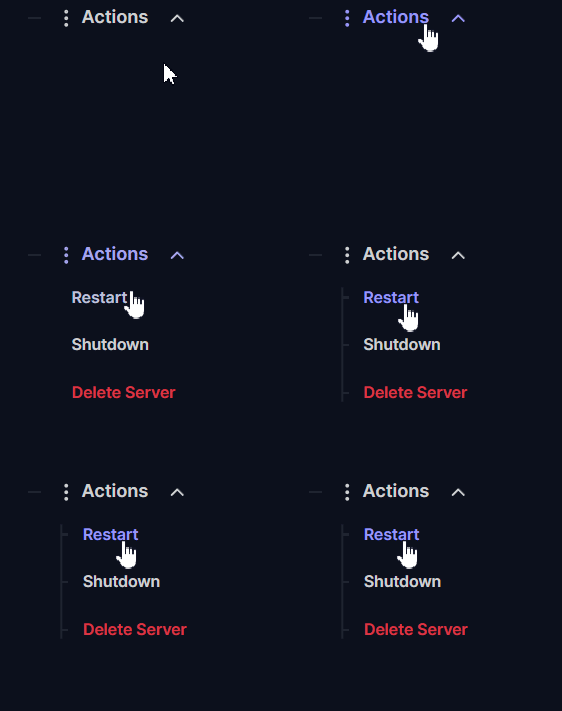
Go to Actions > Restart to boot up the server and load directly into your migrated factory!
How to Migrate From Another Dedicated Server
If you are moving an existing multiplayer world from somewhere else, the steps are very similar, but you might need to bring your mods along too.
Log into your server panel and go to Actions > Shutdown to stop your server.
Upload your existing world folder into the
Server/Saves/Savedirectory using the File Manager or your FTP/SFTP client.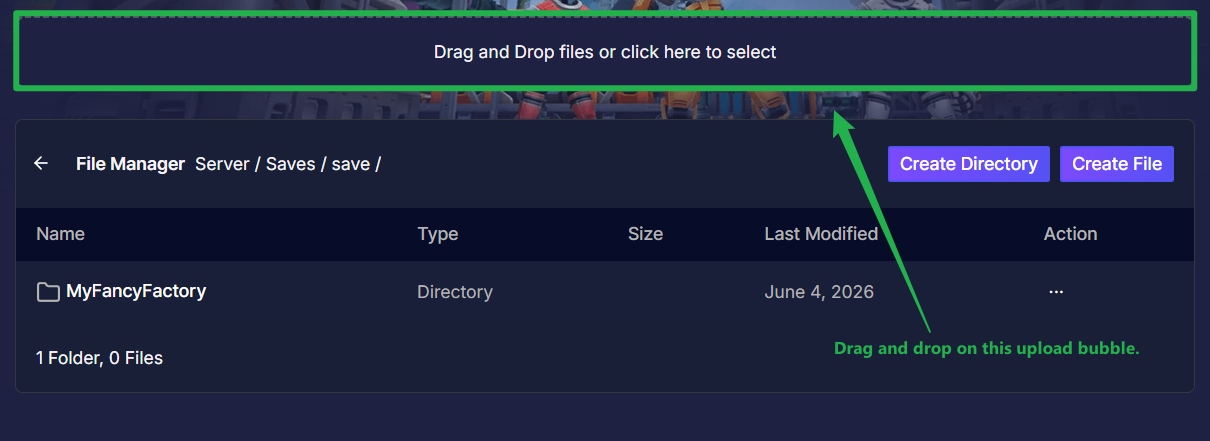
Navigate to Basic Settings and set the World Name variable to exactly match the uploaded save folder name.

- If your save utilizes mods, you must upload all corresponding mod files into the
Server/Modsdirectory. - Ensure you also upload your
modList.jsonfile to the server so it knows exactly which mods to load. Go to Actions > Restart to apply the changes and start playing.
How to Create a Brand New World
If you want to start fresh with a new factory without deleting your old one, you can easily tell the server to generate a new map.
Log into your server panel and go to Actions > Shutdown to stop your server.
Navigate to the Basic Settings tab.
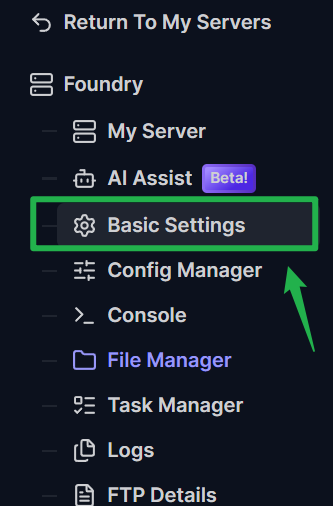
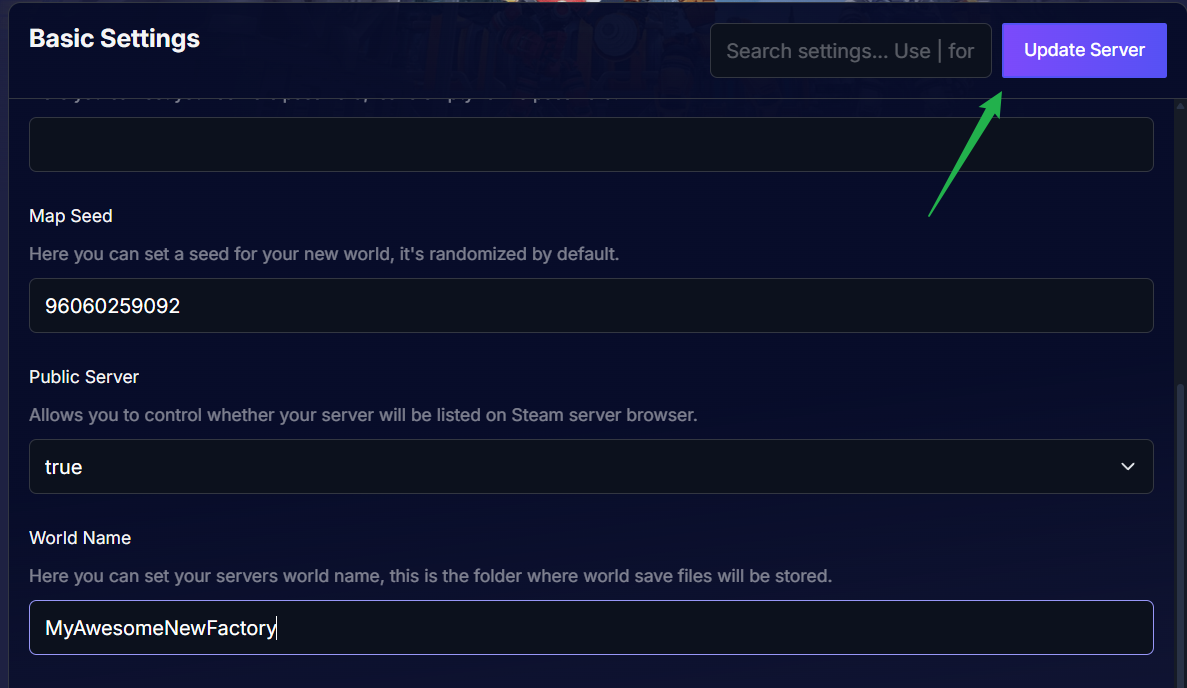
Locate the World Name variable and change it to a completely new name (for example,
MyAwesomeNewFactory).
Click Update Server to save your changes.
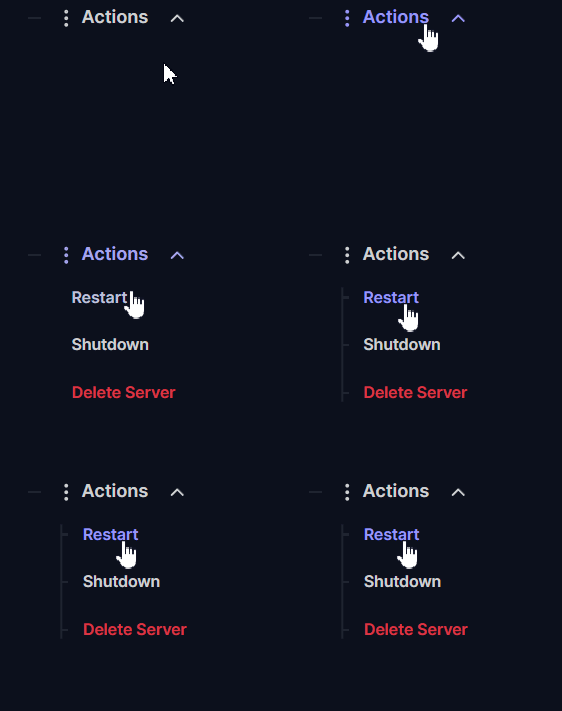
Go to Actions > Restart. Because a folder with this new name does not exist in your files yet, the server will automatically generate a fresh world for you to play on.
Troubleshooting & Tips
Running into a roadblock? Do not panic! Here are a few common fixes for server managers of all skill levels:
- Name Mismatches: The most common reason a world fails to load is a simple typo. The folder name inside
Server/Saves/Saveand the World Name in your Basic Settings are strictly case-sensitive and must be absolutely identical. - Missing Mods: If you are migrating a modded world, failing to upload the
modList.jsonalongside yourServer/Modsfiles will cause the server to load the vanilla game, which can potentially break your complex factory lines. - Always Stop Your Server: We cannot stress this enough; always use Actions > Shutdown before uploading or downloading save files. Moving files while the server is active is the number one cause of broken saves!
Conclusion
Managing your Foundry saves might seem intimidating at first, but it is a straightforward process once you know exactly where the files belong. By keeping regular manual backups and ensuring your Basic Settings always match your folder names, your automated empire will remain safe, secure, and ready for endless expansion. You are now a certified server manager!
If you encounter any issues or have further questions, feel free to contact our support team for assistance!