
How to join your Foundry server
Step-by-step guide to connect to your Foundry server with PingPlayers: use Server Browser or Direct Connect (IP:Port), plus troubleshooting tips.
Welcome! You already have the two pieces of information we need: the server name you chose when you set up the server and the server IP:Port. Here are the instructions to join a Foundry server hosted by PingPlayers.
Before you start
Double check your server information, such as IP:Port, Server Name and password. You may see all this information by going to your server panel at My Servers > Manager Cluster.
Keep this information at hand and let's start.
Server Browser
This method lists all dedicated servers visible to your Foundry client. Use it if you prefer selecting the server name rather than typing an IP.
- Launch Foundry on your machine.
Click Multiplayer on the main screen.
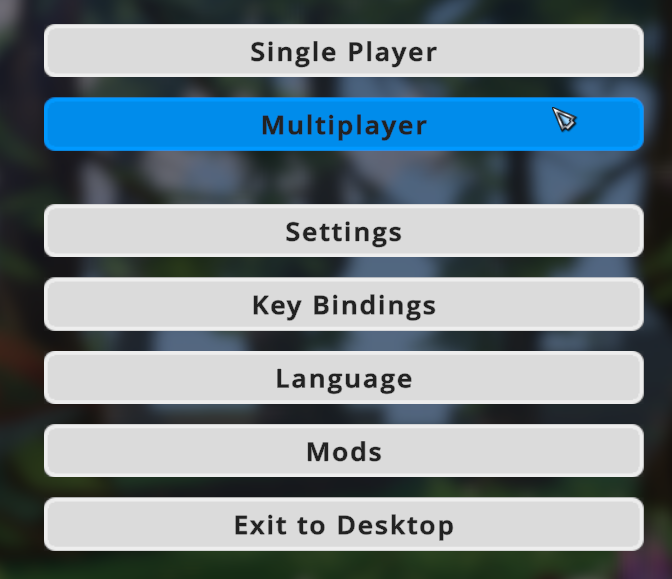
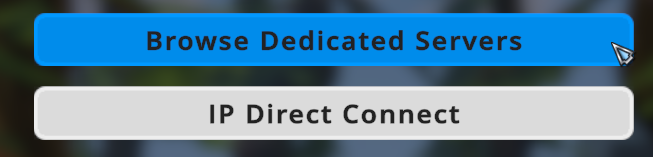
Click Browse Dedicated Servers.
Look through the list for your specific server name and click on it.
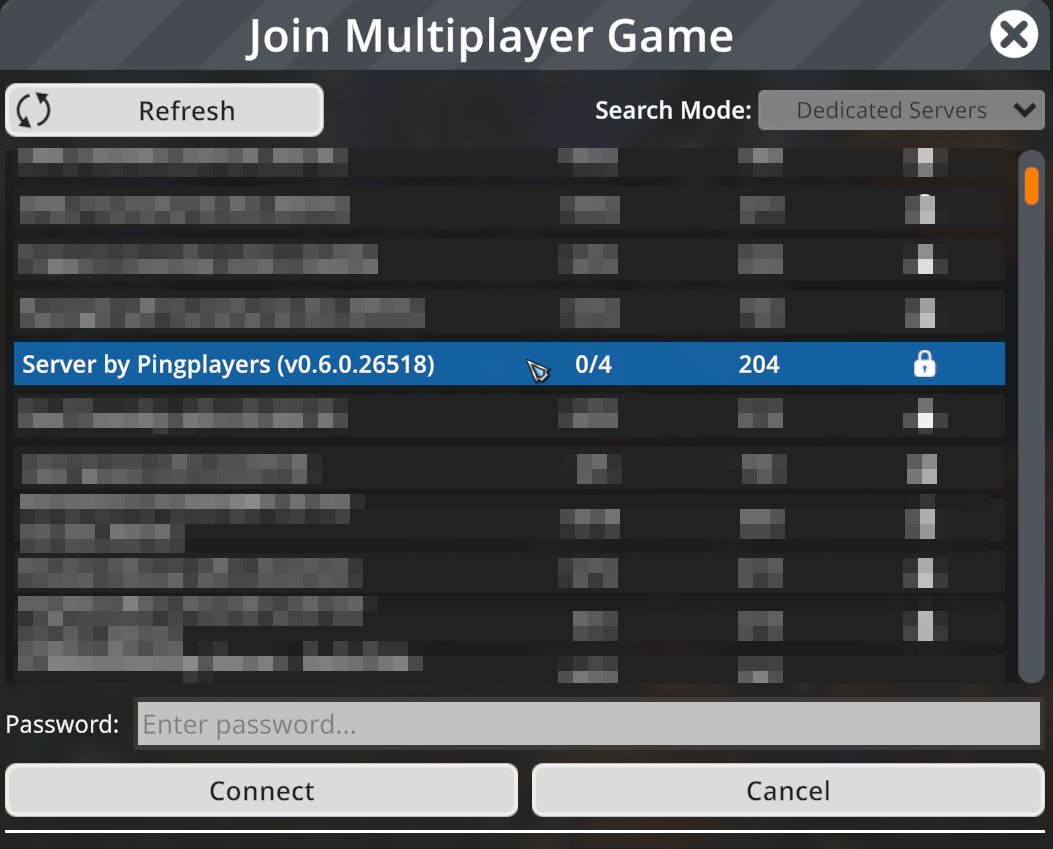
(If your server is private, type the password at the bottom)
- Once you have the correct server and password, click Connect.
In case you have any mods enabled in your local client but not inside the server, you'll be prompted with a window to disable them.
- Enjoy your journey!
Important:
The Foundry server browser currently does not support searching by name. You will need to scroll and find the server name manually.
Direct Connect
Use Direct Connect if you prefer to connect using the server IP and Port. This is the most reliable method if the server does not appear in the browser or if you were given a direct IP:Port.
- Open Foundry on your PC.
Click Multiplayer on the main menu.
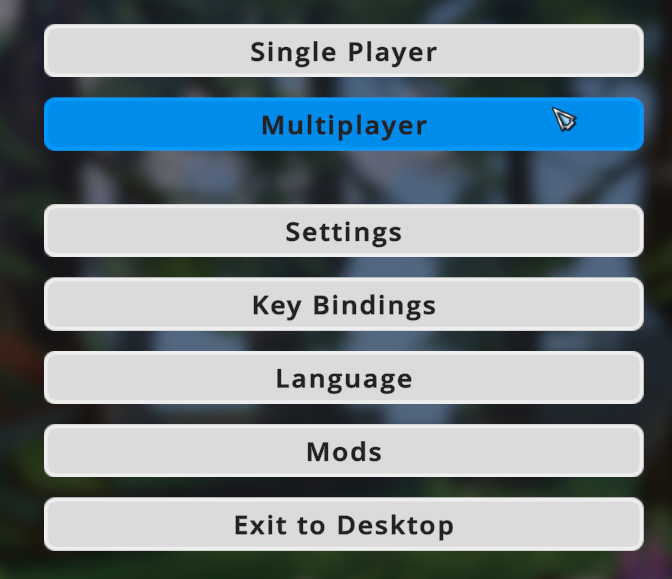
Click IP Direct Connect.
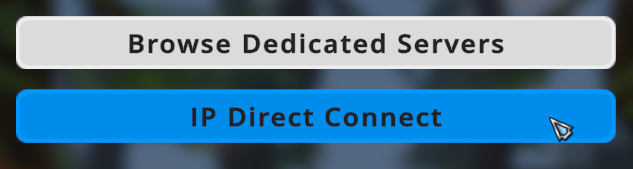
You will be prompted with a window to enter your server details. Make sure to separate the IP and Port accordingly.
Example:69.10.55.30:11448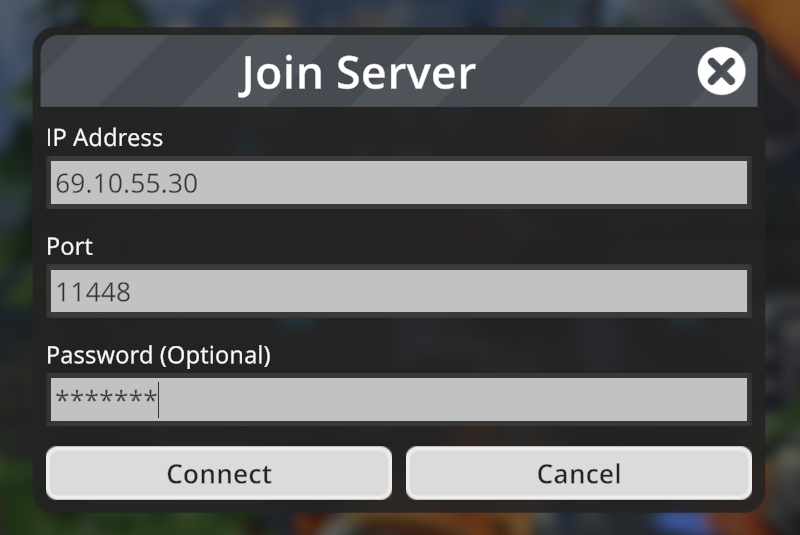
(If your server is private, type the password at the bottom)
- Once you have the correct details, click Connect.
- Enjoy your journey!
Troubleshooting
These are the most common issues players encounter connecting to a Foundry server.
- Server is offline: Verify in your PingPlayers control panel that the Foundry instance is started. If it's stopped, restart it and wait 30~60 seconds before trying again.
- Wrong IP or Port: Double‑check the IP and port we provided. If you have a combined IP:Port string, split them into the IP field and Port field.
- Wrong password: Re-enter the password carefully (passwords are case‑sensitive). Make sure to restart the server after setting a password, otherwise it won't update it.
- Version mismatch: Make sure your local Foundry client version matches the server’s Foundry version. If the server was updated or you updated locally, the versions must match to connect.
- Mods mismatch: Make sure your local client has the same mods installed as the server.
If you have any questions or need assistance, feel free to reach out to our customer care agents through our live chat or email at support@pingplayers.com.