
How To Add Discord Bridge Bot To Your Foundry Server
Beginner's guide to bridge your game server chat with Discord: install Discord Bridge mod, create a bot, add webhook & channel ID, test.
Bridging your game server chat to Discord lets players see in-game chat in a Discord channel and send messages back into the game. This guide covers the basic steps to get a Discord bot working with your server using a Discord bridge mod. It’s written for beginners, so we keep things simple and practical.
Always shut down your game server before uploading or modifying server files. If you upload or change files while the server is running, the server can write to the same files at the same time and that can corrupt game data or break the server. Stop the server, upload or change the files, then start the server again when you’re finished.
Important:
You need to download the mod in your game client and inside the server, otherwise it won't load. After being installed, restart the server and join for it to generate the proper files in both ends.
We recommend following our guide on how to install mods: /knowledgebase/foundry/how-to-add-mods-to-your-foundry-server
Step-by-step
Once the Discord bridge mod is installed, you need to locate its installation folder. In your local PC go to: C:\Users\USERNAME\AppData\LocalLow\Channel 3 Entertainment\Foundry\mod_settings
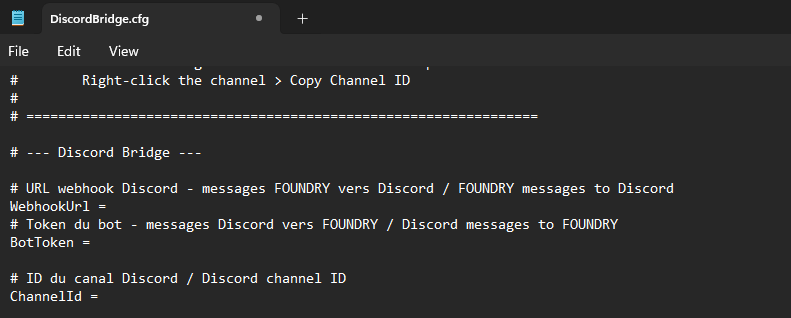
In here you'll find a file called DiscordBridge.cfg which needs to be edited with the Discord details. Find below the steps to get each detail accordingly.
Create a Discord application and bot
- Go to the Discord Developer Portal at https://discord.com/developers/applications and sign in with your Discord account.
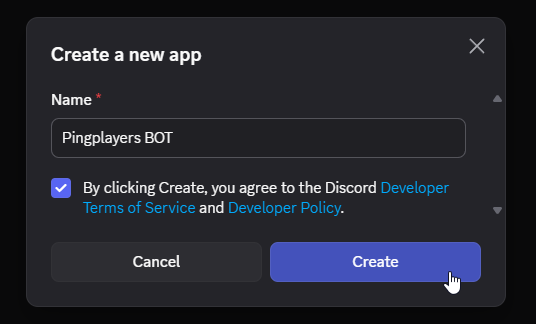
Click New Application, give it a name (for example, "Pingplayers bot"), tick the little box and create it.
Once you get redirected to the bot's page, locate the Token section right under the Username. Click on Reset Token to generate a new one, as we need it.

- Copy the generated long string token and paste it inside the DiscordBridge.cfg file, under the “BotToken”.
(Keep this token private, anyone with this token can control your bot. Do not share it publicly)
Invite the bot to your Discord server
In the Developer Portal, open the OAuth2 section and enable the Bot option.
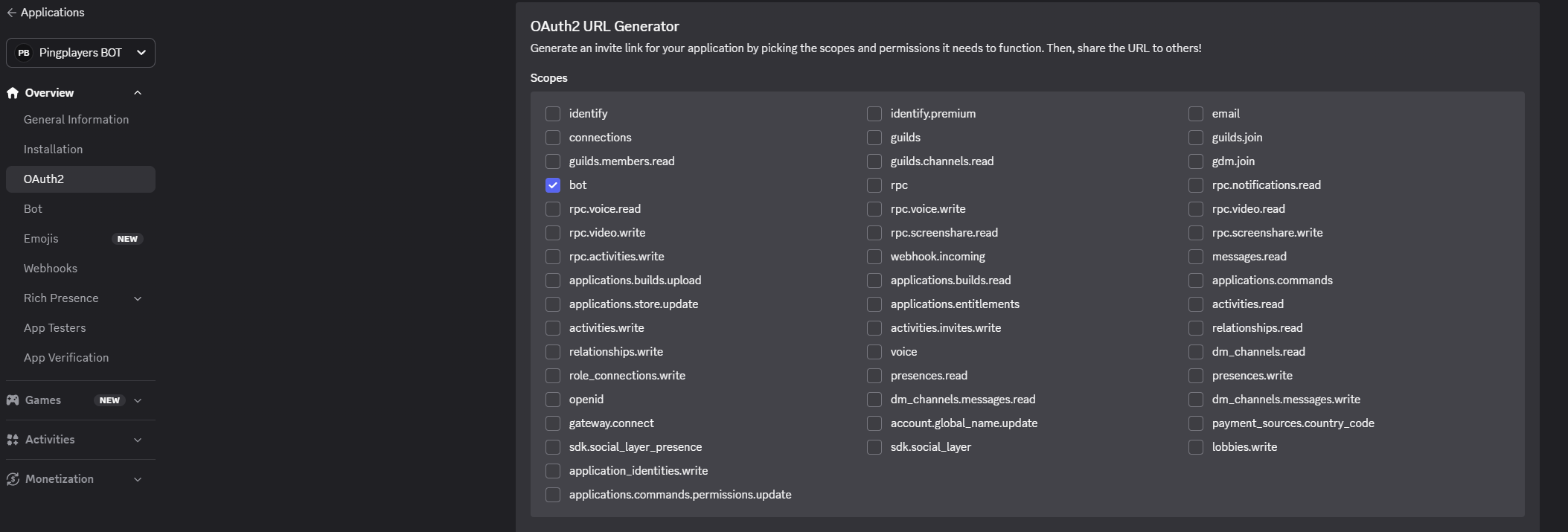
This will open a new panel at the bottom to select the specific permissions. In this panel tick View Channels and Read Message History.
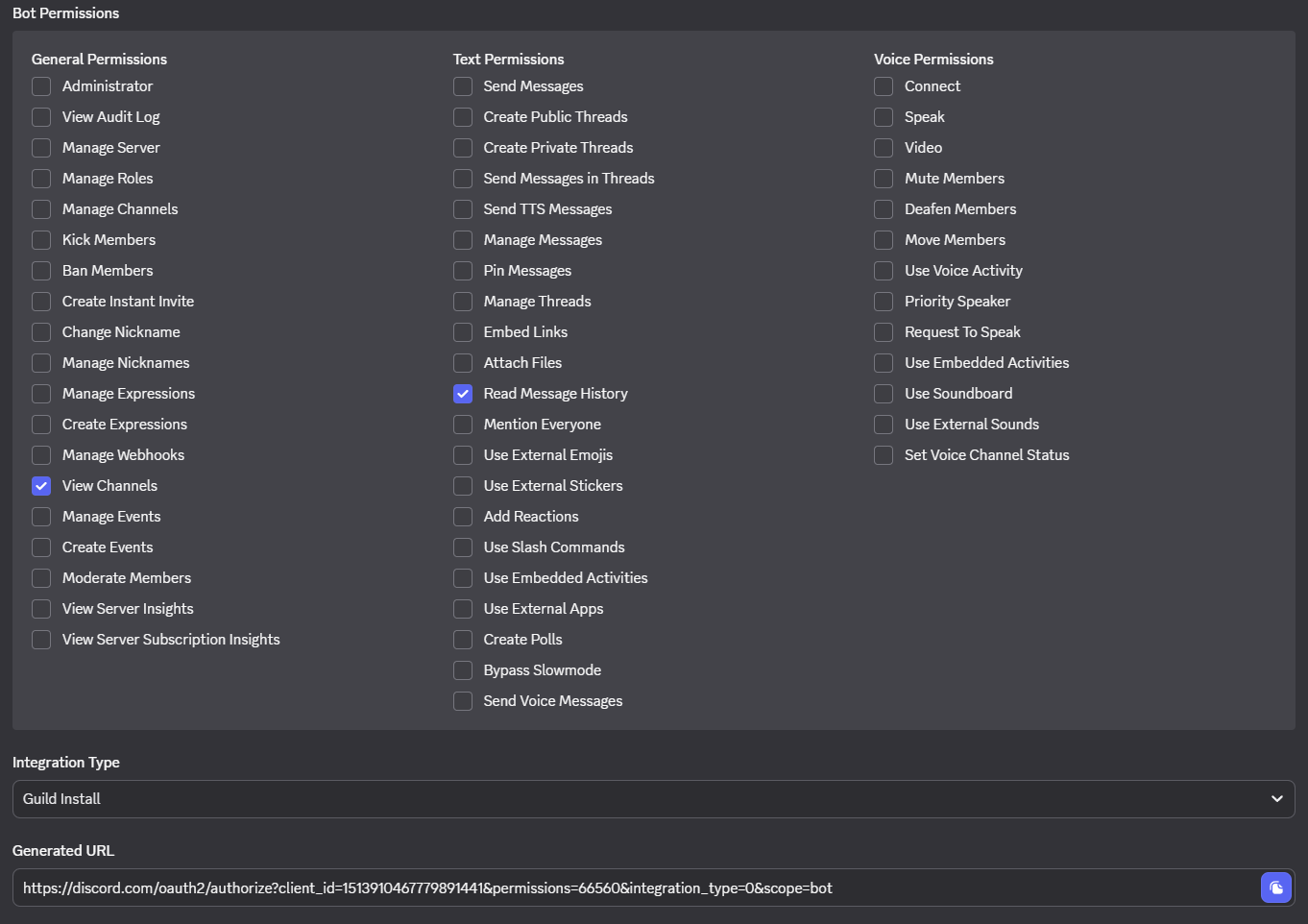
- Copy the Generated URL listed at the bottom and paste it into your browser. Follow the prompts to invite the bot to the Discord server you manage.
Configure which Discord channel to bridge
Enable Developer Mode in Discord by going to:
User Settings > Advanced > Developer Mode = On. Or you may use the search option on the left to search for the option.
Right-click the Discord channel you want to bridge, choose Copy ID to get the channel ID.
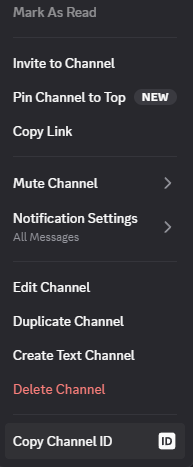
- Go back to your DiscordBridge.cfg file in your PC and paste the channel ID in the Channel ID line.
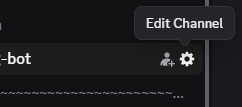
Open Discord again, go to the channel's configuration panel by clicking on the Gear icon (Edit Channel) and select Integrations.
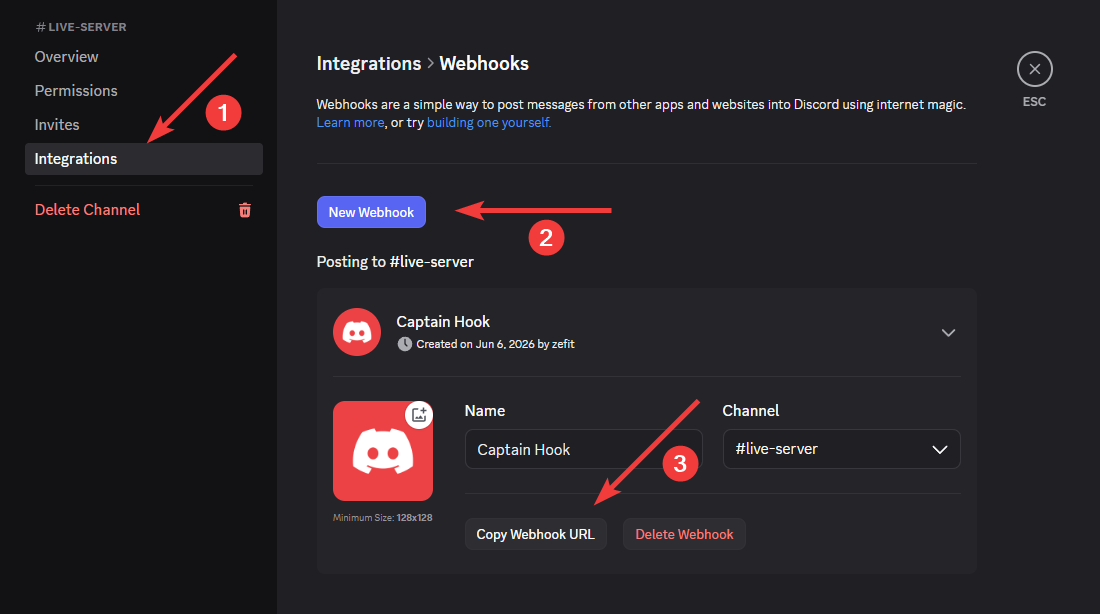
In here we need to create a New Webhook, which is essentially a mod inside this particular channel.
- Copy the Webhook URL from Discord and paste it inside the DiscordBridge.cfg file accordingly.
Test the Mod
Now that you have all the details set inside the DiscordBridge.cfg file on your PC, save the changes and close the file.
Open the game and connect to the server to test the mod integration. Simply type using the in-game chat, which will show the messages in your Discord channel, and viceversa.
Troubleshooting
If something doesn’t work, try the items below. These are common issues and easy to fix.
- Missing mod or not installed correctly: Verify the mod files are uploaded into the correct folder.
- Wrong bot token: Make sure you copied the token from the Developer Portal. If unsure, regenerate a new token in the Developer Portal and update the mod file in your PC.
- Bot not invited or missing permissions: Ensure the bot was invited to the correct Discord server and that it has permissions to read and send messages in the channel you selected.
- Wrong channel ID: Make sure you copied the channel ID (enable Developer Mode in Discord first), and pasted the numeric ID into the mod configuration.
- Compatibility: Verify the bridge mod version is compatible with your game server version. Check the mod’s documentation for version requirements.
If you still can’t get it working after these checks, gather the following info before you contact support: a brief description of the problem, screenshots or copy of error messages, which steps you’ve already tried, the mod version or any important information. This helps our team resolve the issue faster.
If you have any questions or need assistance, feel free to reach out to our customer care agents through our live chat or email at support@pingplayers.com. Happy gaming!