How to Configure 3.0 Sandbox Settings on Your 7 Days to Die Experimental Server
Configure 7 Days to Die 3.0 sandbox settings fast: generate sandbox code in-game, paste into your server panel and restart to apply.
Welcome to the zombie apocalypse of 7 Days to Die! If you are spinning up a 7DTD 3.0 experimental server, you might notice that configuring your world has drastically changed. The days of digging through complicated XML files to tweak zombie speed and blood moon frequency are over. The developers have introduced a brand new, incredibly easy system that uses a generated code.
You just dial in your preferred settings inside your own game client, copy the generated text, and paste it directly into your server panel. Whether you are a veteran survivor or completely new to hosting, this guide will walk you through exactly how to set up your custom horde night rules in just a few simple steps.
Step-by-Step Guide to Configure Sandbox Settings
Configuring your world settings is now completely handled through the actual game client before transferring the data to your server.
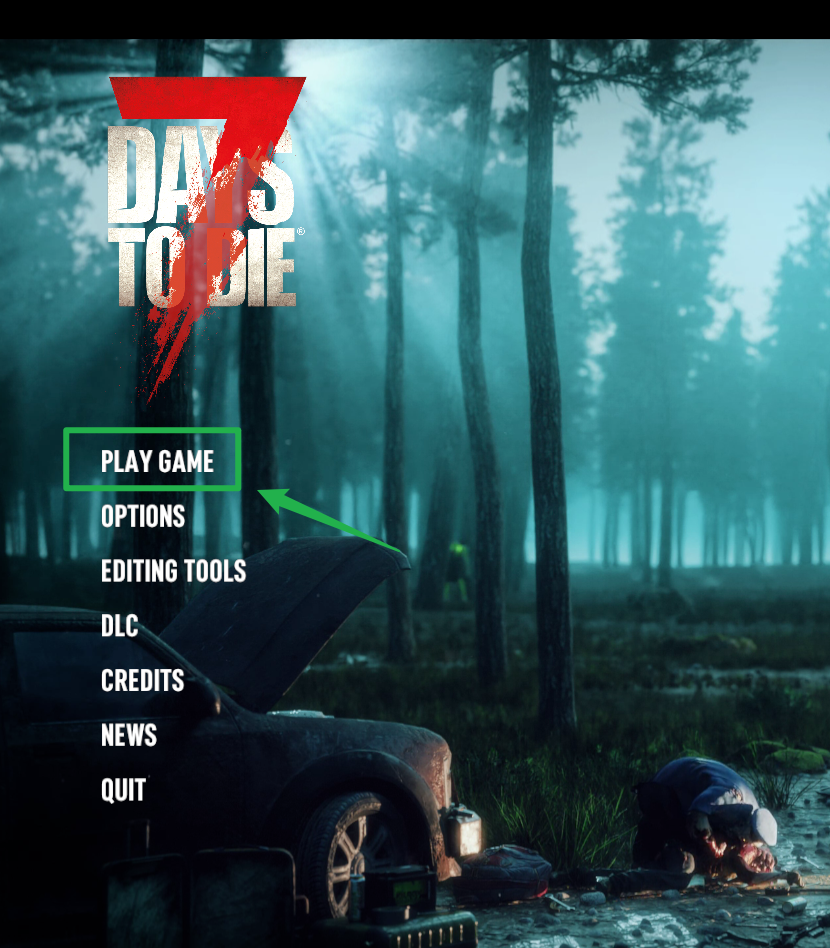
Launch 7 Days to Die and click on Play Game, then New Game from the main menu to open the local world generation screen.

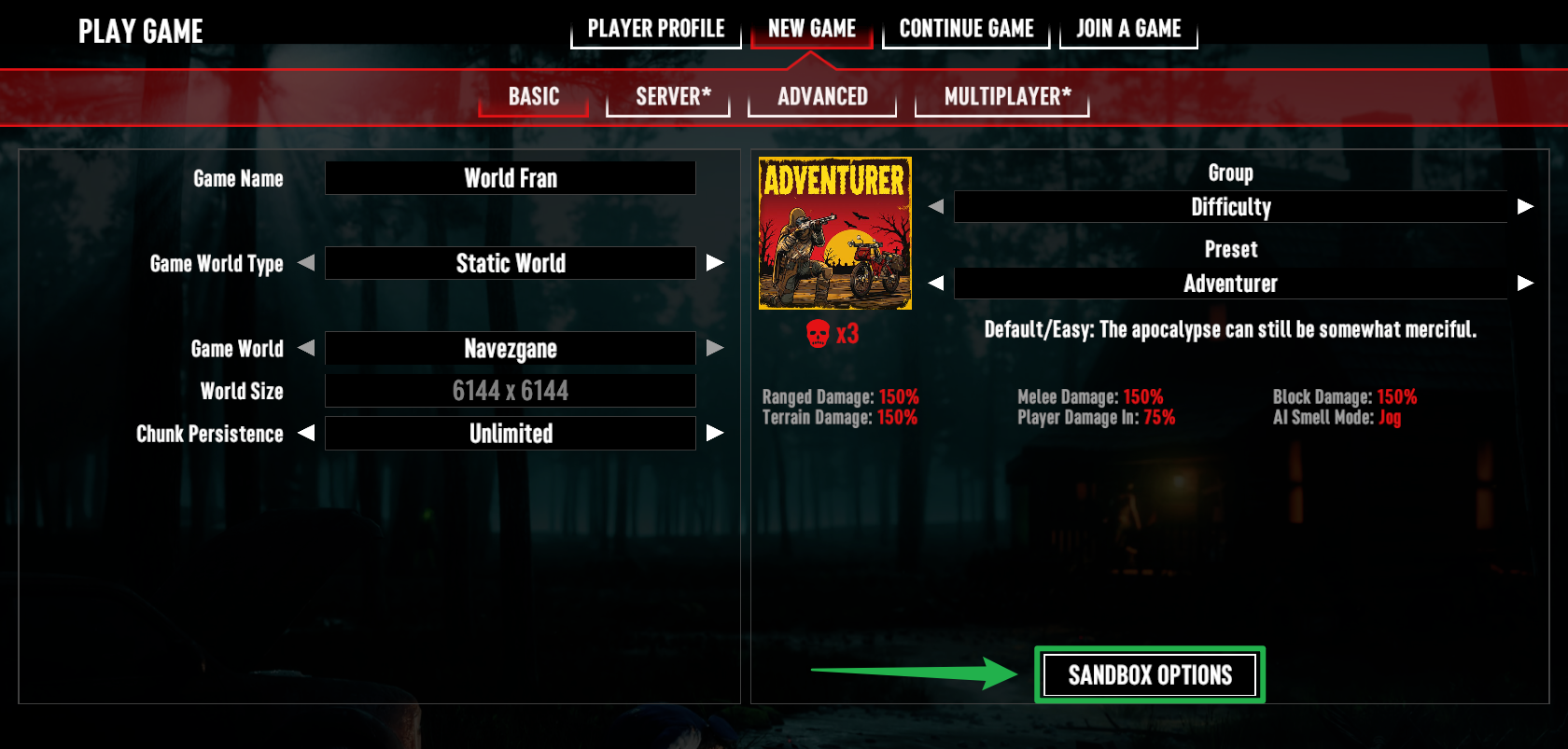
Navigate through the different tabs (such as Basic, Advanced, and Multiplayer) and tweak your sandbox settings to your liking by going to Sandbox Options. Adjust your difficulty, loot abundance, day length, and how nasty the zombies get during the blood moon.
Once your settings are perfectly dialed in, look for the code generation area within that Sandbox Options menu to copy your unique sandbox code to your clipboard.
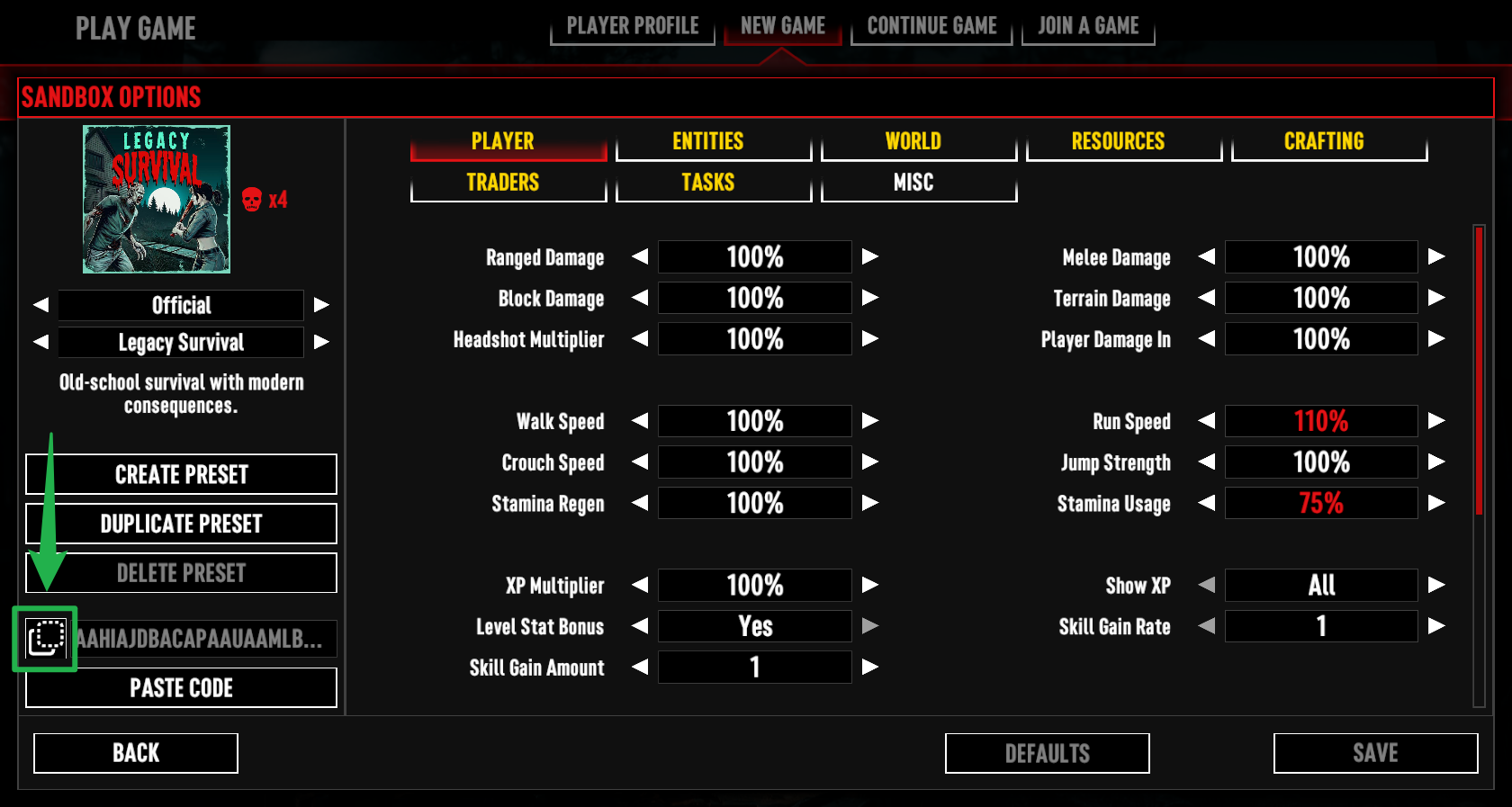
Copying the newly generated sandbox code from the in-game settings menu. Open your web browser, log into your server panel, and navigate to the Basic Settings section on the left side menu.
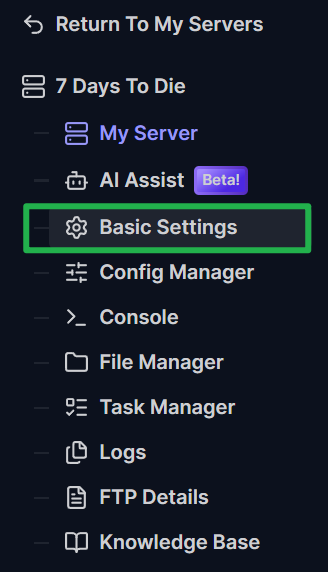
Paste the code you just generated in-game directly into the Sandbox Code field.

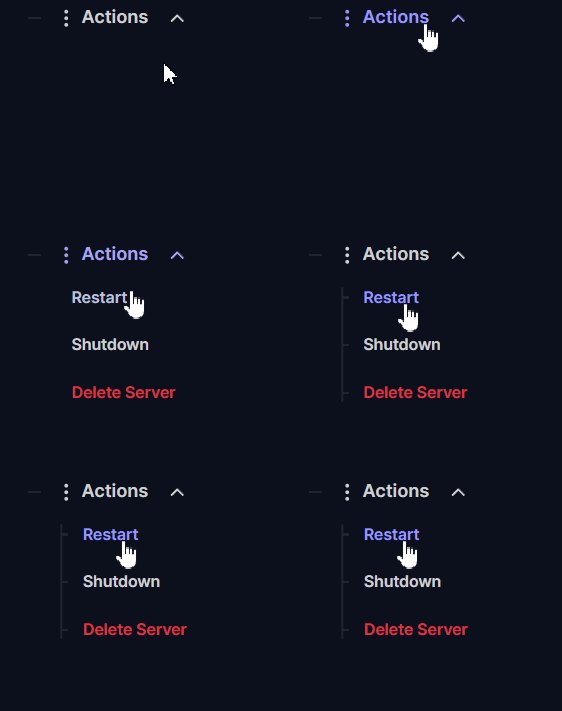
Pasting the generated sandbox code into the basic settings field on the server panel. Save your changes and go to the Actions menu to Restart your server. Your brand-new 7DTD sandbox configuration will be active as soon as it boots up!
Using V3.0 Official Presets
If you do not want to spend time tweaking every single setting manually, V3.0 comes packed with several brand new Official Presets to choose from. These presets offer unique challenges and playstyles right out of the box!
Some of the standout modes include:
Undead Matinee
A melee focused vintage movie inspired mode with slower zombies, swarming numbers, and scarce ammo.
Madmole's Mayhem
Fewer supplies and harsher penalties, including the new item and durability loss on death.
Almost Creative Mode
All the fun of the apocalypse without the actual apocalypse stress, perfect for builders.
Bite Club
A hardcore, perma death mode where respawning is not an option. You get one life, so use it wisely!
Dumpster Diver
Turning garbage into greatness, proving it is not hoarding if you actually use it.
Chibi Mode
Not only are they cute, but they are fast too!
Legacy Survival
Old school survival with modern consequences. Play like it's 2014!
Simply select one of these presets in your game client, generate the code, and paste it into your server panel just like a custom setup.
Troubleshooting and Tips
If your zombies are walking when they should be sprinting or the loot feels a bit too generous, keep these helpful troubleshooting tips in mind:
- Double Check the Code: If your horde night settings do not seem to be applying, make sure you copied the entire string of text without any accidental spaces at the end. A single missing letter or typo will cause the server to fail the read and revert to the default Adventurer difficulty.
- Applying to Existing Saves: If you decide to change your sandbox code on an active server, remember that some settings might not take effect until the server fully reboots. Additionally, changing certain world generation parameters will not retroactively alter chunks that your players have already explored.
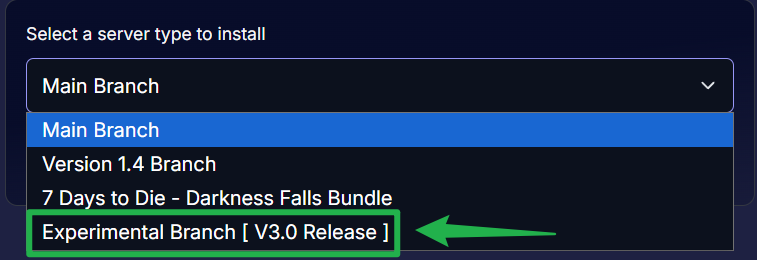
Experimental Client Versions: Because 3.0 is on the experimental branch, ensure your local game client matches the exact build version of your server before generating the code. Mismatched versions can lead to compatibility bugs or unrecognized settings.
Conclusion
Setting up your 7 Days to Die server rules is now faster than ever. By leveraging the new sandbox code system, you can easily tweak your survival experience without touching a single line of confusing XML code. Grab your favorite melee weapon, fortify your base, and get ready for the horde!
If you encounter any issues or have further questions, feel free to contact our support team for assistance!