How to Change and Cycle Maps in Counter-Strike
Quick guide to change maps on your Counter-Strike server: force a map change via console or set an automatic mapcycle with clear steps.
This guide shows two simple ways to change maps on your Counter-Strike server. You may either force a map change or set a specific cycle rotation for your maps. The steps are written for beginners, so no previous server experience is required.
Change a map directly from the server console
The quickest way to change a map right away is to use the server console in your PingPlayers control panel.
- Locate your server's cofiguration panel at My Servers > Manage Server.
Open the server Console:
On the left panel you should see a Console option. Click on it and make sure you're under the Game option from the dropdown menu.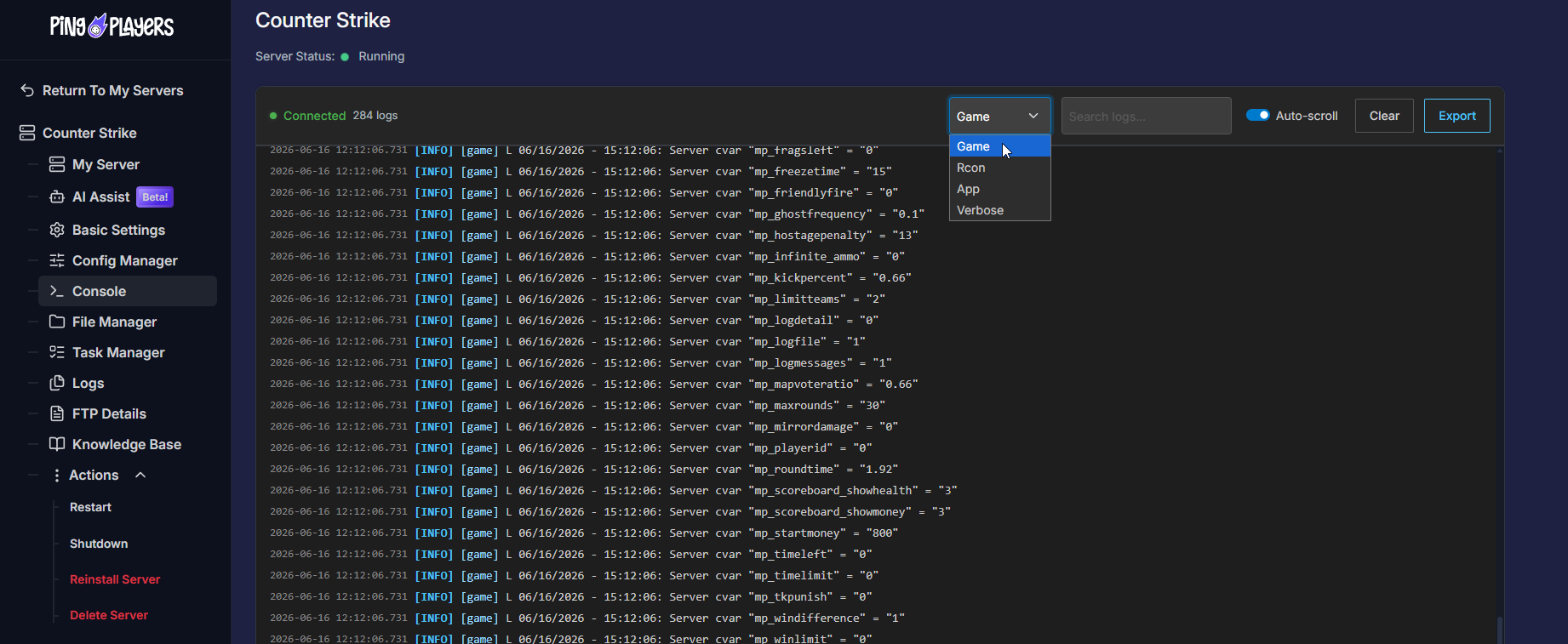
Change the map:
In here you may enter many server commands if needed. To change the map, we can use 2 different commands.mapmap de_infernoIf you use the map command, all players will be kicked out of the server.

changelevelchangelevel de_infernoIf you use the changelevel command, all players will stay inside the server.

- Enjoy your server!
Change your map cycle
If you want the server to automatically move through a list of maps, you can edit the mapcycle.txt file. This is the file the server reads when the map ends.
Locate the file:
Find the File Manager option on the left panel, inside your server configuration panel. Navigate toServer/cstrike/mapcycle.txt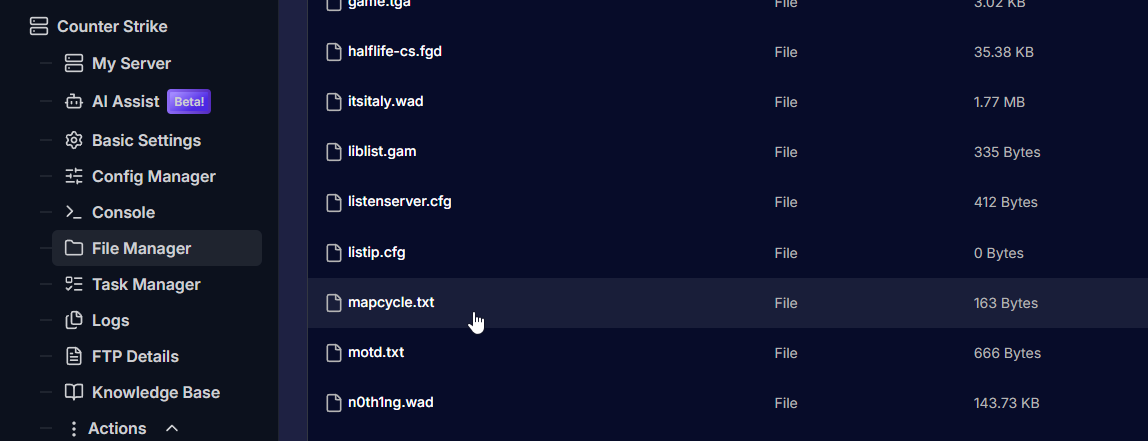
Inside this file you will see all maps listed, that the server uses the change maps.
Customize your cycle:
List your desired map in here, making sure each line contains a valid map name and there are no extra spaces or special characters.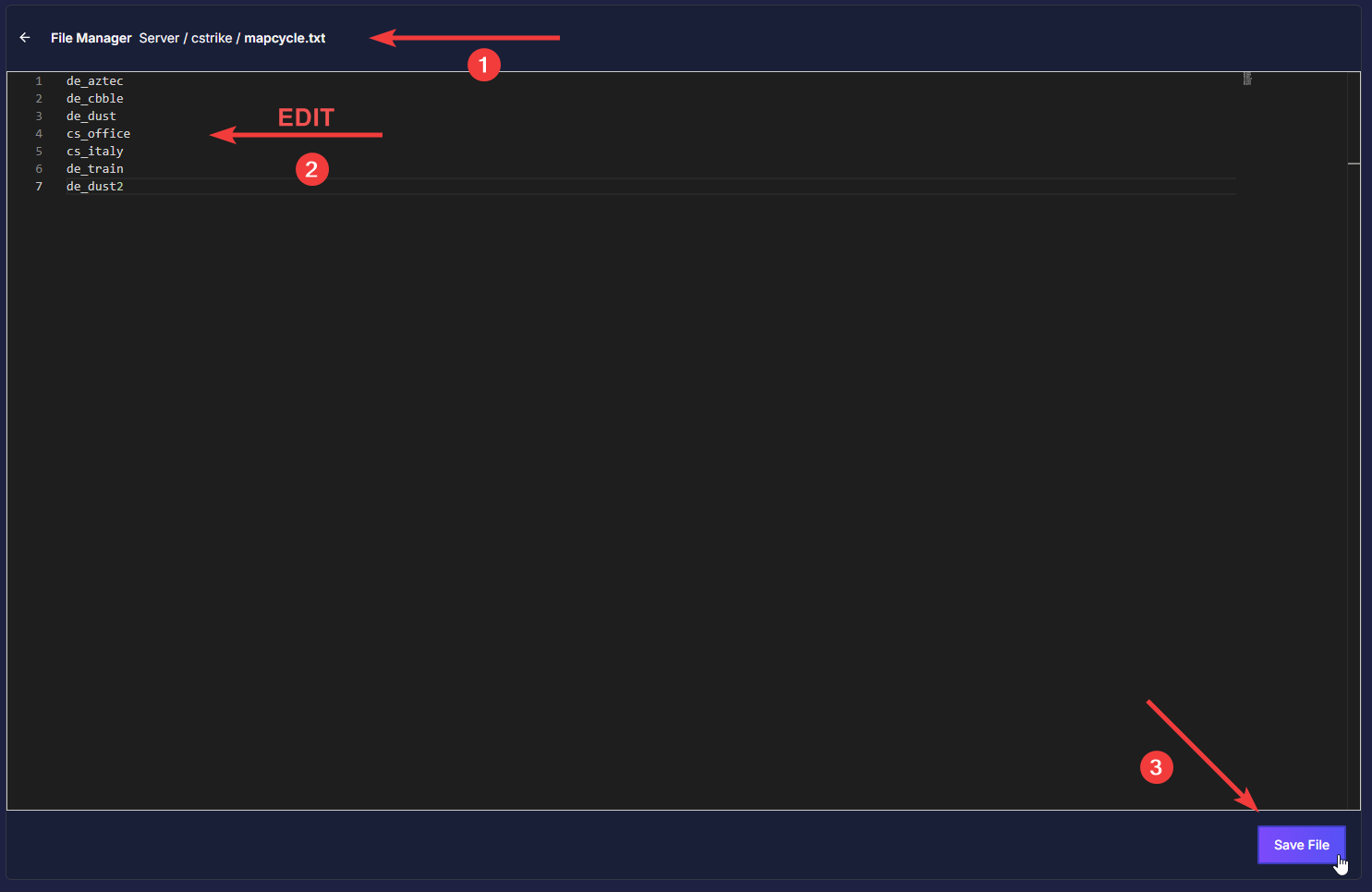
In case you're not sure what the map name is, go to the maps folder at
Server/cstrike/maps/Apply the changes:
To immediately use the new mapcycle, you can either wait until the current map completes and the server moves to the next map automatically, or force a map change from the Console (see the steps above) to the first map in your list.
Alternatively you may restart the server from Actions > Restart Server- Enjoy your new map pool!
Quick tips and best practices
- Always keep a backup copy of
mapcycle.txtbefore editing so you can restore it if something goes wrong.- If you add custom maps, make sure the .bsp files are uploaded to the server's maps folder so the server can load them.
- Use exact map filenames (case-sensitive). For example,
de_dust2is different fromDE_DUST2
Troubleshooting
- Wrong command used in console: Use
maporchangelevelwithout a/otherwise it won't load. - Changes to mapcycle.txt don’t take effect: - Make sure you saved the edited file in the File Manager panel. The server usually reads mapcycle at the end of a map; to apply immediately, change to the first map in the list from the console or restart the server.
- Map not found: Confirm the map file (.bsp) exists in the server’s maps folder and the name is correct.
- Server mod differences: Some mods or plugins alter how map cycling works. If you use a mod (for example a third-party map manager plugin), consult that mod’s documentation for help.
If you have any questions or need assistance, feel free to reach out to our customer care agents through our live chat or email at support@pingplayers.com.