
Welcome to your new world, crafter! Whether you are building massive automated factories, exploring dangerous dungeons, or just trying to survive the wild, playing Craftopia with your friends is where the real fun begins.
Unlike temporary player-hosted sessions that rely on invite codes, dedicated servers use a direct connection method to get you into the action. Because there is no standard server browser for this setup, you just need to point your game directly at your server's address. This guide will walk you through exactly how to connect to your Craftopia server.
Step - By - Step Guide
Before you load up the game, make sure your server is online and running.
Open your main server dashboard and locate your server's IP address and game port.
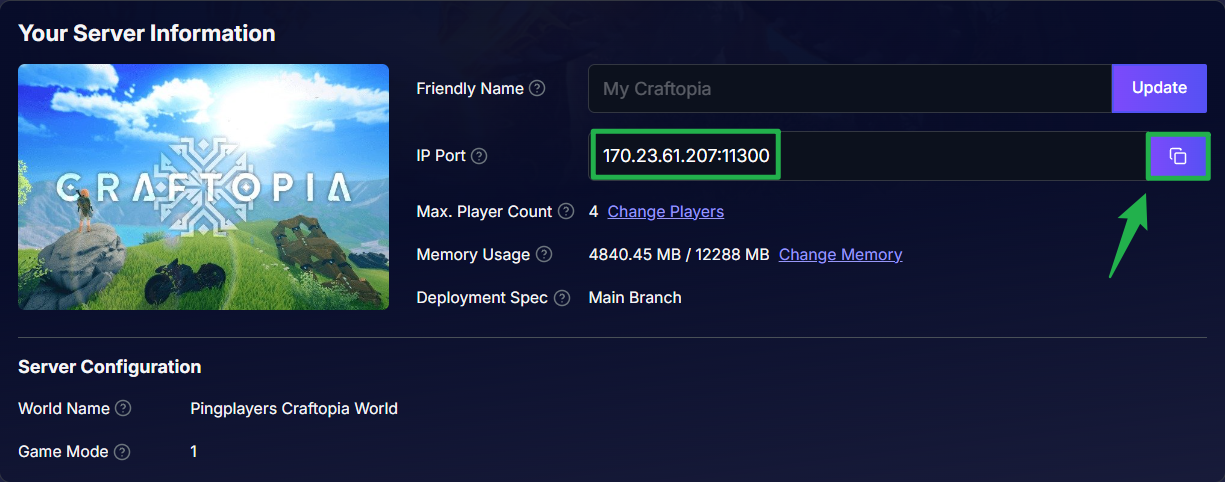
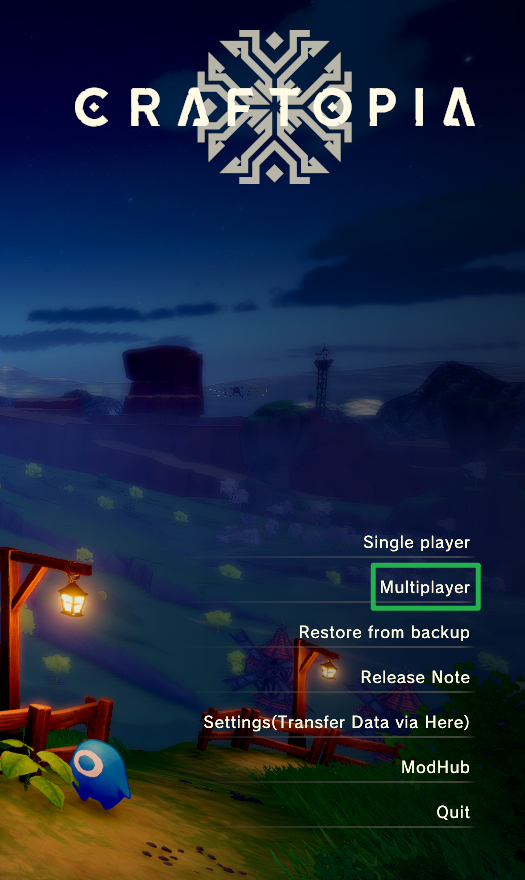
You can use the copy button on the right side to copy it in its current format. Launch Craftopia and from the main game menu, click on Multiplayer.
Select the character you want to use for this specific world and choose the Join by IP option from the connection menu.
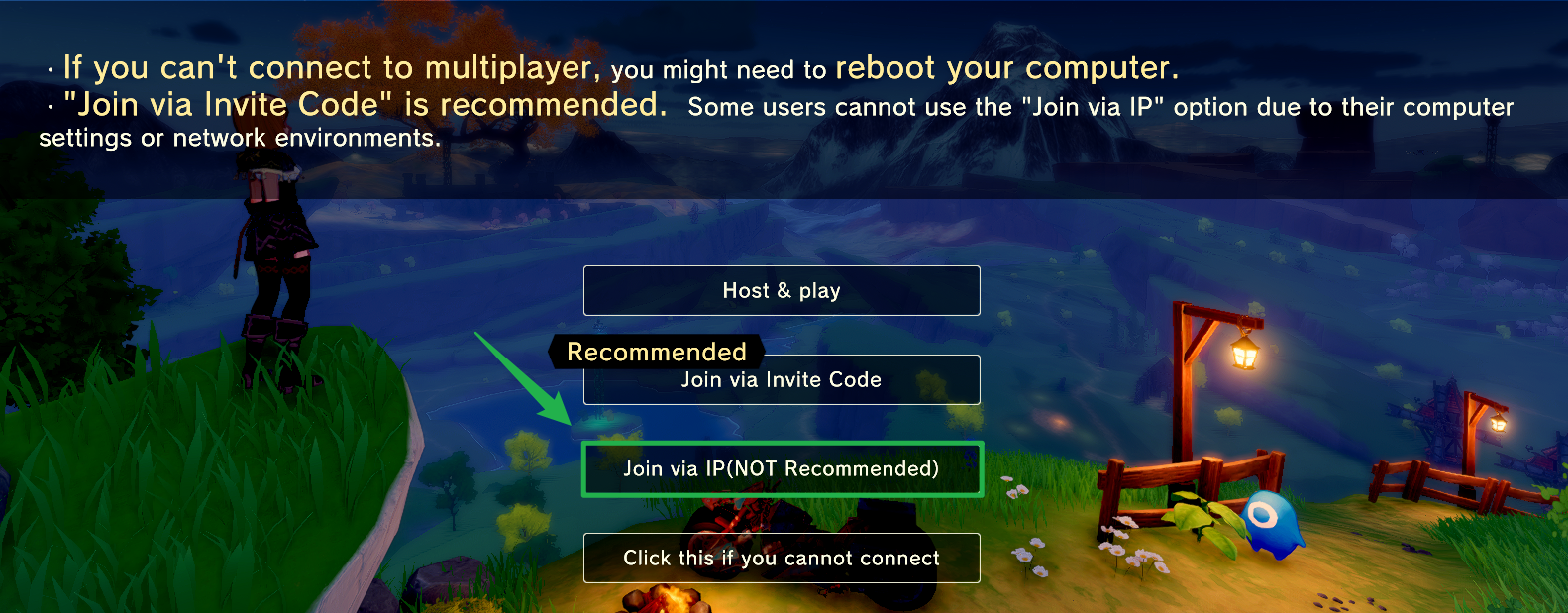
Enter your server's address using the exact
IP:PORTformat you grabbed from your main dashboard, then click to Start.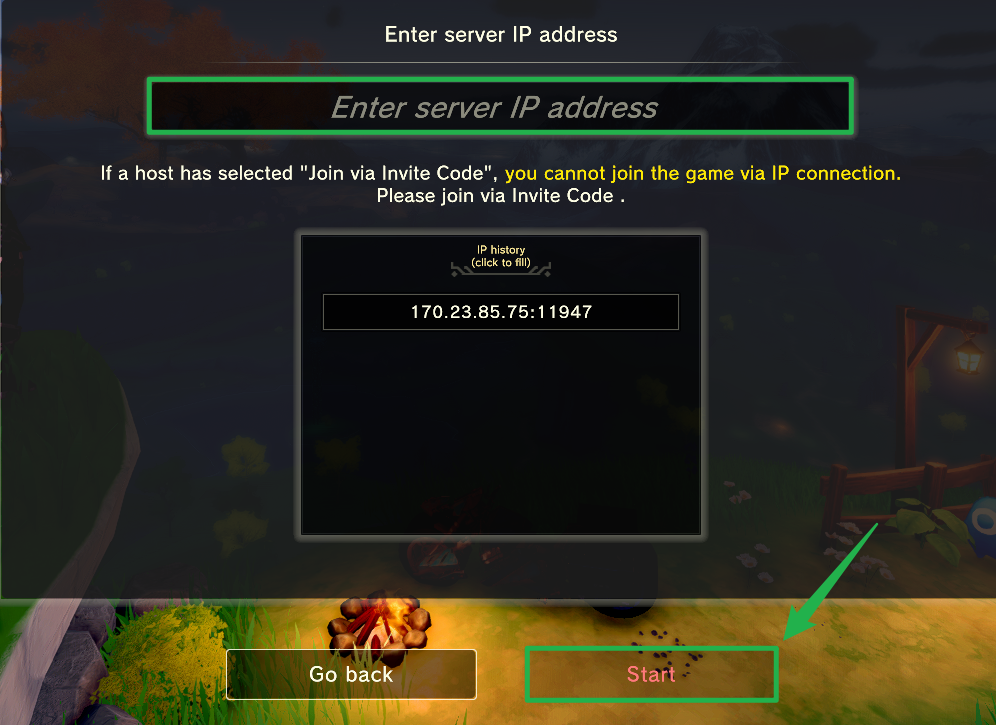
If you set up a server password in your basic settings, type it in when the prompt appears to finish loading into the world!
Troubleshooting and Tips
If you or your friends are having trouble joining the server, run through these quick checks:
- Invite Codes Do Not Work: Craftopia features a built-in invite code system, but this is only intended for local player-hosted sessions. For your dedicated server, you and your players must always use the Join by IP method.
- Connection Failed: If your connection times out, double-check that your server has fully finished its startup process. If it seems stuck, you can reboot it by navigating to Actions > Shutdown on your server panel, waiting a moment, and then clicking Action > Restart to bring it back online safely.
- Password Rejections: If players are getting rejected at the password screen, verify your current password configuration. You can easily update or double-check your server password by looking through your basic settings or your Config Manager templates.
- Version Mismatch: Ensure your client game version matches the server version. By default, your server runs the latest stable Craftopia build available on Steam, so make sure your personal game is fully updated.
Conclusion
You are officially connected! Now that you know how to join your dedicated server, you can share your IP and port with your friends and start building the ultimate automated paradise. Go gather some resources and let your creativity run wild.
If you encounter any issues or have further questions, feel free to contact our support team for assistance!