Learn how to join your Stormforge dedicated server via Direct IP: copy IP:PORT, enter server password if needed, and use troubleshooting.
Welcome to the tempest, survivor! Braving roaming storms, gathering resources, and surviving brutal combat encounters in Stormforge is always better with your squad.
Because dedicated servers use a Direct IP connection rather than the standard in-game server browser, getting into your world just takes a few quick clicks. This guide will walk you through the exact steps to connect to your Stormforge dedicated server so you and your friends can start surviving together.
Step - By - Step Guide
Before launching the game, log into your main server dashboard and copy your server's exact connection address (IP:PORT), along with your server password if you set one up.
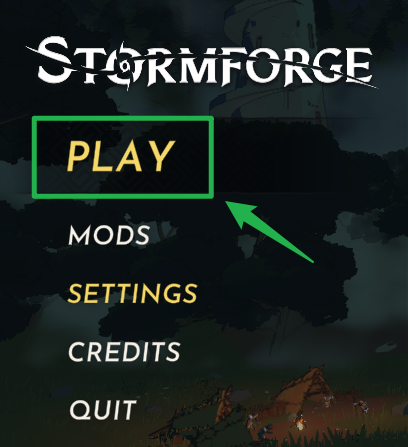
Launch Stormforge and from the main menu, select Playand choose the character you want to bring into the world.
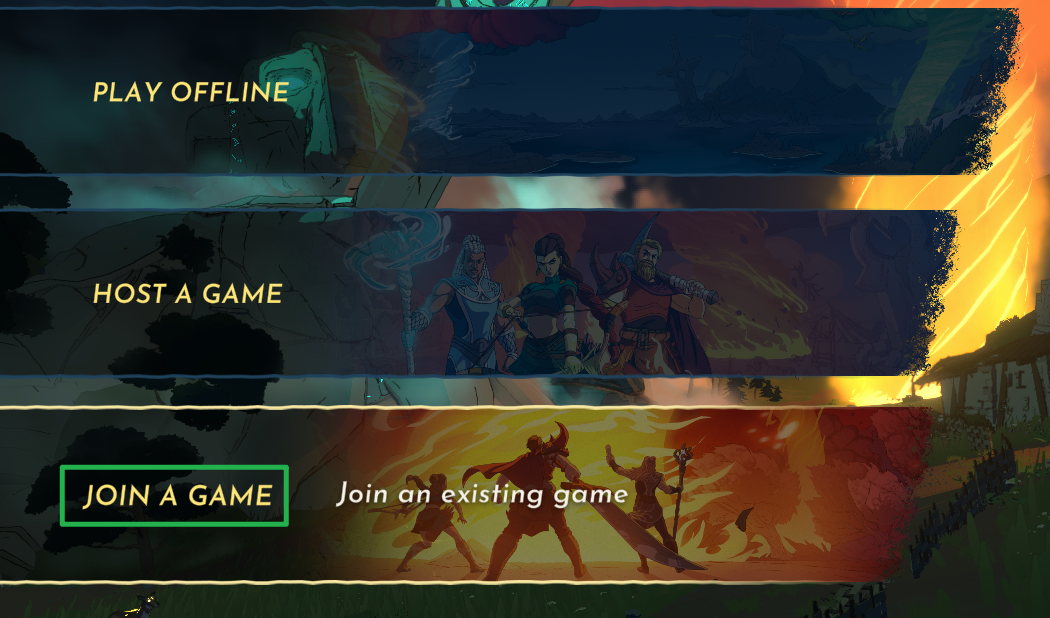
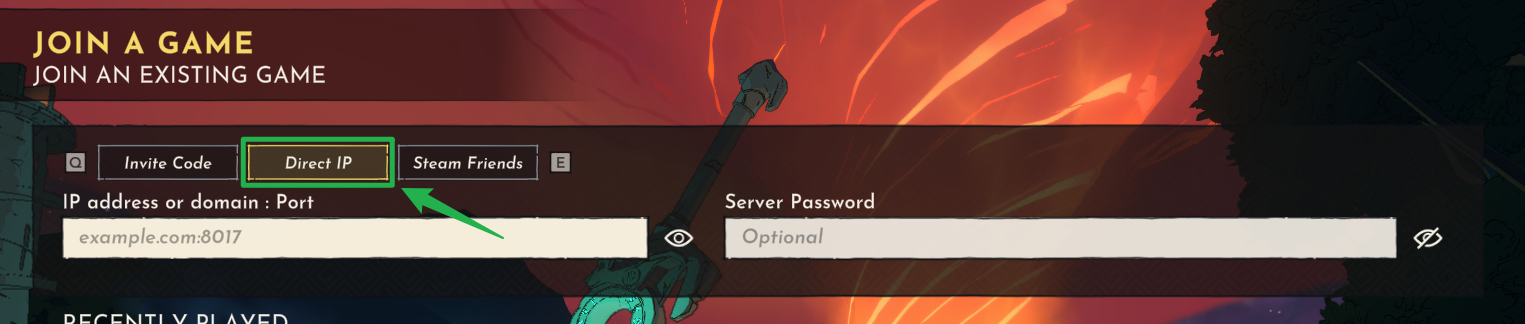
Click on Join a Game and select the Direct IP option.
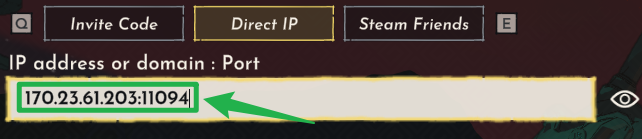
Enter your server's exact IP address and port using the IP:PORT format you copied from your server panel.
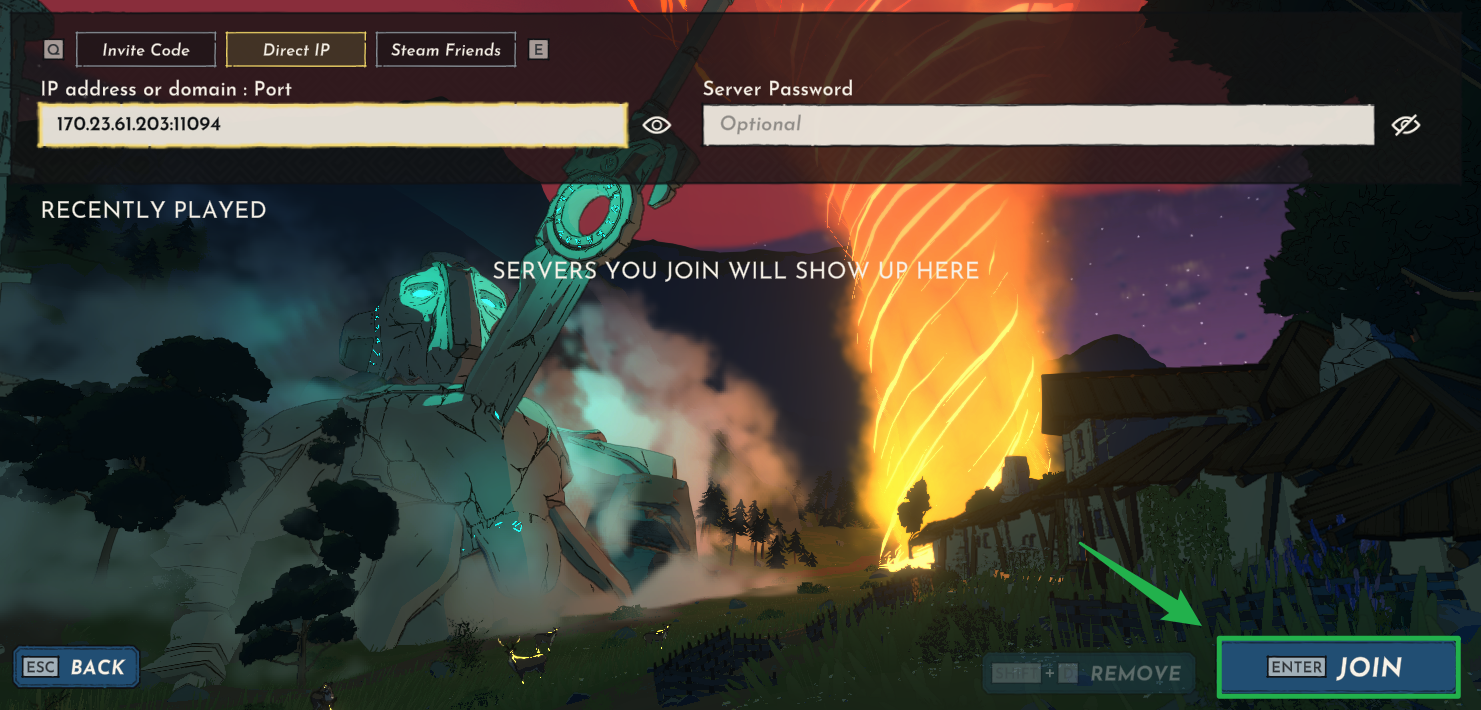
If your server is password-protected, enter the Server Passwordin the provided field. (If you leave it blank and a password is required, the game will display a password prompt after you click Join).
Click Jointo load straight into your world!
Troubleshooting and Tips
If you or your squad are having trouble connecting to the server, run through these quick checks:
Skip the Server Browser: Direct IP is the supported connection method for dedicated servers. If you cannot find your server in the public server list, do not worry. Always connect through Play > Select Character > Join a Game > Direct IP.
Password Rejections: If the server rejects your password, double-check your Server Password in your Basic Settings. Keep in mind that Stormforge passwords must not contain spaces, quotation marks, or backslashes.
Connection Refused or Version Mismatch: Check your panel console to confirm the server has finished booting without errors, and make sure your Steam client is updated to the latest stable version. If the server is running but still refuses connections, navigate to Actions > Shutdownon your server panel to bring it offline safely, then click Action > Restart to reboot and apply any pending updates.
Wrong World Loading: If you connect and notice the wrong map loaded, check your World Prefab ID in Basic Settings. Ensure it points to your intended world folder and was not accidentally left set to 00000000-0000-0000-0000-000000000000, which generates a brand-new world on startup.
Conclusion
You are officially wired in! With your crew connected to your Stormforge server, you are ready to weather the moving storms, craft top-tier gear, and conquer the wilds together. Grab your weapons and watch out for the weather.
If you encounter any issues or have further questions, feel free to contact our support team for assistance!
Happy gaming!
Stormforge hosting
Need a Stormforge server?
Set up in minutes, with real people on live chat around the clock.
We use cookies to enhance your browsing experience, serve personalized ads or content, and analyze our traffic. By clicking "Accept All", you consent to our use of cookies.