How to Join a Codename CURE II Server
Join a Codename CURE II server fast: use the in-game server browser, search by hostname, click Join, and follow troubleshooting tips if needed.
Surviving the zombie apocalypse in Codename CURE II is all about teamwork, communication, and heavy firepower. Whether you are running a private match for your friends or opening up a public lobby to take down hordes of the infected, joining a multiplayer server should be quick and easy.
Unlike some other games, CURE 2 does not currently support direct IP connections for normal player routing. Instead, everything is handled cleanly through the built-in server list. This guide will show you exactly how to find and connect to your dedicated server using the in-game browser!
Step - By - Step Guide
Getting into your server only takes a few clicks. Follow these instructions to find your lobby and jump into the action:
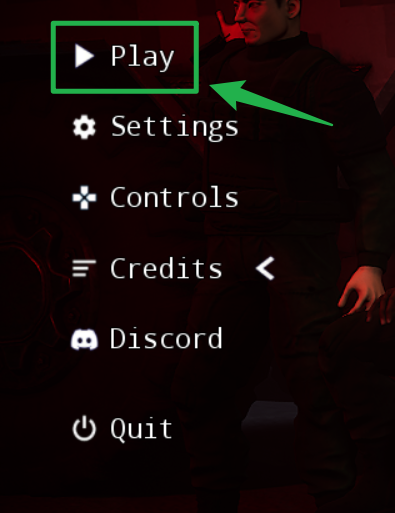
Launch Codename CURE II and, from the main menu, select the Play option, then click, Browse Games to open the in-game server browser.
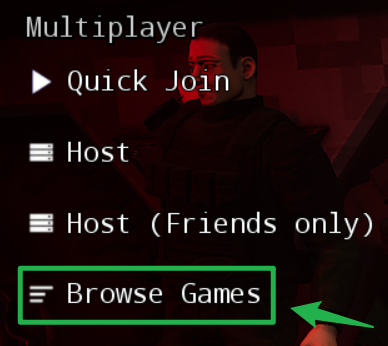
Once you locate your server in the list, simply click on its name to select it.
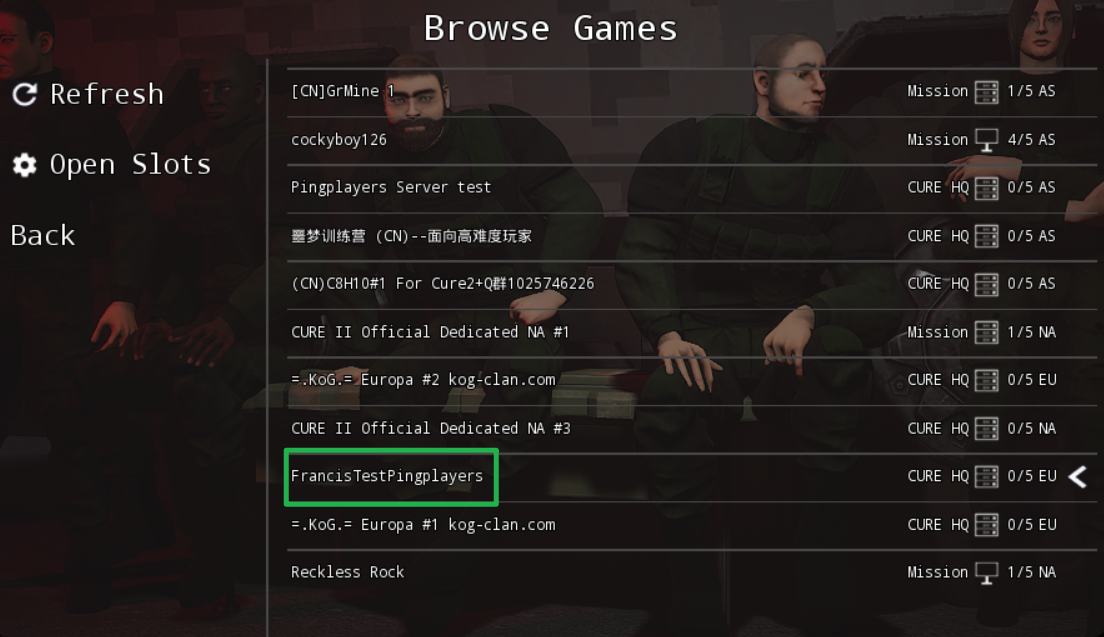
Click the Server Name and wait for the map and server assets to load so you can start blasting zombies!
Troubleshooting and Tips
If you or your friends are having trouble connecting to the game, run through these quick troubleshooting checks:
- Cannot Find the Server: If your CURE 2 server is not showing up in the browser, double-check your server panel dashboard to ensure it is actually online. If you just made changes to your configuration file, navigate to Action > Restart to apply them and bring the server back online.
- Direct IP Connections: Remember that direct IP connection via the developer console is not currently supported for normal player connections in this title. You must use the multiplayer server browser to join.
- Server Name Changes: If you recently changed the server name but it is not updating in the browser, navigate to Actions > Shutdown to safely stop the server, verify that your configuration file saved correctly, and then start it back up.
- Password Protection: If you set a password for your server to keep random players out, make sure to provide it to your squad beforehand. They will be prompted to enter it when trying to connect through the browser.
Conclusion
Getting your squad together in Codename CURE II is a breeze once you know how to navigate the multiplayer menu. By utilizing the in-game server browser, you bypass the need for complicated IP commands and get straight into the cooperative action. Load up your weapons, join the server, and work together to survive the undead horde!
If you encounter any issues or have further questions, feel free to contact our support team for assistance!