

Surviving the low-poly apocalypse in DeadPoly takes hours of scavenging, fortifying your base, and hunting down rare collectibles. Whether you are preparing for a major game update, switching hosts, or just want a safety net in case a raid goes sideways, keeping a reliable copy of your world save is essential.
While DeadPoly does generate automatic backup files on its own, those files stay on the server and will be lost if your server is ever wiped or reinstalled. This guide will walk you through how to safely download a manual backup and how to migrate an existing DeadPoly world onto your server.
Step - By - Step Guide
How to Manually Back Up Your Server
Before copying any files, always stop your server so the world data is not actively being written while you download it.
- If you are currently in-game with administrator access, use the in-game administrator interface to trigger a manual save so all recent progress is captured.
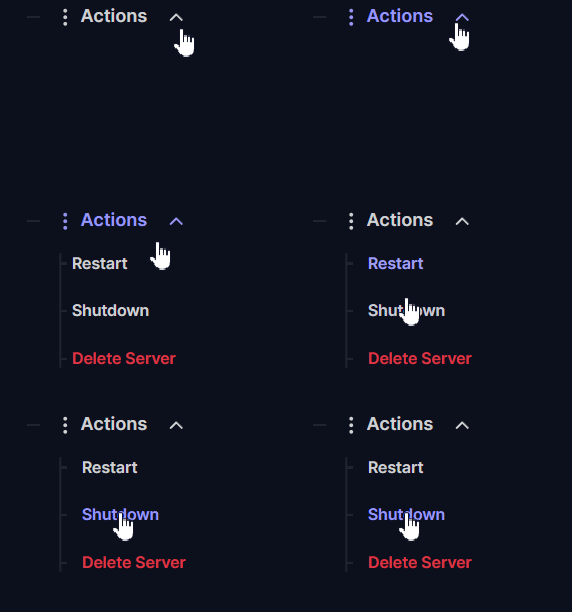
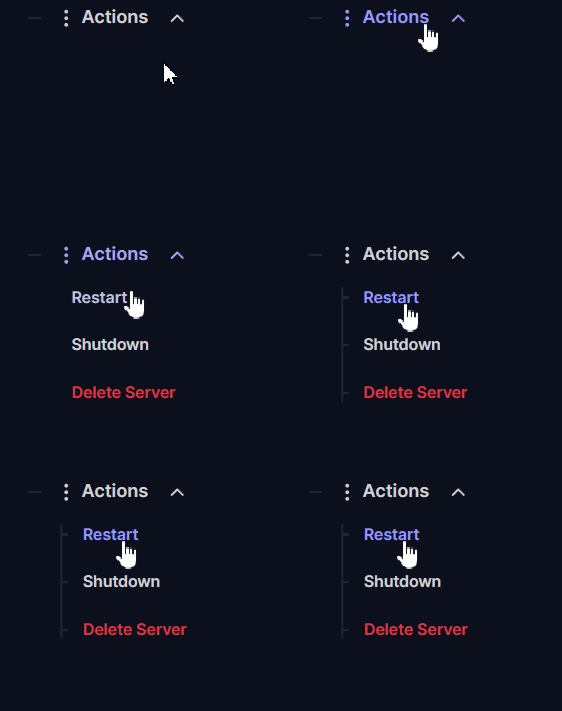
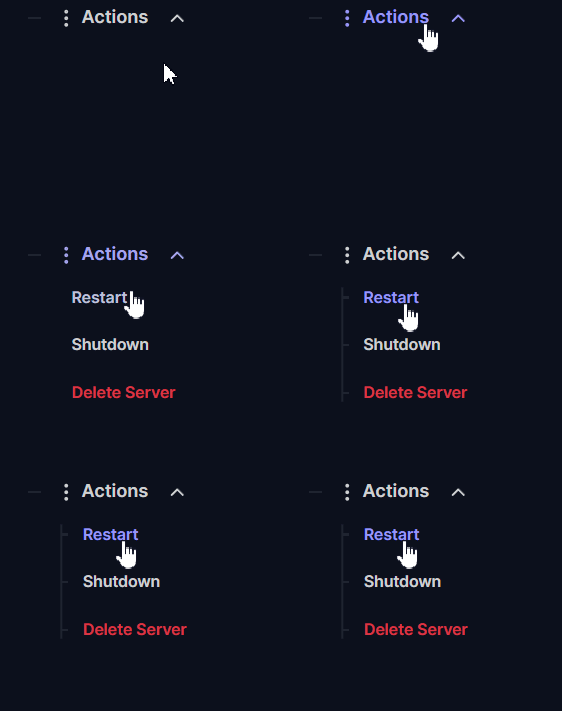
Log into your main dashboard and click Actions > Shutdown to bring your server completely offline.
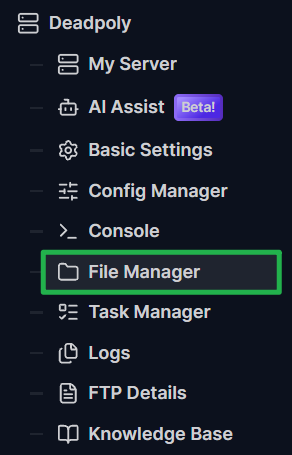
Open the File Manager on your server panel, or connect to your server using an SFTP client.
Navigate to the following directory:
Server/DeadPoly/Saved/SaveGames/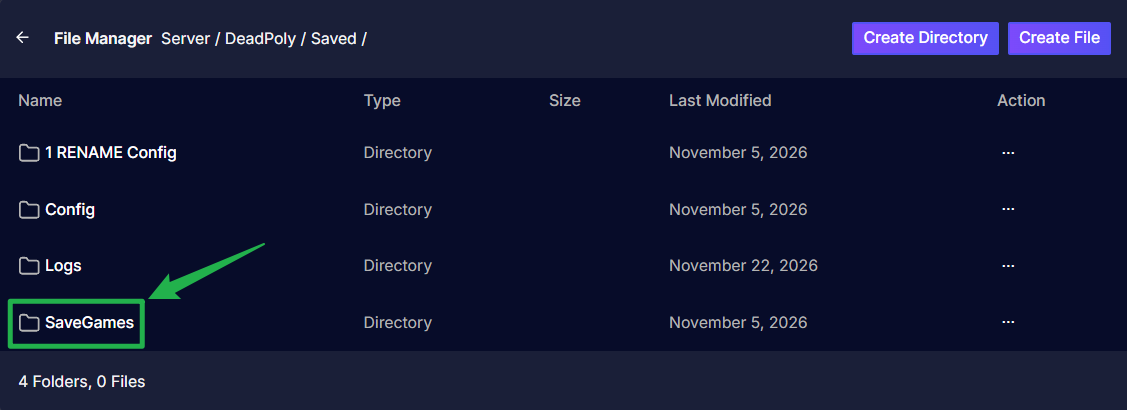
Download the entire
SaveGamesfolder to your computer by clicking on the 3 dots on the right side of the folder and choosing Download. Downloading the full directory ensures you preserve both your active save (Server) and any internal backup folders (Server_bak0).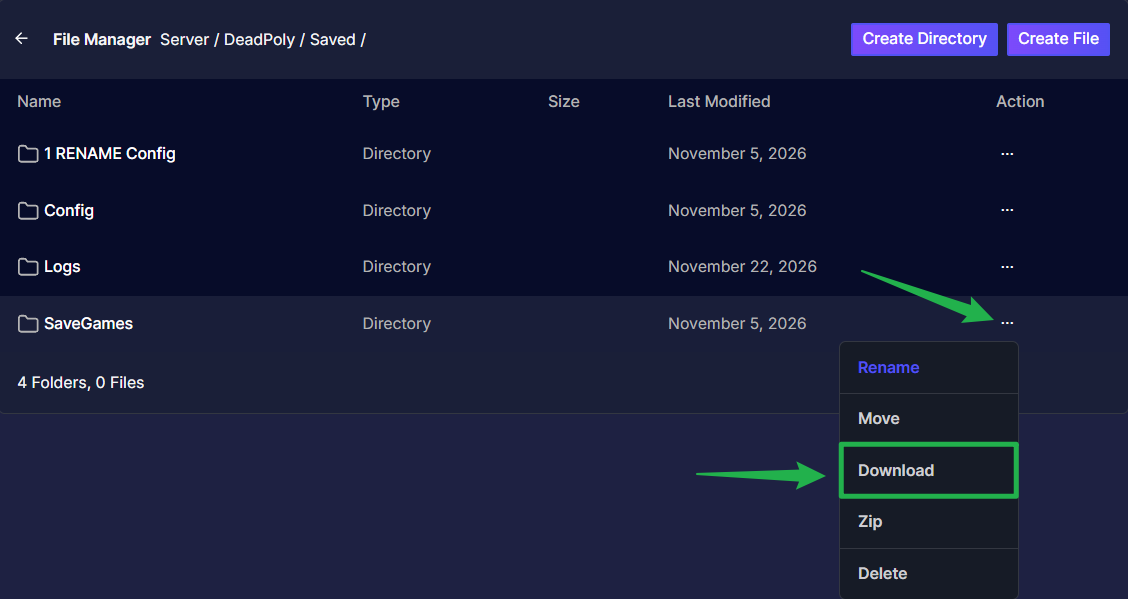
Once the download is complete, store the copy somewhere safe and click Action > Restart on your main dashboard to bring your server back online.
How to Migrate/Restore a DeadPoly Server
Transferring an existing DeadPoly world to your new server requires uploading your save files and matching your previous configuration.
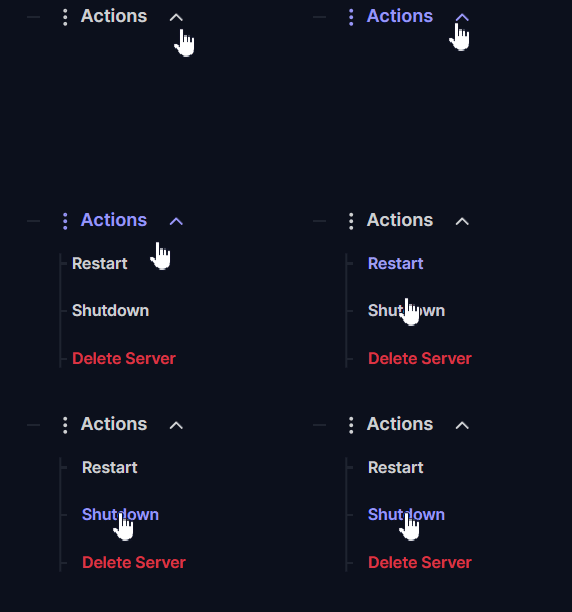
On your server panel, click Actions > Shutdown to make sure the server is completely stopped before uploading files.
Open File Manager or connect via SFTP, then navigate to
Server/DeadPoly/Saved/SaveGames/. (If you already have a world there that you want to keep, download a backup of it first).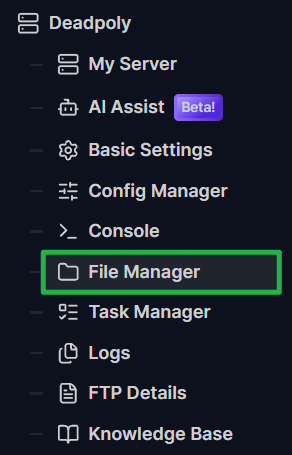
Upload your downloaded
SaveGamesfolder intoServer/DeadPoly/Saved/by dragging and dropping the folder to the upload bubble above the path. Make sure your intended active world files sit directly inside theServersubfolder (Server/DeadPoly/Saved/SaveGames/Server/).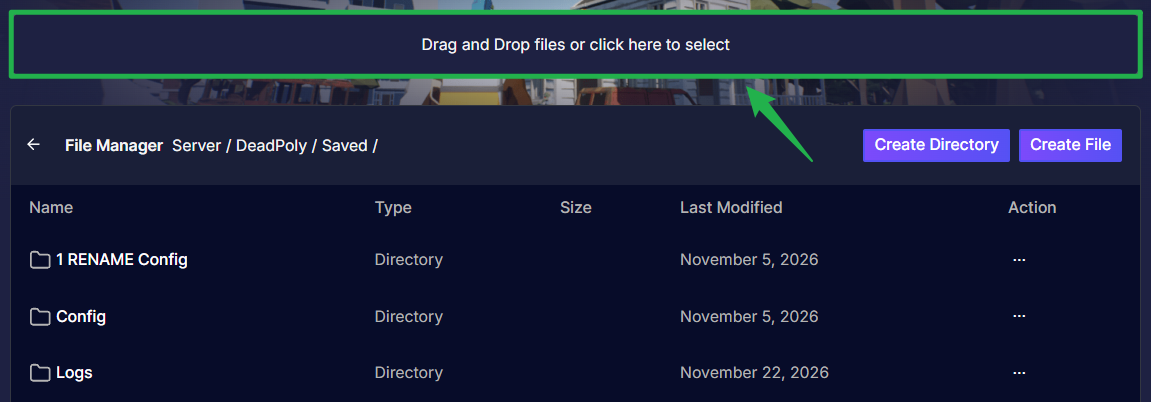
Return to your server panel and open Basic Settings. Recreate your previous server configuration, including Server Name, Mode, Private Server, and your Admins, Allowed IDs, and Banned IDs lists.
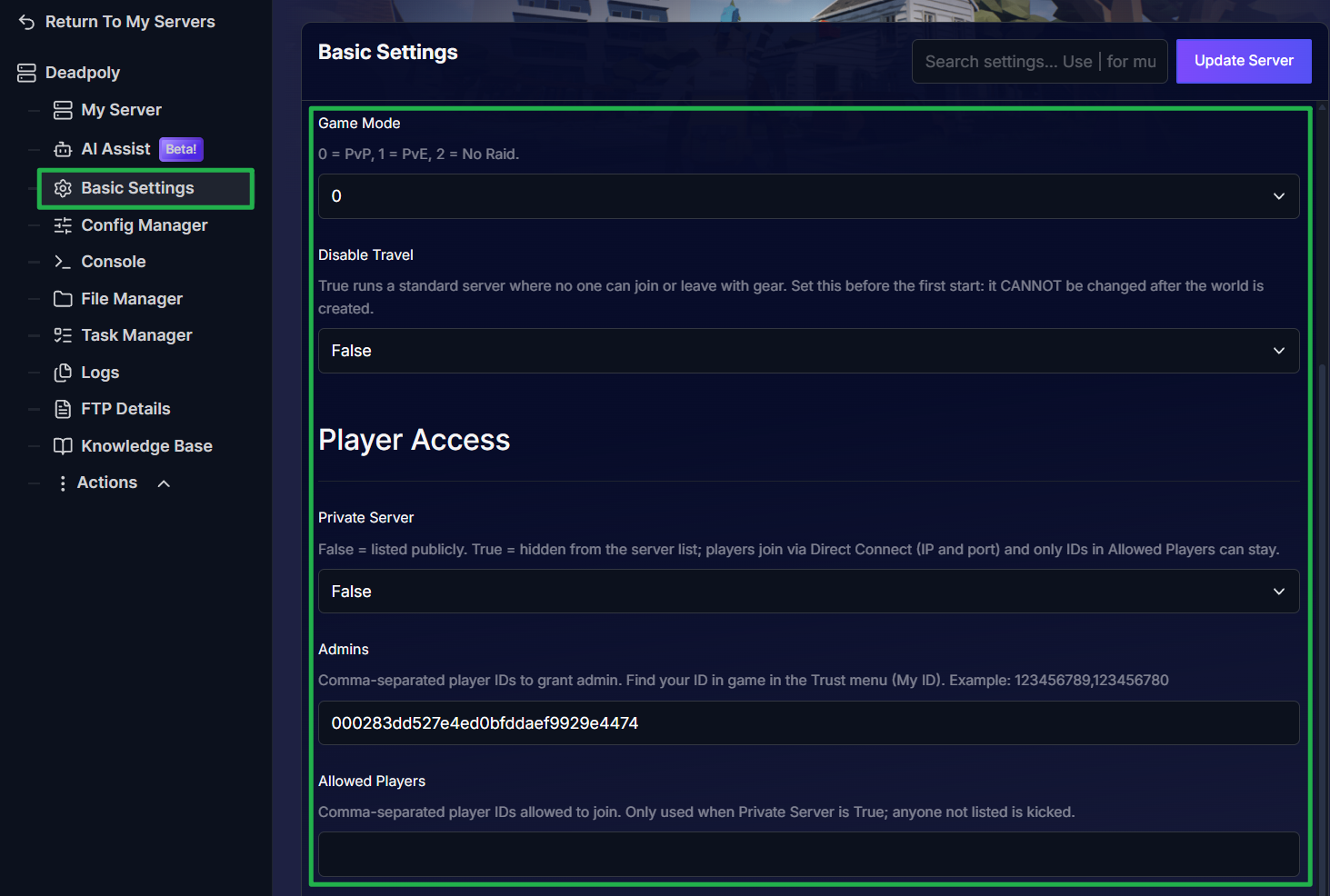
Verify that the Travel Off setting matches the original configuration of the world you are migrating.
Save your settings and click Action > Restart on your main dashboard to boot the server with your migrated world!
Troubleshooting and Tips
If your migrated world is not loading as expected or players are running into issues after a transfer, run through these quick checks:
- Do Not Rely Solely on Automatic Backups: DeadPoly automatically creates backup directories like
Server/DeadPoly/Saved/SaveGames/Server_bak0/. While useful for quick rollbacks, these files live on the server itself and will be permanently erased if the server is deleted or reinstalled. Always keep external copies on your PC. - Travel Off Cannot Be Changed Mid-Save: The Travel Off setting is baked into your DeadPoly world the moment it is first generated. Changing this option in Basic Settings after migration will not convert an existing world. If you want to switch travel modes, you must back up your current save, change the setting, and generate a fresh world.
- Check Your Folder Structure: If your server generates a brand-new map after you upload a backup or migration, double-check your directory path. Your active save files must be located inside
Server/DeadPoly/Saved/SaveGames/Server/, not nested inside an extra duplicate folder. - Private Server Access After Migration: If you migrated a private server and admins are getting kicked when trying to join, remember that admin status does not bypass the private allow list. Make sure every admin's ReadpointEOS player ID (
Inventory > TRUSTS > My ID) is entered in both Admins and Allowed IDs as a comma-separated list, then click Action > Restart.
Conclusion
Your DeadPoly world is now safely backed up and ready for action! By keeping regular external copies of your SaveGames directory and matching your Basic Settings during migrations, you can protect your community's bases and loot without breaking a sweat. Grab your gear and get back to surviving the wasteland.
If you encounter any issues or have further questions, feel free to contact our support team for assistance!