
Surviving the zombie apocalypse is tough on your own. Getting your DeadPoly server online is the first step to building a safe haven with your friends. Once your server settings are locked in on your dashboard, you and your group need to know how to actually connect to the world.
DeadPoly offers a couple of different ways to get into a server, but because the game is still actively being developed, the in-game server browser can be a bit tricky to navigate. This guide will walk you through finding your server on the public list, as well as how to use a direct connection to bypass the browser entirely.
Step - By - Step Guide
Before launching your game, ensure your server is fully booted up on your server panel.
Method 1: Using the In-Game Server Browser
If you want to scroll through the public list to find your lobby, follow these steps:
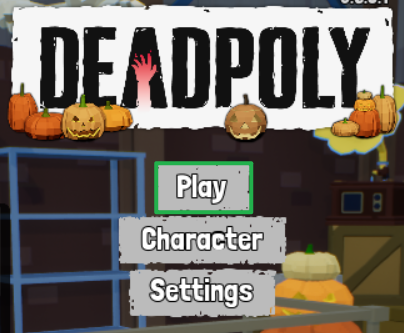
Launch DeadPoly on your PC and click Play on the main menu.
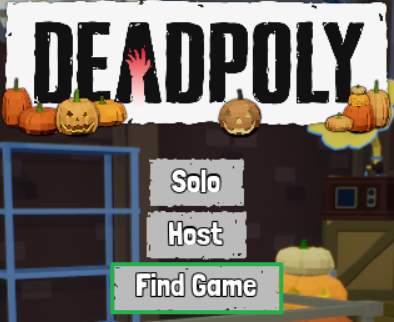
Click Find Game to open the server browser.
Adjust your browser filters (such as Official, No Travel, or Local) on the left side of the screen to match your server settings.
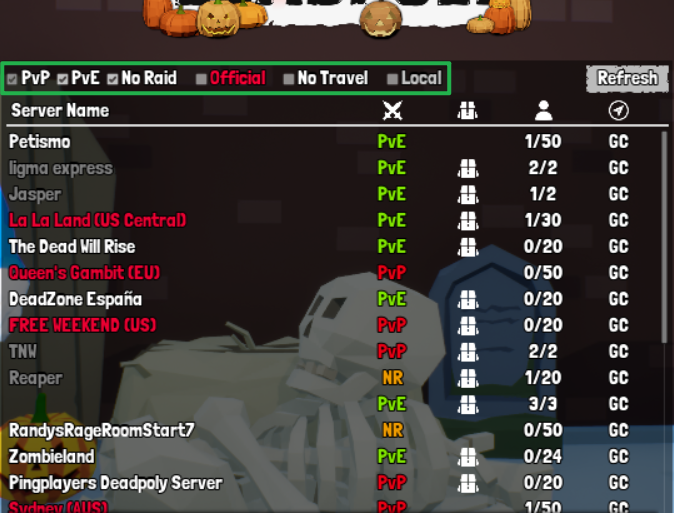
Click the Refresh button to apply the changes on the filter.
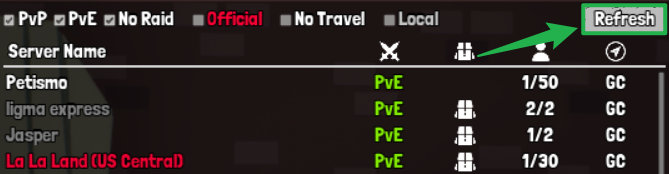
Important: The list does not automatically update when you change a filter, so you must click Refresh to see the new results! Scroll through the list manually to locate your server name.
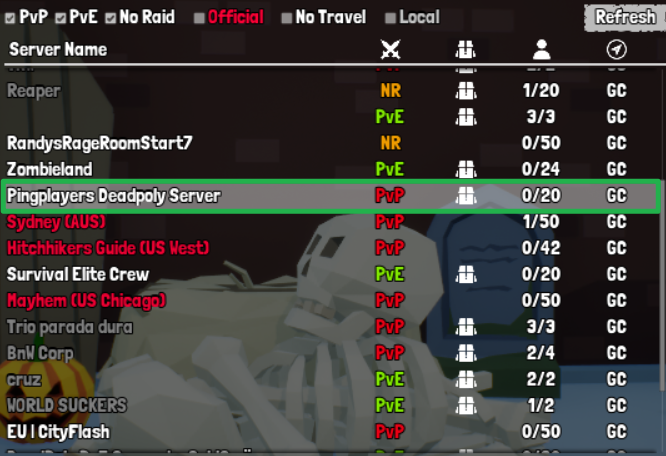
The DeadPoly browser does not currently have a search bar for typing in a name Select your server and join the game.
Method 2: Direct Connect via IP and Port
Because the vanilla server browser lacks a search bar, finding a specific server name can be tedious. Using the Direct Connect feature is often the fastest way to get your group into the game.
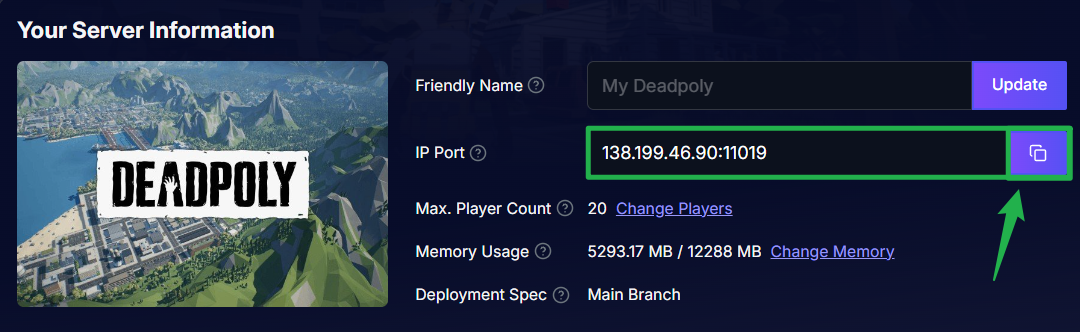
Open your server dashboard and copy your server's exact IP address and game port.
Launch DeadPoly and click Play on the main menu.
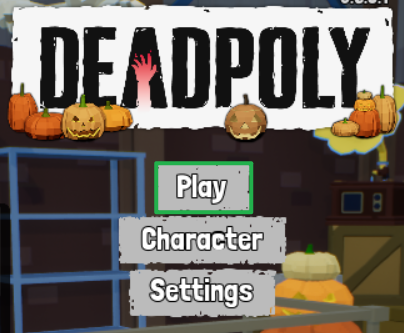
Locate the Direct Connect field located just below the Tutorial option.
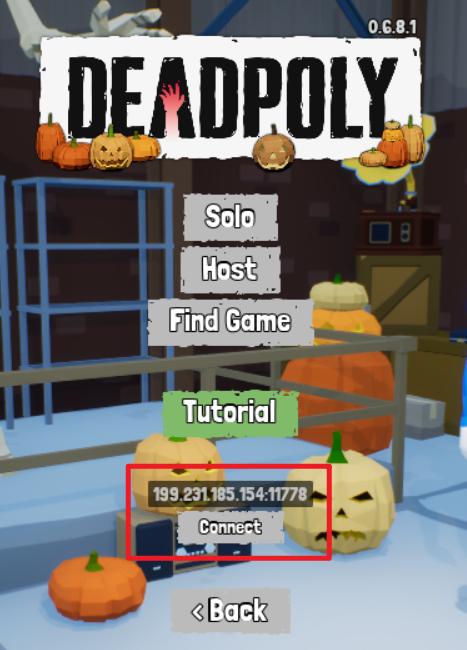
Type or paste your copied server address into the field using the exact
IP:PORTformat (for example:192.168.1.1:7777) and click Connect to bypass the browser and instantly load into the world.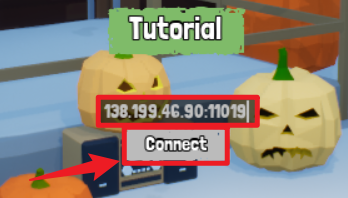
Troubleshooting and Tips
If you are stuck on the main menu and the zombies are getting closer, run through these quick troubleshooting checks:
Missing From the Browser: If you cannot find your server in the public list, ensure you actually clicked the Refresh button after setting your filters. If it still refuses to show up, verify that the server is actively running on your dashboard.
Kicked from a Private Server: If you set your server to Private in your Basic Settings, you must whitelist players before they can join. You must add each player's specific DeadPoly ID (found in-game under Inventory > TRUSTS > My ID) to the Allowed IDs setting.
Admin Cannot Join: If you are an admin but the server kicks you for being private, it is because Admin IDs do not automatically count as Allowed IDs. You must add your player ID to both the Admins list and the Allowed IDs list in your Basic Settings.
Safe Reboots: Whenever you need to edit your Allowed IDs or change a setting, always navigate to Actions > Shutdown to bring the server offline safely. Once your edits are made, click Action > Restart to boot the game back up with the new configurations applied.
Conclusion
Whether you choose to scroll through the server browser or bypass it entirely with a direct connection, getting your survival group onto your DeadPoly server is a breeze once you know the right steps.
If you encounter any issues or have further questions, feel free to contact our support team for assistance!