
How to Join Your Insurgency: Sandstorm Server
Join or host an Insurgency: Sandstorm server - generate Steam tokens, use the server browser or Direct Connect, and troubleshoot issues.
There is nothing quite like the intense, adrenaline-pumping CQB combat of Insurgency: Sandstorm. Whether you are coordinating a massive push on the objective or calling in fire support to lock down a chokepoint, experiencing the gritty tactical gameplay is always better with your own squad on a dedicated server.
Getting your team connected and deployed into the field is a straightforward process. Sandstorm offers players two main ways to join a lobby: searching through the native Community Servers browser or using a direct IP connection. This guide will walk you through both methods so your team can load up and breach the objective in no time.
Step-By-Step Guide
Before you and your friends can start checking your corners, you need to choose how you want to connect. We recommend setting up your server for the Community Servers browser for the easiest access, but Direct Connect is a great fallback option.
Prerequisite: Making Your Server Publicly Visible
If you want your server to actually show up in the in-game Community Servers browser, you must generate Steam tokens. If you skip this, your server will remain hidden and can only be joined via Direct Connect!
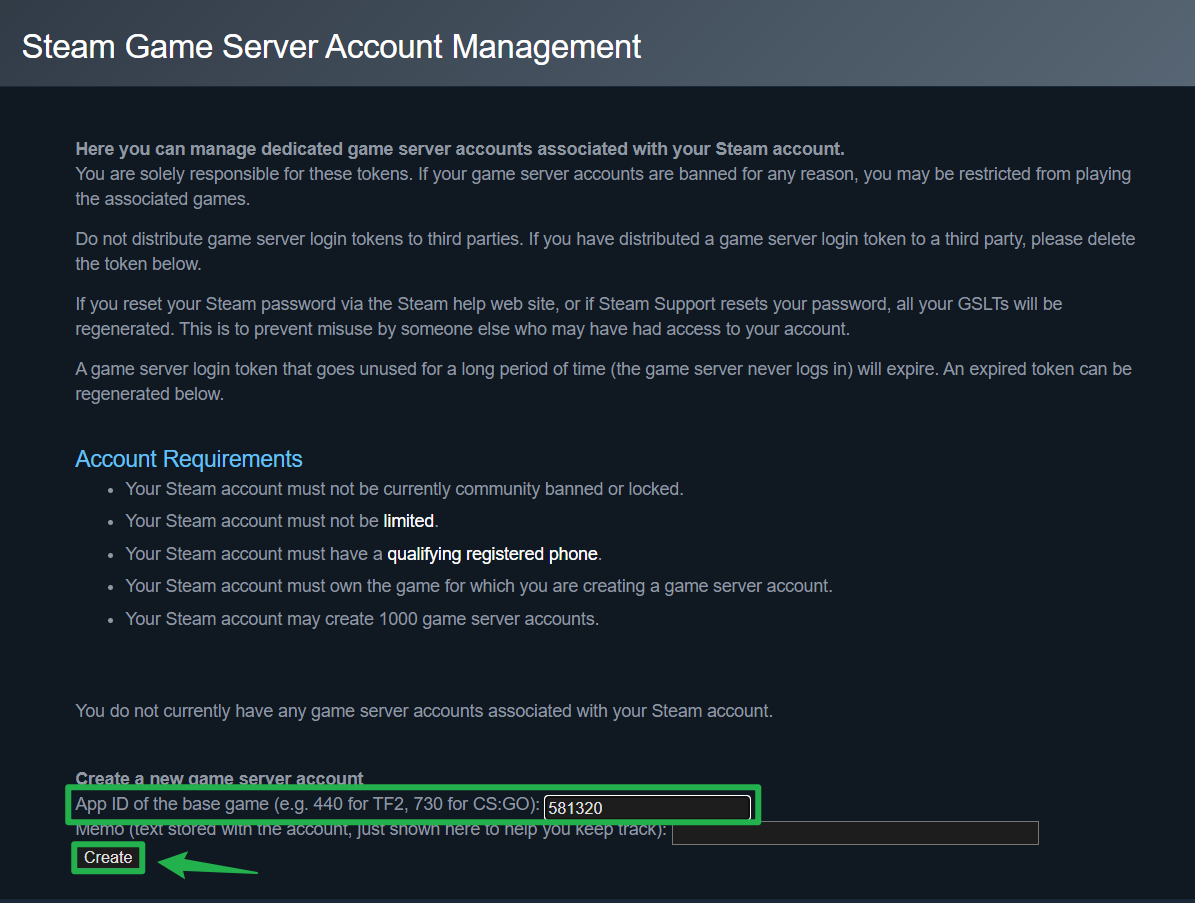
- Go to the official Steam Game Server Account Management page (steamcommunity.com/dev/managegameservers).
Generate two separate tokens using the base game App ID 581320.
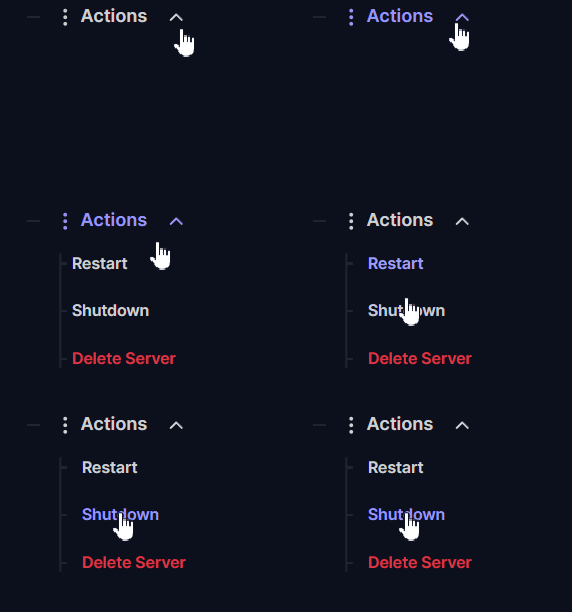
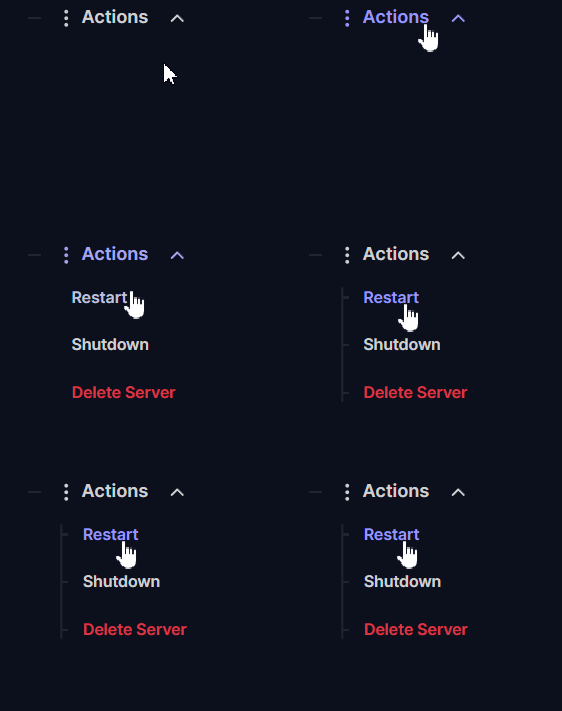
Log into your server panel and navigate to Actions > Shutdown to completely stop your server.
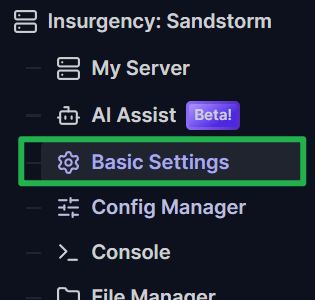
Navigate to the Basic Settings tab on your left-side menu.
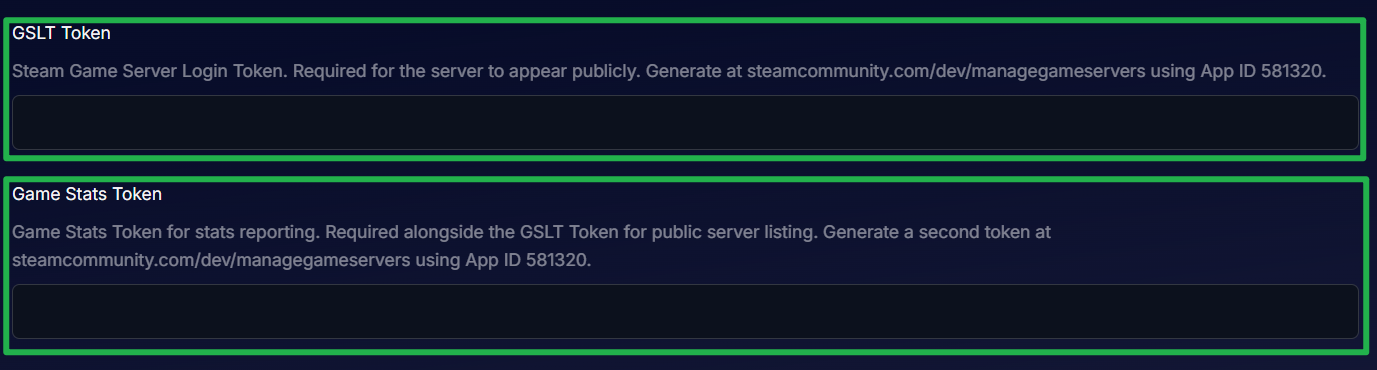
Paste your newly generated tokens into the GSLT Token and Game Stats Token fields.
Save your changes and navigate to Actions > Restart to boot your server back up. Your server is now public!
Method 1: The Community Servers Browser
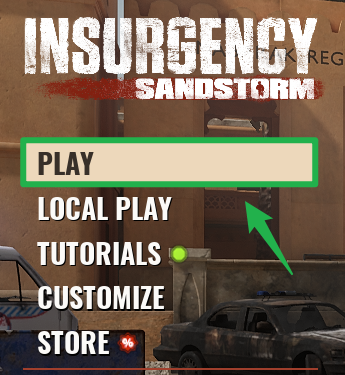
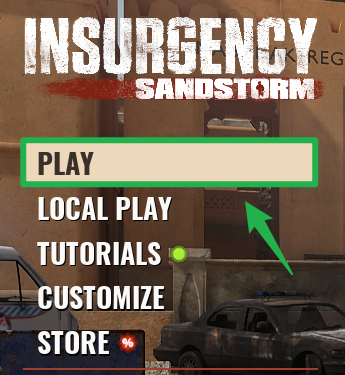
Launch Insurgency: Sandstorm and from the main menu, click on the Play button.
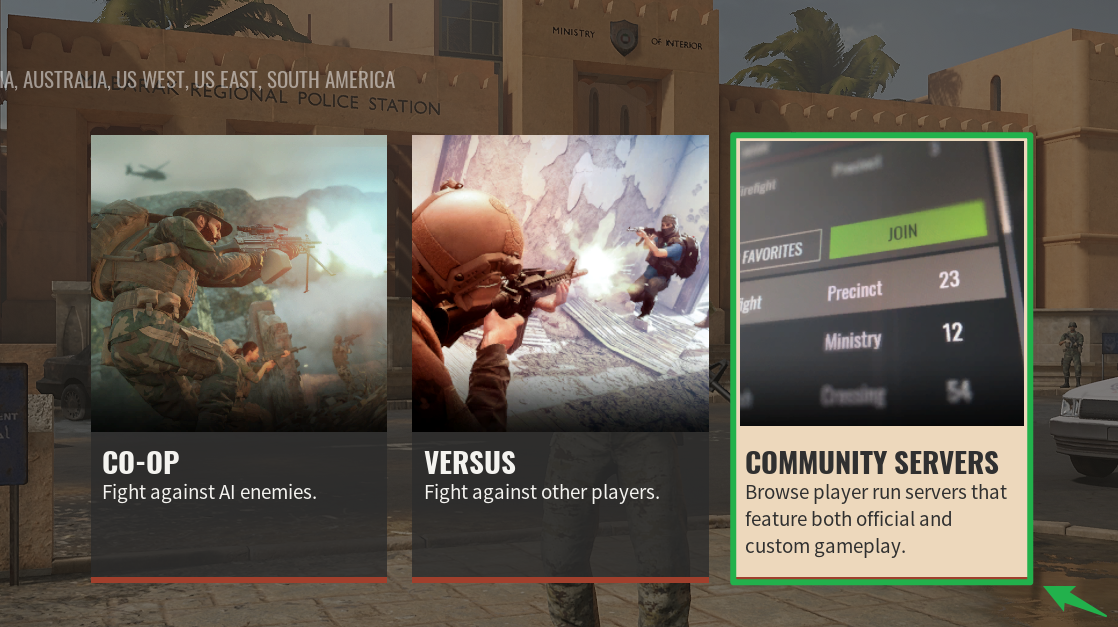
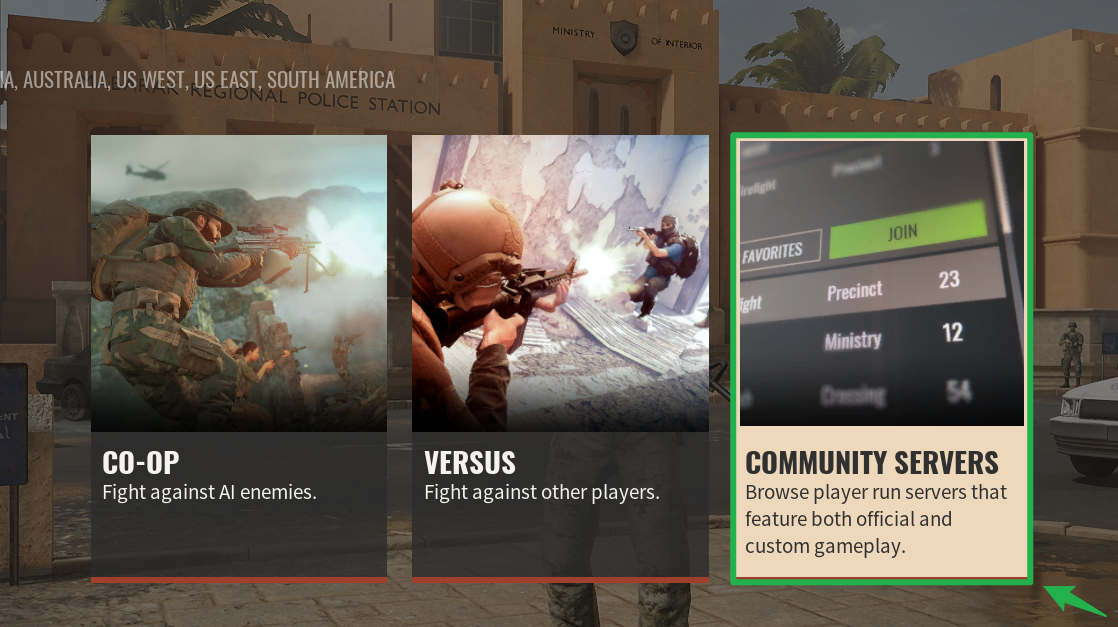
Select the Community Servers option to open the server browser.
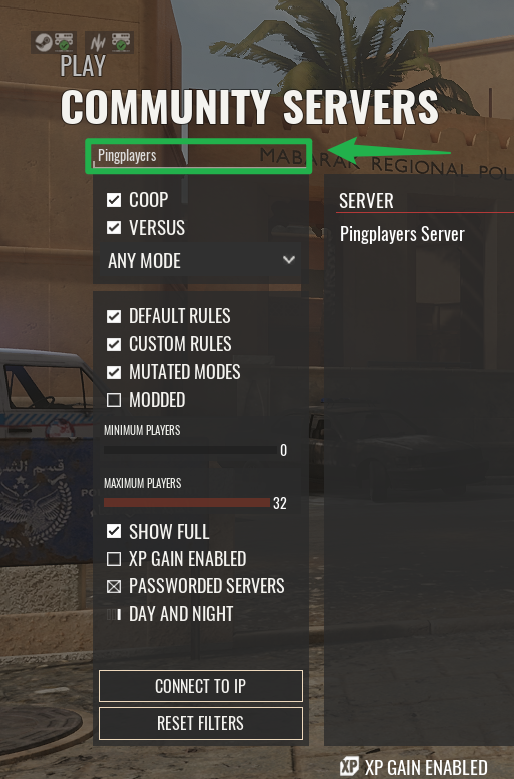
Type your specific server name into the search field and hit enter.
- Once your server populates in the list, select it.
- Enter your server password if you configured one for a private match.
Click Join, pick your loadout, and get ready to deploy!

Method 2: Direct Connect
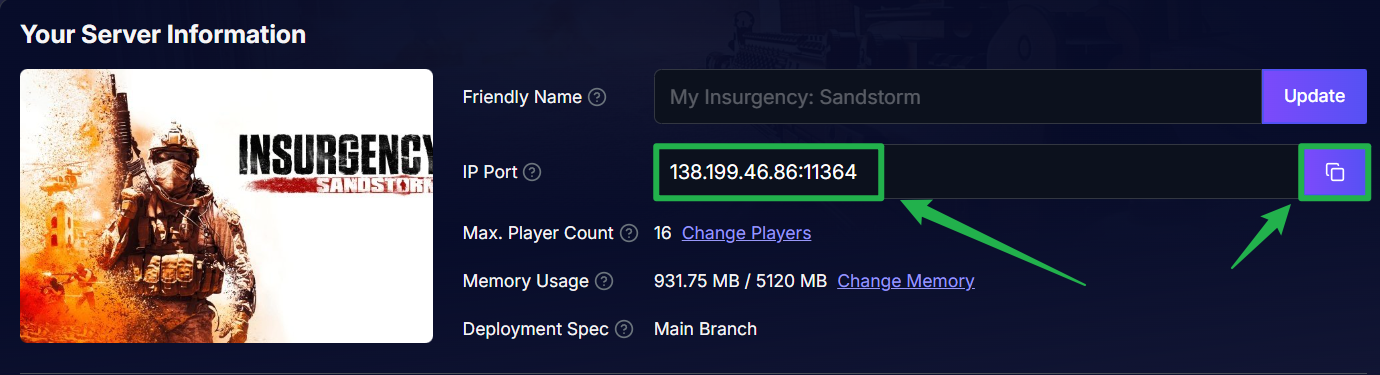
Log into your server dashboard and locate your server's IP address and game port. Copy these details to your clipboard.
Launch Insurgency: Sandstorm and select Play.
Open the Community Servers menu.
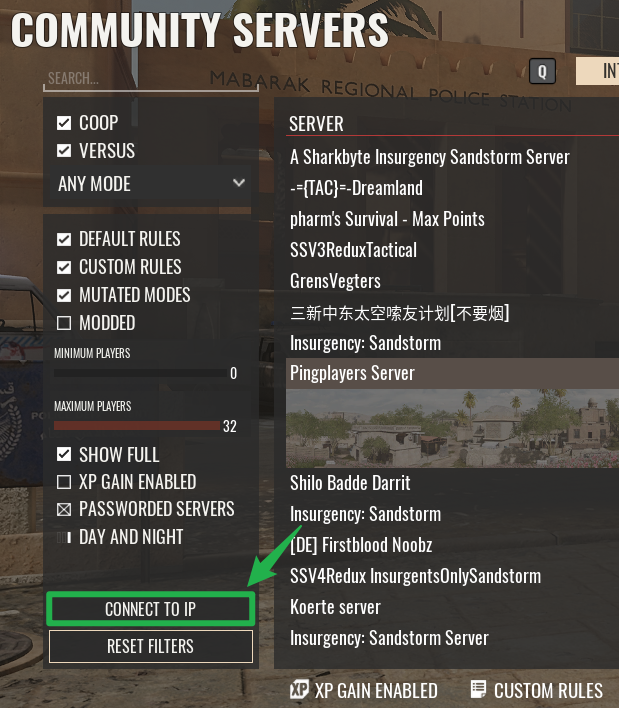
Look for the Connect to IP option located at the bottom of the screen and click it.
Paste your copied address into the text box. Make sure it is in the exact
IP:PORTformat (for example,138.199.46.86:11364).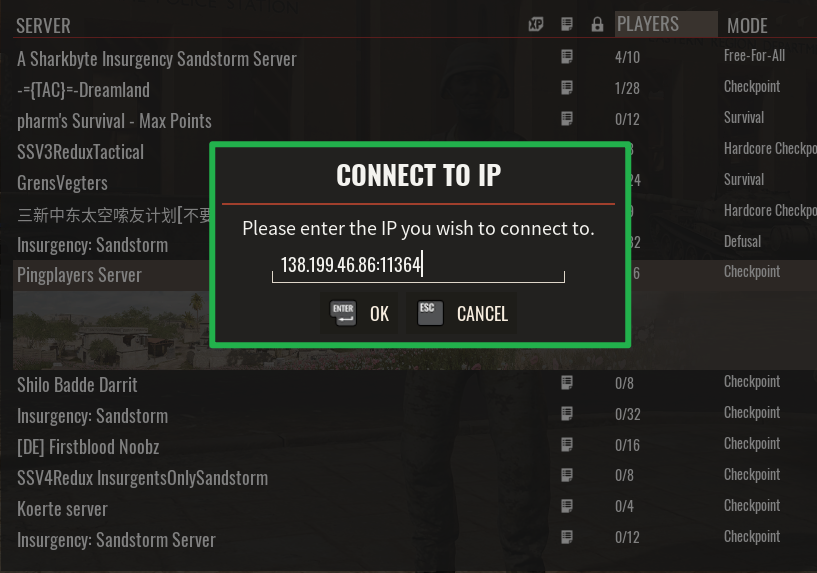
- Click OK, type in your password if prompted, and join the lobby!
Troubleshooting and Tips
If your squad is having trouble loading into the warzone, keep these quick troubleshooting fixes in mind:
- Missing from the Browser: If you are trying to use Method 1 and your server is completely missing from the list, double check your Steam tokens. If the GSLT Token or Game Stats Token are missing, invalid, or expired, the master server will hide your lobby.
- Direct Connect Formatting: When pasting your IP address for Method 2, ensure there are no accidental spaces before or after the numbers. The engine is very strict and will reject the connection if it detects spaces.
- Version Mismatches: Tactical shooters rely heavily on synced clients. Make sure your local game and the server are completely up to date. If the server updated but your local PC has not, your connection will be refused.
Conclusion
Getting your squad connected to your Insurgency: Sandstorm server is incredibly easy once you understand how the server browser and direct connect systems work. By taking a few minutes to configure your Steam tokens and sharing the IP with your friends, you guarantee a smooth deployment for your entire team. Double check your ammo, call out your targets, and push the objective!
If you encounter any issues or have further questions, feel free to contact our support team for assistance!