
How To Connect To My Killing Floor 2 Server
Quickly join your Killing Floor 2 server via the in-game browser or console (open IP:PORT). Includes troubleshooting tips.
You already have your Killing Floor 2 server set up with the IP:Port and the server name you chose. Find below instructions for the 2 different ways to join your server.
If you're the server owner and don't know where to get the server details, go to My Servers > Manage Server.
In-game Server Browser
- Open the game:
Launch Killing Floor 2 from your Steam library.
Open Multiplayer:
From the main menu choose Browse Servers to open the servers list.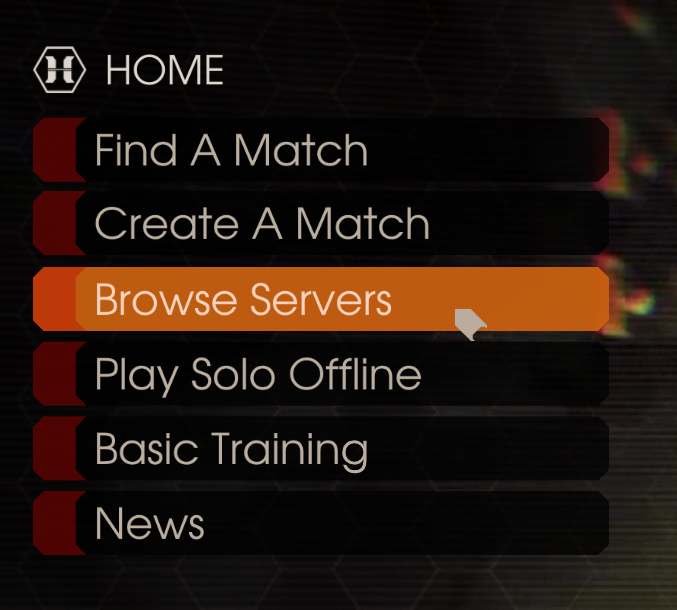
Search for your server:
Look for your specific server name in the list. In case you want to narrow down the options, use the filters at the top of the list.
Add it as Favorite:
Once you locate your server, click on it and select the Server Details option at the bottom of the screen. This allow you to click the star (★) icon to add it as Favorite.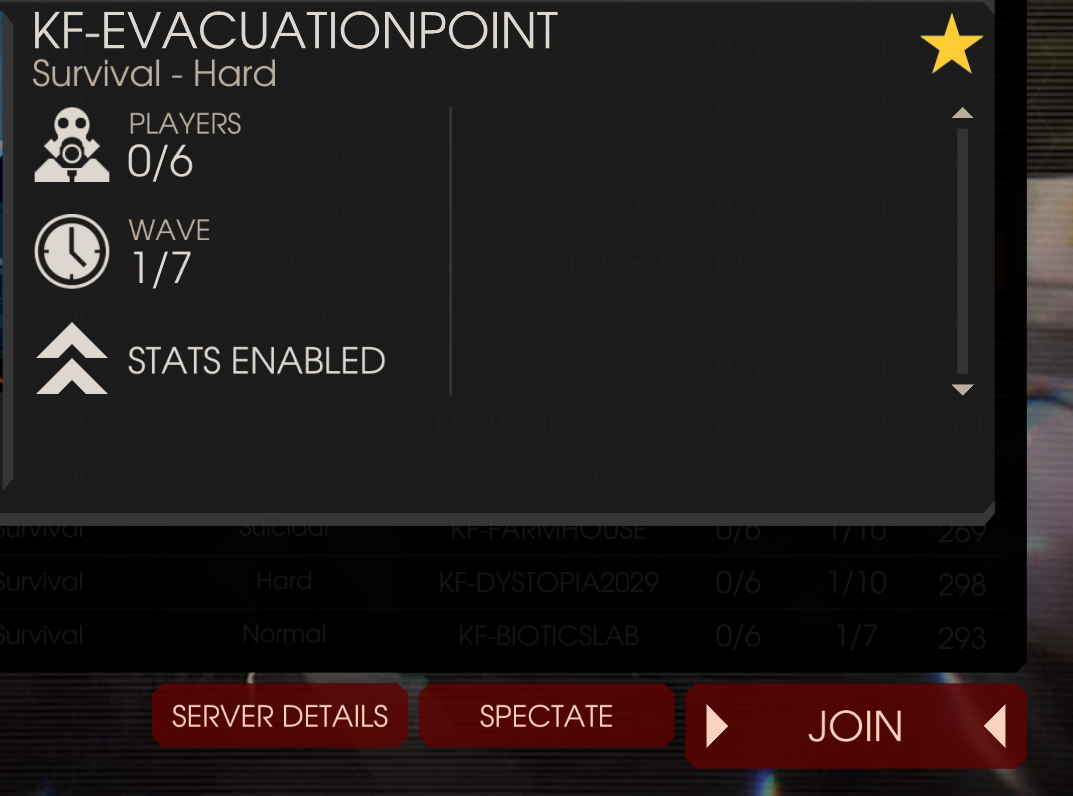
- Connect to your server:
Simply click on Join to connect to your server. If the server is password-protected, type the password when prompted.
Direct connect
This method is useful if your server does not show up in the in-game browser for any reason.
- Copy the server IP+Port:
From your server's panel, copy the IP:Port by clicking on the blue icon on the right. Make sure you copy the entire number to avoid any issues.
- Open the game:
Launch Killing Floor 2 from your Steam library.
- Open the in-game console:
In the main menu, press`on your keyboard which should open a black console. In here you can enter commands to execute on the game.
(This key is below the Esc key in your keyboard)
Connect to the server:
In the console, enter the following command: open IP:PORT.
Example:open 45.146.120.133:11266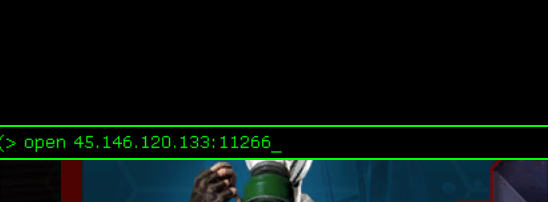
If the server has a password, add it after the address:OPEN IP:PORT;PASSWORD- Enjoy your server!
Troubleshooting
- Server not showing in the browser: In case you can't locate the server, try to use the console to connect. Also confirm the server is running in the panel and shows Running.
- Wrong port: Make sure you copied the port exactly from your server panel. A wrong or missing port will prevent connection.
- Game version mismatch: If the server has mods or a different game update, the client may be blocked from joining. Make sure your game is fully updated.
- Password rejected: Verify the password in the PingPlayers control panel or contact whoever set the password. If the password is correct, try to restart the server from your panel to update the changes.
If you have any questions or need assistance, feel free to reach out to our customer care agents through our live chat or email at support@pingplayers.com.