
Surviving the harsh wilderness, fending off wildlife, and dealing with rival AI Hunters is always better with friends. Getting your Subsistence dedicated server online is the first step to building the ultimate base. Once your server is up and running, you and your fellow survivors can easily connect and start gathering resources.
Subsistence offers two easy ways to join your world: through the in-game server browser or by using a direct connection with your IP and port. This guide will walk you through both methods so you can jump straight into the action.
Step - By - Step Guide
Before you launch the game, make sure your server is fully booted up on your server panel.
Method 1: Using the Server Browser
If you want to find your server through the public multiplayer list, follow these simple steps:
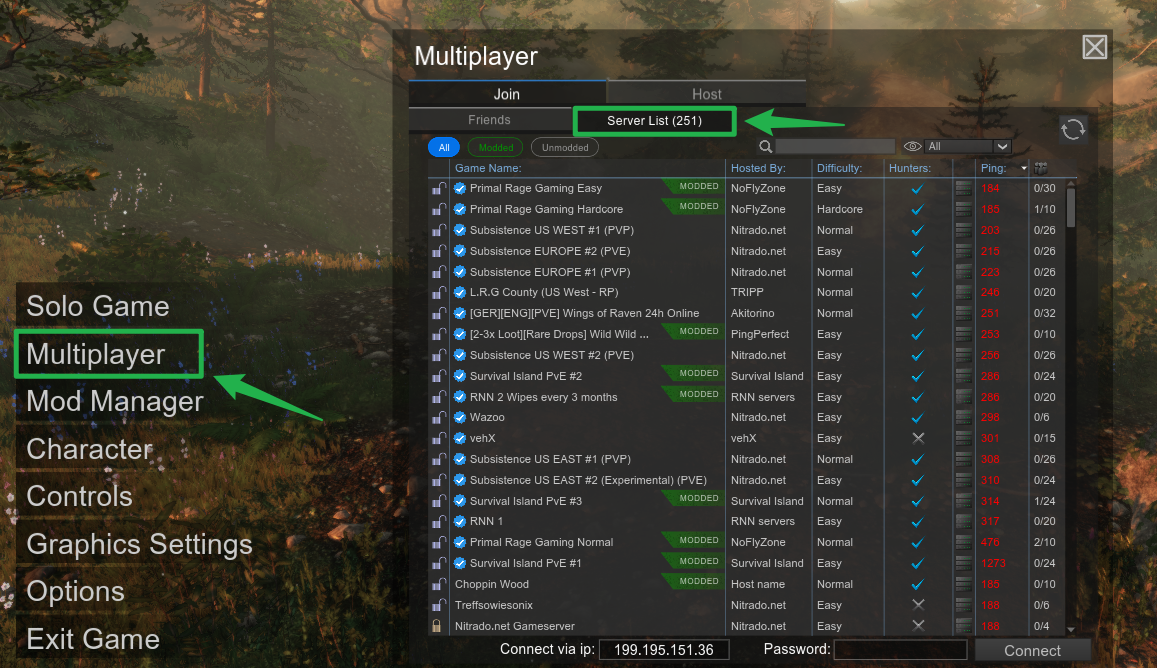
Launch Subsistence and from the main menu, open Multiplayer and then select Server List.
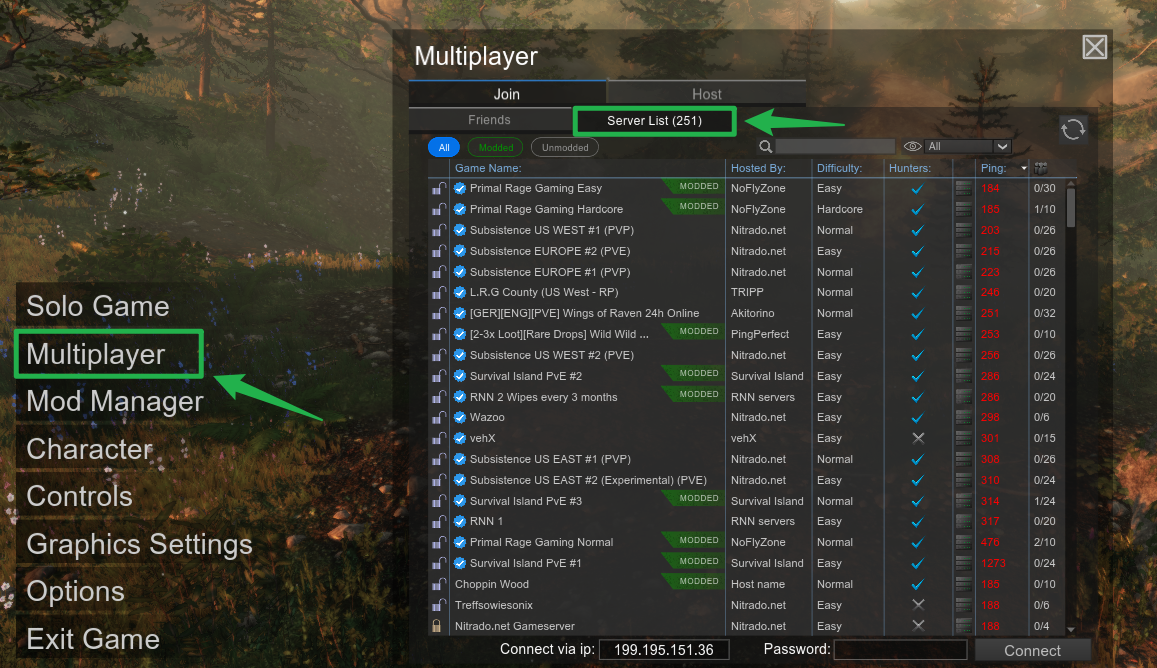
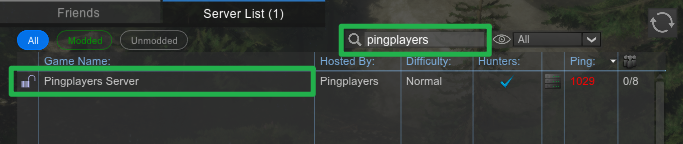
Search for your exact server name in the provided search bar or scroll to locate it in the list.
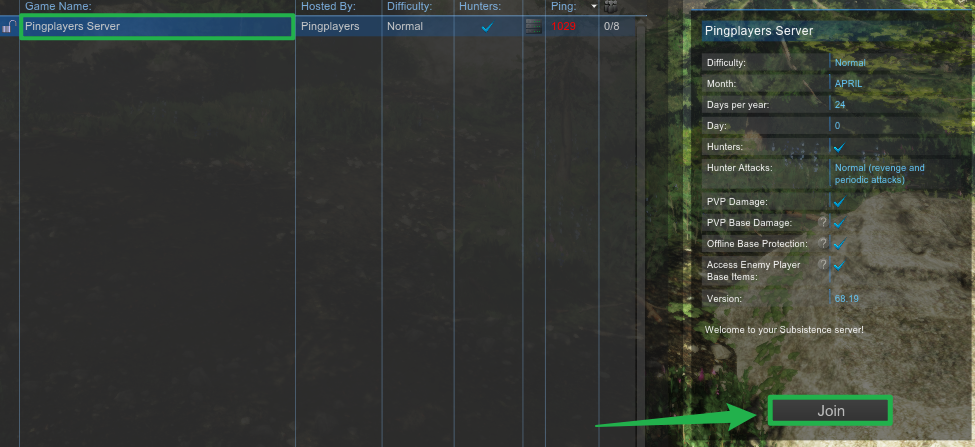
Select your server from the list. If you configured a Server Password in your settings, enter it now.
Click on the server and press the Join button to connect to the server and spawn into the world!
Method 2: Direct Connect via IP and Port
If your server is not showing up in the browser, or you just want a faster way to connect, you can use the direct connect feature.
Open your server dashboard and copy your server's IP address and game port.
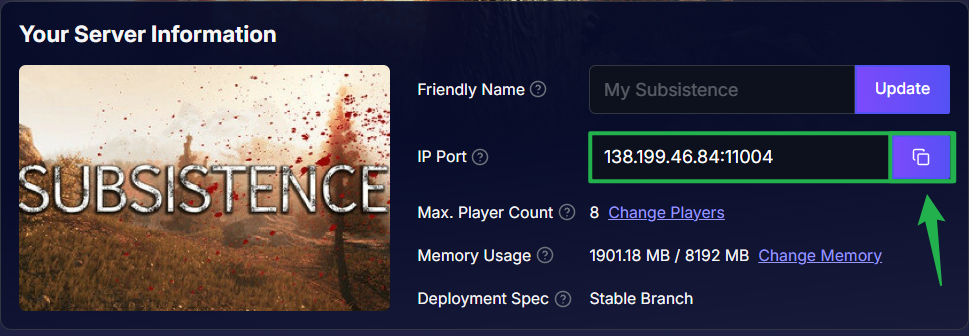
Click on the copy button to copy the whole IP and port. Launch Subsistence, open Multiplayer, and click on Server List.
Look at the bottom of the screen to locate the Connect via IP field.
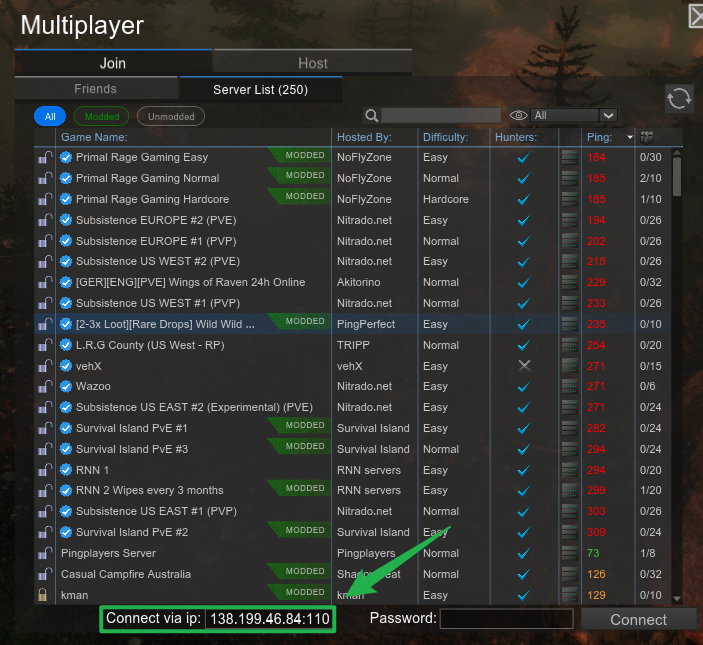
Enter your copied server address using the exact
IP:PORTformat (for example,192.168.1.100:7777).Enter your server password if you have one configured, then click Connect to bypass the browser and load straight into the game.

Troubleshooting
If you are stuck on the main menu and cannot seem to load into your base, run through these quick checks:
Cannot Find Server in Browser: Make sure the server has completely finished starting up. If it is still not appearing, double-check that you are searching for the correct name. If the browser remains stubborn, try using the Direct Connect method instead.
Connection Rejected: If you can see your server but cannot join, verify that you are entering the correct Server Password. Also, ensure your game client and the server are running the exact same version.
Empty Dashboard Console: When monitoring your server panel, you might notice the live console is blank or showing minimal logs. Do not panic! The Windows dedicated server for Subsistence often provides little to no live output. Always test your server by trying to join it in-game rather than assuming it is broken based on an empty console.
Safe Reboots: If you need to change your password or update your game version, always navigate to Actions > Shutdown to bring the server offline safely. Once your edits are made, click Action > Restart to boot it back up.
Conclusion
Getting your community connected to your Subsistence server is a breeze once you know where to look. Whether you use the public server list or the direct connect feature, you will be loading into the wilderness in no time. Grab your starting gear, chop some wood, and start fortifying your camp against the elements!
If you encounter any issues or have further questions, feel free to contact our support team for assistance!