How to Back Up and Restore Your Alchemy Factory Server
Step-by-step guide to safely back up and restore Alchemy Factory server saves. Prevent data loss, download and upload your NewGame folder.
Spending hours optimizing your potion-brewing pipelines and automating your magical workshop in Alchemy Factory is incredibly rewarding. The last thing any dedicated alchemist wants is to lose all that hard-earned progress to a corrupted file or an accidental factory wipe! While AF does feature a built-in autosave system, these files constantly cycle and overwrite themselves.
To truly secure your workshop, you need to create manual, long-term backups. Whether you are looking to protect your world before a massive rebuild or you need to restore an older save, this guide will walk you through exactly how to safely manage your Alchemy Factory save files!
Step - By - Step Guide
Before modifying, downloading, or uploading any of your world data, you must ensure the game engine is not actively trying to write new information to those files.
Part 1: How to Back Up Your World
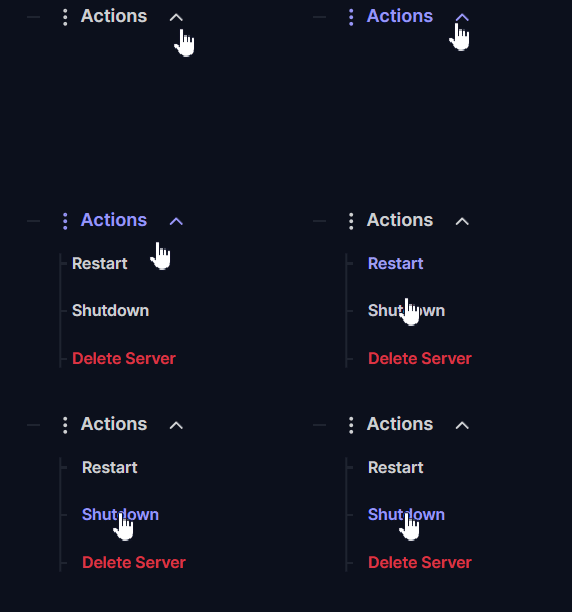
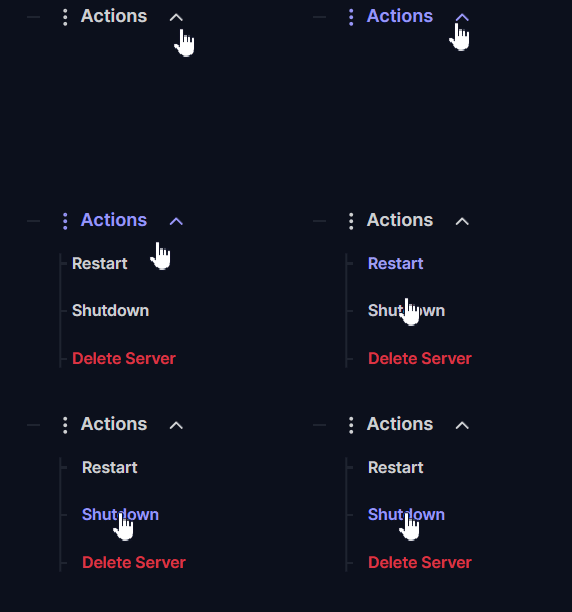
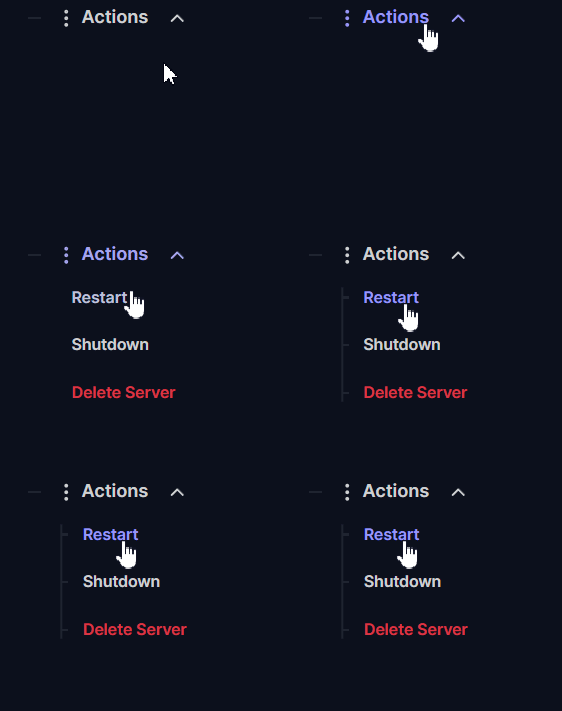
Navigate to Actions > Shutdown on your server panel dashboard to safely turn off your server.
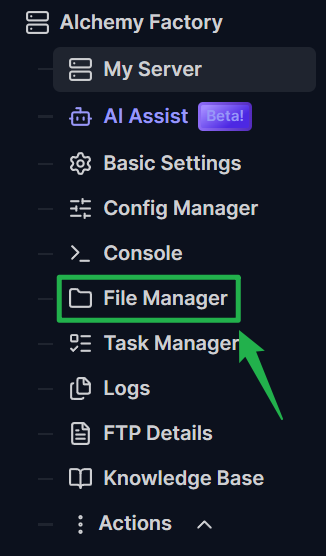
Open the File Manager on your server dashboard or connect using an FTP client like FileZilla.
Navigate to the primary save directory located at:
Server/AlchemyFactory/Saved/SaveGames/.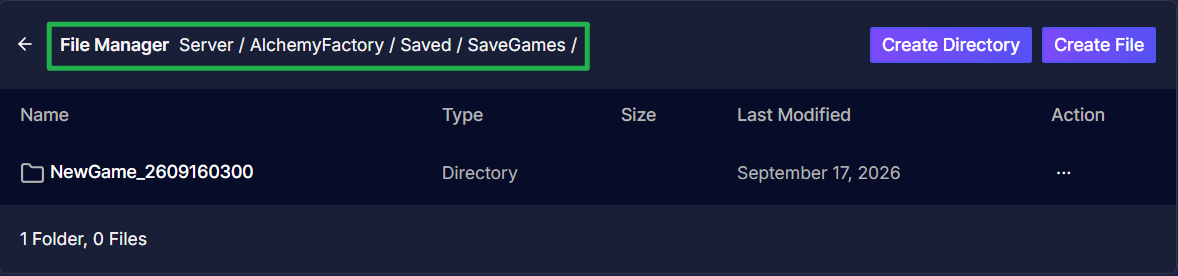
Locate your active world save folder. Alchemy Factory generates folders with a specific naming convention, which will look similar to
NewGame_2609147007.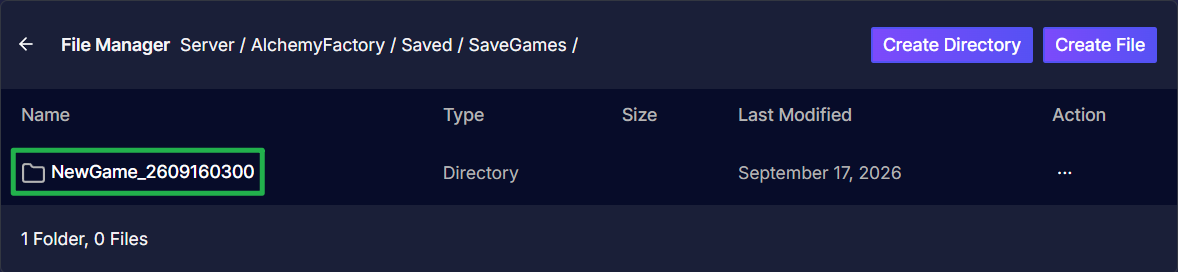
Download this entire
NewGame_...folder directly to your local computer by clicking on the 3 dots on the right side of the folder, then click Download. It is highly recommended to do this at major progression milestones or on a weekly basis to keep a secure archive of your factory!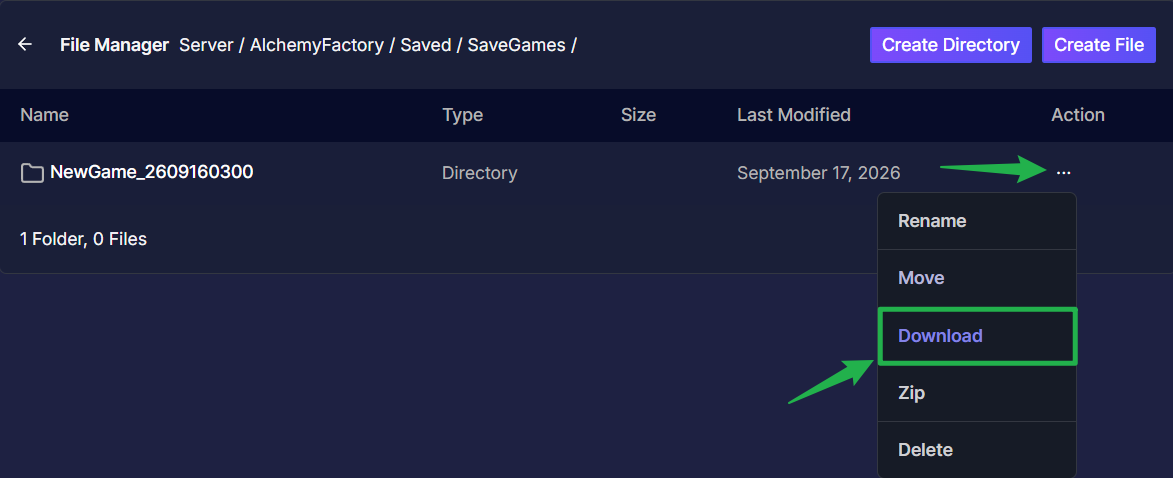
Part 2: How to Restore a Save or Upload an Existing World
Navigate to Actions > Shutdown to stop your server.
Open the File Manager or your FTP client and navigate back to
Server/AlchemyFactory/Saved/SaveGames/.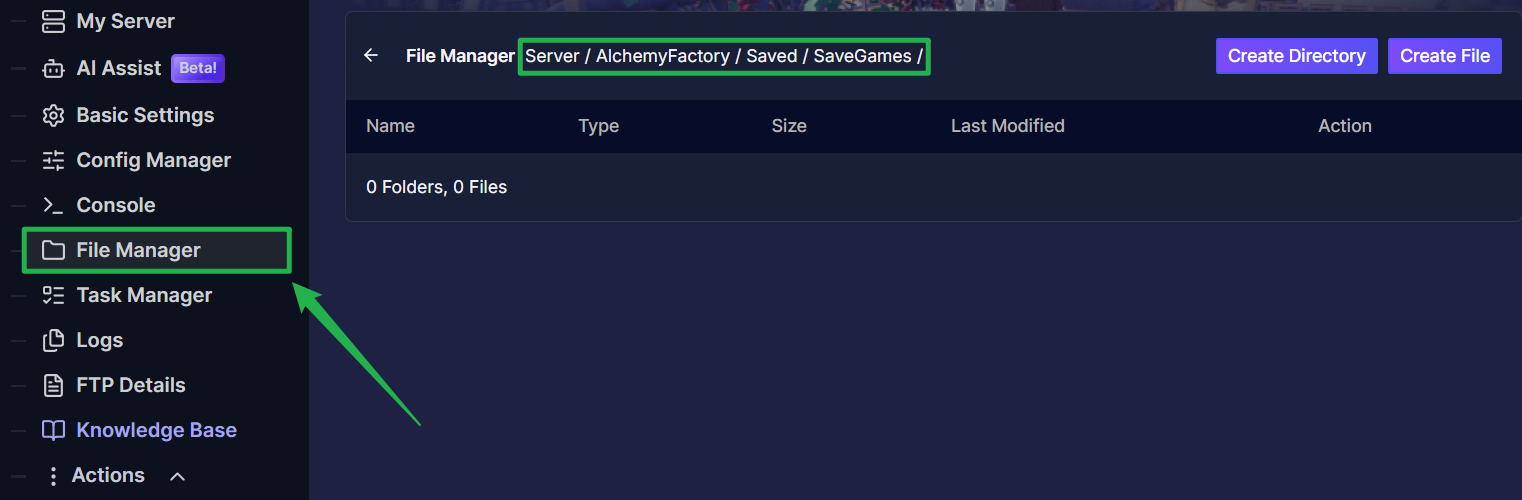
Upload your previously backed up
NewGame_...folder directly into this directory by dragging and dropping the file on the upload bubble. Make sure the folder contains your specific.savfiles (such asAutoSave0.sav,AutoSave1.sav, etc.).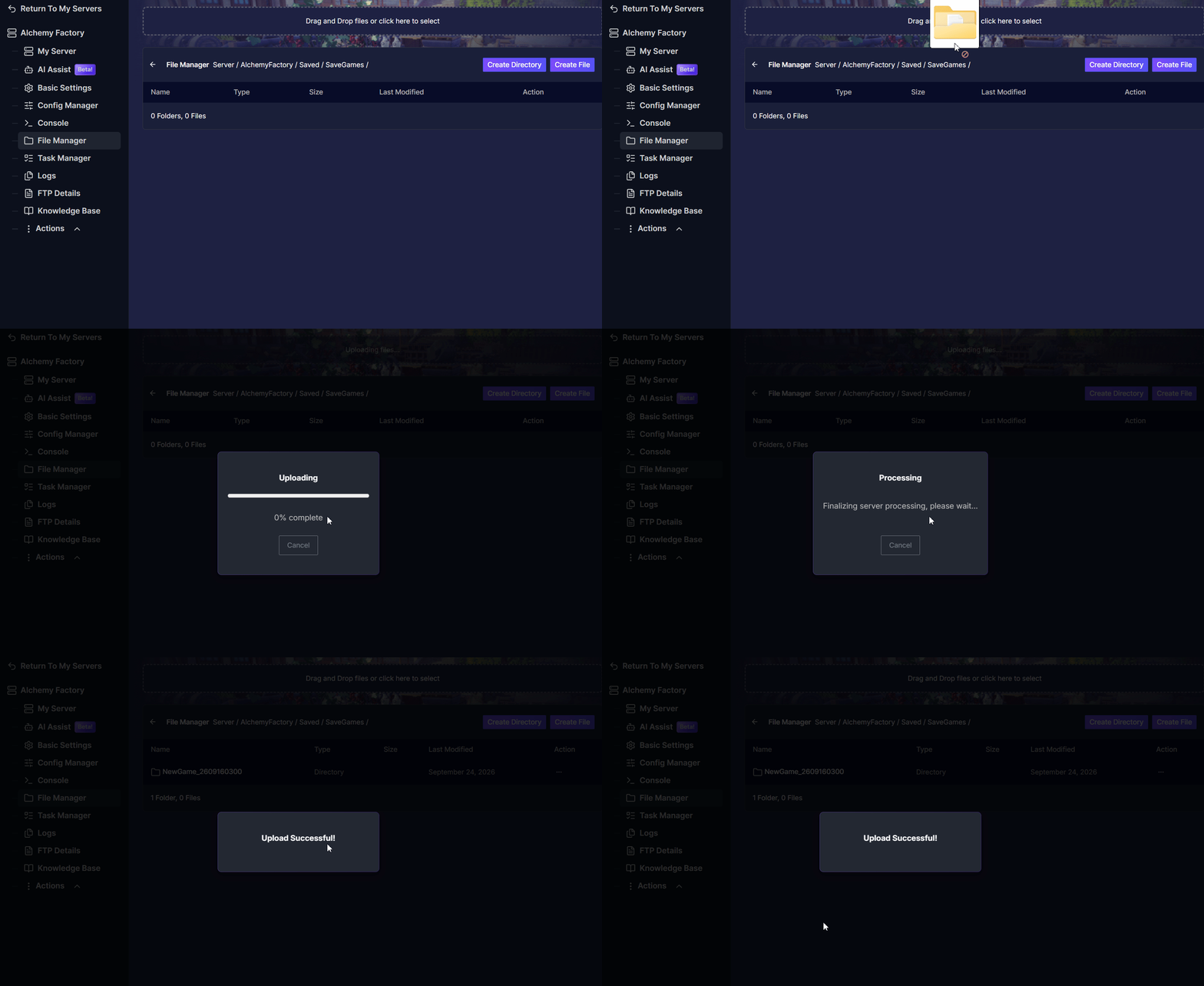
Navigate to Action > Restart to boot your server back up. The game engine will automatically detect the uploaded folder and load the most recent save data found inside!
Troubleshooting and Tips
If you are having trouble finding your files or getting your restored world to load, run through these quick troubleshooting checks:
- Understanding Autosaves: You can change your Autosave Mode in your Basic Settings (ranging from saving on sleep, to every 5 or 10 minutes). However, the game only cycles between approximately three autosave files at a time. These are not permanent backups, so do not rely on them for long-term recovery!
- Cannot Select Specific Save Files: There is no server setting to manually force the game to load a specific file like
AutoSave1.sav. Alchemy Factory automatically reads the folder and selects the most recent save data. If you need to revert to a very specific point in time, you must upload a manual backup from that exact timeframe. - File Corruption Risks: Never attempt to download or upload your save folder while the server is running. If the server triggers an autosave while you are transferring files, it can permanently corrupt your world data.
- Migrating from Another Host: If you are moving an AF world from a different server host, simply grab your old
NewGame_...folder, upload it to theSaveGamesdirectory using the steps above, and make sure your server configuration settings match your old setup.
Conclusion
Protecting your automated magical empire is just as important as building it. By taking a few minutes to manually download your save folder, you guarantee that your Alchemy Factory progress is safe from any disaster. Keep those conveyor belts moving, back up your files regularly, and get back to brewing the ultimate potions!
If you encounter any issues or have further questions, feel free to contact our support team for assistance!