
How to Become an Admin on Your Alchemy Factory Server
Set an Admin Password, restart Alchemy Factory, then type /admin PASSWORD in chat to become an admin. Includes troubleshooting tips.
Managing a bustling, automated potion-brewing empire in Alchemy Factory is a lot of fun, but running a public or private multiplayer world sometimes requires a heavy hand. Whether you need to kick a disruptive player or just want to keep an eye on who is connected to your factory, you will need server administrator privileges.
Unlike some games that require complex ID linking, AF handles admin authentication entirely through an in-game chat command using a password you set on your dashboard. Grab your brewing ingredients, because this guide will show you exactly how to configure your admin password and take control of your server!
Step - By - Step Guide
Setting up your admin access only takes a few seconds on your control panel.
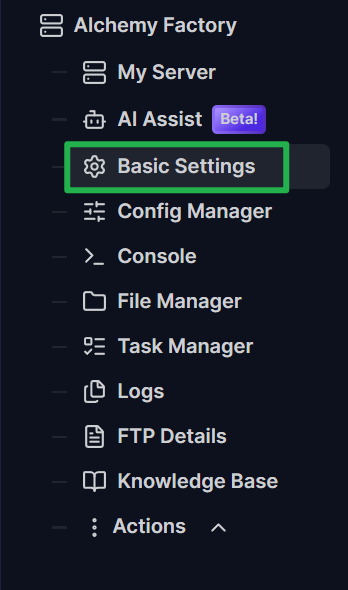
Log into your server panel dashboard and navigate to the Basic Settings tab located on the left side menu.
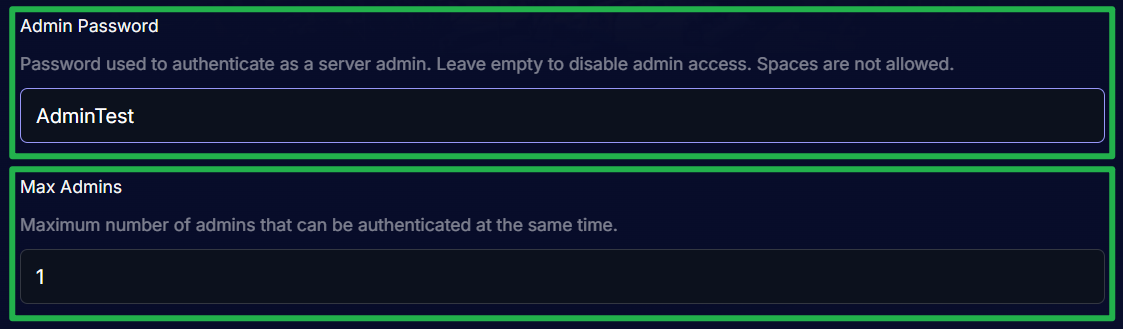
Locate the Admin Password field and enter a secure, memorable password. Just below it, verify the Max Admins setting to ensure it allows enough slots for you and your trusted officers.
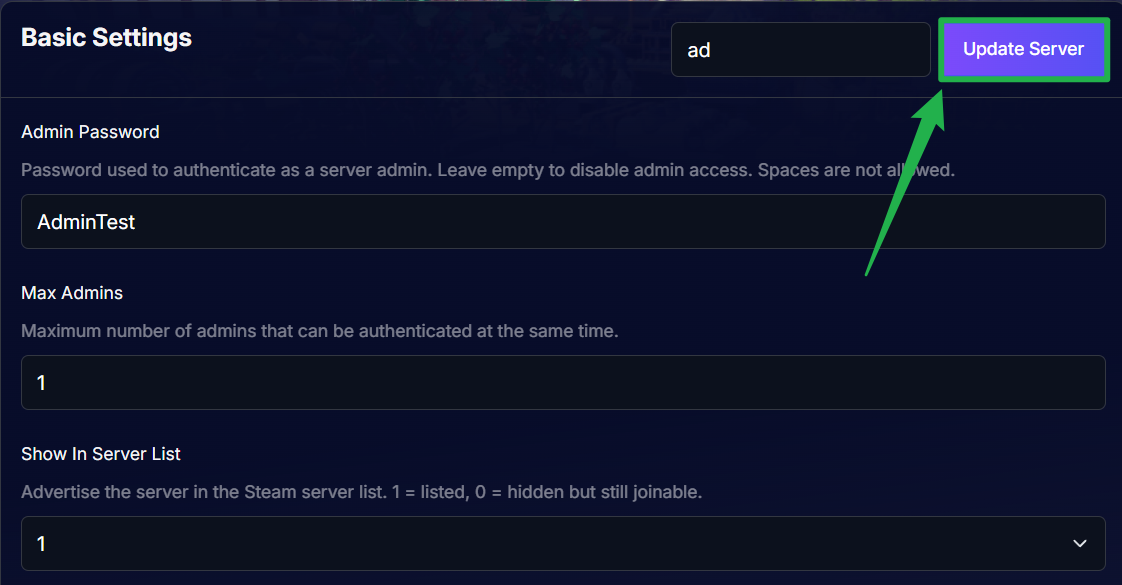
Save your changes by clicking on Update Server on the upper right side.
Navigate to Action > Restart to reboot the server. Your new password will not become active until the game engine fully restarts and loads the updated configuration.

Launch Alchemy Factory and join your server normally. Once you load into the world, open the in-game chat and type
/admin PASSWORD(replacing "PASSWORD" with the exact admin password you just created). Hit enter, and you will instantly receive your administrator privileges!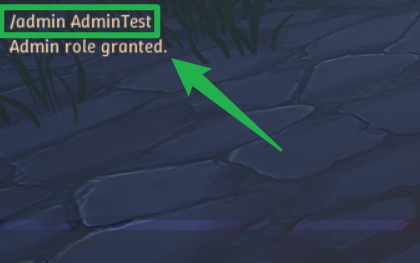
Troubleshooting and Tips
If you are trying to authenticate or use commands and the server is ignoring you, run through these quick troubleshooting checks:
- Max Admins Reached: If you enter the correct password but still cannot authenticate as an administrator, your server may have hit the limit set by the Max Admins variable. Increase this number in your Basic Settings and restart the server.
- Console is Read-Only: You might be tempted to type commands directly into the live console tab on your server dashboard. However, the dashboard console is read-only for Alchemy Factory, and the game does not support RCON. All administrative commands must be typed directly into the in-game chat.
- Password Confusion: Ensure you did not accidentally type your admin password into the standard Server Password box. The Server Password is used to restrict who can join the lobby, while the Admin Password is specifically for authenticating your admin status.
- Useful Commands: Once you are an admin, type
/helpin the chat to see a full list of available commands. You can use/listto see currently connected players, and/kick PLAYERIDto remove griefers from your world. - Manual Config Edits: If you prefer to configure your passwords manually via the
ServerConfig.inifile in your File Manager, always navigate to Actions > Shutdown to safely bring the server offline before making file changes to prevent data corruption.
Conclusion
Securing your administrator access gives you the ultimate power to manage your Alchemy Factory server effectively. By setting a secure admin password and authenticating through the in-game chat, you can keep your community safe and manage your world with ease. Memorize your password, log into your server, and get back to automating those potion pipelines!
If you encounter any issues or have further questions, feel free to contact our support team for assistance!