How to Join an Alchemy Factory Server
Join an Alchemy Factory server with this step-by-step guide: use Join Code, Direct Connect, or Server Browser plus troubleshooting tips.
Brewing complex potions, automating your magical production lines, and building the ultimate workshop in Alchemy Factory is even better when playing with friends. Whether you are running a private world for your squad or hosting a public server for fellow alchemists, connecting to your world is quick and straightforward.
Alchemy Factory dedicated servers offer three flexible ways to connect: using a unique Join Code, connecting directly via IPv4 address, or searching the in-game Server Browser. This guide will walk you step-by-step through retrieving your server details and using all three connection methods so you can jump straight into automating your factory!
Step - By - Step Guide
Before joining, you will need to gather your server details directly from your panel dashboard and live console feed.
Part 1: Finding Your Server IP and Join Code
Unlike standard server displays, your AF server's unique Join Code is generated dynamically inside your server console upon startup.
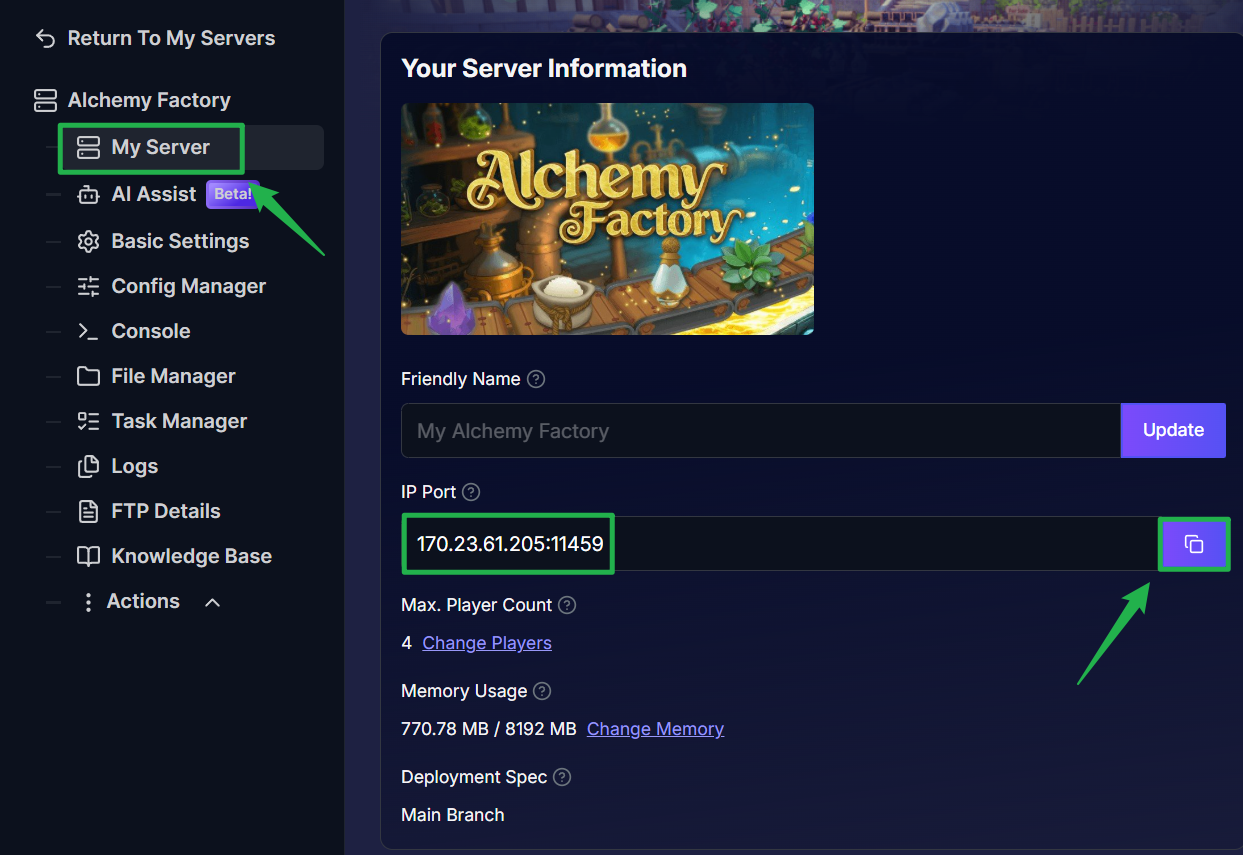
Log into your server panel dashboard and note down your server's IP and Port listed on your main server page (needed for Direct Connect).
Click on the Console tab located on the left-side navigation menu of your dashboard and scan the live console text feed for the phrase
join code:to locate your server's active code.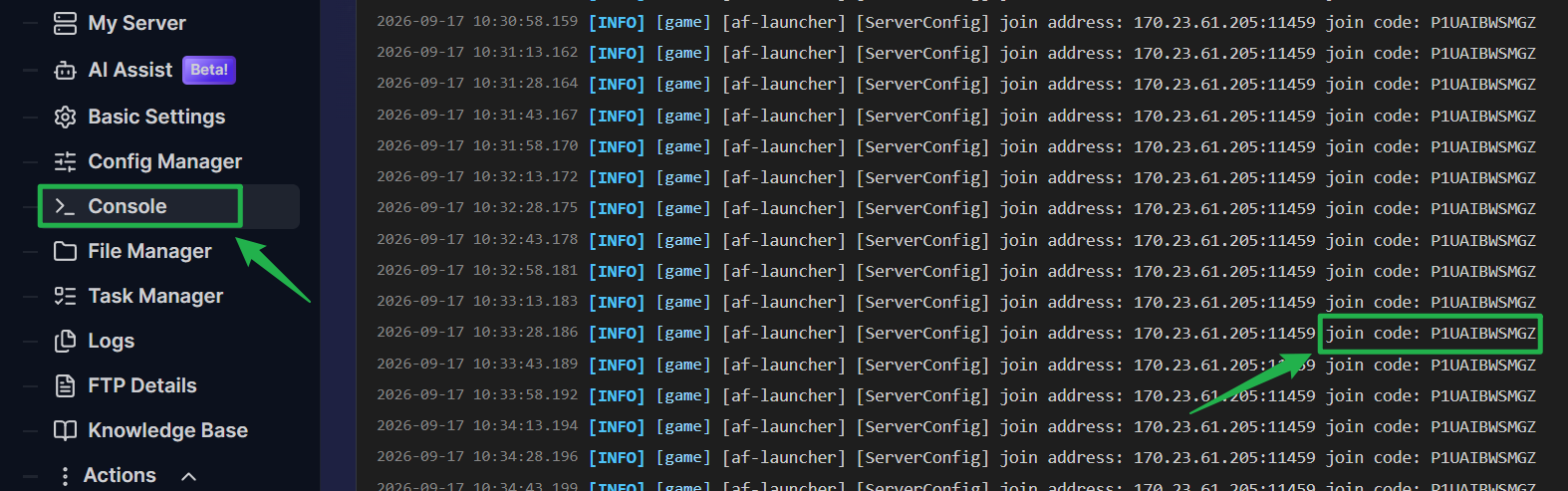
- Copy this code or write it down so you can share it with your squad!
Part 2: Joining via Join Code (Fastest Method)
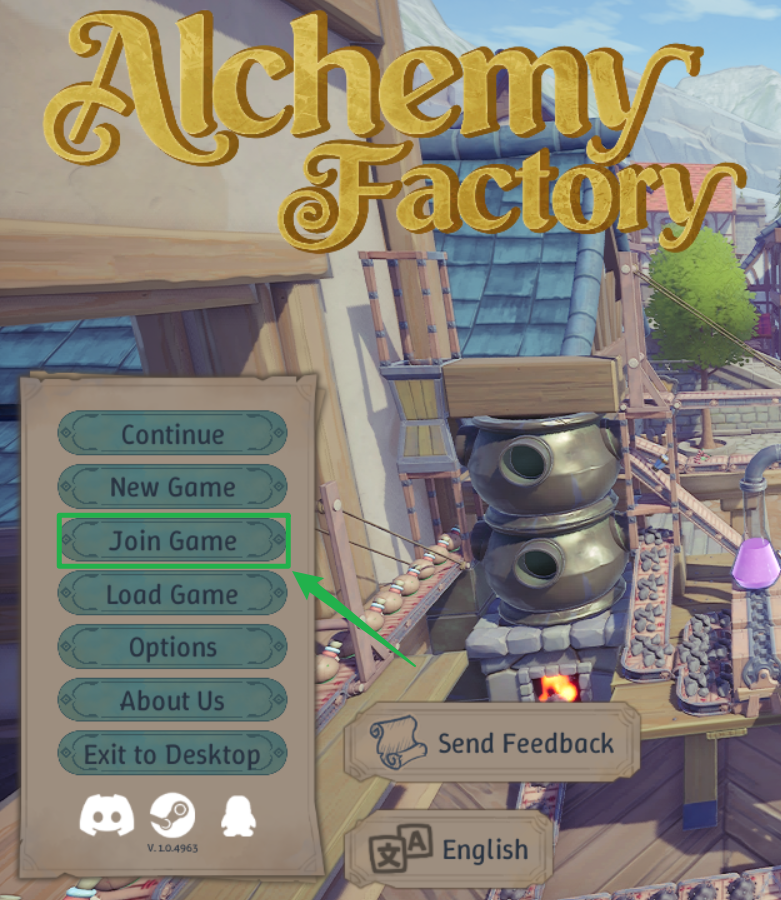
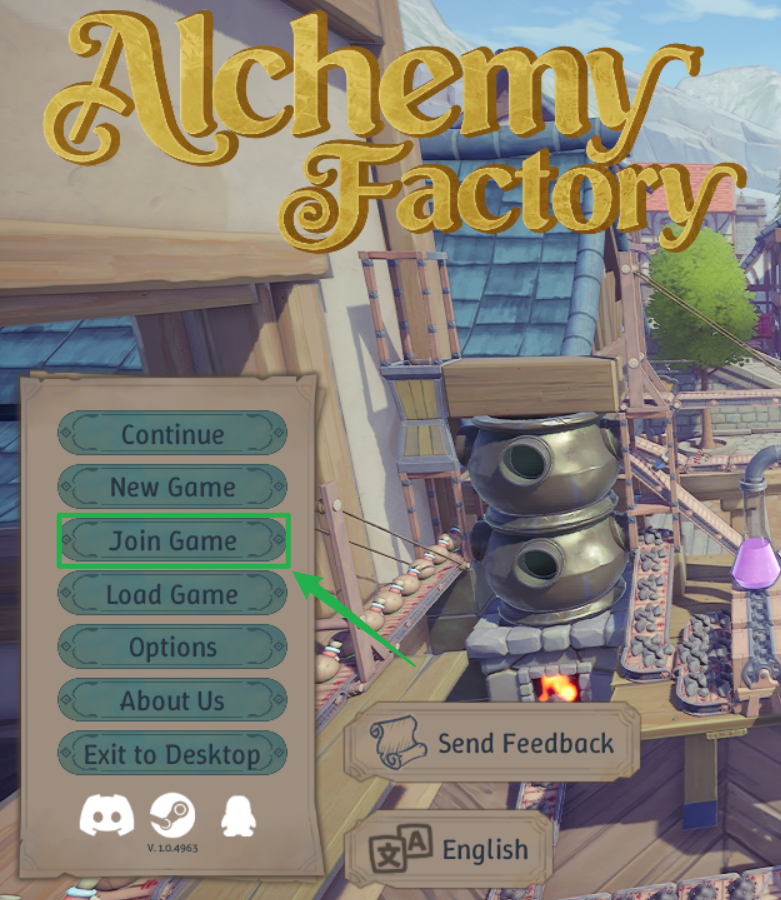
Launch Alchemy Factory and, from the main menu, click on Join Game.
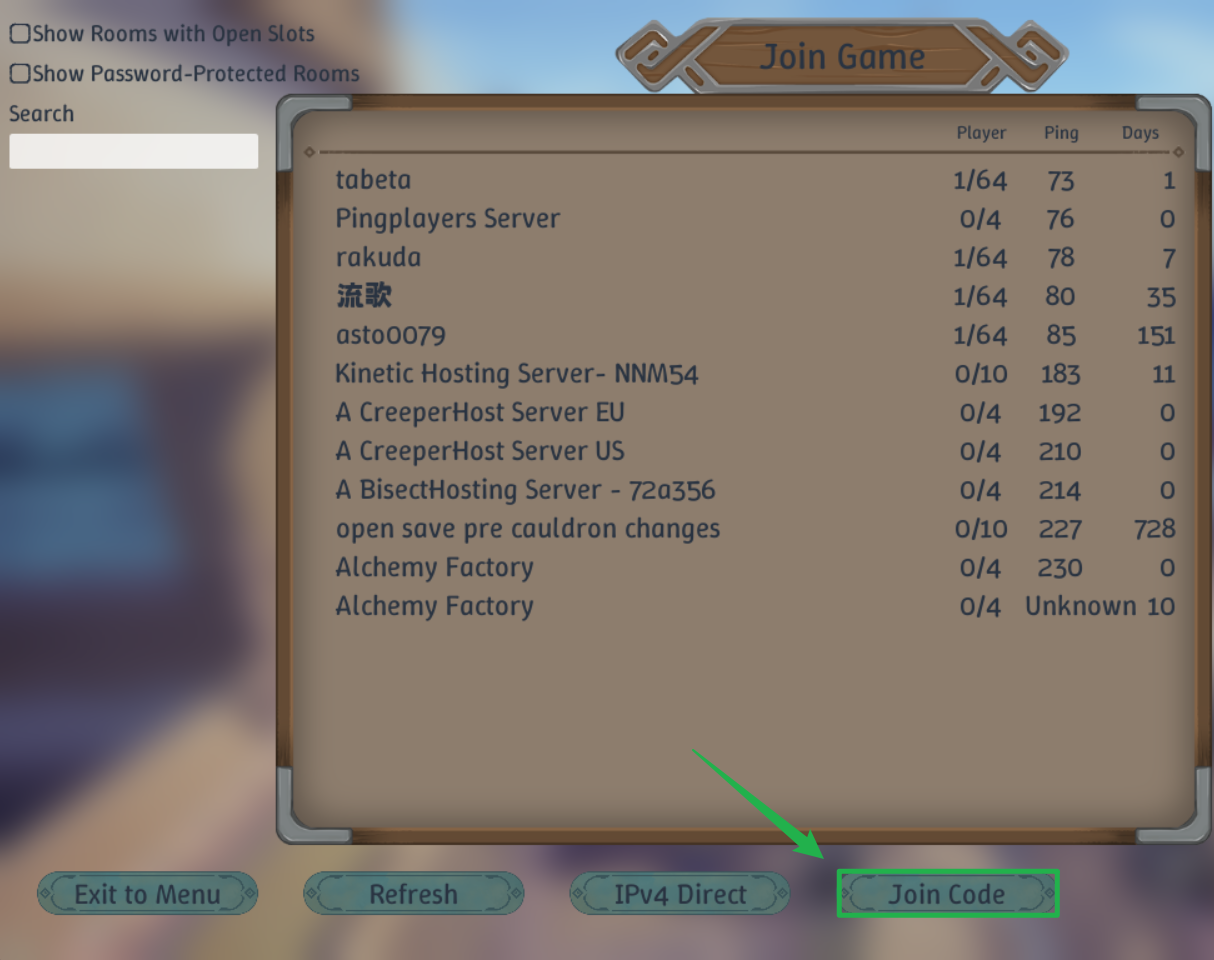
Select the Join Code option.
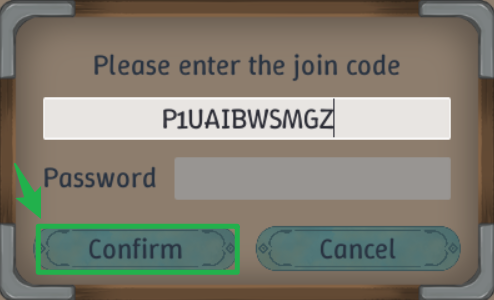
Paste or type the unique Join Code you retrieved from your server console, then, click Confirm to immediately load into your AF world!
Part 3: Joining via Direct Connect
Launch Alchemy Factory and navigate to the Join Game option.
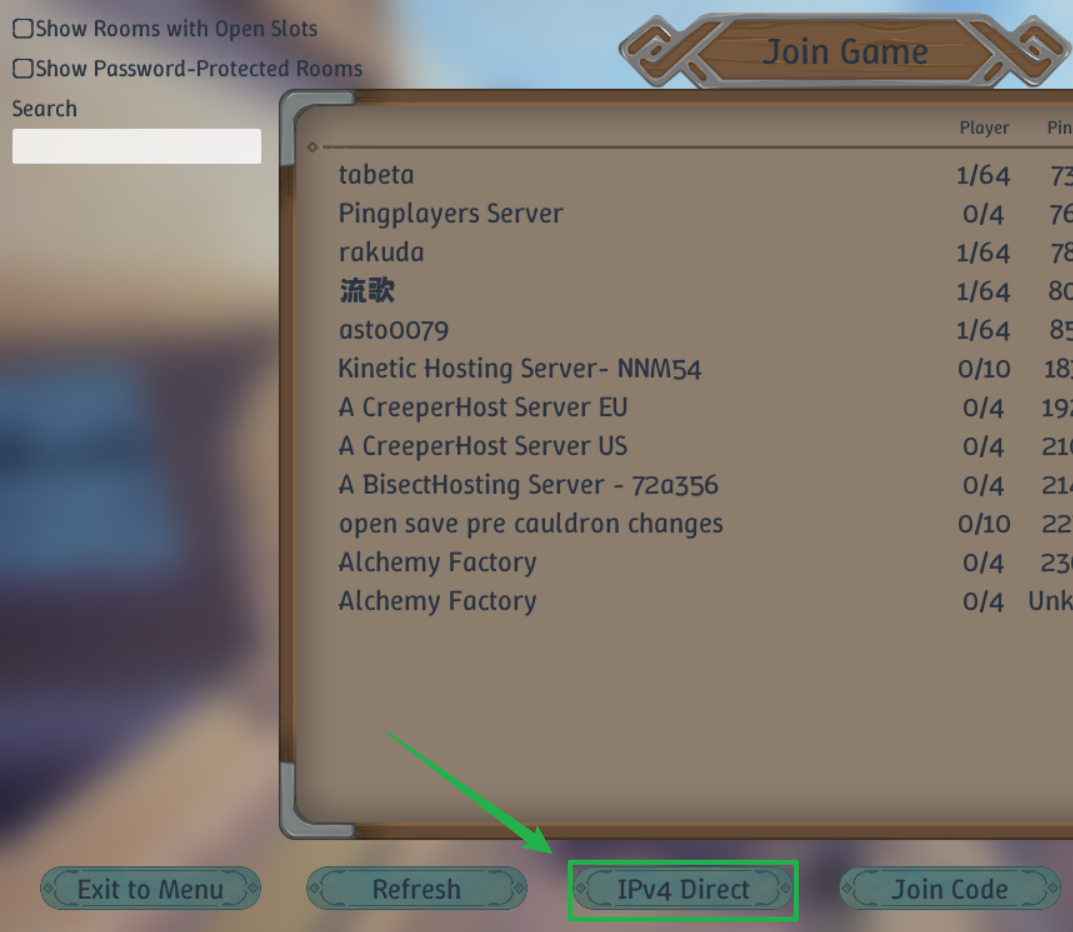
Select Direct Connect.
Enter your server's full IP address, Port (e.g.,
170.23.61.205:11459) and password if it has one, then, click Confirm to connect directly to the server host.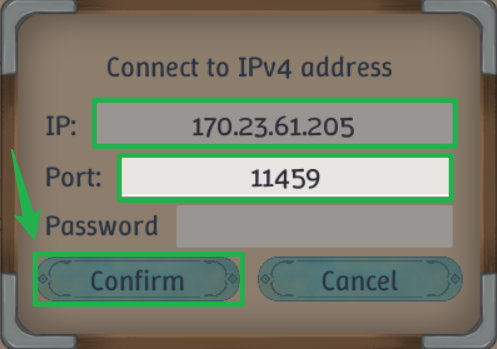
Part 4: Joining via the In-Game Server Browser
Launch Alchemy Factory and click on Join Game, and you'll be directed to the Server Browser.
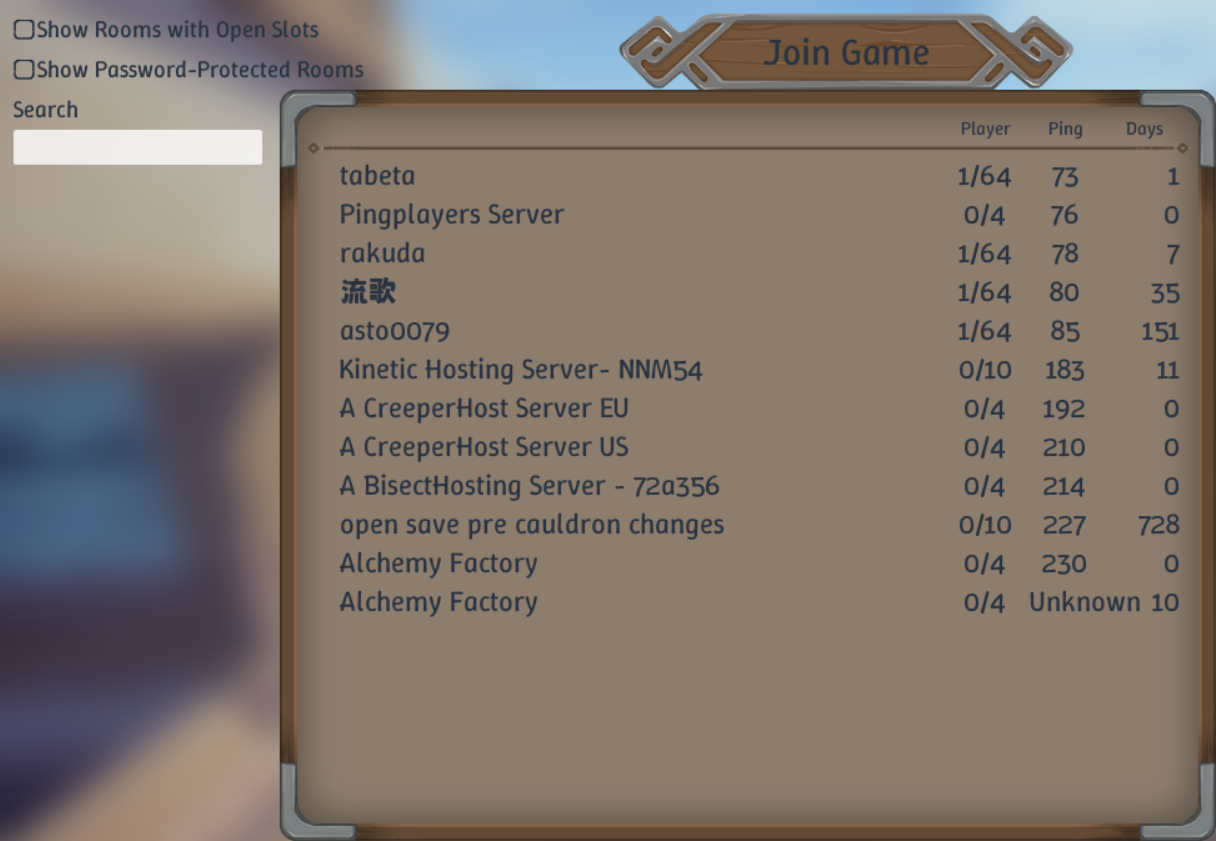
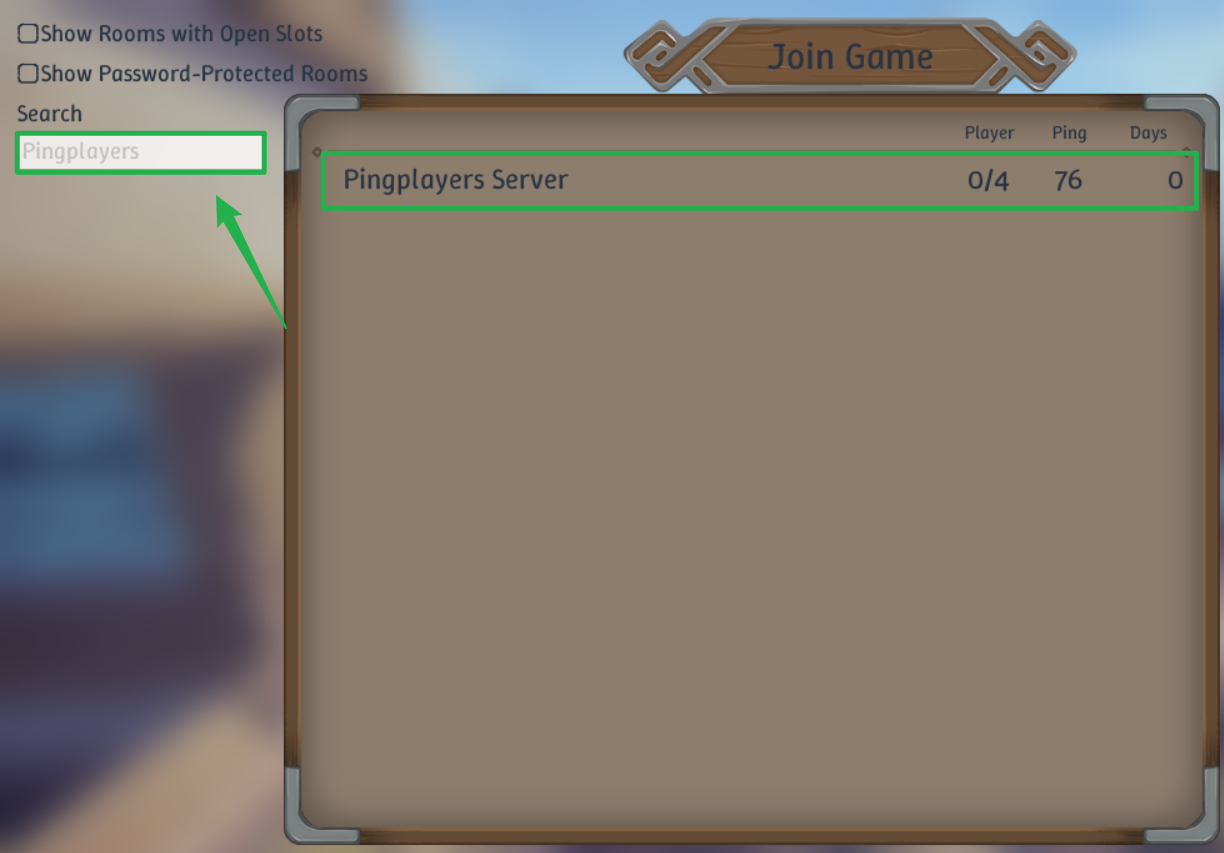
Use the search bar at the top to type in your server's configured name.
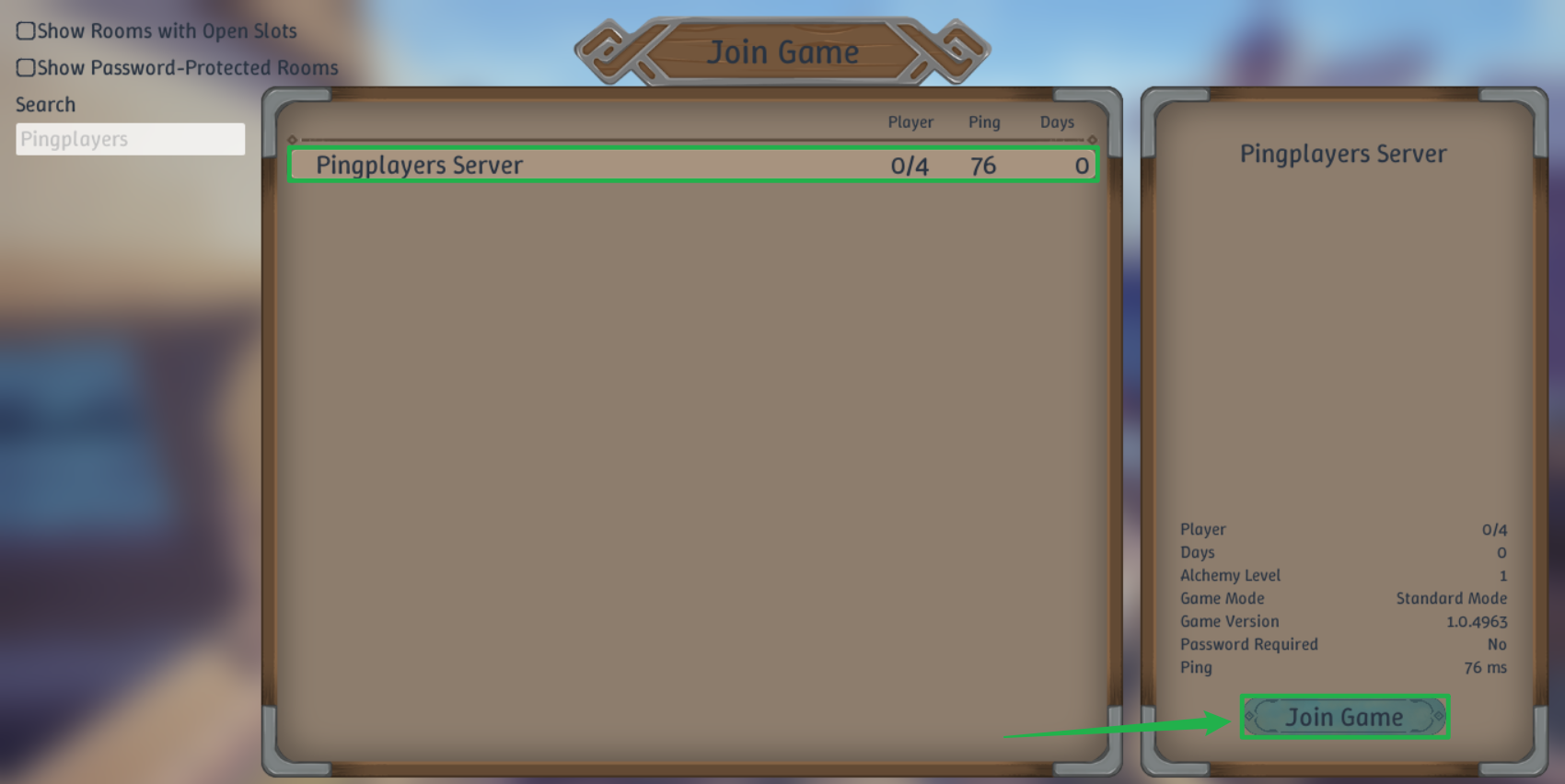
Select your server from the list and click Join Game.
Troubleshooting and Tips
If you or your friends have trouble connecting to your server, run through these quick troubleshooting checks:
- Join Code Changed After Reboot: Join Codes are generated dynamically when the server boots up. If you restart your server using Action > Restart, always check the Console tab again to grab the newly updated Join Code.
- Direct Connect Times Out: Double-check that you included the correct Port after the colon in your IP address. Ensure your server is active on the dashboard. If you recently modified settings, navigate to Action > Restart to apply them.
- Server Not Appearing in Browser: Newly started servers can take a few minutes to register on the global Steam master list. If your server does not immediately show up in the browser search, use the Join Code or Direct Connect method for immediate entry.
- Modifying Files: Never attempt to edit server files or configure settings while the game engine is running. Always use Actions > Shutdown to bring the server offline before making file changes to prevent data corruption.
Conclusion
Getting into your Alchemy Factory server is simple once you know where to grab your connection details. Whether you prefer pasting a quick Join Code, bookmarking your IP address, or finding your server in the browser, you and your squad can seamlessly build the ultimate automated potion factory. Gather your materials, connect to your server, and start brewing!
If you encounter any issues or have further questions, feel free to contact our support team for assistance!