
Starting up your Automobilista 2 dedicated server is just the beginning of your track day. Rather than managing your server through confusing configuration files on your main dashboard, all of your game configurations (from selecting tracks and tweaking the weather to managing driver penalties and championship points) are handled through a sleek, web-based interface called the Racing Panel.
This panel acts as your primary command center, meaning the only thing you need to configure on your main server dashboard is your password. This guide will walk you through launching the service, bypassing common browser warnings, and logging into your panel for the first time.
Step - By - Step Guide
Before you can configure your practice and qualifying sessions, you need to ensure the background game service is running and log into your interface.
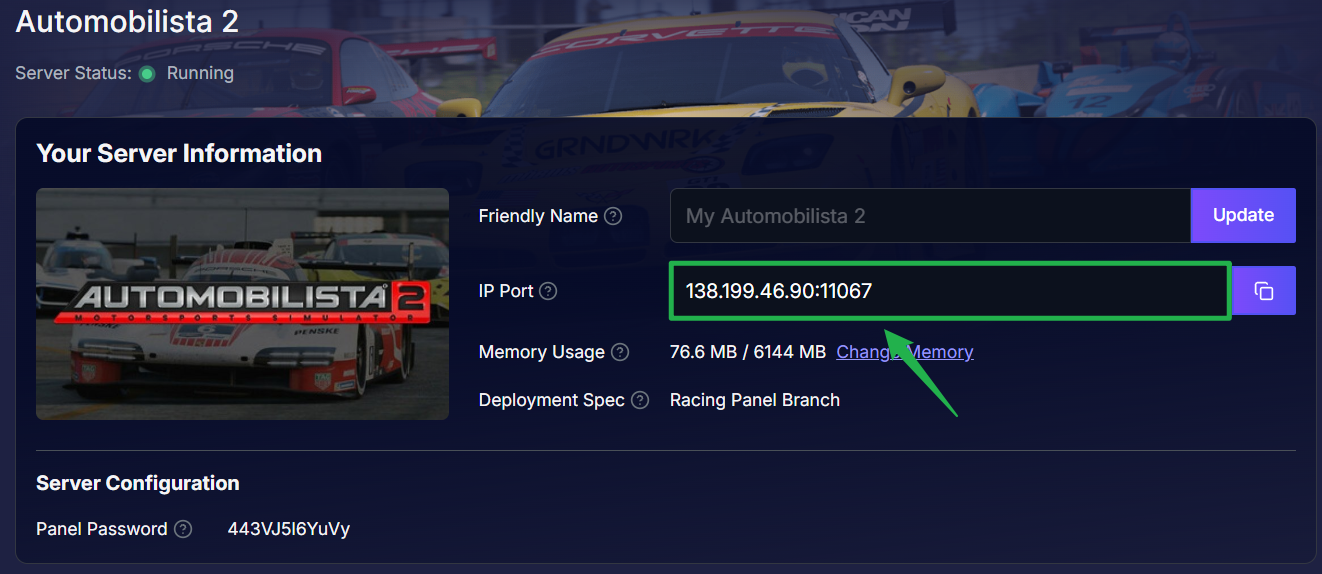
- Start your AMS2 from the server panel dashboard. The Racing Panel is exclusively available while the server is actively running.
Copy the IP and Port from the main server interface and paste it into a new address box.
On the login screen, type
ownerinto the Username field.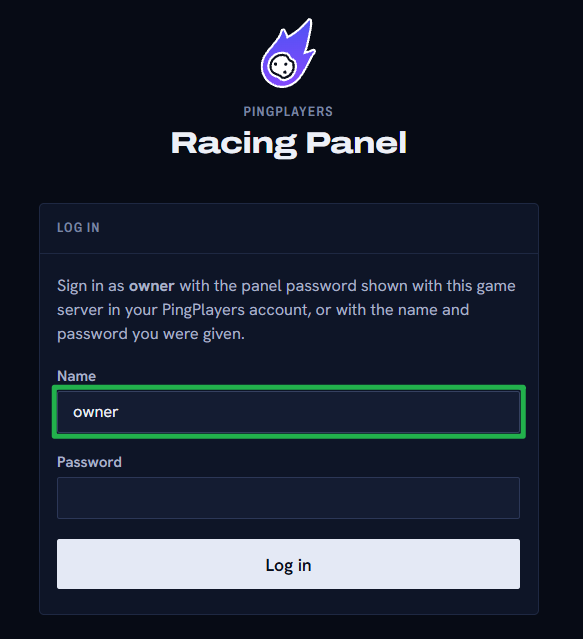
For your password, enter the exact Panel Password configured inside your server's Basic Settings.

Troubleshooting and Tips
If you are stuck in the pits and cannot seem to get into your panel, run through these quick troubleshooting checks:
- Racing Panel Fails to Load: The dashboard goes offline entirely if your main server process is stopped. If you recently navigated to Actions > Shutdown to bring the server offline, the web link will simply time out. Navigate to Action > Restart on your main dashboard to bring the game service and the Racing Panel back online.
- Wrong Password: Remember that your Racing Panel password is the specific Panel Password located in your main dashboard settings, not your billing account password.
- Adding League Staff: You do not have to manage the race alone! You can share access with your friends by setting them up as an Admin, Steward, or Viewer. Inside the Racing Panel, go to Settings, click on Staff, and choose Add account. The panel will automatically generate a one-time password for their first login.
- Managing Configurations: Almost all game-server configuration is performed through the Racing Panel rather than the normal server page. If you are looking for grid order, AI settings, or server passwords, you must be logged into the Racing Panel!
Conclusion
You are officially in the driver's seat! You have successfully accessed your race control center and are now ready to take full command of the grid. From this dashboard, you can create entry lists, set up dynamic weather, manage live events, and monitor real-time sector times without ever touching a complex configuration file.
If you encounter any issues or have further questions, feel free to contact our support team for assistance!