
Getting your Automobilista 2 server online is the first step to an incredible race day. Once your track and weather are configured in your Racing Panel, you and your fellow drivers need to know how to connect to the lobby.
You can join your AMS2 server using the standard in-game multiplayer browser or by using a direct connection link straight from your panel. This guide will walk you through both methods so you can hit the track as quickly as possible.
Step - By - Step Guide
Method 1: The In-Game Server Browser
If you prefer to find your server through the game itself, follow these simple steps:
Launch Automobilista 2 on your PC and, from the main menu, navigate to the Multiplayer section.
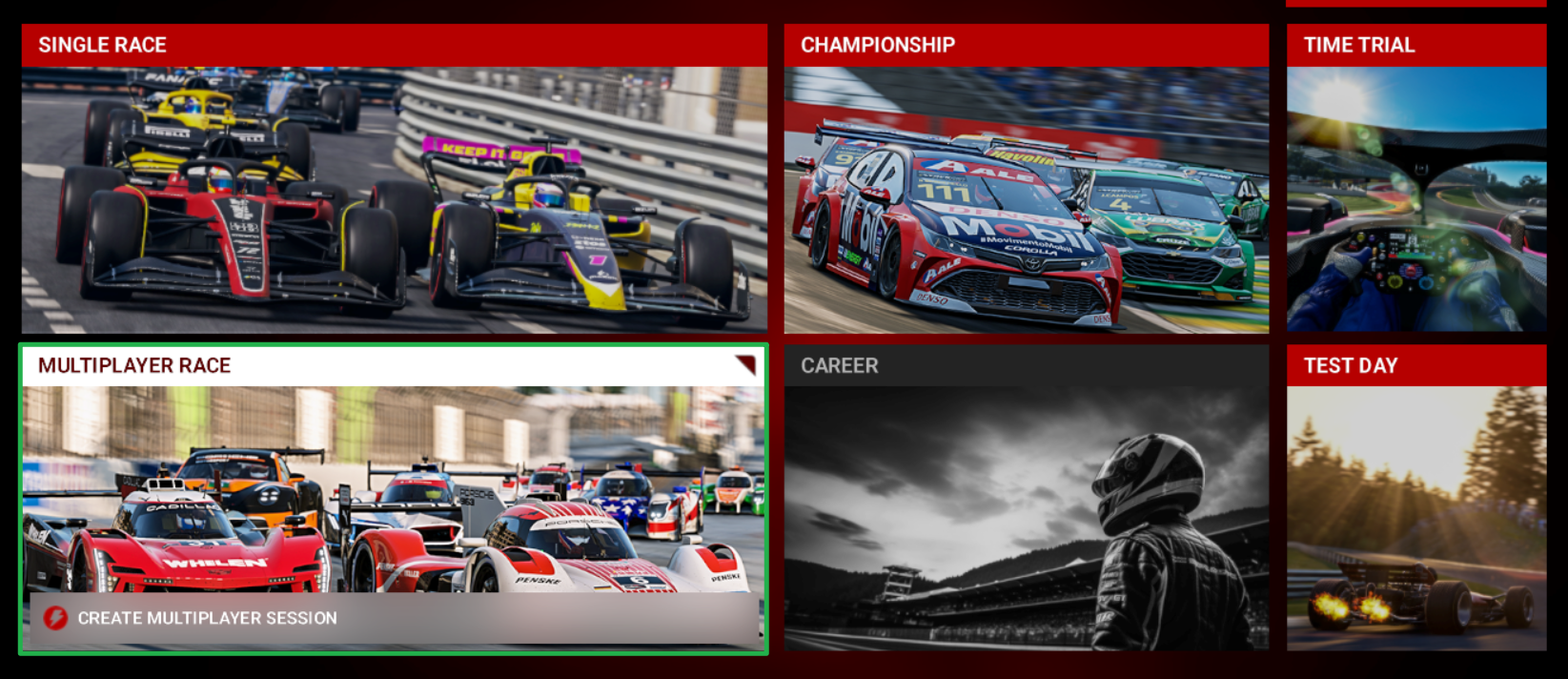
Browse or filter the server list using your exact server name.

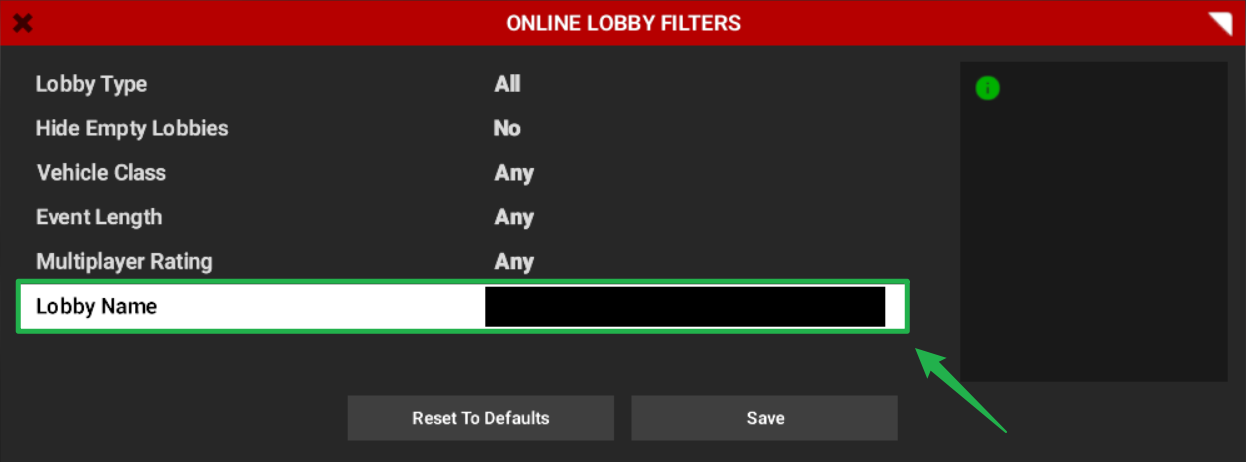
Once you click the Filter option, you can enter the correct lobby name. Select your server from the list and click Join.

Enter your Password if you configured one inside your current Event.
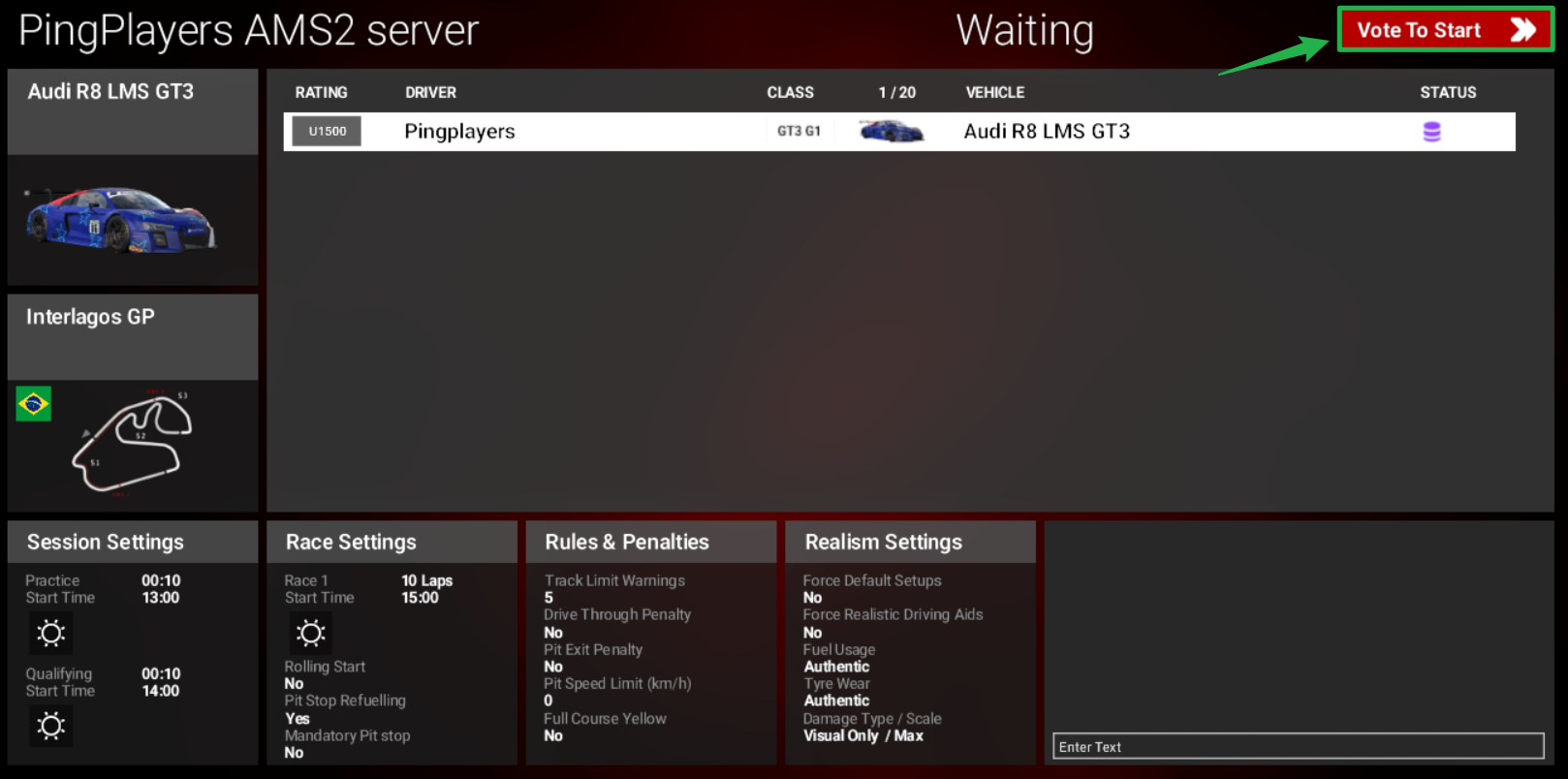
Click Vote to Start and wait for the countdown to load into the pit lane!
Method 2: Direct Connect via Racing Panel
For a faster way to get on the grid and bypass the server browser entirely, you can use the direct connect link provided right inside your interface.
- Log in to your Racing Panel by copying the IP and port into a new address bar.
Navigate to the Race Control tab on the left-side menu.
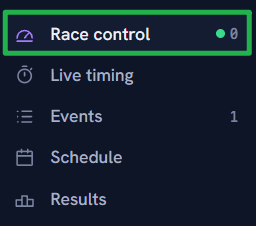
Look for the Join Link section on the right side of the screen.
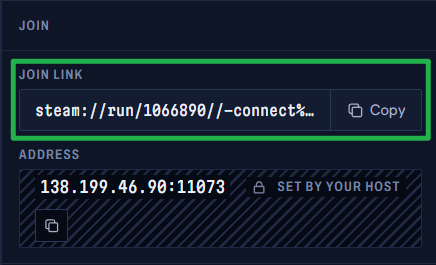
Copy the provided link, which uses a specific Steam format (for example,
steam://run/1066890//-connect IP:PORT -password password). You can paste this link into your browser URL bar.
A Steam dialog box will pop up on your screen warning you that the game is attempting to launch with custom arguments.
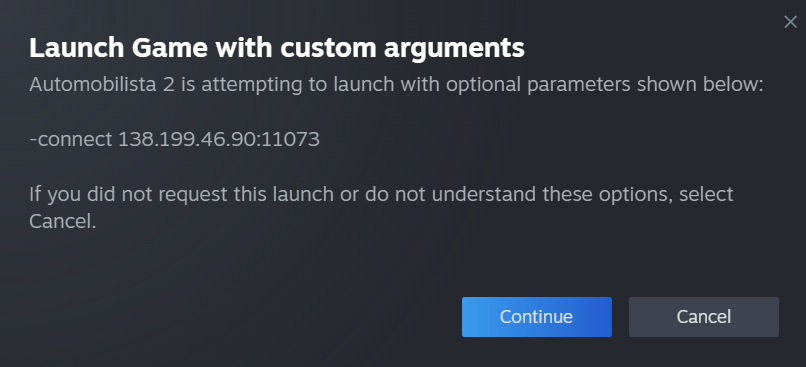
Click Continue. Steam will automatically open the game, bypass the menus, and connect you straight into your lobby with the password already applied.
Troubleshooting and Tips
If you are stuck in the garage and having trouble connecting to the grid, run through these quick checks:
- Server Shows as Private: If your server is displayed as "PRIVATE" in your Race Panel screen, this simply means a Join Password is currently configured for the active Event. Players will need that password to enter, or it will be automatically handled if they use the direct connect link.
- Missing from the Browser: If you cannot find your server in the multiplayer list, make sure the Event is actively running in the Racing Panel. If it seems stuck, you can always navigate to Actions > Shutdown on your main dashboard to take the service completely offline, and then click Action > Restart to boot everything back up fresh.
- Racing Panel Security Warning: When opening your Racing Panel to grab your direct connect link, your web browser might show a security warning because the panel uses HTTP. This is normal behavior, and you can safely continue to the site to access your link.
Conclusion
Whether you prefer searching through the multiplayer lobby or clicking a direct link to bypass the menus entirely, getting connected to your AMS2 server is a breeze. Now that you know how to join your lobby, it is time to warm up those tires and wait for the green light!
If you encounter any issues or have further questions, feel free to contact our support team for assistance!