
How to Use RCON on Your Day of Defeat: Source Server
Learn how to use RCON on Day of Defeat: Source - access the PingPlayers built-in RCON or use in-game console to manage maps, bans, and settings.
Running a smooth Day of Defeat: Source server requires having the right administrative tools at your fingertips. For server management, administration is typically handled through two methods: RCON for basic server management, and SourceMod for more advanced admin permissions, menus, and moderation tools.
If you are looking to quickly change maps, kick rule-breakers, or adjust server variables, RCON (Remote Console) is the fastest way to get it done. This guide will walk you through the two different ways you can utilize RCON to manage your server.
Method 1: The Built-In RCON Console (Recommended)
Day of Defeat: Source servers include a built-in RCON console directly inside your PingPlayers panel. This is by far the easiest method to manage your server because the RCON password is automatically generated and handled by the panel—meaning there is no need to configure or memorize a complex password manually!
Here is how to access and use the built-in RCON:
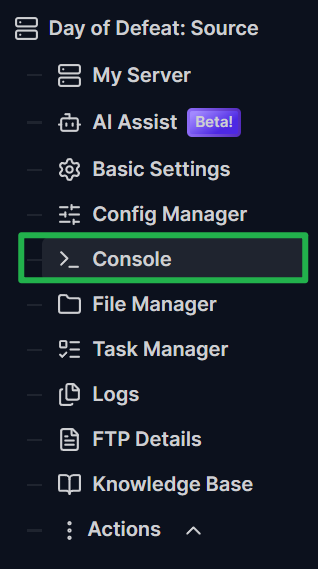
On your server dashboard, navigate to the Console page on the left side menu.
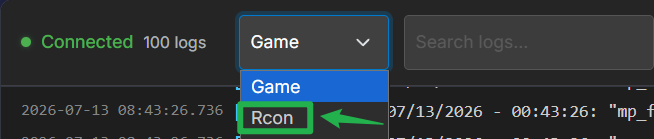
Select the RCON tab located at the top of the console window.
Type your desired command into the input box and hit Enter on your keyboard or click Send.
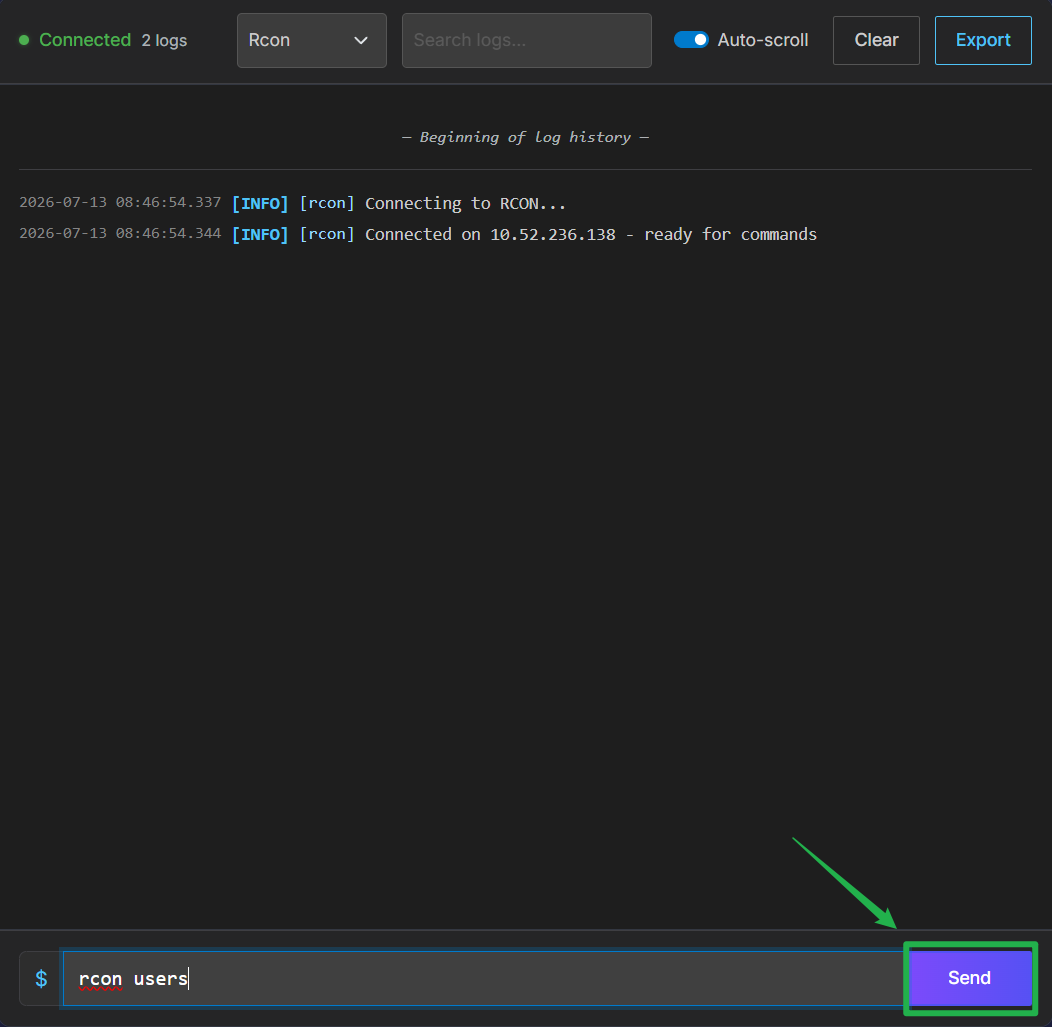
Because authentication is handled automatically by the panel, you do not need to run any password commands first. Any commands entered in this tab are sent directly to the game server with full administrator privileges. This allows you to immediately perform actions such as:
- Changing the current map.
- Kicking or banning unruly players.
- Changing specific server variables.
- Executing any other supported Source engine server command.
Method 2: In-Game RCON
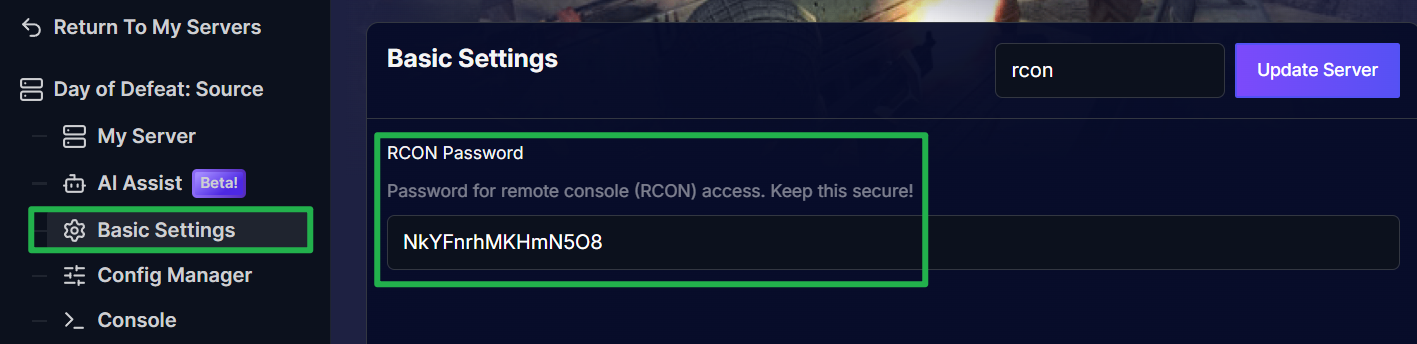
If you prefer to manage the server while actively playing, Day of Defeat: Source also supports traditional in-game RCON through the developer console. To use this method, you will need to know your server's RCON password, which can be found on the Basic Settings.
Here is how to authenticate and run commands in-game:
- Launch Day of Defeat: Source and join your server.
Press the ~ (tilde) key to open the developer console.
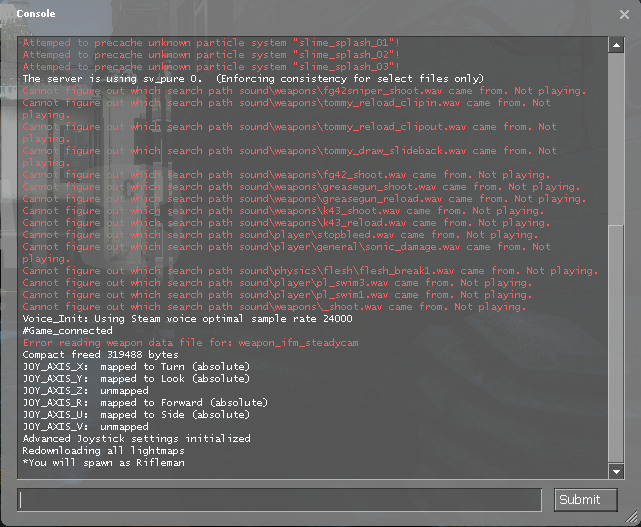
Authenticate your administrative access by typing
rcon_password RCONPASSWORD(replaceRCONPASSWORDwith your actual password) and press Enter.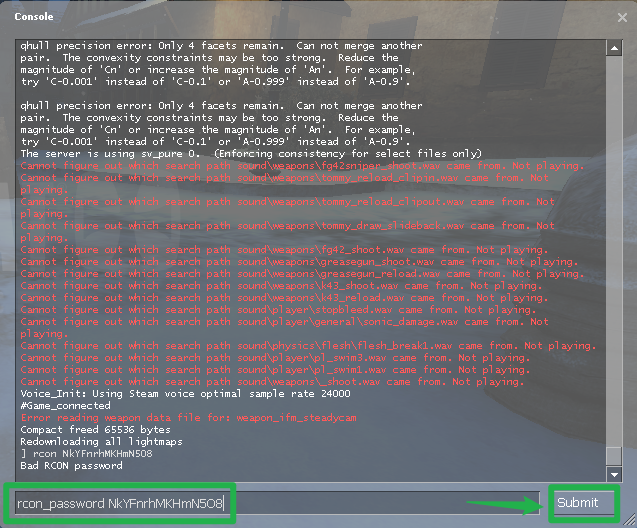
Once authenticated, you must place
rconbefore any command you want to send to the server.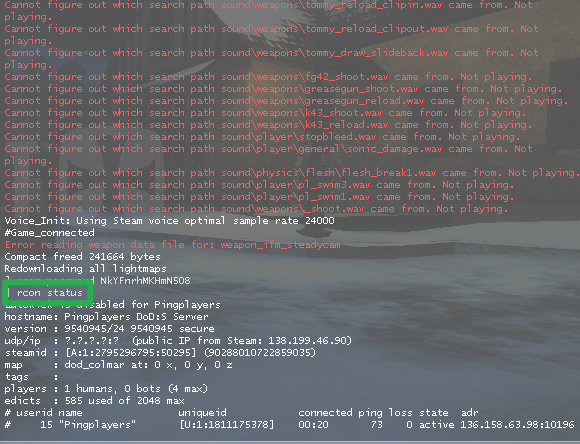
In this example, to check the server status, you would type: rcon status
Troubleshooting and Tips
Even seasoned server admins run into command hiccups from time to time. Keep these tips in mind if your RCON commands are failing to go through:
"Bad Password" Errors: If you are using the in-game console and your access is rejected, double check that you typed your RCON password exactly as it appears in your server settings. It is completely case sensitive!
Commands Not Registering: Ensure you are putting
rconbefore the command when using the in-game developer console. If you just typestatus, it will check your local client status, not the server. Note that if you are using the dashboard's built-in RCON tab, you do not need therconprefix.Locating Your Password: If you forgot your password for in-game use, just hop into your server panel, navigate to your basic settings, and copy the auto-generated password from there.
Conclusion
While the in-game developer console is great for making quick adjustments without leaving the battlefield, utilizing the built-in RCON tab on your PingPlayers panel is ultimately the most seamless way to manage your server. By letting the panel handle the password authentication automatically, you can execute commands quickly, easily, and securely!
If you encounter any issues or have further questions about specific server commands, feel free to contact our support team for assistance!