
How to Connect to Your Empyrion Server
Connect friends to your Empyrion server using the server browser or direct IP. Includes step-by-step setup and troubleshooting tips.
Whether you are designing a massive capital vessel or just trying to survive your first night on a hostile alien planet, exploring the galaxy in Empyrion is always better with a crew. Once your dedicated server is online, getting your friends connected to your universe is a straightforward process.
Empyrion - Galactic Survival gives players two different ways to connect to a multiplayer session: using the in-game server browser or connecting directly via an IP address. This guide will walk you through both methods so your faction can group up and start building your first base.
Step-By-Step Guide
Getting into the game takes just a few clicks. Choose whichever connection method works best for you and your crew!
Method 1: Using the Server Browser
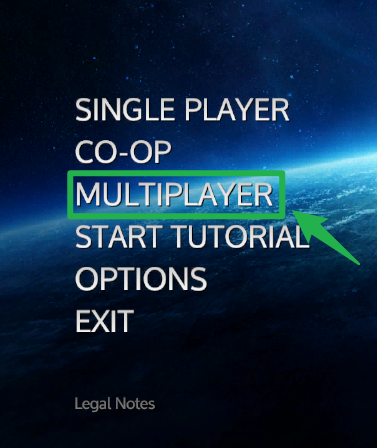
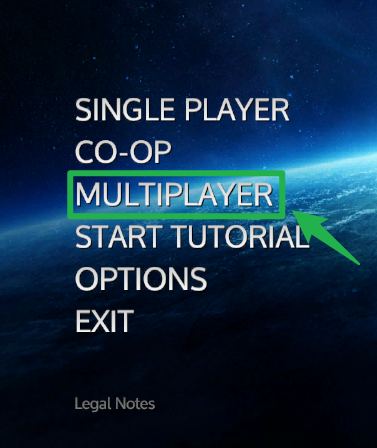
Launch Empyrion and from the main menu, click on the Multiplayer option.
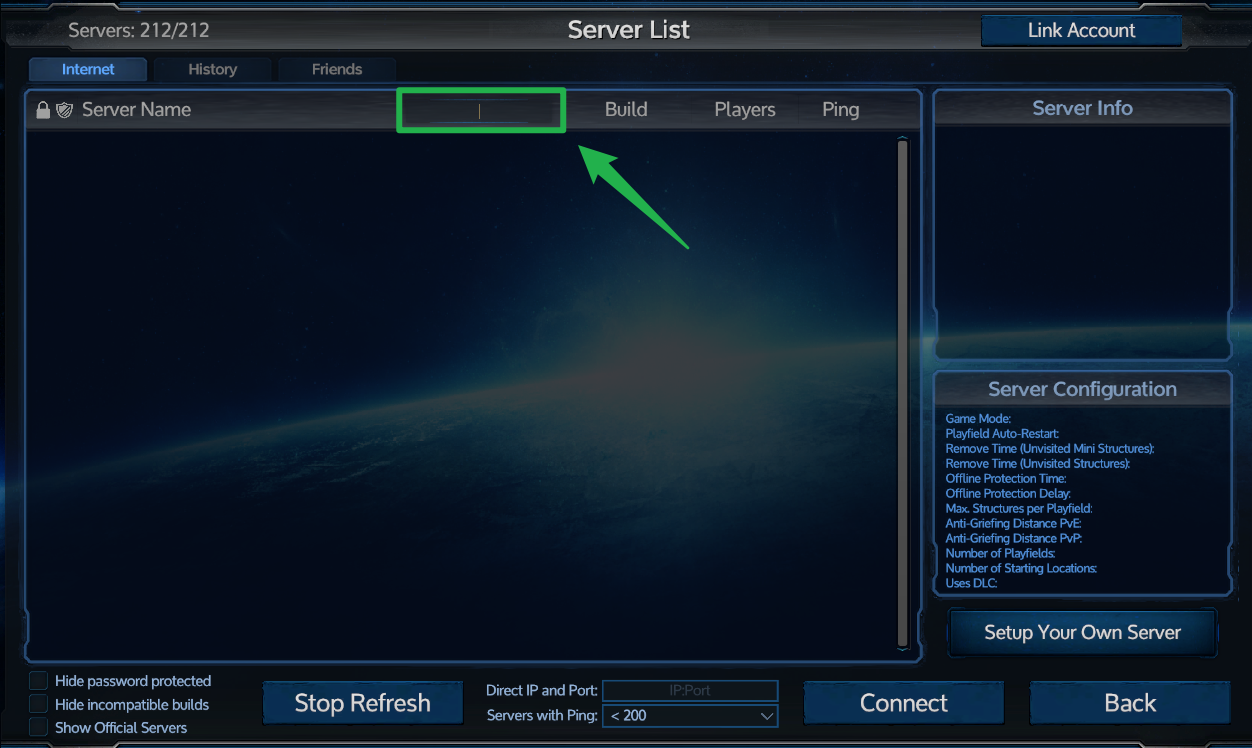
Use the search bar at the top of the server browser to type in the exact name of your server.
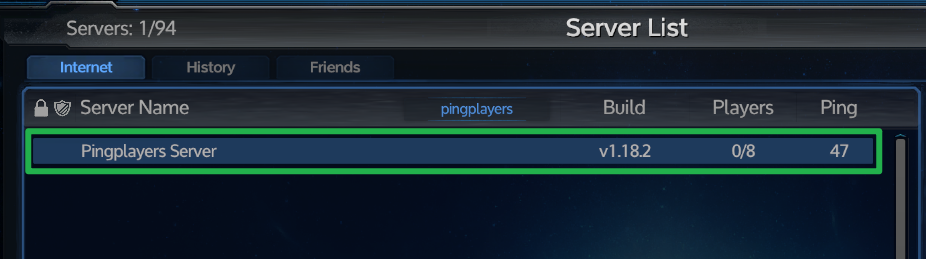
Once your server populates in the list, click on it to highlight it.
If your server is private, a prompt will appear asking for a password.
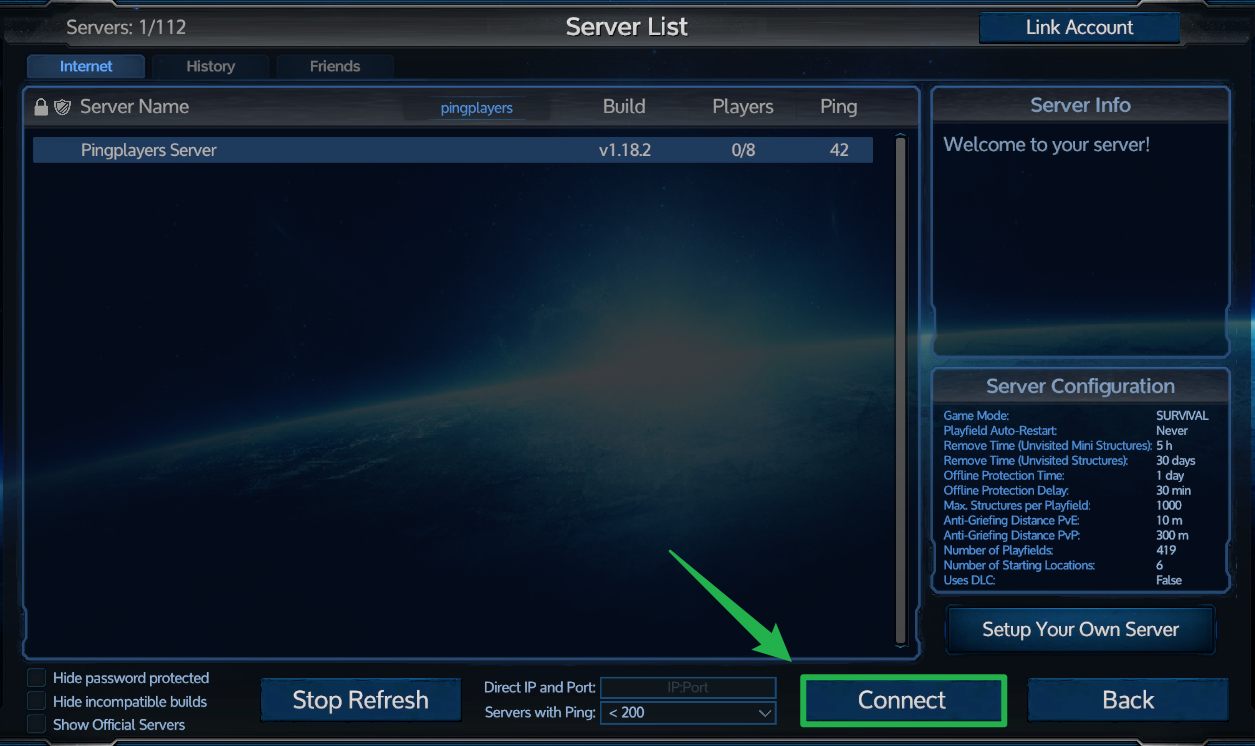
Click the Connect button at the bottom of the screen to drop into the planetary orbit.
Method 2: Direct IP Connection
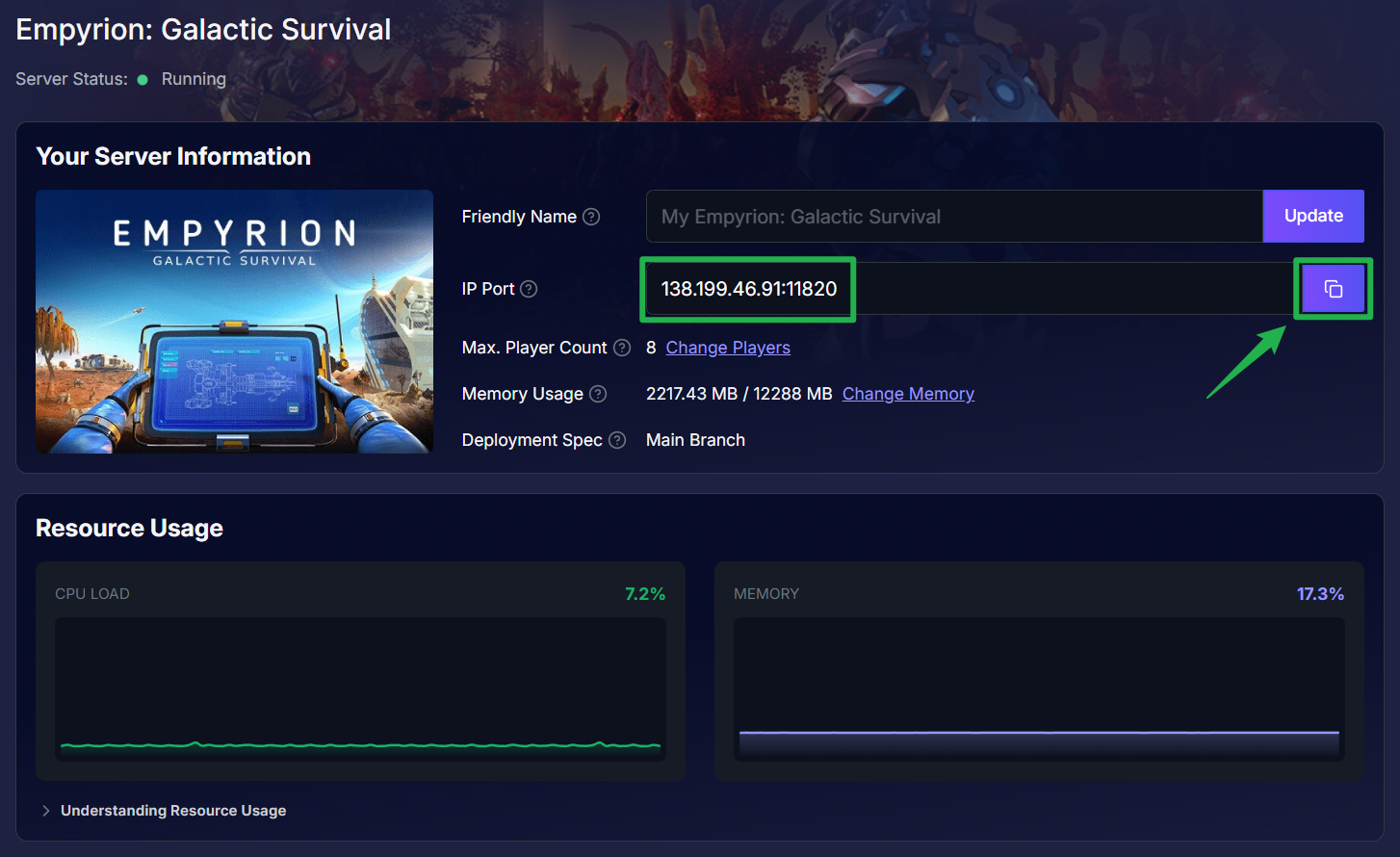
Log into your server dashboard and locate your server's IP address and Game Port. Copy this information to your clipboard.
Launch the game and navigate to the Multiplayer menu.
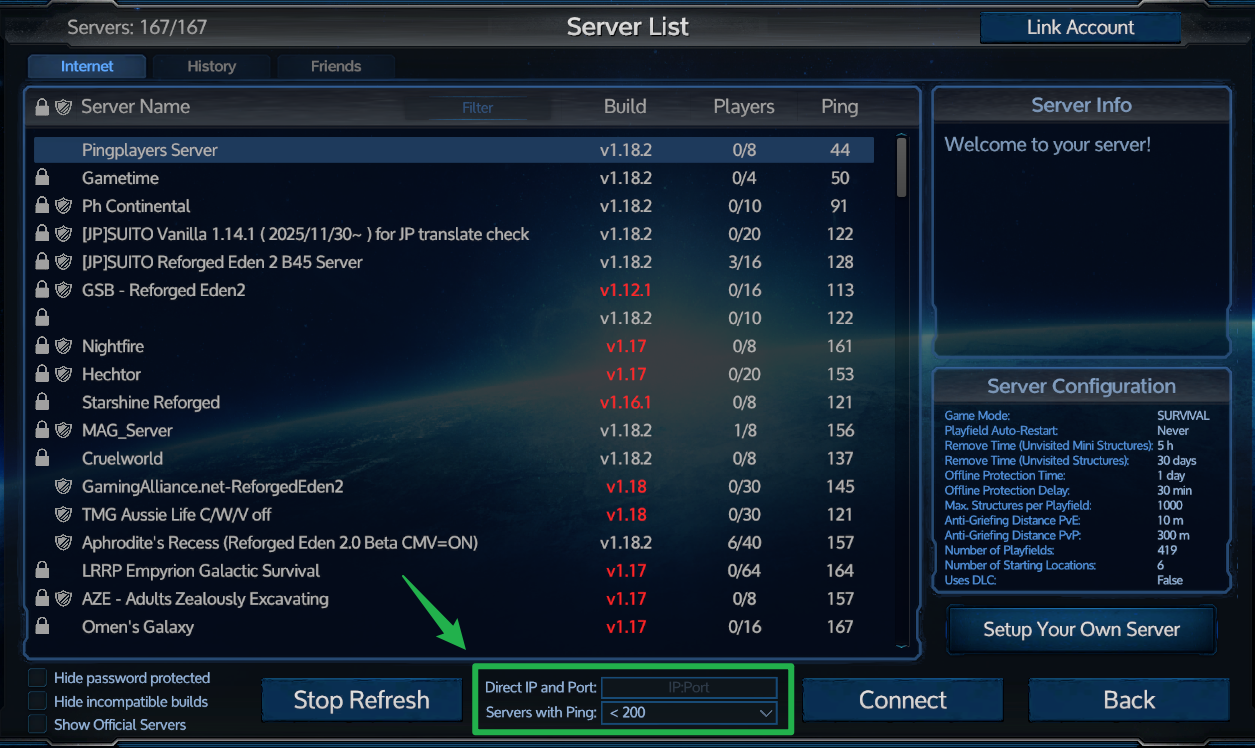
Look for the Direct IP and Port option located near the connection button.
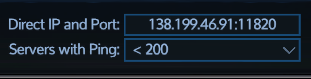
Paste your exact IP address and game port into the provided field.
Click Connect, enter your password if you have the server locked down, and join the game!

Troubleshooting and Tips
If your friends are stuck in the void of space and cannot seem to load into your world, keep these quick fixes in mind:
- Server Not Showing Up: If you are using the server browser and your lobby is missing, double check that your server is actually online. Log into your dashboard and navigate to Actions > Restart to reboot the server and force it to ping the master list again.
- Version Mismatch Errors: Empyrion updates frequently. If your local game client is running a newer or older version than the server, your connection will be rejected. Always make sure your client is fully updated through Steam!
- Password Rejections: Server passwords are strictly case sensitive. Make sure your caps lock is off before typing it in, or the server will refuse your connection.
- Direct Connect IP Formatting: When pasting your IP, make sure there are no accidental spaces at the beginning or end of the string, as this can cause a connection timeout.
Conclusion
Getting your crew connected and ready for a galactic voyage is incredibly simple once you know how the multiplayer menus work. Just make sure your server is online, share the IP address or server name with your faction members, and you will be conquering the star system in no time. Grab your survival tool, fuel up your hover vessel, and get ready for liftoff!
If you encounter any issues or have further questions, feel free to contact our support team for assistance!