How to Cancel Auto Renew on a cluster
Disable Auto Renew on your PingPlayers cluster. Follow easy steps to cancel, avoid expiry risks, and learn how to manually renew as needed.
Our service works as a subsciption service, this means that the cluster of players a gamer has will renew itself automaticlaly. Auto Renew feature can be disabled, should you decide to pay manually each time. In this article, we will guide you through the steps to disable Auto Renew.
Why Disable Auto Renew?
Disabling Auto Renew means that the subscription for your server cluster will not automatically renew at the end of each billing period. If you choose to disable it, make sure to keep an eye on your cluster's status. Servers in an expired (overdue) cluster will be suspended for 10 (ten) days, and if not renewed manually, they will be deleted forever and their data erased. So, if you want to continue playing or back up your data, you’ll need to renew your server before that happens!
Steps to Disable Auto-Renew
Canceling your automated billing only takes a few clicks from your main dashboard. Here is exactly how to do it:
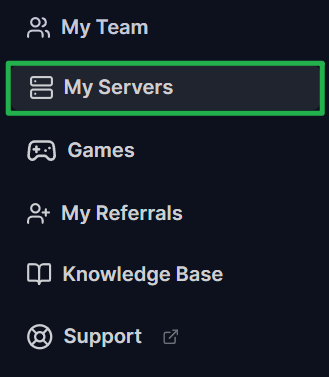
Log in to your PingPlayers account and navigate to My Servers in the main menu.
Locate the specific cluster you want to manage. Click the three vertical dots on the right side of the server card and select Billing.

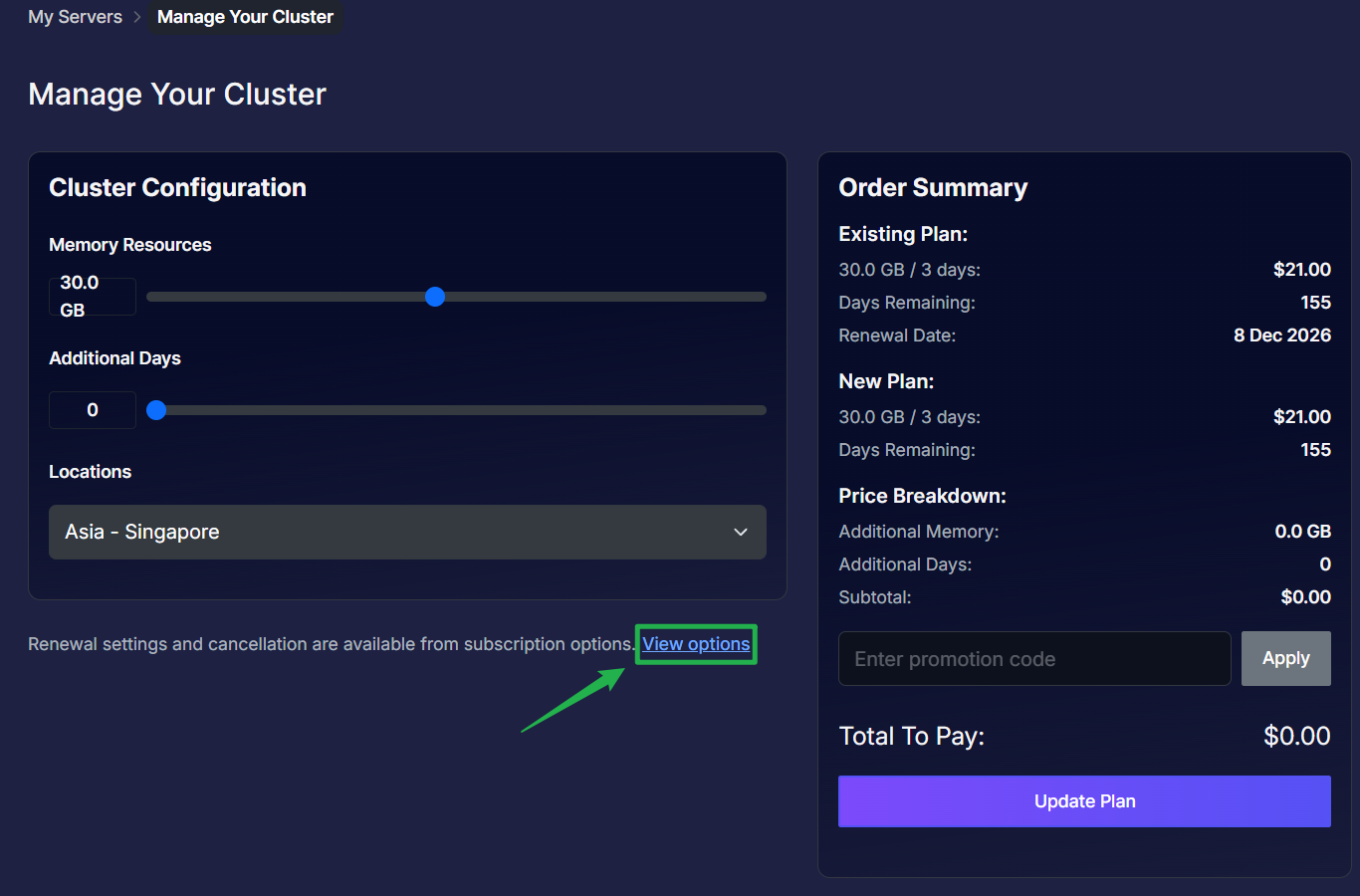
You will be taken to the Manage Your Cluster page. Scroll down to the bottom right and click the View options link next to the "Renewal settings and cancellation" text.
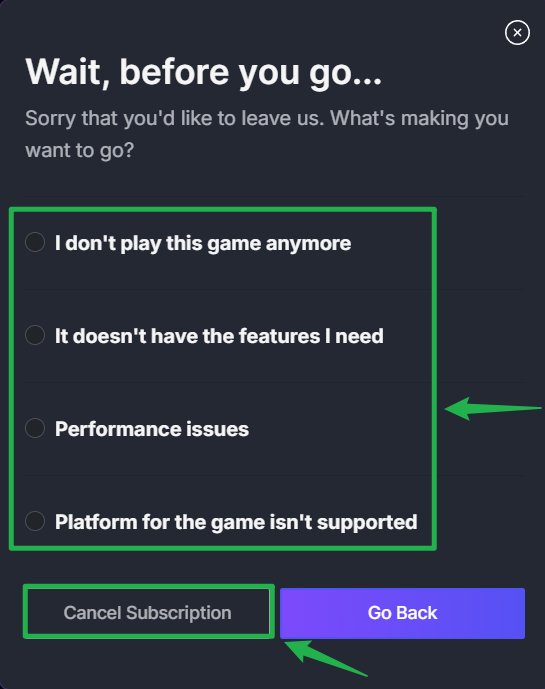
A "Wait, before you go..." prompt will appear asking for feedback. Select the reason that best applies to your situation, and click the Cancel Subscription button.
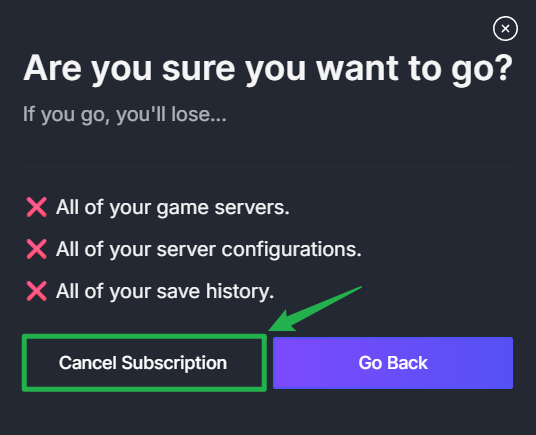
A final warning screen will appear, reminding you that allowing your server to expire will eventually result in the loss of your game servers, configurations, and save history. Click Cancel Subscription one last time to confirm your choice.
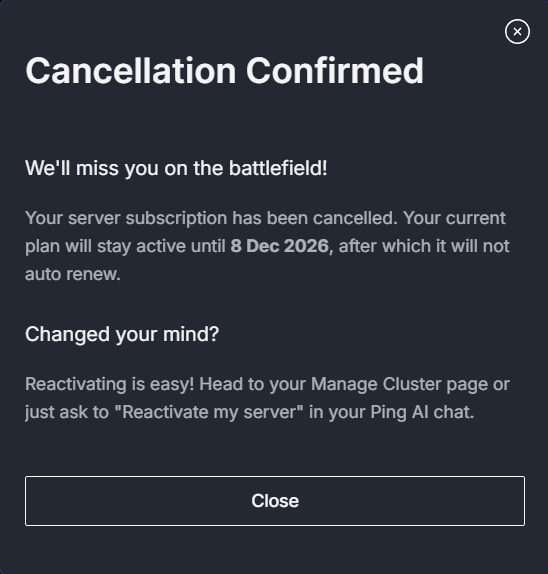
You are all set! A "Cancellation Confirmed" screen will appear, showing you the exact date your current plan will stay active until. Click Close to return to your dashboard.
What Happens Next?
After disabling Auto Renew, be sure to manage your server cluster based on your gaming needs. If you decide you want to continue using the cluster, remember that you can always renew it manually within the grace period to avoid disruption to your gaming experience.
Changed Your Mind?
If you decide you want to keep your servers running after canceling, reactivating your auto-renewal is incredibly easy!
Navigate back to the Manage Your Cluster page by going to My Servers and selecting Billing on your server card.
Look at the Cluster Configuration box on the left side of the screen and click the Auto Renew toggle switch so that it turns on.
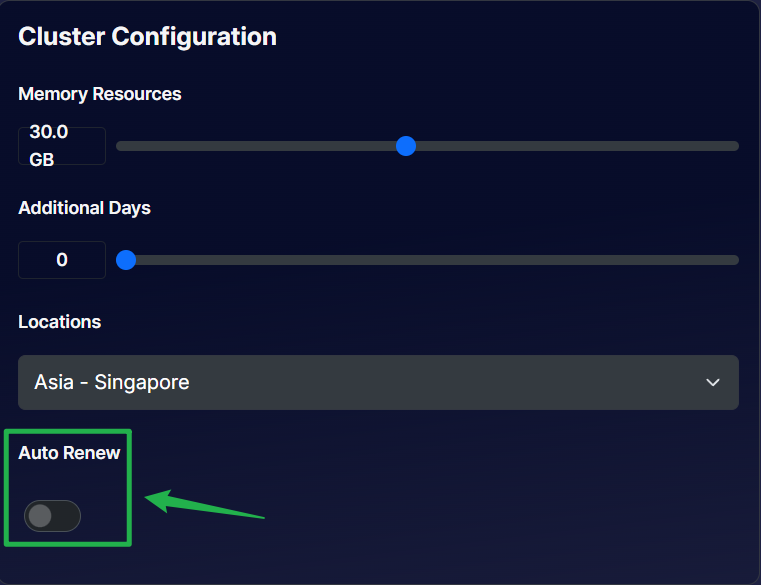
Click the Update Plan button on the right side to save your changes!

Conclusion
Managing your server's billing should never be a hassle. Whether you are taking a temporary break from hosting or just prefer to handle your payments manually, our flexible auto-renew settings put you completely in control. By keeping an eye on your expiration dates and utilizing the quick toggle switches, you can ensure your server data stays safe exactly when you need it!
If you have any questions or need further assistance managing your billing, don’t hesitate to reach out to our support team. We're here to help you get the most out of your gaming experience!