
How to Become an Admin on Your PixARK Server
Learn how to become an admin on your PixARK server: set RCON password in panel, restart server, then use enablecheats PASSWORD in-game.
Surviving the blocky, dinosaur-filled wilderness of PixARK is much easier when you have full control over your lobby. Whether you need to manage unruly players, spawn in some emergency building materials for your voxel fortress, or trigger a world save, you will need administrator privileges.
Getting admin access (often referred to as enabling cheats) requires you to set a specific password on your server dashboard and then authenticate yourself while logged into the game. Grab your pixel pickaxe, because this guide will walk you through exactly how to grant yourself admin powers!
Step - By - Step Guide
Setting up your admin access only takes a few moments on your control panel.
Log into your server panel dashboard and navigate to your Basic Settings (you can also configure this through the
GameUserSettings.initemplate in your Config Manager).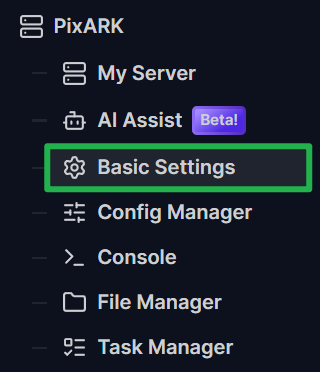
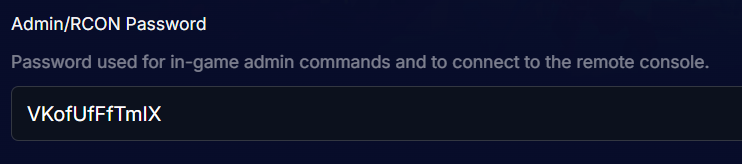
Locate the Admin/RCON Password field and type in a secure, memorable password. Make sure you do not confuse this with the standard Server Password, which is used to restrict who can join the server. Then, save your changes by clicking on Update Server.
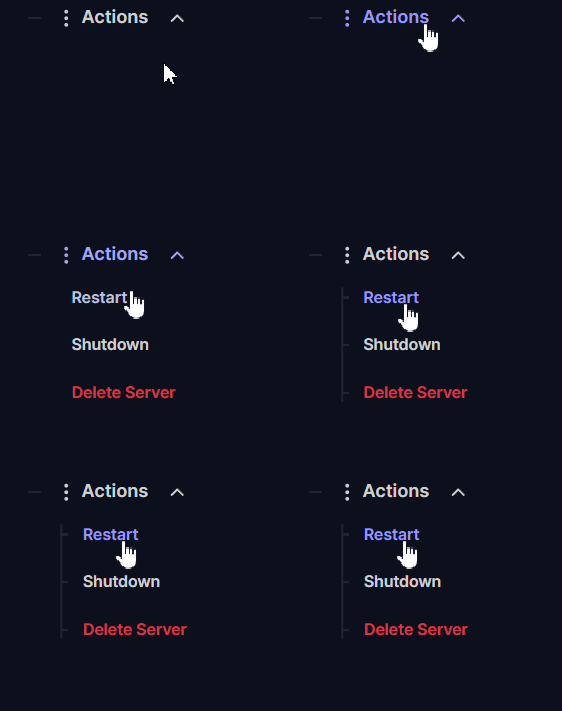
Navigate to Action > Restart to reboot the server. Your new password will not take effect until the game engine fully restarts and loads the updated configuration.
Launch PixARK, join your server normally, and open the in-game console. Type
enablecheats PASSWORD(replacing "PASSWORD" with the exact admin password you just created) and hit Enter. You are now authenticated to use administrative cheat commands!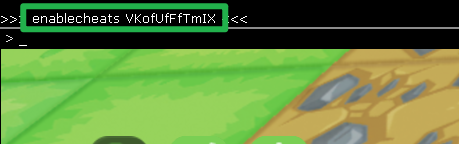
Troubleshooting and Tips
If you are trying to use commands and the server is ignoring you, run through these quick troubleshooting checks:
- Dashboard Console is Read-Only: You might be tempted to type commands directly into the live console tab on your server dashboard. However, the standard dashboard console is read-only for PixARK. You must execute admin commands directly from inside the game, or connect via a dedicated RCON client using your server IP and assigned RCON port.
- Password Confusion: If you cannot authenticate, ensure you did not accidentally type your admin password into the regular Server Password box. They are two completely separate settings.
- Missing the Restart: Any time you update your Basic Settings or the
GameUserSettings.inifile, you must reboot the server. If you skipped clicking Action > Restart, the server is still running on the old configuration and will reject your new password. - Safe Server Maintenance: If you plan on performing a migration, backing up your server, or installing new Steam Workshop mods, it is highly recommended to log in as an admin (or use RCON) and type
SaveWorldto force the world data to write to the disk. After it saves, navigate to Actions > Shutdown on your panel to safely bring the server offline.
Conclusion
Becoming an admin on your dedicated server gives you the ultimate power to shape your voxel adventure. By securely setting your admin password and authenticating through the in-game console, you can keep your community safe and manage your world with ease. Memorize your password, enable your cheats, and get back to taming those blocky beasts!
If you encounter any issues or have further questions, feel free to contact our support team for assistance!