
How to Join Your PixARK Server
How to find and join your PixARK server via multiplayer browser, with tips on passwords, mods, world generation and version issues.
Welcome to the wild, voxel-based universe of PixARK! Whether your tribe is teaming up to tame a blocky T-Rex, exploring magical biomes, or building a massive pixel fortress, getting everyone onto your dedicated server is the very first step to survival.
Connecting to your world is handled entirely through the built-in game menus, meaning you do not have to mess around with direct IP addresses or complex launch parameters. Grab your pixel pickaxe, because here is exactly how to locate your active lobby and drop into the blocky wilderness with your friends!
Step - By - Step Guide
Before searching for your lobby, ensure your server is fully booted up and marked as running on your server dashboard.
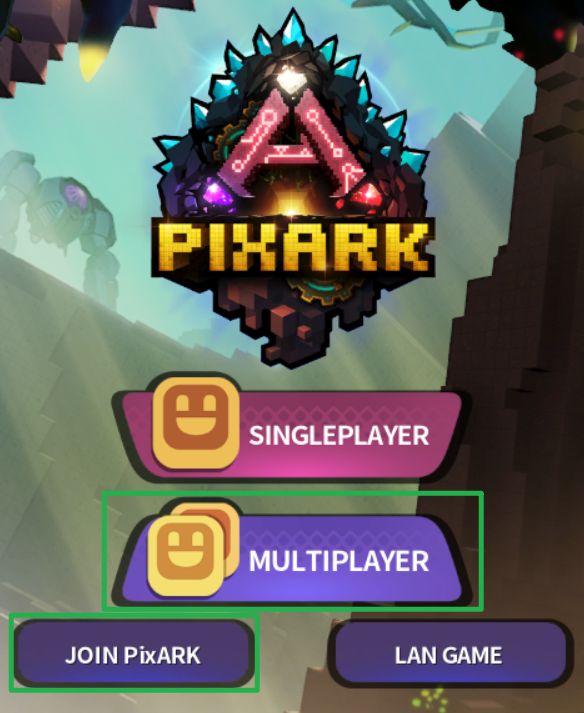
Launch PixARK and, from the main menu, open the multiplayer server browser by clicking Multiplayer then Join PixArk.
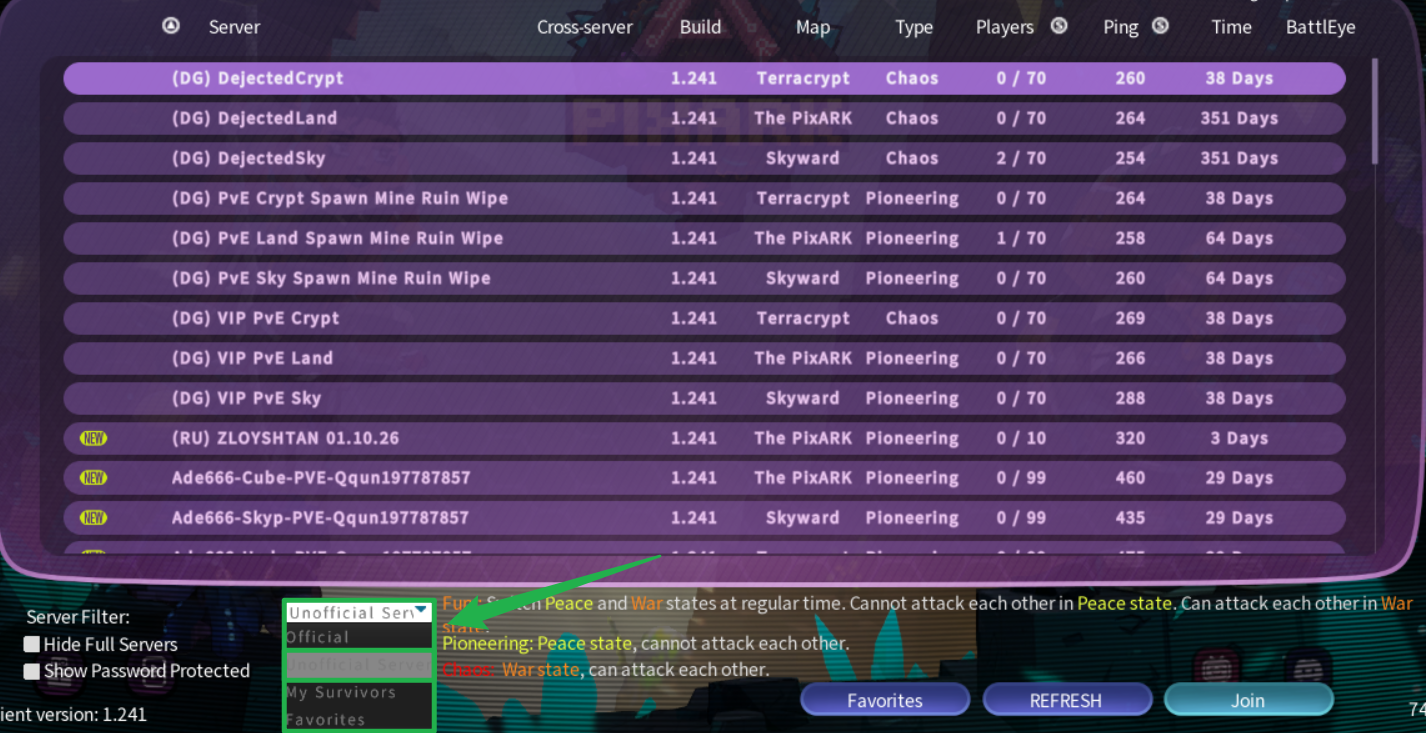
On the Lower filter dropdown menu, select Unofficial Server. Dedicated hosted worlds will not appear under the Official list!
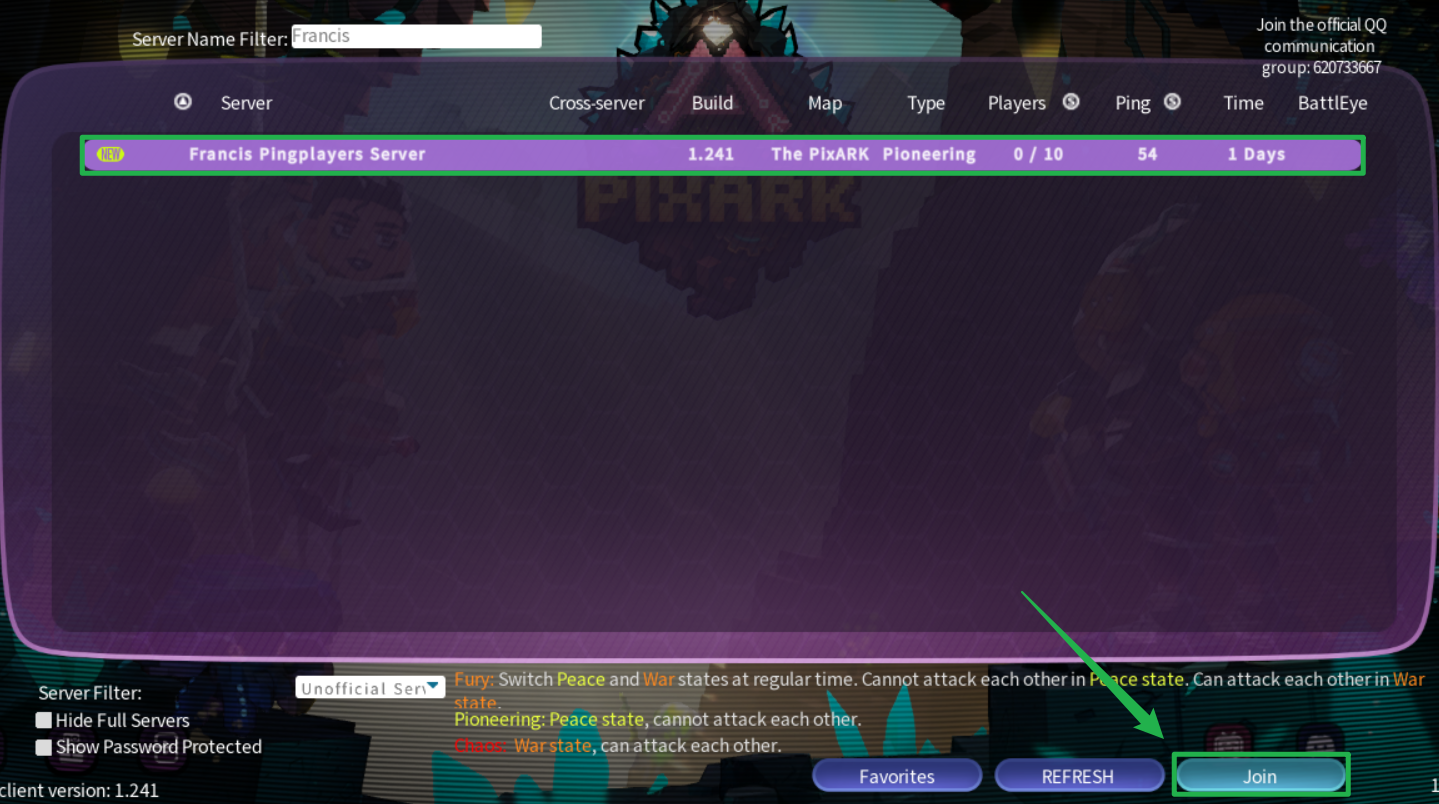
Locate the search bar and type in the exact name of your server, matching what you configured in your Basic Settings.

Wait for the list to refresh, then select your server from the search results.

Click the server, then the Join button.
If you have a standard Server Password configured to keep random survivors out, enter it when prompted to authenticate and load into the game.
Troubleshooting and Tips
If you or your friends are having trouble finding the server in the browser list, run through these quick troubleshooting checks:
- Long World Generation: A brand new PixARK server can take a significantly long time to start when it is generating a world map for the very first time. If the server is not showing up in the list, it might not be fully registered yet. Check your console for activity and give the map generation process a few minutes to finish before assuming it is broken.
- Password Confusion: Make sure players are entering the standard Server Password, not the Server Admin Password (which is exclusively used for authenticating cheats in-game). If you update either of these passwords on your dashboard, always navigate to Action > Restart to apply the changes.
- Incompatible Workshop Mods: If your server was visible but suddenly disappeared after manually uploading a Steam Workshop mod, the mod might be outdated or missing a
.modfile dependency, causing the server to crash during startup. Navigate to Actions > Shutdown, remove the problematic mod folder, and boot the server back up to test. - Version Mismatch: Ensure that both the server and the players trying to join are running the exact same version of the game. If the game recently updated, the server will need a reboot to fetch the latest files.
Conclusion
Finding and joining your dedicated PixARK server is a breeze once you know exactly how the multiplayer browser works. By giving your new map enough time to fully generate and keeping your mods organized, you and your tribe will be surviving the blocky wilderness in no time. Craft your gear, tame some magical creatures, and start building the ultimate voxel base!
If you encounter any issues or have further questions, feel free to contact our support team for assistance!