
How to join your RuneScape: Dragonwilds server
Step-by-step guide to set Owner ID, start your PingPlayers Dragonwilds server, join via Server Browser or Direct Connect, and fix issues.
Welcome to your new dedicated RuneScape: Dragonwilds server! Getting your group into Gielinor to tackle raids and build your legacy is the first step of your epic adventure. Whether you are a veteran scaper or totally new to managing a dedicated world, this guide will walk you step-by-step through configuring your server and joining it on PC or console (PlayStation 5, Xbox, and Nintendo Switch). We will cover setting up your Owner ID, enabling crossplay, and connecting using the Server Browser, Direct Connect, or an Invite Code.
Important: Owner ID is required
Each server must have a valid Owner ID when set up for it to work. The Owner ID is found inside the game:
Open the game and go to the Settings menu.

The Owner ID is shown in the bottom-left corner of the Settings screen.

There is a copy to clipboard button next to the ID — use that to copy it and paste it into the PingPlayers control panel when creating or configuring your server.

Paste the code in the owner ID box when ordering the server.

Make sure the Owner ID you paste into the server setup is exactly what appears in the game. If it is incorrect or missing, the server will not appear or will reject connections.
Before you begin
Three quick checks to do first:
- Make sure the server is created and running in your PingPlayers control panel.
- Have the exact world name you chose when creating the server available (copy it from the control panel to avoid typing mistakes).
You have your server's exact IP address and port number in case you want to directly connect to the server without using the Server Browser.
Joining via Invite Code (Recommended for Consoles & Crossplay)
Players on PC, PS5, Xbox Series X/S, or Nintendo Switch can easily join using a unique invite code generated in your server logs upon startup.
Open your server panel dashboard and click on the Console tab on the left-side navigation menu, and scan the live console logs for the line containing
[JoinCode]. Copy or write down the code shown next tokey[xz] value(for example,3WGV-8AH2).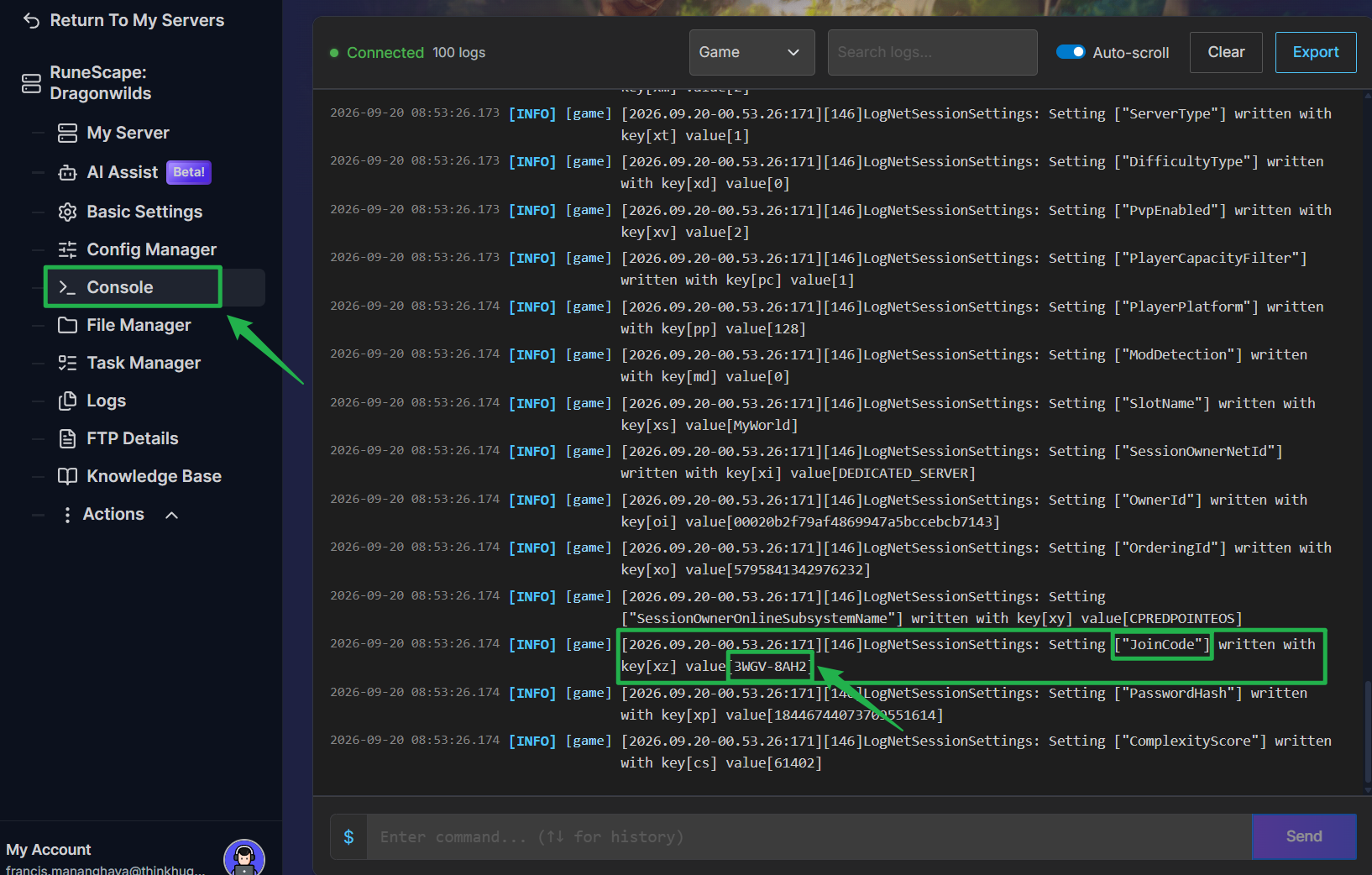
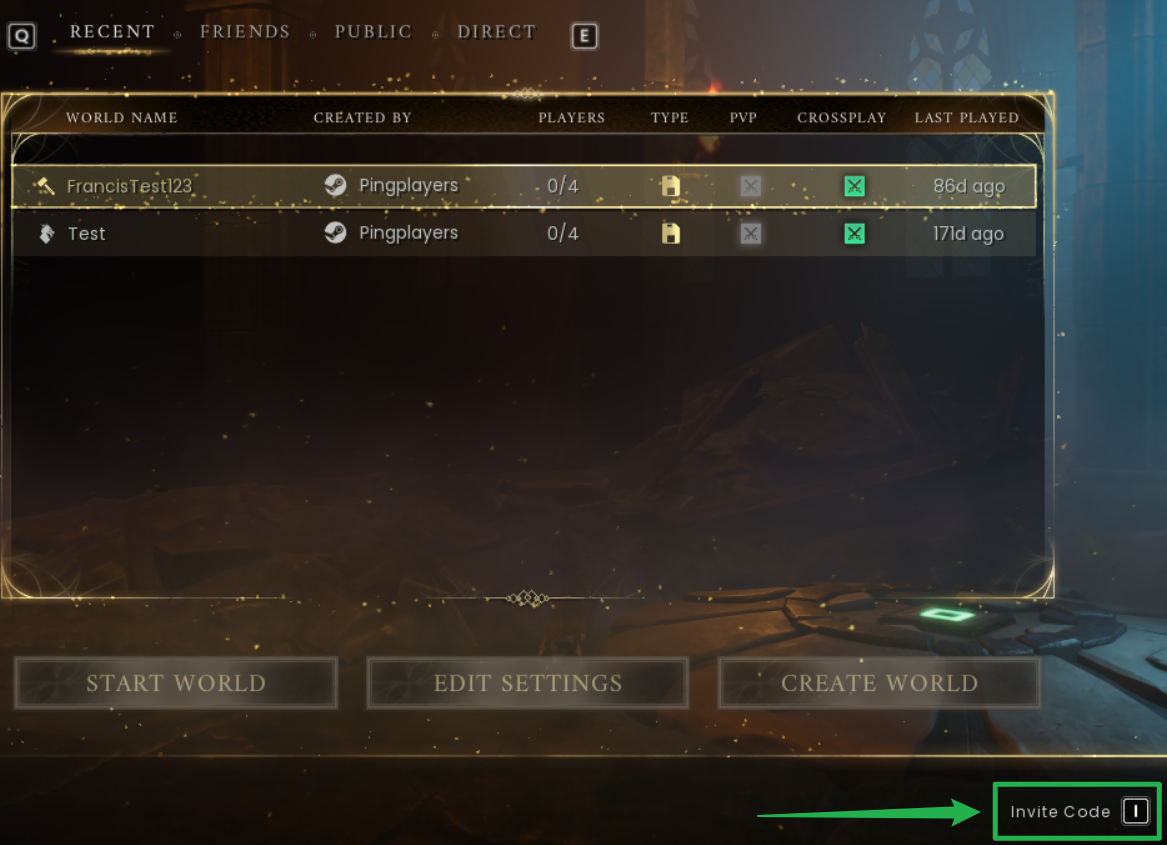
- Launch RuneScape: Dragonwilds on your gaming system and navigate to the Play menu.

Click the Invite Code button located at the bottom-right corner of the screen.
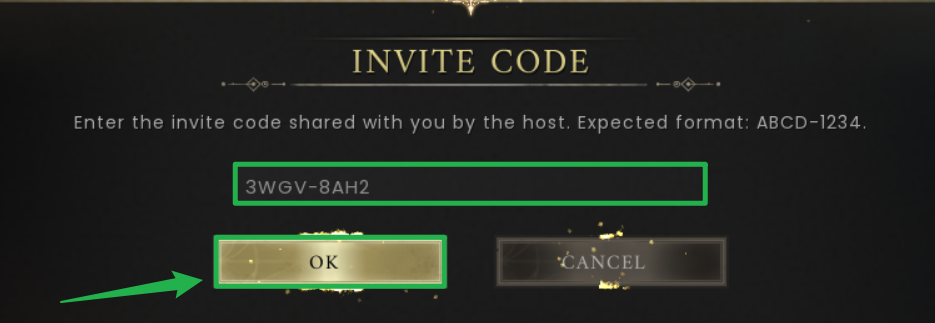
Enter your invite code into the prompt and select OK to load directly into your server!
Connecting via Direct Connect
If you want to skip the server browser entirely, you can use the direct connect method for faster access.
Locate your server's exact IP address and port number on your server panel dashboard.

Open the game and navigate to the Direct option from the multiplayer menu.

Enter your IP address and port into the corresponding fields.

Hit Join Server to bypass the browser search and load directly into your Dragonwilds server.

Joining Via Server Browser
Follow these steps inside the RuneScape: Dragonwilds game client:
Open the Play screen
From the game main menu or the character selection area, open the Play screen.
Go to the Public tab
Once the Worlds screen is open, select the Public tab. Our dedicated worlds are listed in the Public section so other players can find and join them.

Search using the exact world name (case-sensitive)
Use the search box on the Worlds screen and paste the exact name of your world. The search is case-sensitive and must match exactly, including spaces and punctuation.

Tips:
- Paste the name copied from your PingPlayers control panel to avoid typos.
- Remove any accidental leading or trailing spaces if the search finds nothing.
Select and Enter the world
When your world appears in the search results, click or select it and choose the option to enter it. The game will load your world and bring you into the server.

If you have problems joining, try clicking the world again after a few seconds or restarting the client and repeating the steps above.
Troubleshooting
If you or your squad run into issues connecting to your Dragonwilds server, run through these quick checks:
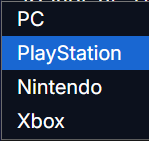
Console Players Cannot Connect: Open Basic Settings on your server panel and verify that crossplay is enabled or that your specific console platform (PlayStation, Xbox, or Nintendo) is selected. After updating platform settings, navigate to Action > Restart.

- Invalid or Missing Invite Code: Join codes are generated dynamically every time the server boots up. If you restart your server, open your Console tab again to retrieve the new code.
- Server Not Appearing in Browser: Verify that your server status shows as running on your panel dashboard. Ensure your world name search matches character-for-character, including capitalization and spaces.
- Owner ID Mismatch: If the Owner ID in your server panel does not match the ID shown in your in-game Settings menu, the server will reject your connection attempts or fail to show up in the public list.
Shutting Down Before Modifying: Always bring your server offline before editing configuration files by navigating to Actions > Shutdown.
Conclusion
Now that you know how to configure your Owner ID and join your RuneScape: Dragonwilds server, you are ready to invite your friends and start dominating the leaderboards. Keep your server IP handy for direct connecting, make sure your world name is typed perfectly, and enjoy your new dedicated world!
If you encounter any issues or have further questions, feel free to contact our support team for assistance!