How to join your Smalland: Survive the Wild server
How to join your Smalland server using the in-game server browser: step-by-step setup, filter tips, add to favorites and troubleshooting.
Smalland does not support a direct "connect by IP" feature, so you’ll join using the in-game server browser. This guide walks you through joining step-by-step and shows a few simple troubleshooting tips if you get stuck.
If you're not familiar with your details yet, go to your server configuration panel at My Servers > Manage Server.
How to connect:
Most of the server information can be found under the Basic Settings panel, so make sure to grab the correct details.
- Open Smalland in your PC.
- Click Play and Select a character. In case you don't have a character, you can create one by clicking on New at the bottom.
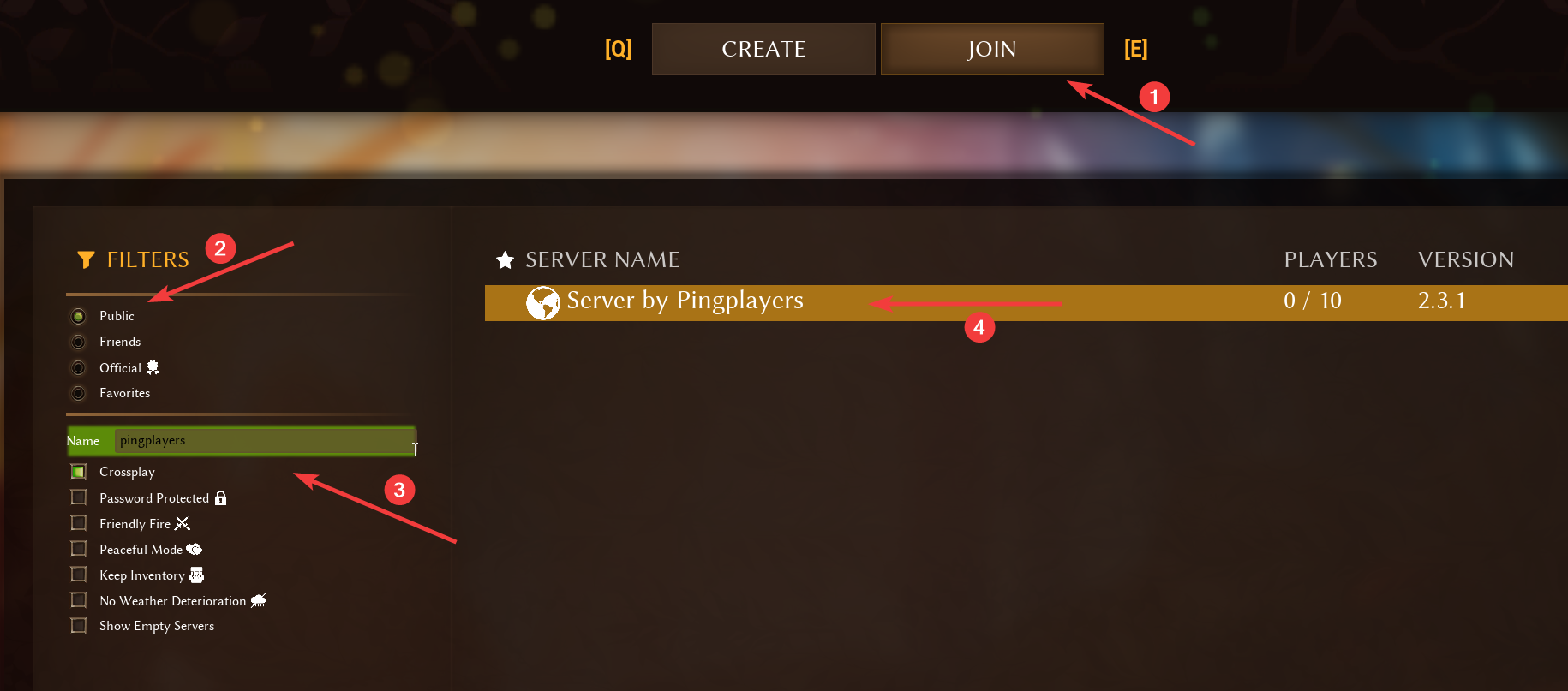
At the top, select Join to see the servers list.

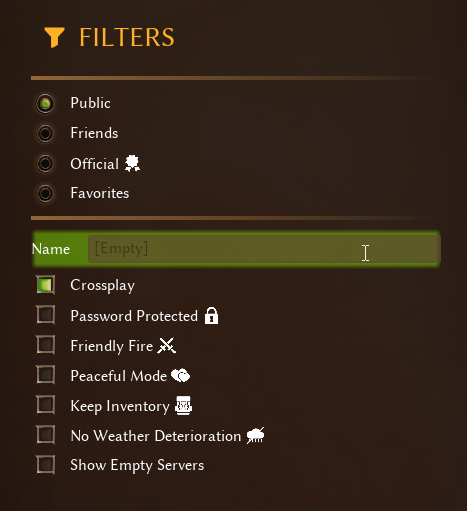
Under the Filters section, select Public and type your server's name to search for it.
Add your server to Favorite for easier access. Simply click on Add to Favorites at the bottom of the screen.

Double-click on your server or click the Join option at the bottom to connect.
Side note:
The server browser includes some common filters, these are checkboxes. If you can't see your server, make sure that this filters are set correctly.
Open your server's Basic Settings panel to adjust them as you wish.
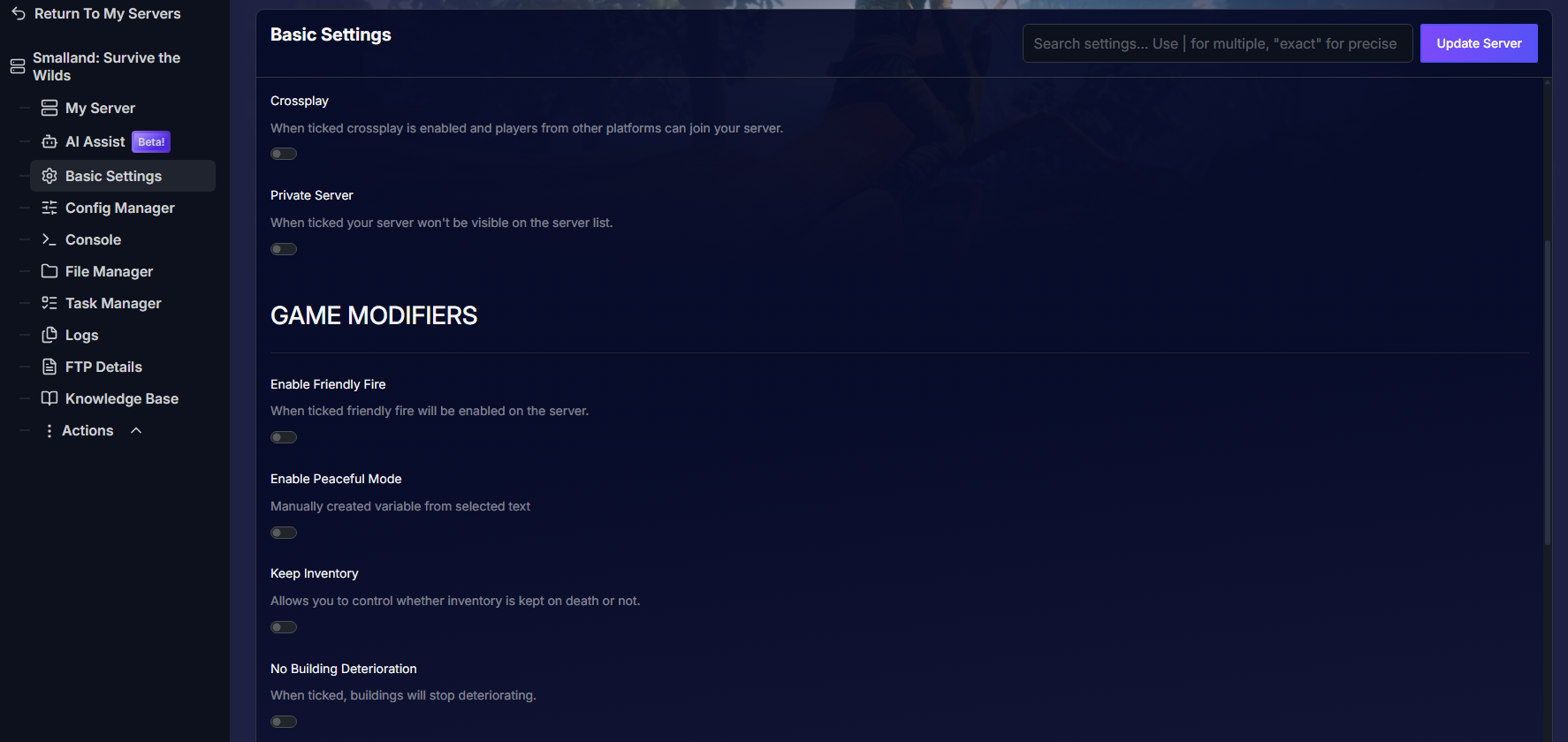
By default these filters are off so that all servers should appear. If you'd like to enable any, make sure to restart the server from Actions > Restart to apply the changes.
Troubleshooting:
- Server not visible even though it’s running:
Make sure the server browser filters are not enabled. For example, if your server has crossplay active, the Crossplay filter must be checked (green square) to show crossplay servers.
There is a server privacy option that can hide your server from the public list. Check your game server settings and make sure the server is set to public, not private. - Server shows but you can’t connect:
- Make sure the server is actually running in your PingPlayers control panel.
- If the server is password-protected, you’ll need the password to join.
- Try refreshing the server list or restarting the game client, wait a minute and refresh the server list.
If you have any questions or need assistance, feel free to reach out to our customer care agents through our live chat or email at support@pingplayers.com.