
How to Upload a Save to Your Smalland Server
Step-by-step guide to upload your Smalland .wld save: shut down server, place file in Server/SMALLAND/Saved/SaveGames/Worlds and set World Name (no .wld).
Welcome to the giant, dangerous world of Smalland! If you have been playing on a local world and want to move it to your server so your friends can join, or if you are migrating an existing world, uploading your save file is a very simple process.
Do not worry if you have never managed a server before; this guide will walk you through everything you need to know to get your world online safely.
Step-by-Step Guide
To ensure your custom world loads correctly, you will need to upload your file and tell the server exactly what it is named.
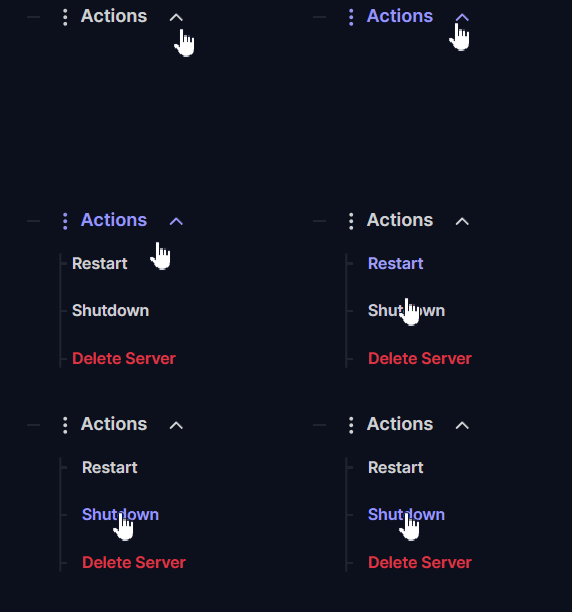
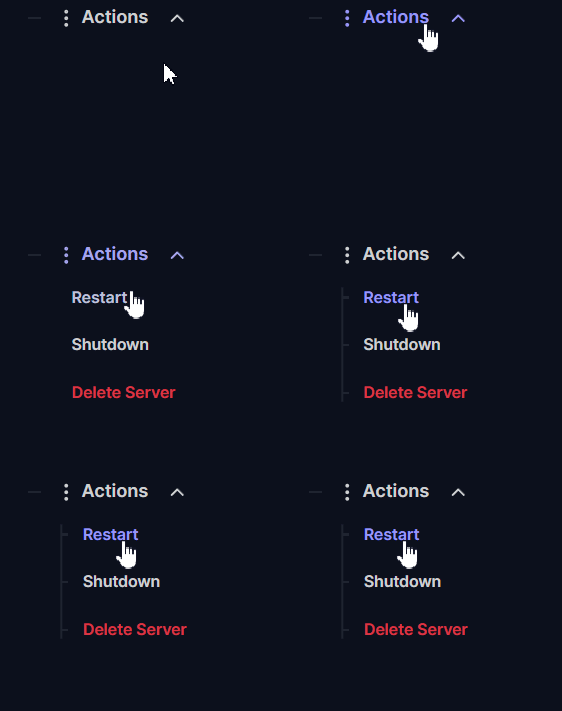
Log into your server panel and go to Actions > Shutdown to safely turn off your server. You should never upload or modify files while the server is active, as this can cause data corruption.
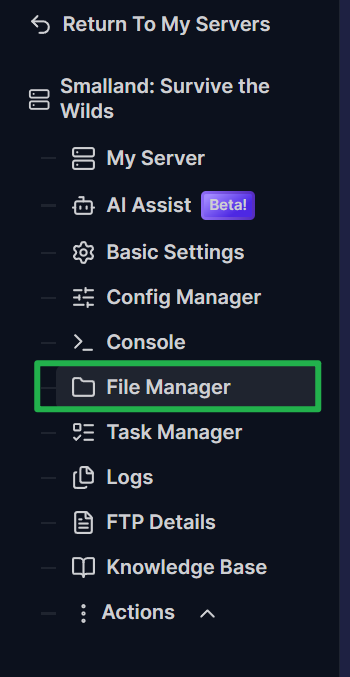
Navigate to the File Manager located on your server panel.
Open the folders in this exact order:
Server, thenSMALLAND, thenSaved, thenSaveGames, and finallyWorlds.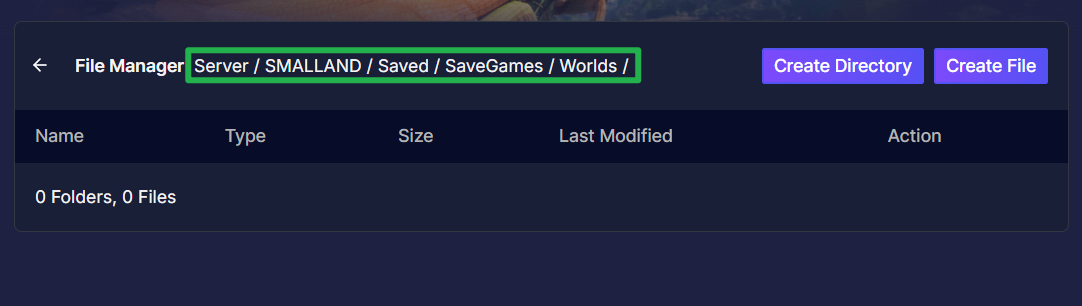
Upload your desired world file, which will always end with the
.wldextension, directly into thisWorldsfolder by dragging and dropping it on the upload bubble.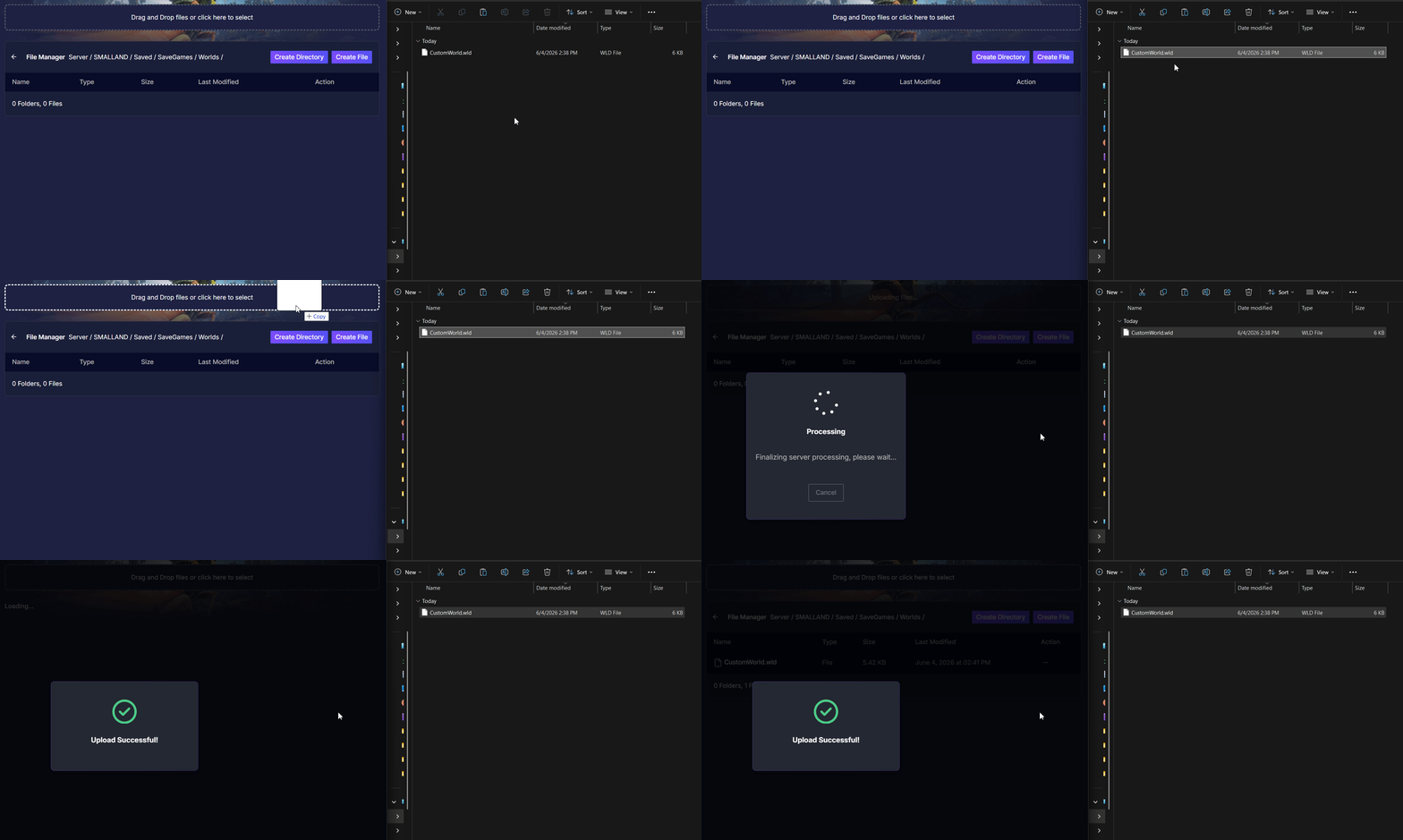
Navigate to the Basic Settings tab in your server panel and locate the World Name variable.
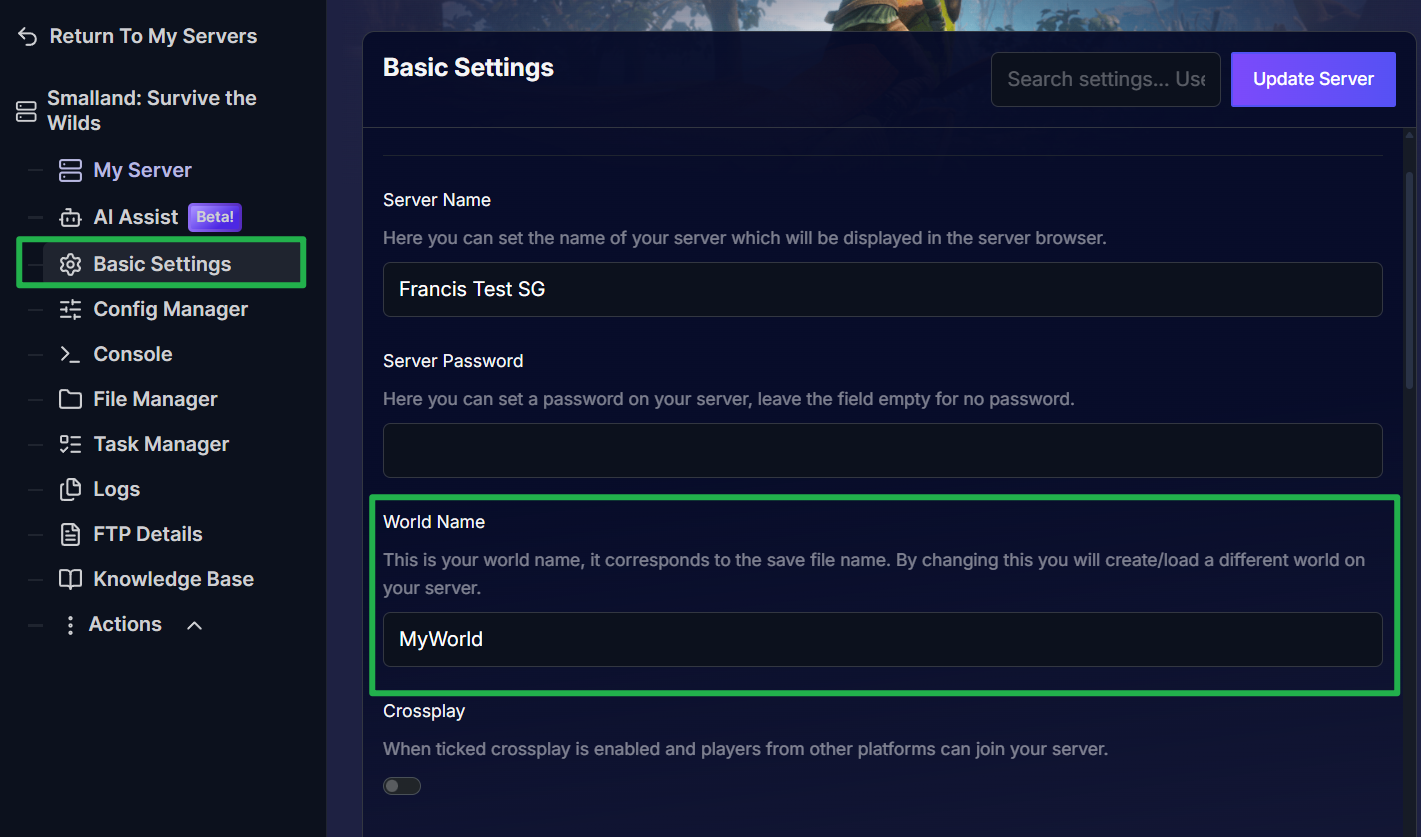
Type the exact name of your uploaded file into this box, but leave out the
.wldextension at the end. For example, if your uploaded file is namedCustomWorld.wld, you will only typeCustomWorldinto the box. Once you have entered the correct world name, click on Update Server to save your changes.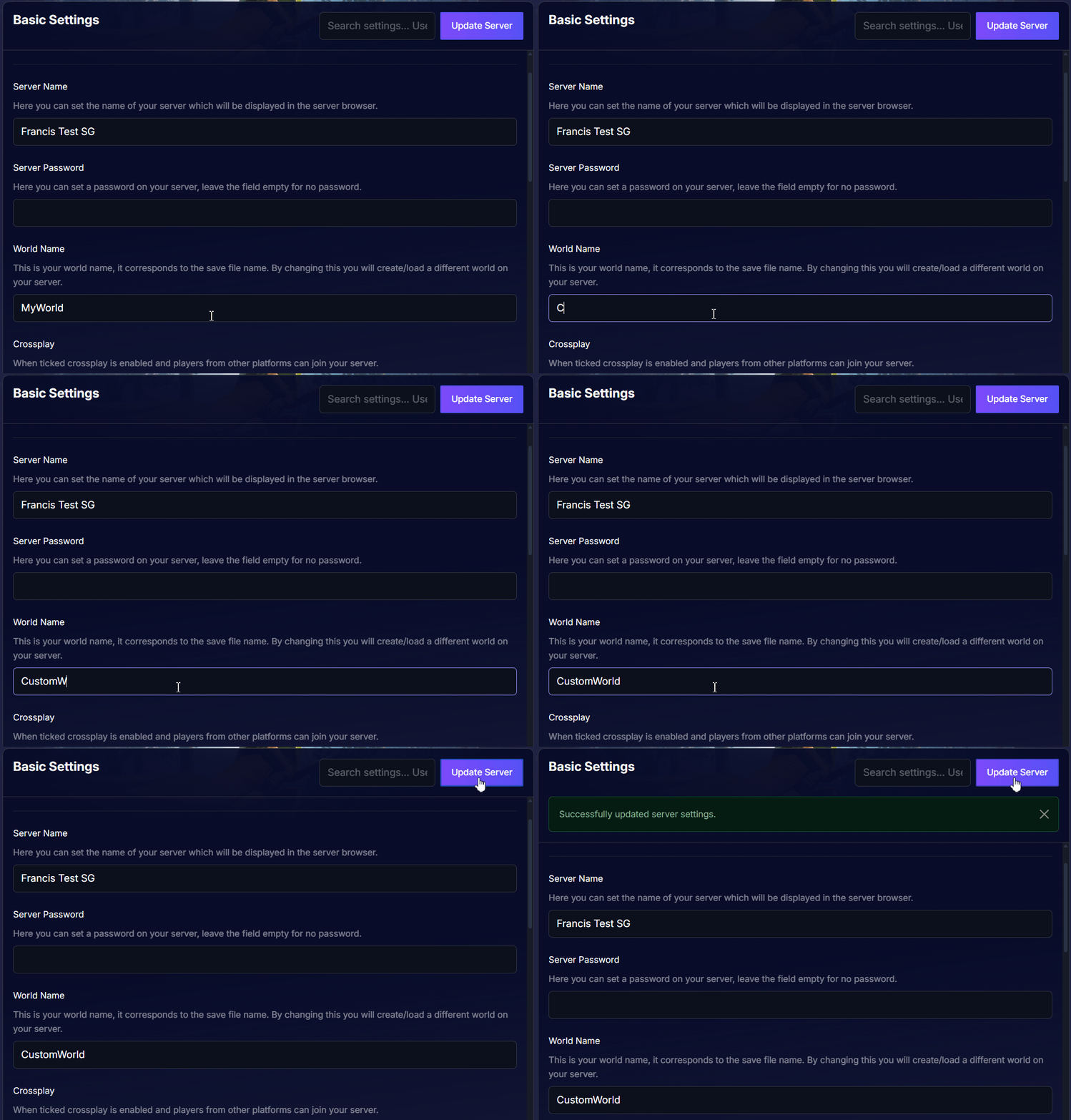
Go to Actions > Restart to boot up the server. The server will now read your uploaded file and launch your custom world automatically.
Troubleshooting and Tips
If you are new to hosting a server or your world is not loading properly, check these common tips:
- Character Data is Separate: If you join the server and notice your character is fresh, do not panic! Player characters are stored locally and tied to the account of the player, not the server. Your inventory, equipment, quest progress, and discovered locations travel with you across multiple servers. The server only stores world-specific data like buildings, placed structures, and world modifications.
- Tweak Settings on the Go: What happens if you want to change world rules after creating the world? You can easily adjust most world settings through Basic Settings at any time. These settings affect the active world itself and will take effect immediately after a server reboot.
- Name Match Errors: If the server boots into a completely blank new world, double-check your spelling. The name in your Basic Settings must match the filename of your uploaded file exactly, excluding the extension.
Conclusion
Migrating your miniature adventures to a dedicated server is the best way to enjoy the game with your friends. By uploading your world file into the correct directory and updating your configuration, your custom world will be online and ready for exploration in just a few minutes. You are now fully equipped to manage your server world!
If you encounter any issues or have further questions, feel free to contact our support team for assistance!