How to Add Mods to Your Terraria tModLoader Server Using the Mod Manager
Add and enable mods on your Terraria tModLoader server with the automated Mod Manager—quick installs, dependency handling, and troubleshooting.
How to Add Mods to Your Terraria tModLoader Server Using the Mod Manager
Modded Terraria is one of the most exciting ways to play, opening up massive new worlds filled with brutal bosses, unique accessory slots, and game-changing content overhauls like Calamity and Thorium. In the past, setting up a modded server meant manually downloading files, transferring them through FTP, and editing configuration text files by hand.
Thanks to our brand new, fully automated Mod Manager, customizing your tModLoader world takes just a few clicks! Whether you are looking to add handy quality-of-life additions like Recipe Browser and Boss Checklist or diving headfirst into a massive Hardmode overhaul, this guide will show you how to install and manage your mods effortlessly.
Step - By - Step Guide
Before making any changes to your server files, it is always essential to turn off your server to prevent data corruption.
Part 1: Installing Mods
Navigate to Actions > Shutdown to safely stop your server before adding any new files. (Recommended but not obligatory in most cases)

Log into your server panel and click on the Mods tab located on the left side navigation menu.

When prompted to select your mod source, click on the Steam Workshop option.

Use the search bar in the top right corner to search for the specific tModLoader mods you want to add to your server.

Click the Install button next to the mod you want to add.

If the mod requires other base mods or assets to function properly (such as Calamity Mod Music), the automated manager will automatically detect and install those dependencies for you. Just click on Install +1 required mod.

Navigate to Actions > Restart to boot up your server with your new tModLoader mods active!

Part 2: Uninstalling Mods
Navigate to Actions > Shutdown to stop your server safely.

Return to the Mods tab in your server panel menu.

Click on the Installed tab to view a complete list of all mods currently running on your server.

Select the specific mod you want to remove and click the Uninstall button.

Navigate to Actions > Restart to reboot your server with the mod removed from your server files and enabled list.

Manually Enabling Non-Steam Mods
Sometimes you might want to play with a private mod or a custom creation downloaded from outside the Steam Workshop. If you manually upload a .tmod file to your server, you will need to manually enable it as well.
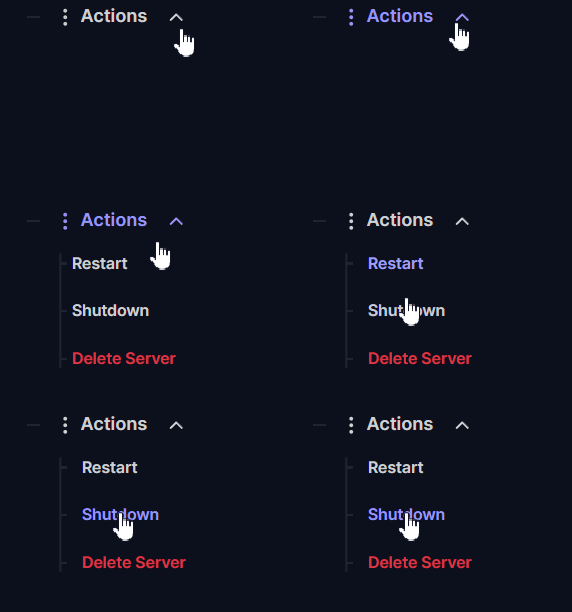
Navigate to Actions > Shutdown to stop your server.
Upload your custom
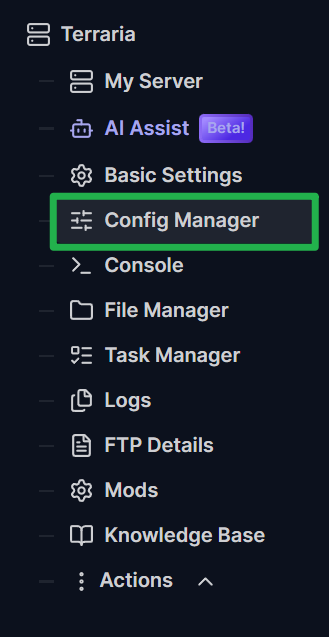
.tmodfile to your server's mod directory using the File Manager or an FTP client.Navigate to the Config Manager tab on your server panel.
Locate the
enabled.jsonfile in the templates list and click Create new config. This file tells the server which mods are actually allowed to run.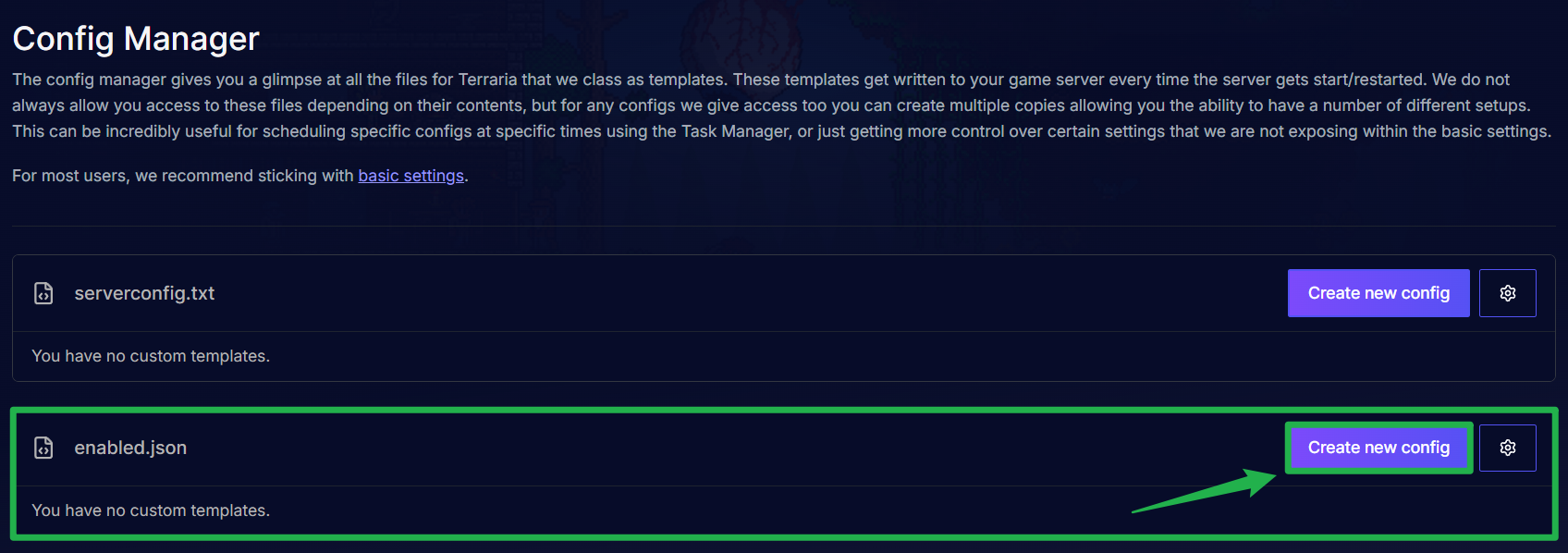
Carefully add the exact internal name of your custom mod to the list in this JSON file. Ensure your syntax matches the other entries perfectly!
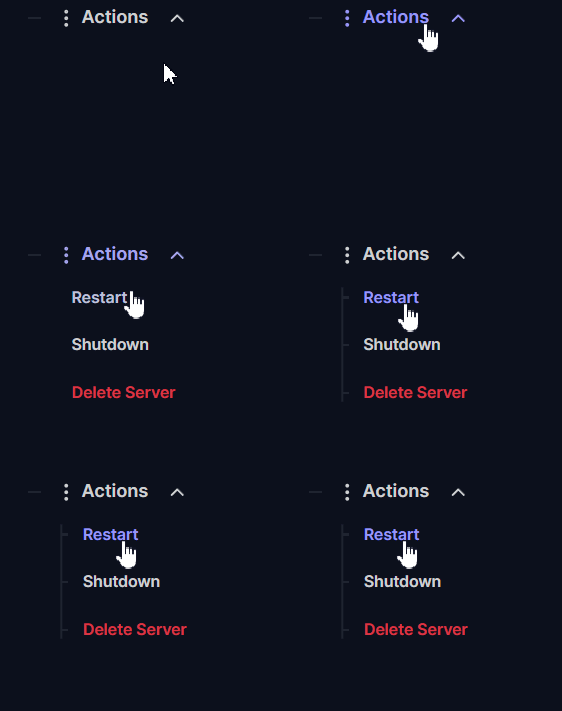
Save the file by checking the Override Boot Config - Use As Default box then, click on Save Config Template and navigate to Actions > Restart to boot your server up with your custom mod enabled.

Troubleshooting
Running into issues getting your modded world up and running? Keep these quick tips in mind:
Always Stop Your Server First: Always perform an Actions > Shutdown before installing or removing mods. Modifying active server files while tModLoader is running can corrupt your world save or break your
enabled.jsonconfig file.Give Massive Overhauls Time: Massive content packs like Calamity, Thorium, or Fargo's Souls take extra time to download and extract due to their large file sizes. Allow the server panel a few minutes to complete the download process before attempting to start the server.
Clients Must Match Server Mods: Anyone attempting to join your modded server must have tModLoader installed and be subscribed to the exact same mods. Luckily, tModLoader will usually prompt joining players to download missing mods automatically when connecting directly to your IP.
Complex Mod Configurations: Some highly complex mods require custom world generation settings or extra config files. If a mod isn't working as expected right away, check the mod developer's Workshop page for any extra manual setup instructions.
Conclusion
Customizing your tModLoader server has never been easier! By letting the automated Mod Manager handle file paths, dependencies, and configuration updates, you can spend less time managing files and more time battling epic bosses and grinding for endgame loot with your friends. Pick your favorite mods, launch the server, and conquer Hardmode!
If you encounter any issues or have further questions, feel free to contact our support team for assistance!