
How to Access the Racing Panel for Your Assetto Corsa Server
Access Assetto Corsa Racing Panel: start server, open https://IP:port, log in as owner with Panel Password, manage events and troubleshoot.
Welcome to the ultimate command center for your Assetto Corsa server! Forget about digging through confusing text files or manually opening network ports. Everything from choosing your track and cars to monitoring live timing is handled through a powerful, web-based dashboard called the Racing Panel.
This guide will walk you through the essential first steps: booting up your AC server, accessing your web interface, and logging in securely. Mastering this dashboard is the key to unlocking your grid and building the exact racing experience your community wants!
Step - By - Step Guide
Before you can create your first race weekend, you need to ensure the background service is running and log into the interface.
- Start your Assetto Corsa server from your main server panel dashboard. The Racing Panel is exclusively available while this main service is actively running.
Copy the IP and Port from the server dashboard and paste it into the address bar on a new tab after typing
https://(for example,[https://123.45.67.89:12345](https://123.45.67.89:12345)).

Bypass the browser security warning. Because the Racing Panel currently uses HTTP rather than HTTPS, your browser may display a message saying "This site doesn't support a secure connection." Simply click Continue to proceed to your site.
On the login screen, type
ownerinto the Username field.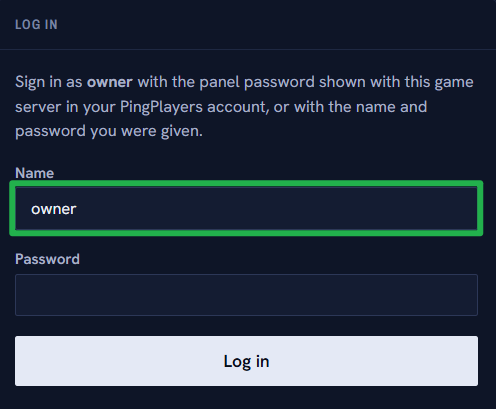
For your password, enter the exact Panel Password configured inside the Basic Settings on your main server dashboard.
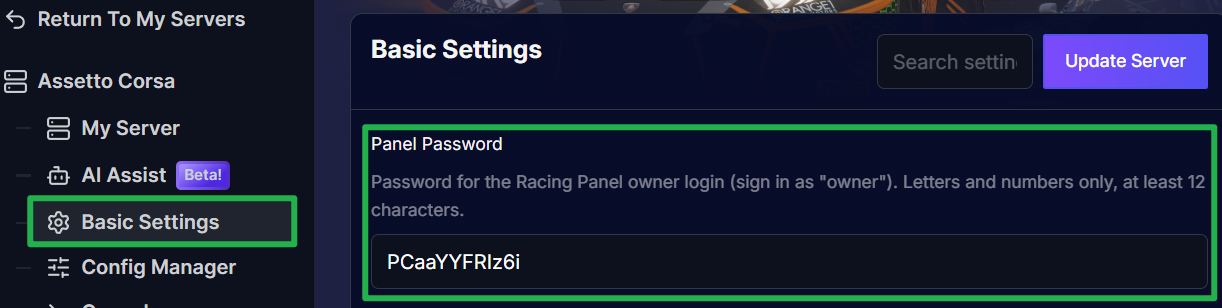
Click login! You are now authenticated as the owner and can navigate to the Events tab to start building your custom server configurations.
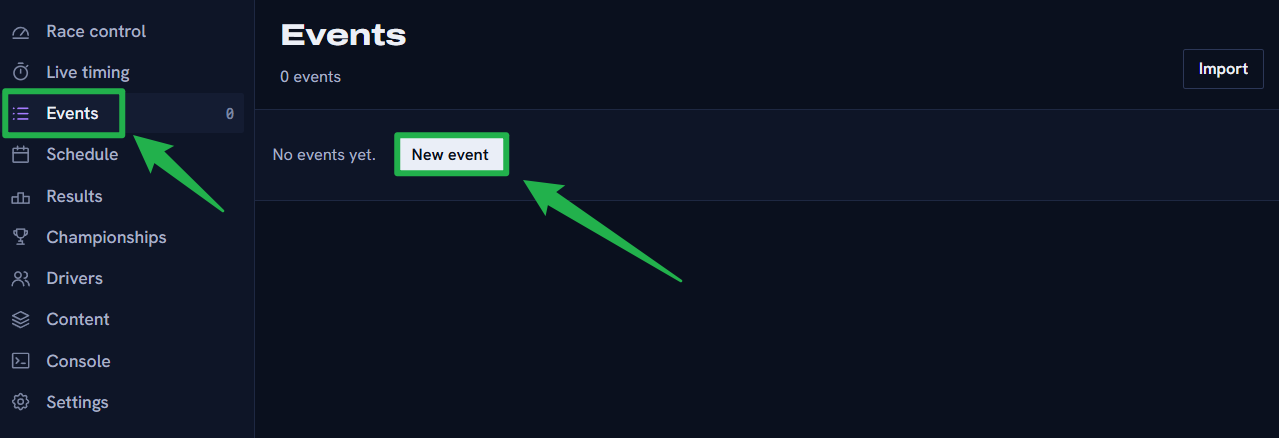
Click on Events tab and click on New Event to add a new one.
Troubleshooting and Tips
If you are stuck in the pits and cannot seem to get into your panel, run through these quick troubleshooting checks:
- Racing Panel Fails to Load: The dashboard goes offline entirely if your main server process is stopped. If you recently used Actions > Shutdown to bring the server offline, the web link will just time out. Navigate to Action > Restart on your main dashboard to bring the game service and the Racing Panel back online. Give it a minute or two to finish starting up before clicking the link again.
- Wrong Password: Remember that your Racing Panel password is the specific Panel Password located in your Basic Settings, not your billing account password. If you update this password, you must restart the server to apply the changes.
- Adding League Staff: You do not have to manage the race alone! You can add your friends as Admins, Stewards, or Viewers. Inside the Racing Panel, navigate to Settings > Staff > Add account, enter their name, and select their role. The panel will generate a one-time password for their first login.
- Managing Configurations: Server configurations are now managed through reusable "Events." While you can build and save dozens of different track and car combos in the Events tab, keep in mind that only one Event can be actively running on the server at a time.
Conclusion
You are in! You have successfully accessed your server's race control center and are now ready to take full command of the grid. From this dashboard, you can create custom entry lists, set up dynamic weather, manage live events, and monitor real-time sector times. The troubleshooting tips above will help with the most common initial hurdles. We encourage you to explore all the options within the Racing Panel, as it is the heart of your server.
If you encounter any issues or have further questions, feel free to contact our support team for assistance!