
How to Back Up and Restore Your Myth of Empires Server Saves
Back up and restore Myth of Empires server saves: run SaveWorld, save Players & World folders, match Server ID to recover your progress.
Building an unstoppable faction, constructing massive fortresses, and commanding armies across ancient battlefields takes serious dedication. Whether you are expanding your territory or preparing for a massive guild war in Myth of Empires, losing your progression to a corrupted file or an accidental wipe is a total nightmare!
In MoE, your world data and your player character data are stored in separate folders and are deeply tied to your specific Server ID and map. This guide will walk you through exactly how to safely secure your empire and how to restore your save files so your warlords can get back to conquering.
Step - By - Step Guide
Before modifying, downloading, or uploading any of your world data, you must ensure the game engine is not actively trying to write new information to those files.
Part 1: Backing Up Your Server
- While your server is online, open your RCON console by going to the Console tab or an external RCON client and type the command
SaveWorld. This forces the game to write your current progress to the disk. Wait a few moments for the save to process, then navigate to Actions > Shutdown on your server panel dashboard to safely stop the server.

Open the File Manager on your server dashboard or connect using an FTP client like FileZilla.
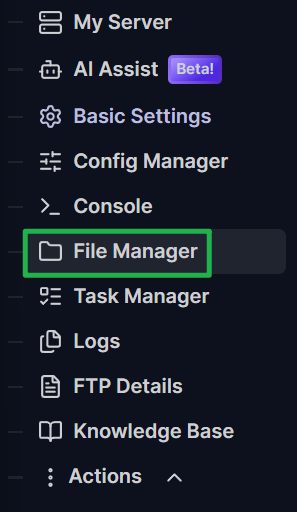
Navigate to your save directory located at:
Server/MOE/Saved/SaveGames/.
Download both the
PlayersandWorldfolders directly to your local computer by clicking on the 3 dots on the right side of the folder and choose Download. You need both to fully back up your map and character progression!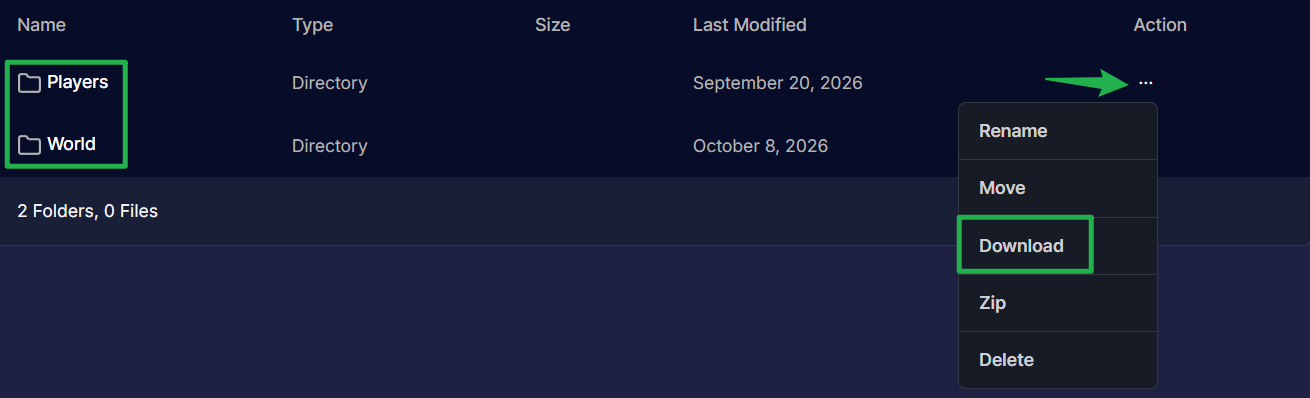
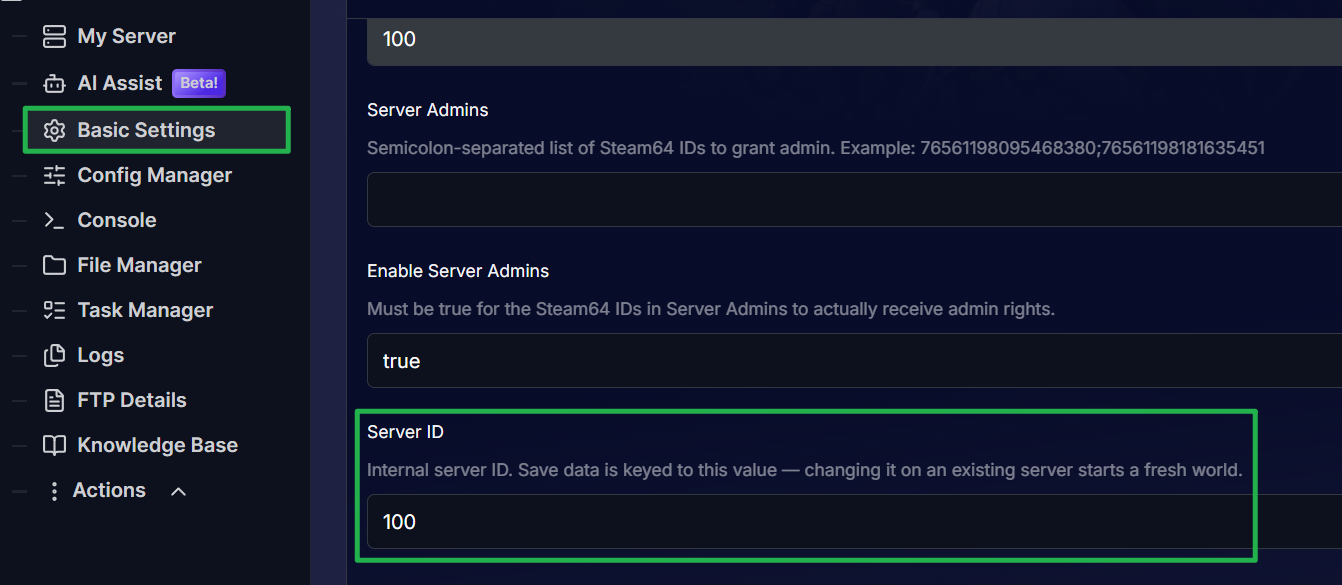
Open your Basic Settings tab and write down your exact Server ID. You will absolutely need this number to successfully restore your files later.
Part 2: Restoring a Backup
Navigate to Actions > Shutdown to bring your server completely offline.

Open the File Manager or your FTP client and navigate back to
Server / MOE / Saved / SaveGames /.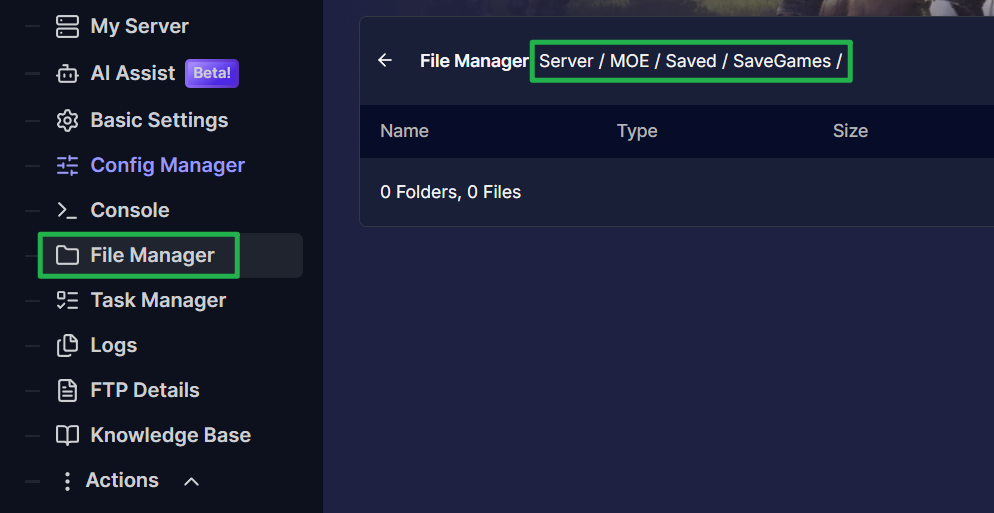
Upload your previously backed-up
PlayersandWorldfolders directly into this directory by dragging and dropping the folders on the upload bubble above the path.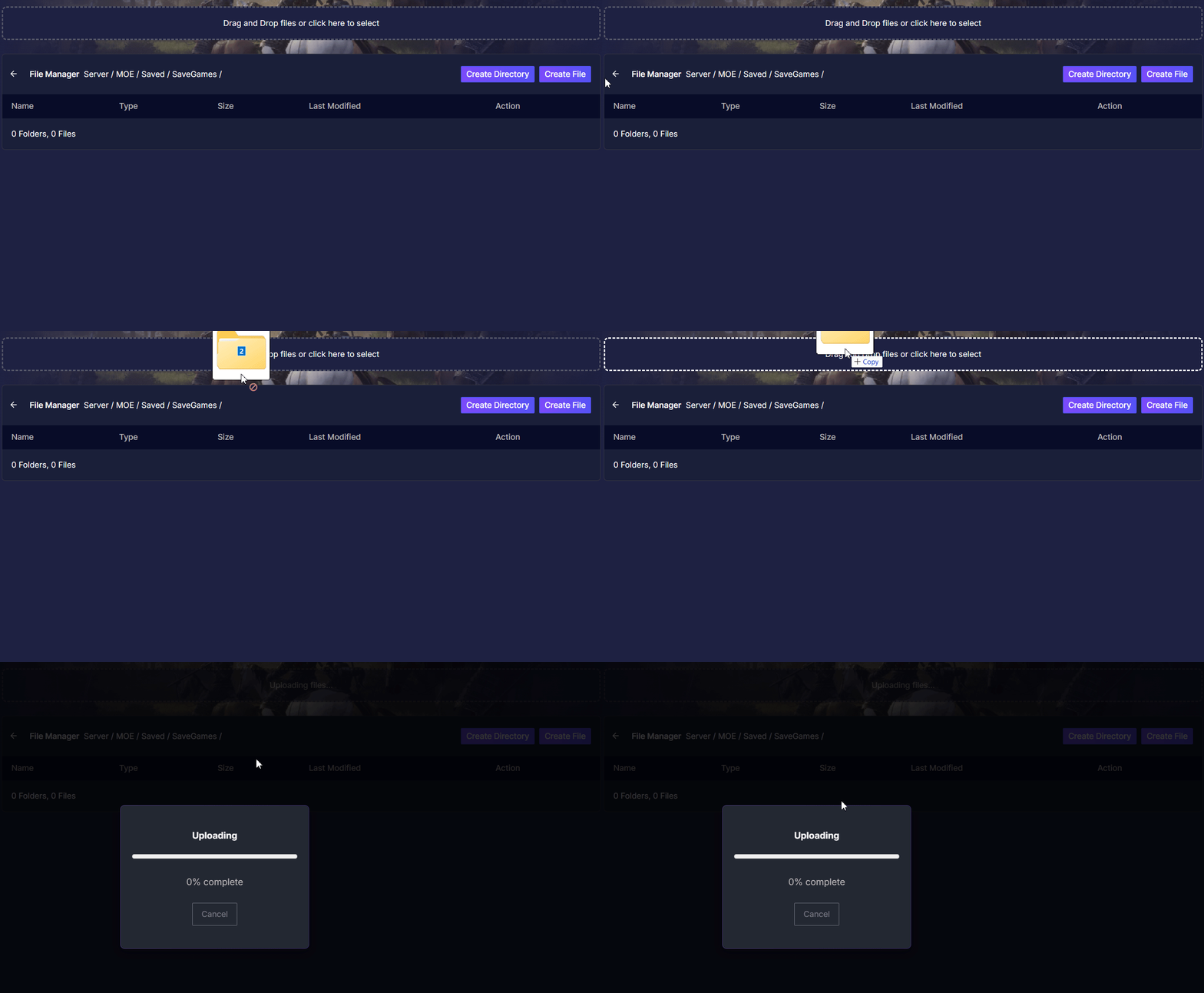
Open the Basic Settings tab on your server panel and ensure the Server ID perfectly matches the exact ID from your backup, and confirm your Map selection is set to the correct region (such as Central_Main / Zhongzhou).


Navigate to Action > Restart to boot up your server with your restored empire!

Troubleshooting and Tips
If your restored world is not loading correctly or your characters are missing, run through these quick troubleshooting checks:
- World Disappeared After Restore: Myth of Empires ties your save archive directly to your Server ID. If the Server ID in your Basic Settings does not perfectly match the ID associated with your uploaded world backup, the game will ignore the files and generate a brand new archive.
- Missing Characters: Player save data is tied to both the player's Steam ID and the specific map they spawned on. Make sure you restored the entire
Playersdirectory and that you have the correct map selected. A character created on one map will not automatically appear on another. - No Response from SaveWorld Command: When you use the
SaveWorldcommand via RCON, it might return a blank or idle response. This is normal behavior for the game. Just give the server a moment to finish writing the data before you hit shutdown. - Automatic Backups: The game does occasionally create a
.bak2backup file automatically, but you should always create external manual backups to a separate hard drive to protect your fortress from total data loss.
Conclusion
Securing your Myth of Empires world ensures your massive fortresses and tamed armies are always safe from disaster. By regularly backing up your Players and World folders and keeping your Server ID written down, you can freely experiment with new mods and wage massive wars without the fear of losing your progression. Secure your files, reboot your server, and get back to dominating the battlefield!
If you encounter any issues or have further questions, feel free to contact our support team for assistance!