
How to Become an Admin on Your Myth of Empires Server
Learn how to add Steam64 IDs to your Myth of Empires server settings, grant admin rights, restart the server and troubleshoot admin issues.
Commanding vast armies, constructing formidable fortresses, and dominating rivals in Myth of Empires is an exhilarating experience. However, managing a dedicated world requires proper moderation tools. Becoming an administrator on your server gives you access to the built-in admin panel so you can maintain order, monitor your community, and keep gameplay running smoothly.
Granting administrator access on your server is quick and easy. By adding your Steam64 ID to your startup configuration, you can gain immediate access to administrative controls in-game. This step-by-step guide will walk you through setting up admin privileges for yourself and your trusted officers!
Step - By - Step Guide
Before you begin, make sure you have the Steam64 ID for yourself and any other players you want to appoint as server admins. A Steam64 ID is a 17-digit number that uniquely identifies a Steam account.
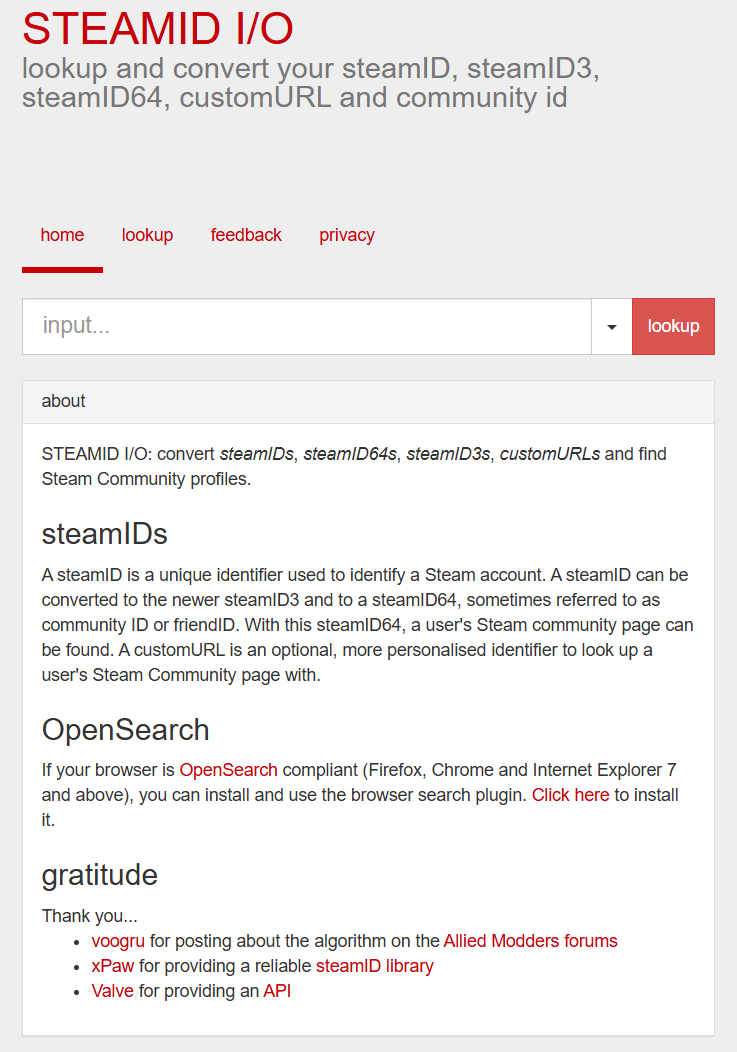
Locate your Steam64 ID using your Steam profile details or an online Steam ID lookup tool.
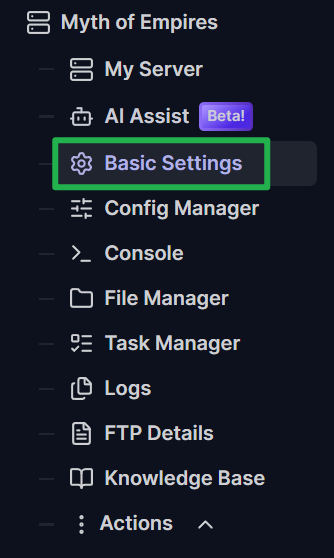
Log into your server dashboard and open the Basic Settings menu on the left panel.
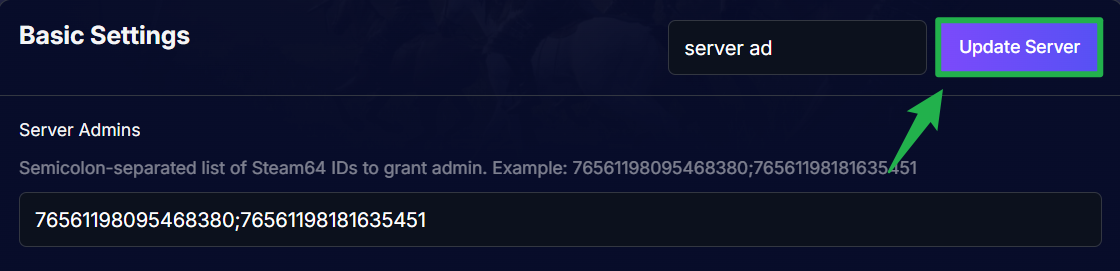
Scroll down to locate the Server Admins variable field.

Paste your Steam64 ID into the field. If you are adding multiple administrators, separate each Steam64 ID using a semicolon (
;). For example:76561198095468380;76561198181635451. Do not use commas or spaces between the IDs.
Save your changes by clicking the Update Server button on the upper right, then navigate to Action > Restart on the left menu to boot up your server with the new administrator list active.

Troubleshooting and Tips
If you or your team members cannot access admin features after logging into the world, review these common troubleshooting tips:
In-Game Admin Panel Changes Revert on Restart: Keep in mind that any server setting changes made dynamically inside the in-game admin panel are temporary for that session. The server is built to construct its startup parameters directly from your dashboard's Basic Settings every time it launches. For any server settings or gameplay multipliers to remain permanent, you must configure them in Basic Settings rather than relying on in-game adjustments.
Incorrect Formatting in Server Admins: Ensure there are no spaces or commas between your Steam64 IDs. They must strictly use semicolons as separators (e.g.,
SteamID1;SteamID2).Forgot to Restart: Updating Basic Settings does not apply changes immediately to a live game session. You must navigate to Action > Restart to push the updated startup command line to the server.
Shutting Down for Maintenance: If you ever need to perform deep file edits or manual backups before granting admin access, navigate to Actions > Shutdown to bring the game server offline safely and prevent data corruption.
Read-Only Dashboard Console: The main server console on your dashboard is read-only for MoE. If you want to run remote commands outside of the game client, connect using an external RCON client using your server IP, RCON port, and Service Key.
Conclusion
Securing your administrator access gives you the ultimate power to manage your Myth of Empires server effectively. By securely adding your Steam64 IDs to your Basic Settings and rebooting the world, you and your trusted officers can effortlessly moderate your community and focus on building your empire. Double check your ID numbers, restart your server, and get back to the battlefield!
If you encounter any issues or have further questions, feel free to contact our support team for assistance!