
How to Connect to Your DayZ Server RCON Using BattleWarden
Learn to connect your DayZ server RCON with BattleWarden: find RCON details, set profile, manage players, broadcast messages and troubleshoot.
Managing a DayZ server requires immediate control over your player base and server environment. Whether kicking rule-breakers or issuing server-wide restart notifications, BattleWarden provides a clean graphical interface to connect via BattlEye RCON without needing in-game admin access or raw console windows.
Part 1
Finding Your RCON Details
Before launching BattleWarden, locate your server's connection parameters within your server hosting panel:
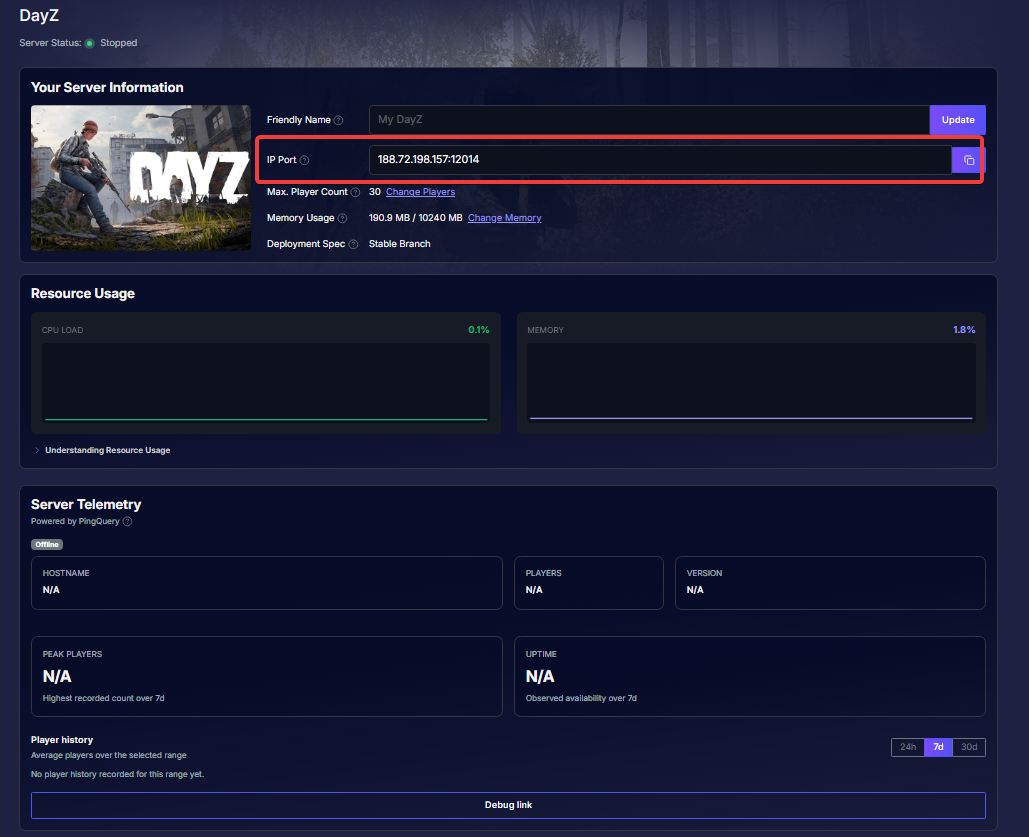
Server IP Address: On your main dashboard under Your Server Information, locate the IP Port field. Your server's IP address is the series of numbers before the colon (for example, 188.72.198.157).
RCON Port: Navigate to the Networking section in your panel. Locate the entry labeled RCON Port (for example, 12018).
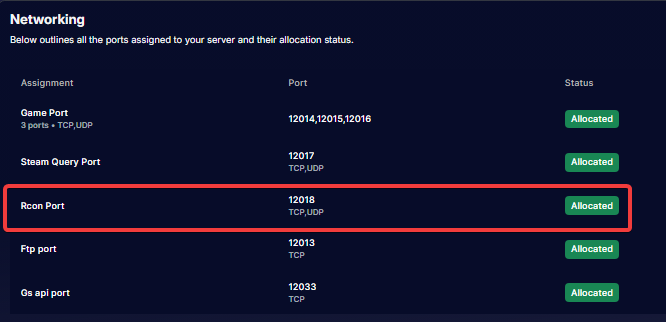
Important: Do not use your main Game Port (12014). RCON connections will fail if you use the game port instead of the designated RCON port.
RCON Password: Found under your panel's Basic Settings or inside the
BEServer_x64.cfgconfiguration file under RCon Password.
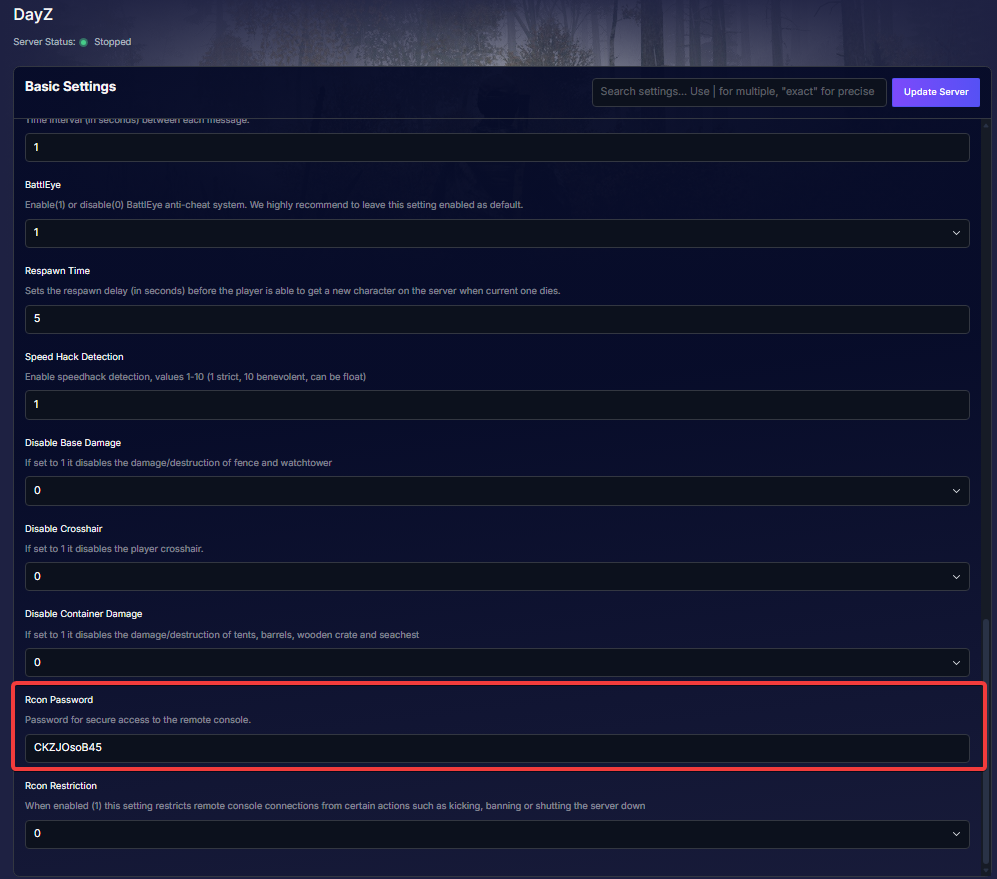
Note: If you edit your RCON password, save your changes and restart the server for the update to take effect. Also verify that RestrictRCon 0 is set in your configuration so administrative commands function properly.
Part 2
Connecting with BattleWarden
- Download & Launch: Download and run BattleWarden.exe on your PC from https://battlewarden.net/
Add a Server Profile: Click on Servers in the top navigation bar and select Add Server (or click the + button).
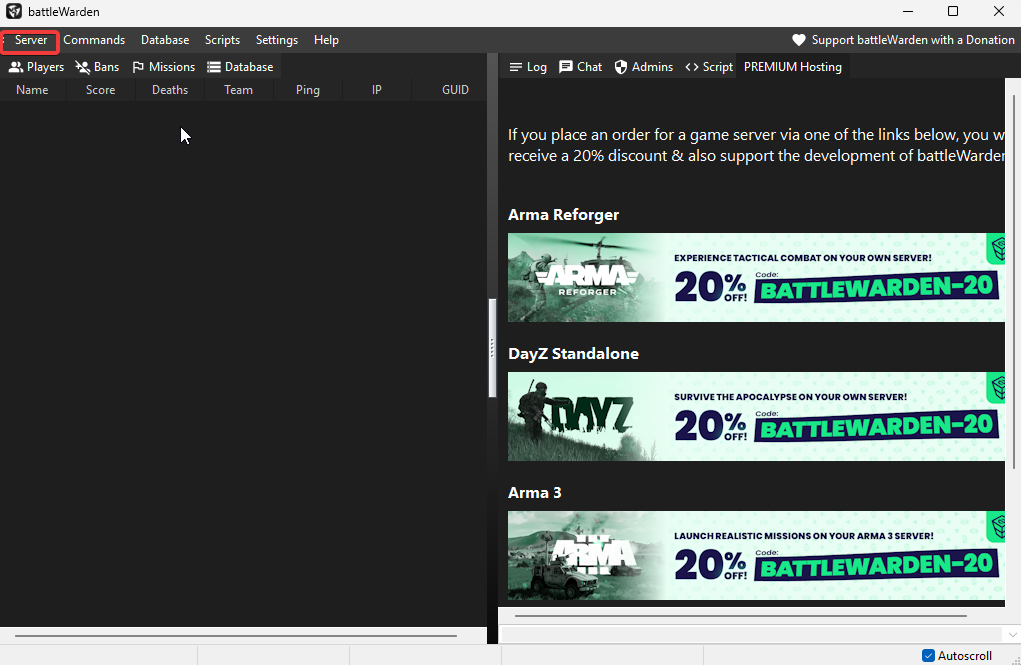
- Fill in Your Credentials:
- Name: Input a recognizable label for your server (e.g., My DayZ Server).
- IP / Host: Enter the server IP address found in Your Server Information (e.g., 188.72.198.157).
- Port: Enter the port from the Rcon Port entry under Networking (e.g., 12018).
- Password: Enter your configured RCON password.
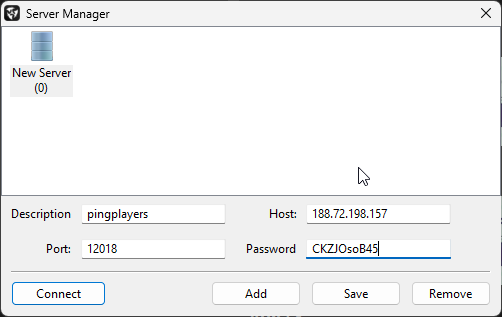
4. Save & Connect: Click Save, select your server profile, and click Connect.
When connected, BattleWarden will display a green status indicator and automatically load your server’s online player list, global chat, and ban records.
Managing Your DayZ Server in BattleWarden
Player Management (Players Tab)
- View Players: Displays all active players along with their Player ID, Name, Ping, IP address, and BattlEye GUID.
- Kick / Ban: Right-click any player in the list to issue an instant Kick or Ban. When banning, enter 0 for a permanent ban or specify the duration in minutes.
- Copy Info: Right-click to copy a player's BattlEye GUID for record-keeping or offline ban lists.
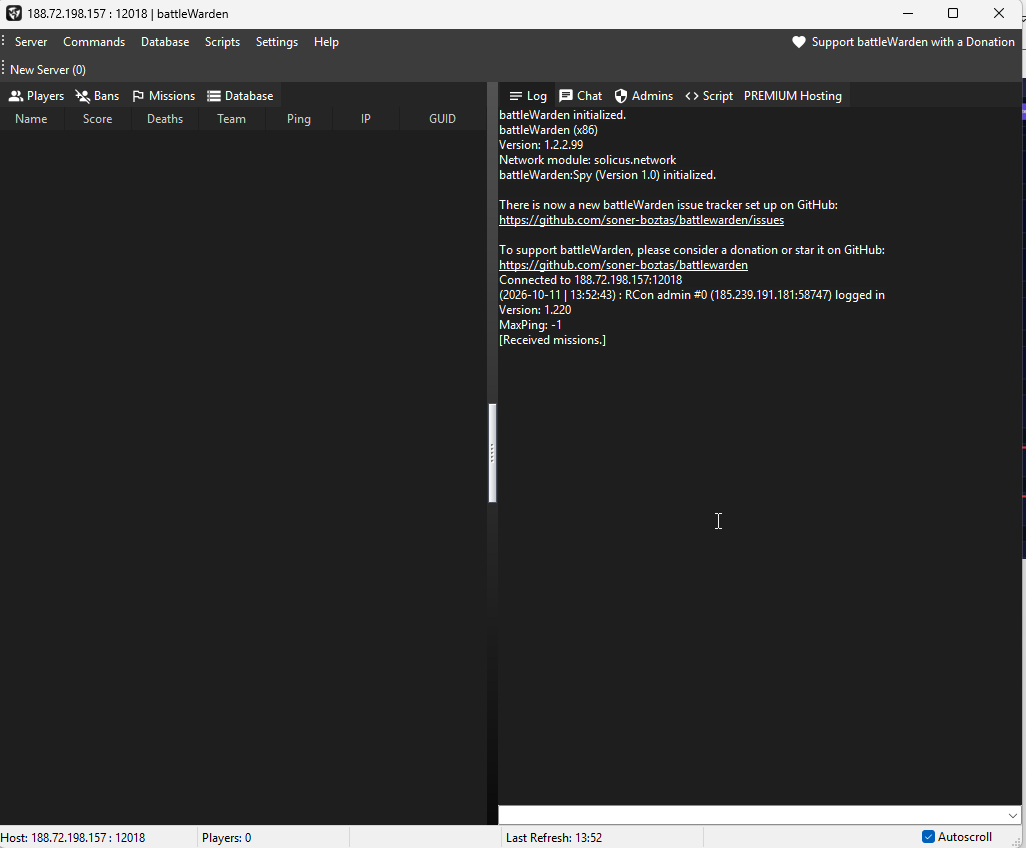
In-Game Chat & Broadcasts
- Global Announcements: Type a message into the chat bar at the bottom of the window to broadcast a server-wide announcement directly into the in-game chat feed.
- Direct Messages: Select a specific player to send a direct warning or message to their screen.
Ban List Management (Bans Tab)
- Manage Active Bans: View all active GUID bans stored on your server.
- Add Offline Ban: Click Add Ban to ban a player who is currently offline using their BattlEye GUID.
- Remove Ban: Select an existing ban entry and click Remove Ban to unban a player immediately.
Troubleshooting Tips
- Connection Timeout: Double-check that you entered the port listed under Rcon Port (12018), rather than your main Game Port (12014).
- Server Offline Status: BattleWarden can only establish an RCON link when your server status is active and fully online. Connections will fail if the server is still booting up or shutting down.
- Incorrect Password: RCON passwords are case-sensitive. Verify there are no extra spaces when copying from your settings.
- Permission Errors: If you can connect but commands fail, confirm RestrictRCon 0 is set in your server's BEServer_x64.cfg configuration file.