
How to Change World and Cave Settings in your DST server
Guide to changing world and cave settings for your Don't Starve Together server: what to set before world creation, backups, Settings panel.
If you bought a Don't Starve Together server from us but you're not sure how world and cave settings work, this guide walks you through the basics. We'll explain what must be set before creating the world, what can be changed afterward, and how to use the Basic Settings panel on our website.
Some settings affect map generation and must be set before world creation. There are two general types of settings:
World-generation settings
These control how the map is created (seed, map size, resource abundance, biome layout, cave layout and presets, etc.). These settings only take effect when the world (or caves) is first generated. If you change them after the world exists, the existing map won't change.
Always backup before making world-generation changes.
Gameplay and server settings
These control rules and behavior (day/season length, difficulty, PVP on/off, server name/password, max players, mods enabled/disabled). Most of these can be changed after the world is created and will apply after saving and restarting the server.
Where to Change Settings
Most of the settings you need are available in the server's Basic Settings panel on our website. That panel is designed for people who are not server experts and exposes commonly used options for both worlds and caves.
Locate the server panel:
If this is your first time with a server, you may locate your configuration panel at My Servers > Manage Server.Stop the server:
Always stop the server before making major changes or changing world-generation options. This prevents save issues and ensures settings are written properly.
Click on Actions on the left panel and select Shutdown.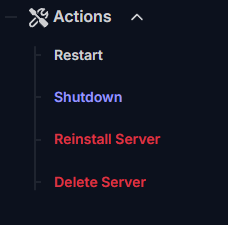
Backup your world saves:
Before making any change that could affect the map or progress, download or create a backup of your server saves if you have any. This lets you restore progress if something goes wrong.
Locate your save folder atServer/DoNotStarveTogether/MyClusterusing the File Manager panel.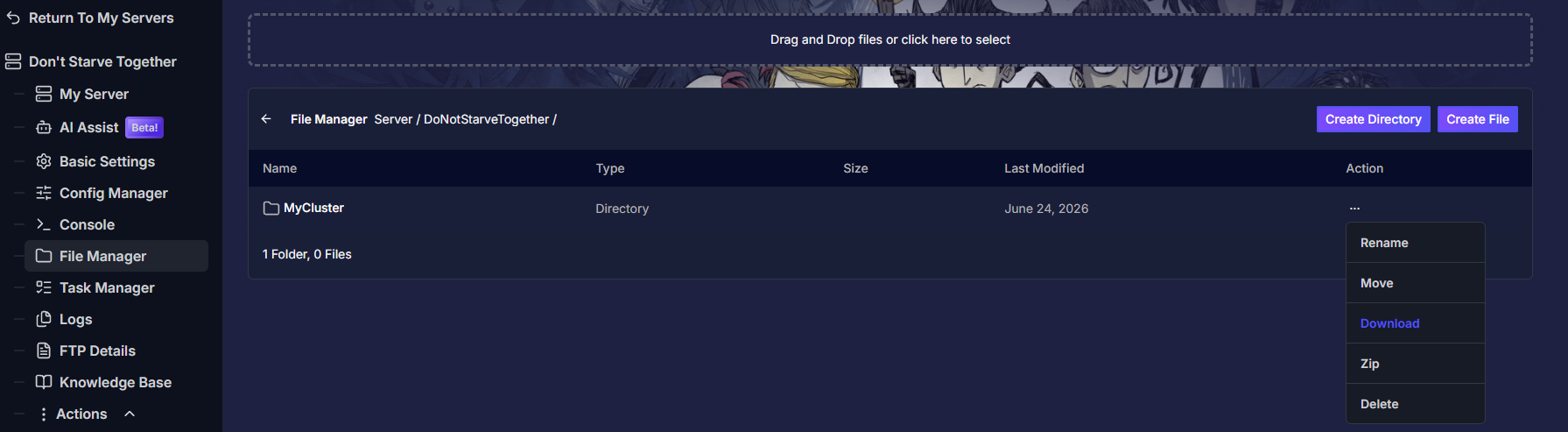
Open the Basic Settings:
Click on the Basic Settings option on the left panel to see all available options for your server. Since all settings will be displayed here, it is important to understand which settings change world behaviors and which change gameplay behaviors.Change your desired settings:
Gameplay and server settings
- Game Mode (survival, endless, wilderness)
- PvP
- Server Intention (cooperative, competitive, social, madness)
- Server Password
- Day/Season length
Settings like this can be adjusted at any time in your active world. You may simple adjust them and restart the server to keep playing on your world.
This values will appear first on the Basic Settings panel, both Server Identity and Gameplay Settings sections.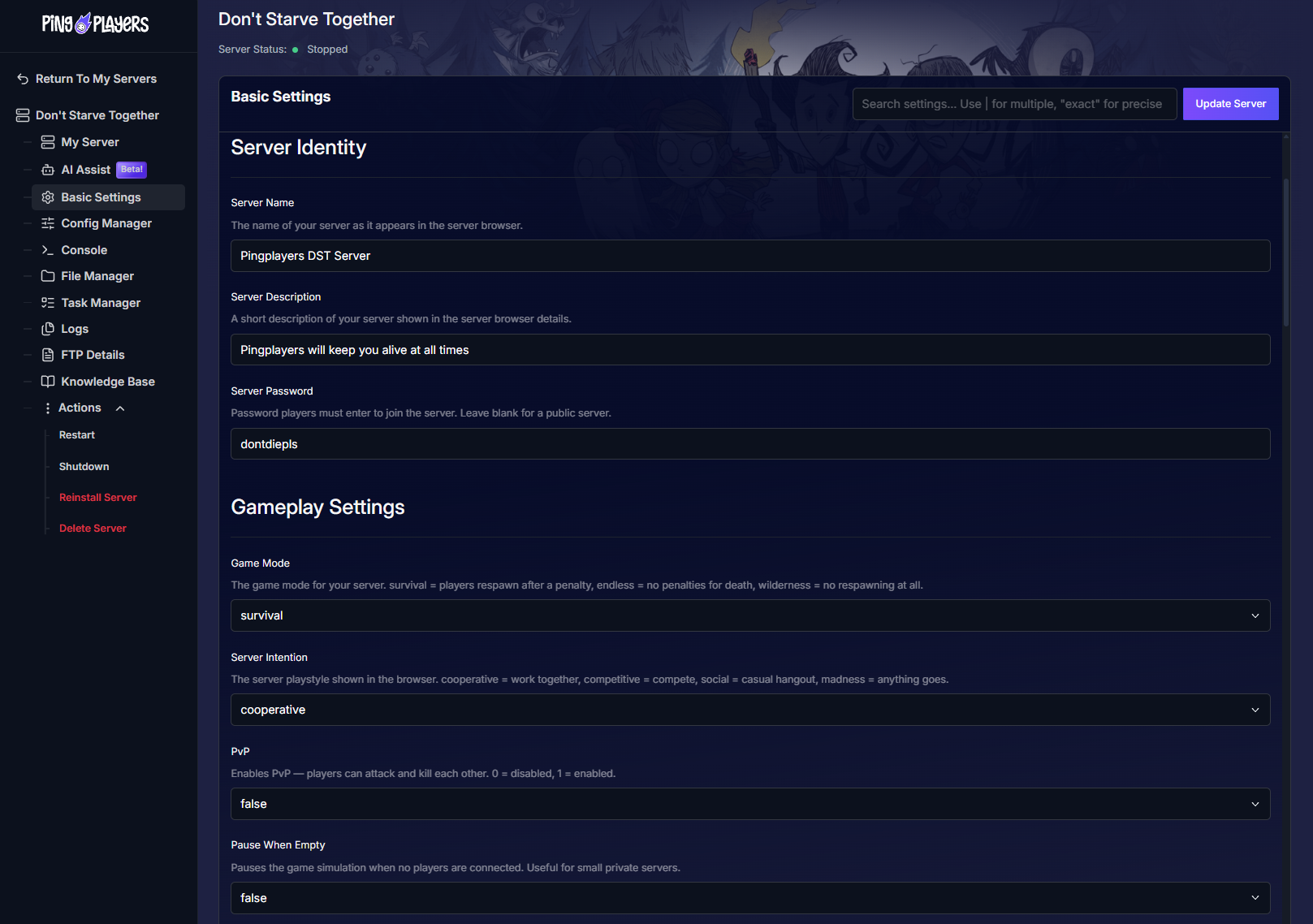
World-generation settings
- World preset (standard, endless, custom, etc.)
- Seed (random or specific seed number)
- Map size (small/medium/large)
- Resource abundance and density
- Biomes and special locations
- Cave options: whether caves are enabled and cave preset options
This settings will require a new world, as they can't be adjusted once the world was generated.
We recommend creating a new save, instead of overriding the existing one in case you want to revert the changes. The easiest way to achieve this is to rename the MyCluster folder atServer/DoNotStarveTogether, using the File Manager panel.
You may find this option from the World Preset onwards, in your Basic Settings panel.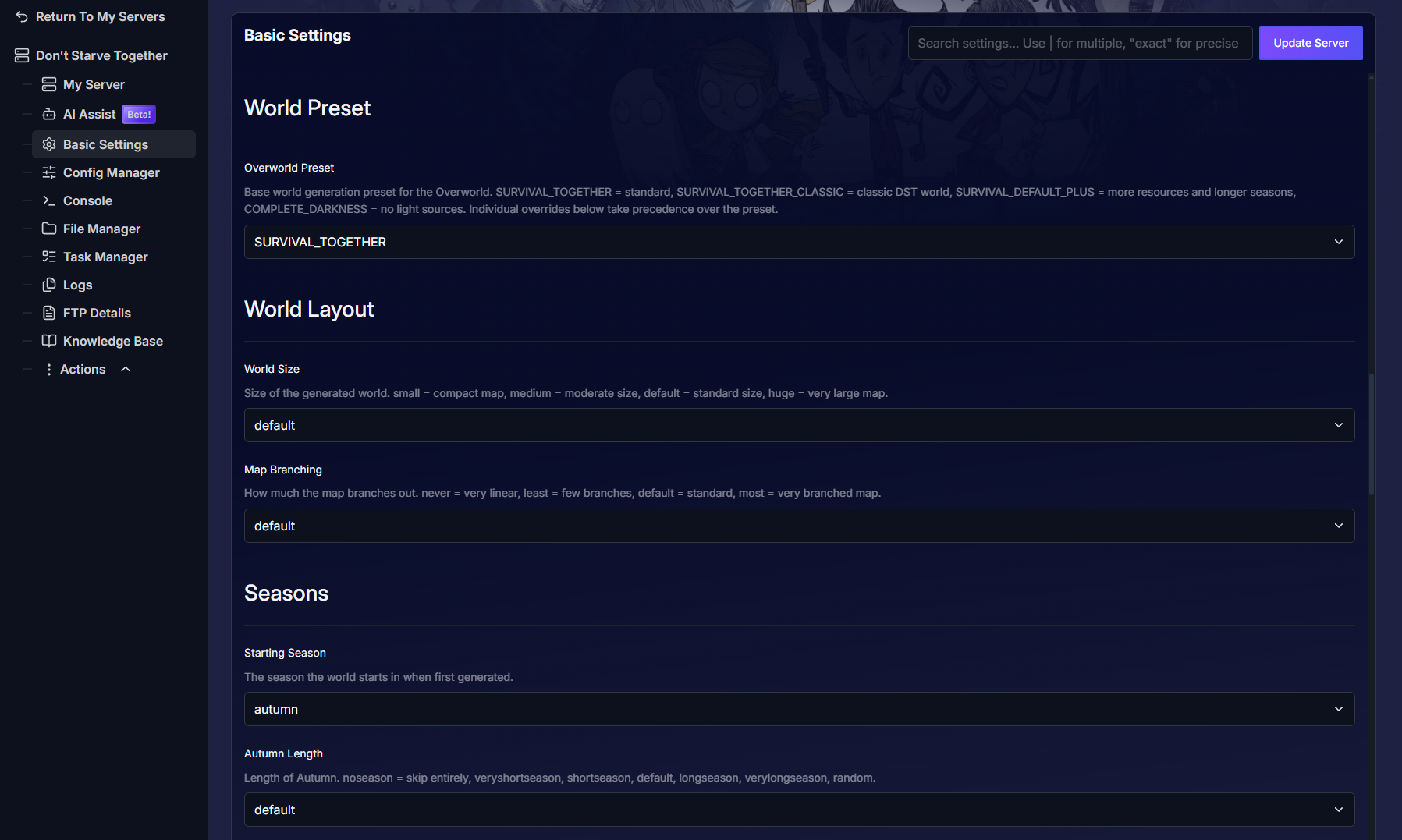
Start the server and verify:
After saving the changes for your server, restart the server by clicking Actions > Restart.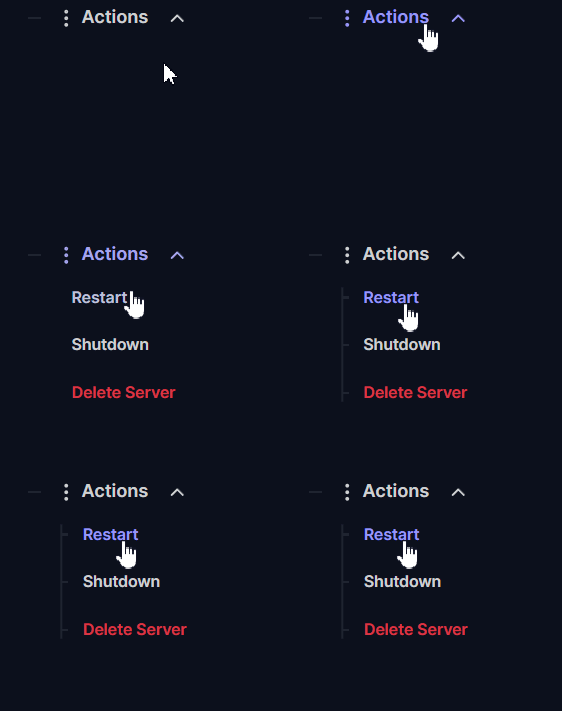
That's it, now you may enjoy your customized world with your friends.
If you're curious about caves, feel free to check our guide here.
Troubleshooting
If something doesn't work as you expect, try these checks first:
- Nothing changed after editing world-generation options?
Most likely you edited them after the world was already created. World-generation settings only apply during generation. To apply new map options you must generate a new world (and be aware this replaces the current map unless you restore a backup). - Server shows old settings after you saved?
Make sure you stopped the server, saved the changes in the control panel, and then restarted the server. Some settings require a full restart to take effect. - Mods seem to override settings?
Some mods change map generation or server behavior. Disable or update the mod, or check the mod’s configuration, then restart the server. - Accidentally deleted or generated a world you didn't want?
Stop the server immediately and restore your backup files. Contact support if you need help restoring a backup.
If you have any questions or need assistance, feel free to reach out to our customer care agents through our live chat or email at support@pingplayers.com.