
Protecting your hard-earned progress on the island is a top priority for any server owner. Whether you have built a massive farming empire or a sprawling tent city, losing your world to data corruption is a nightmare. Longvinter handles its save data a bit differently than other survival games; instead of a single file, it uses a master folder containing multiple .sav files for players, placeables, chests, and more.
This guide will walk you through exactly how to safely back up your world, restore a previous backup to a new server so your community never loses a step.
Step - By - Step Guide
Before moving any files, you must ensure the server is completely offline to prevent data corruption.
How to Back Up Your Server
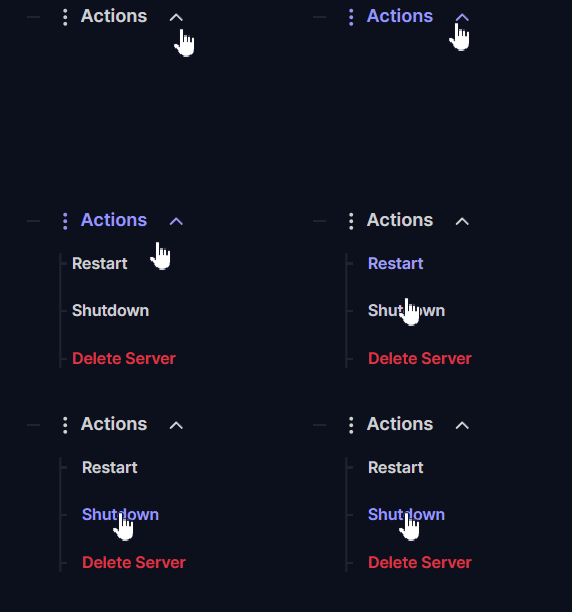
Navigate to Actions > Shutdown on your dashboard to safely stop the server process.
Open your File Manager or connect via SFTP.
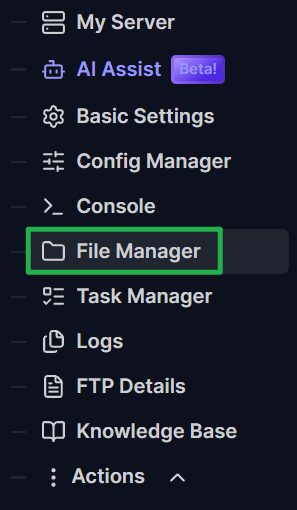
Navigate to the following directory:
Server/Longvinter/Saved/.
Locate the folder named
SaveGames. This directory contains all of your active persistent world data.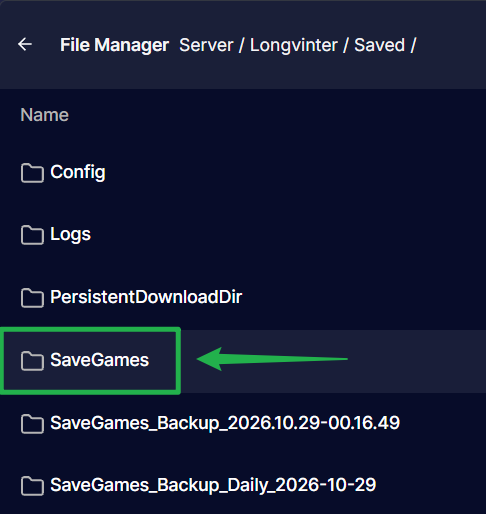
Download the entire
SaveGamesfolder to your local computer by clicking on the 3 dots on the right side of the folder and choosing Download.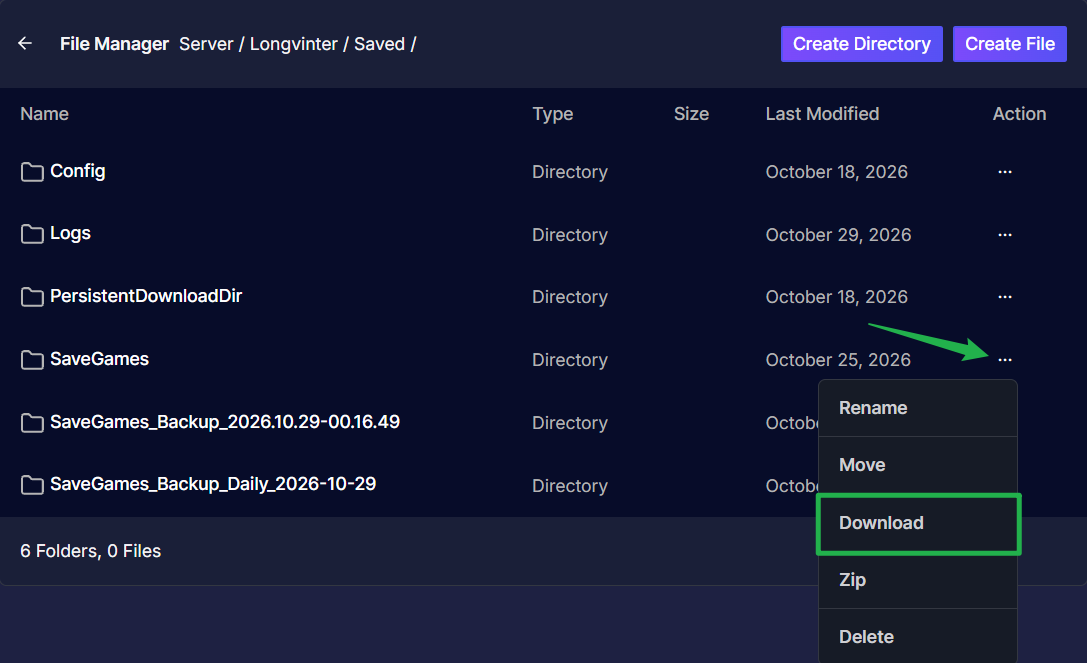
How to Restore a Backup
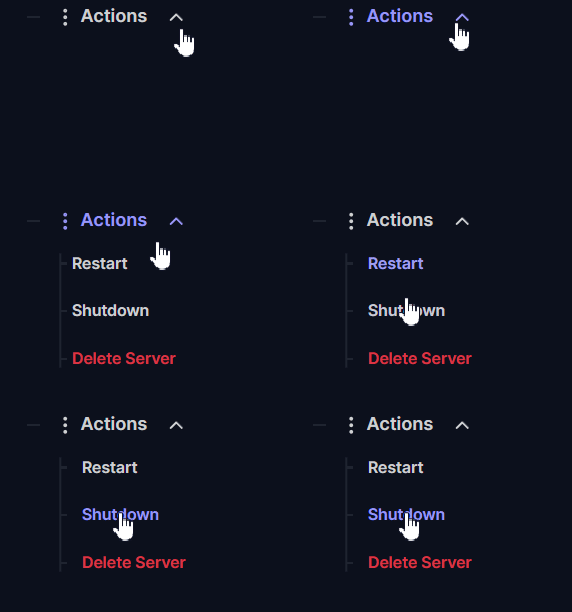
Navigate to Actions > Shutdown to stop the server.
Open your File Manager and navigate back to
Server/Longvinter/Saved/.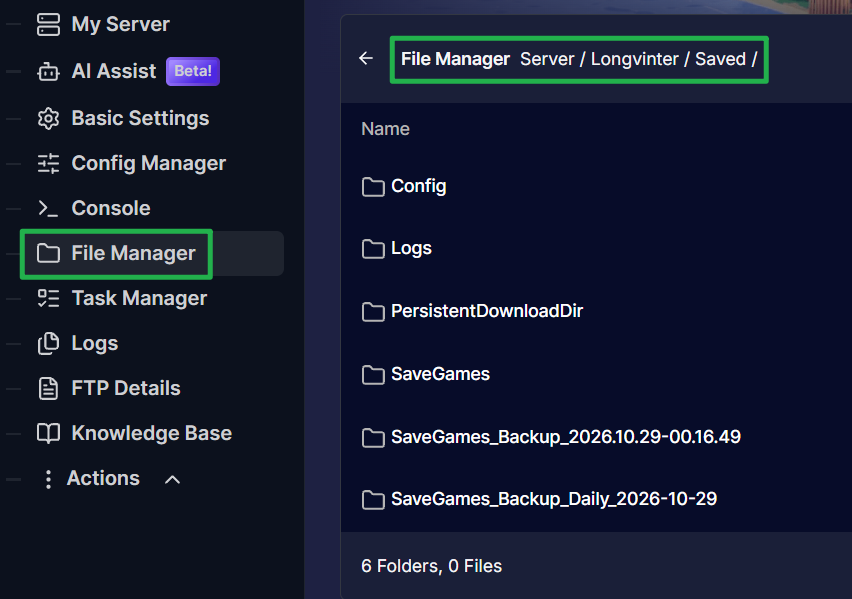
Rename your current
SaveGamesfolder to something likeSaveGames-oldby clicking on the 3 dots on the right side of the folder and choosing Rename just in case you need it later.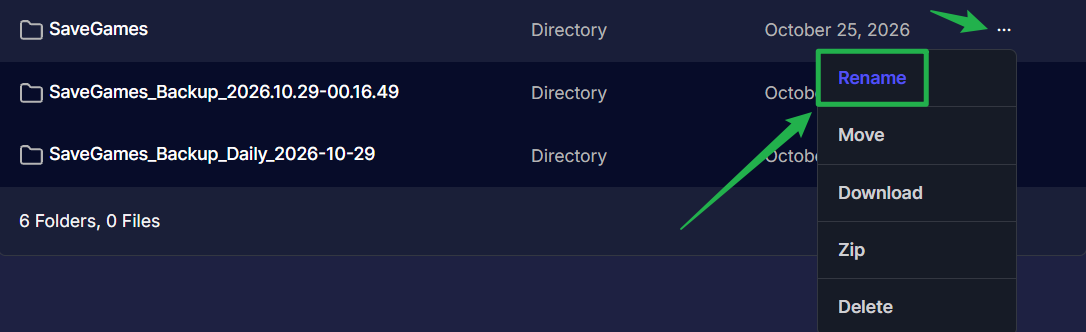
Upload your previously downloaded backup folder by dragging and dropping the file on the upload bubble above the File Manager path and ensure the active folder is named exactly
SaveGames. The server will only load the folder with this exact name.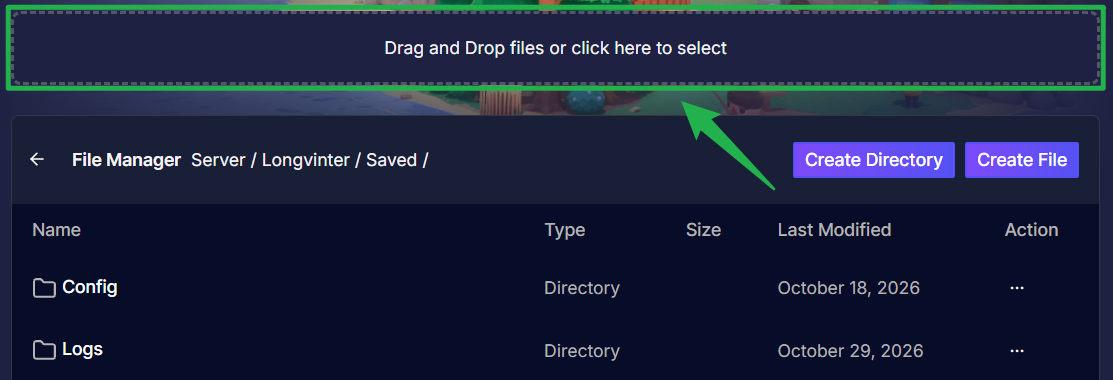
- Click Action > Restart on your dashboard to boot the server back up with your restored data.
Troubleshooting and Tips
If your world is not loading correctly after moving files, run through these quick checks:
- Move the Entire Folder: Longvinter does not store the entire server in one single save file. You must preserve the entire
SaveGamesfolder rather than selecting individual.savfiles, as these cover different parts of the server state like teams, player vendors, and region data. - Check the Folder Name: The server strictly loads the folder named
SaveGamesunder theServer/Longvinter/Saved/directory. If you upload a folder namedSaveGames_Backupand forget to rename it, the server will ignore it and generate a fresh world. Enable Automatic Backups: You can automate this process! Enable the "Save Backups" setting through your Basic Settings or Game.ini file. Once enabled, backup folders will be automatically stored alongside your active folder in the
Server/Longvinter/Saved/directory.
Conclusion
Keeping your island secure is a breeze once you know where your data lives. By regularly backing up your SaveGames folder and understanding how to restore it, you can experiment, build, and raid with total peace of mind.
If you encounter any issues or have further questions, feel free to contact our support team for assistance!