
Welcome to the snowy wilderness of Longvinter! Running a dedicated server means you need the right tools to manage your community, hand out items, and deal with unruly players. Setting up your admin permissions is super easy, but unlike many other Steam games, it relies on your Epic Online Services (EOS) ID rather than your Steam ID.
This guide will walk you through exactly how to grab that ID, apply it to your dashboard, and give yourself full access to the in-game Admin Panel so you can get back to building the ultimate island.
Step - By - Step Guide
Getting your admin permissions set up only takes a few quick steps between the game client and your server panel.
Launch Longvinter on your PC and locate your EOS Account ID. You can easily find this in-game by navigating to Options -> General. Copy this ID string.
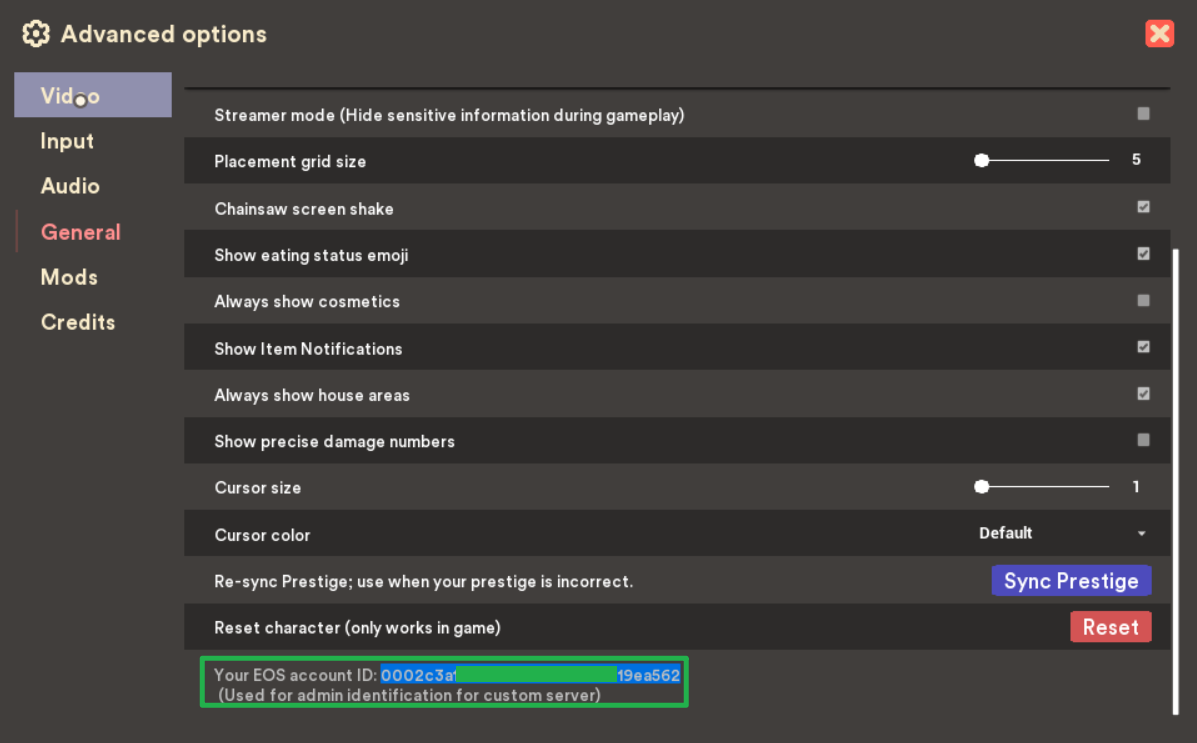
You have to scroll all the way down to find the EOS ID Log into your server panel dashboard and open your Basic Settings and locate the Admin EOS IDs setting field.
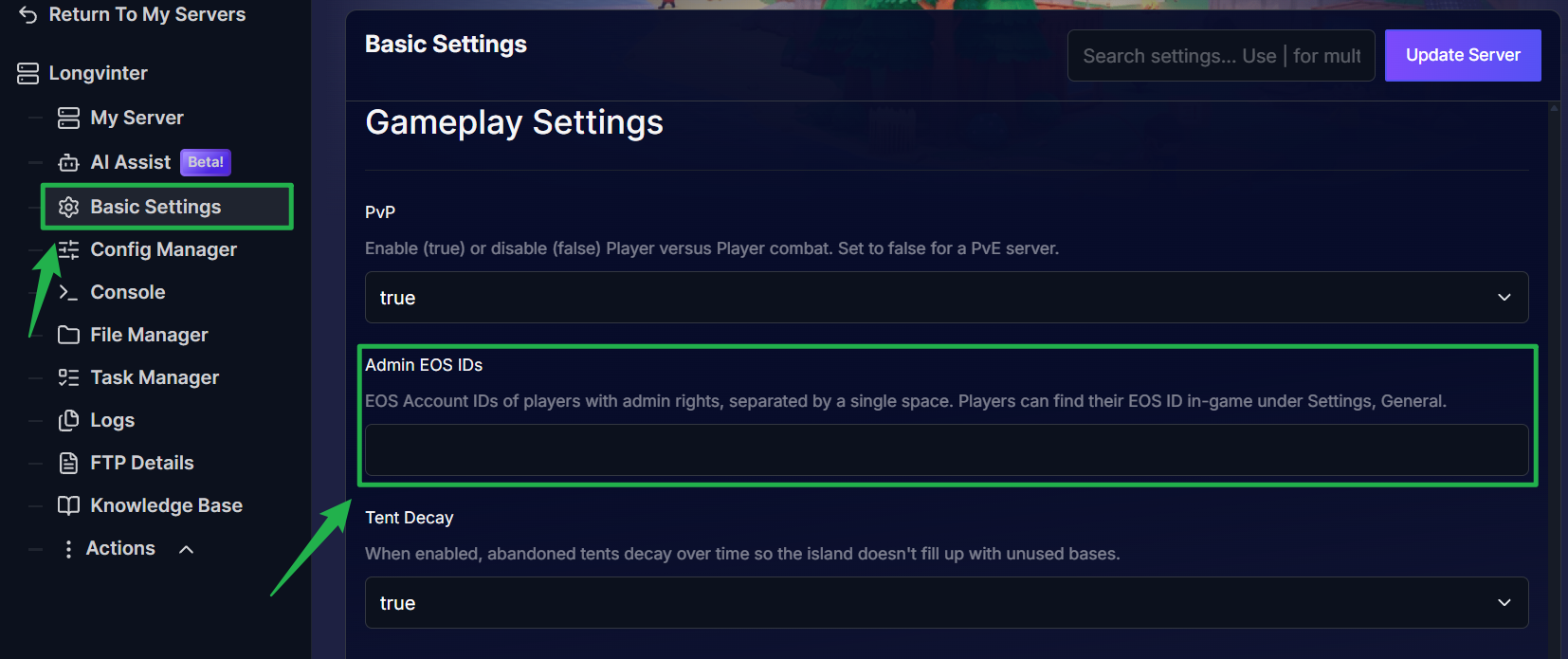
Paste your copied EOS Account ID directly into this field. If you want to add multiple admins, you must separate each EOS Account ID with a single space (for example:
EOS_ID_1 EOS_ID_2 EOS_ID_3). Do not use commas or semicolons to separate the IDs.
Save your changes on the dashboard and navigate to Action > Restart to reboot the server.
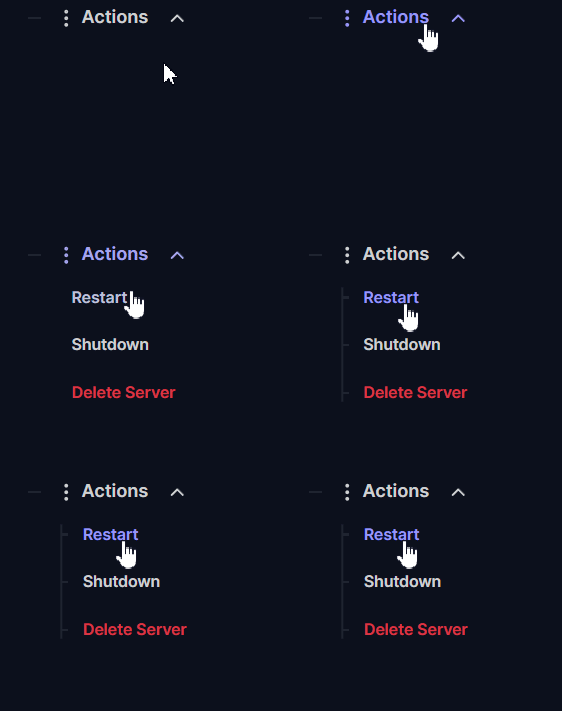
- Once the server is back online, connect to your game. Because your ID is configured, you will automatically receive administrator access upon joining and can now open the in-game Admin Panel!
Troubleshooting and Tips
If you are having trouble getting your admin tools to show up, run through these quick troubleshooting checks:
- Wrong ID Type: Longvinter strictly uses your EOS Account ID for admin privileges, not your Steam64 ID. Ensure you are grabbing the correct string directly from the in-game general settings menu.
- Formatting Errors: If you added multiple staff members but it is not working, double check that you didn't use commas to separate the IDs. It must be a single space between each ID.
- Dashboard Console is Read-Only: Keep in mind that the normal server console on your dashboard is read-only. You must use the in-game Admin Panel for kicking, banning, teleporting, or sending announcements.
- Buggy Commands: Depending on the current game version, some features exposed by the in-game Admin Panel may not behave reliably. If a teleport or item command fails to work, do not assume your server is malfunctioning; it is likely an issue with the current Longvinter build.
- Safe Backups: If you ever plan to manually modify your server files or download a backup from the
SaveGamesfolder, always use Actions > Shutdown on your dashboard first. Moving files while the server is running can corrupt your world data.
Conclusion
You are officially in charge of the island! By grabbing your EOS ID and adding it to your basic settings, you now have full control over your server. You can easily moderate your players, teleport around the map, and keep your community safe from griefers.
If you encounter any issues or have further questions, feel free to contact our support team for assistance!