
Welcome back to the island! Assuming you have already claimed your admin rights and added your EOS Account ID to your server settings, it is time to actually wield your power. Running a thriving Longvinter community requires a watchful eye to keep griefers at bay and ensure everyone is having a good time.
Instead of forcing you to memorize complicated chat commands or external RCON tools, the game features a fully integrated Admin Panel right inside the game client. This interface allows you to manage players, spawn loot, and monitor your server with just a few clicks. This guide will walk you through navigating the panel and utilizing your moderation tools.
Step - By - Step Guide
Since your permissions are already set up on your dashboard, all of the heavy lifting will be done directly inside the game.
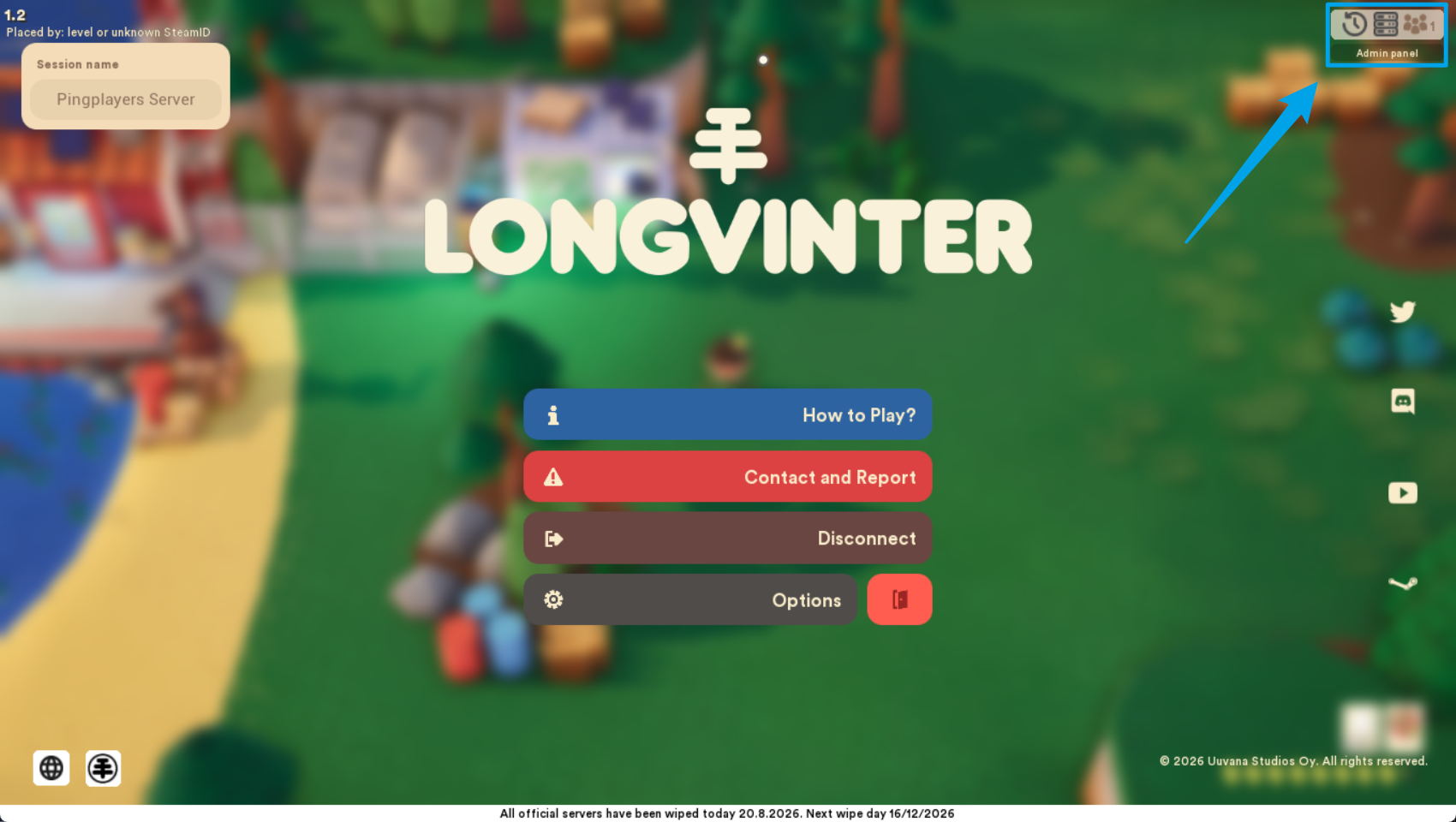
Once you're connected to your server, open your main in-game menu and click on the Admin Panel interface on the upper right to open your moderation dashboard.
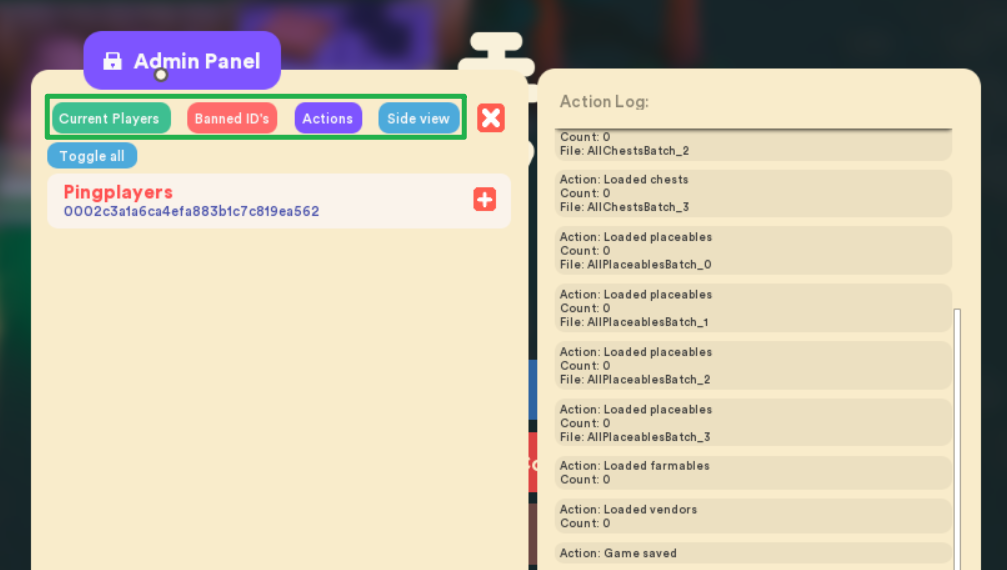
Navigate through the main layout. The Admin Panel contains several different areas, including Current Players, Banned IDs, Actions, and Side View.
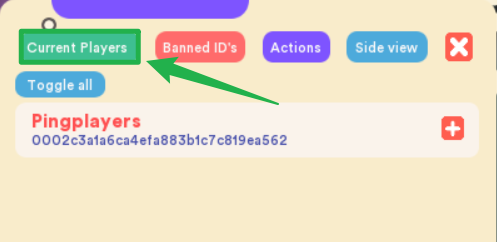
To manage your active community, use the player lists for viewing connected players and viewing banned IDs. From here, you can easily kick players who are causing trouble or ban players entirely to keep your island safe.
To assist players or set up events, utilize the available functions to teleport players, teleport yourself to another player, give configured item packs to players, or give Mk rewards.

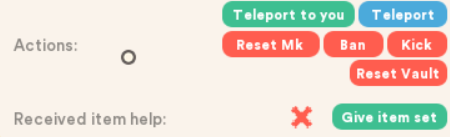
Keep your server informed by using the panel to send announcements to all players.
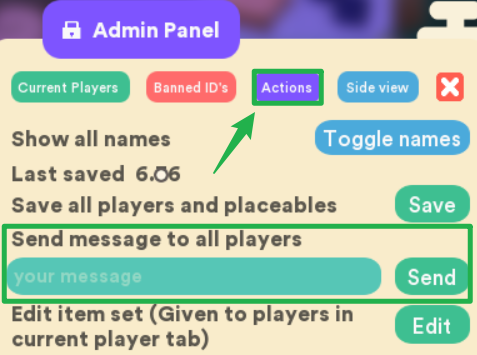
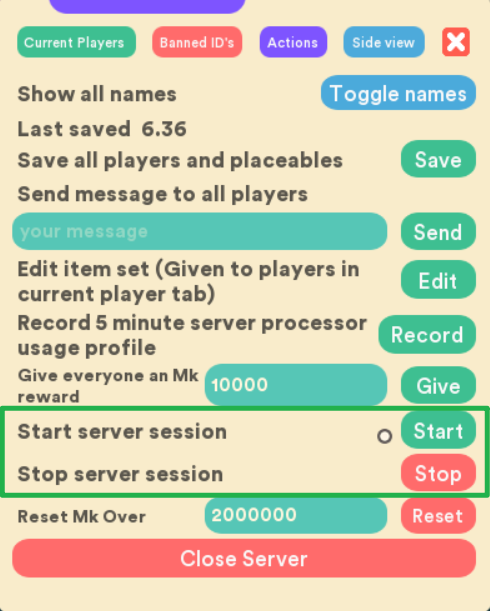
You should see the option to send everyone a message using the Actions button. If you need to perform maintenance or check performance, you can also use the Admin Panel for starting or stopping a server session and accessing server profiling tools.
Troubleshooting and Tips
If you are having trouble enforcing the rules or getting your tools to work, keep these quick tips in mind:
- Dashboard Console is Read-Only: Do not try to type commands directly into your server dashboard! No useful interactive Longvinter command input is currently available through the normal server console. The console should be treated as read-only, meaning you must use the in-game Admin Panel for server administration.
- Buggy Admin Buttons: Because the game is actively in development, some options exposed by the in-game Admin Panel may not behave reliably in every current Longvinter build. If an Admin Panel action does not work, do not assume the server itself is malfunctioning.
- Editing Admin Items: Want to customize what you spawn with? You can use the panel for editing the administrator item set so you always have the right gear when you log in.
- Missing the Admin Menu: If the Admin Panel is completely missing from your screen, the server does not recognize you as a staff member. You will need to navigate to Actions > Shutdown on your server dashboard, double-check that your correct EOS Account ID is saved in your Basic Settings, and then hit Action > Restart to apply the changes.
Conclusion
You are now fully equipped to run a top-tier survival community! By mastering the in-game Admin Panel, you can quickly deal with rulebreakers, reward your favorite campers, and monitor your server performance without ever leaving the game. Keep your gear loaded and your island safe.
If you encounter any issues or have further questions, feel free to contact our support team for assistance!