
Welcome to Night City! Exploring the neon-lit streets is always better with your crew. The OPEN77 platform transforms Cyberpunk 2077 into a fully functional multiplayer experience, allowing you to connect to dedicated servers hosting unique game modes and persistent worlds.
Before you try to jack in, ensure you and your players meet the baseline requirements: a legal copy of CP2077, the Phantom Liberty expansion, and a Windows 64-bit operating system. Once you have the OPEN77 launcher installed, connecting to your server is a breeze. This guide will walk you through joining via the public directory and using a direct connection.
Step - By - Step Guide
Ensure your server is fully booted up on your main dashboard and your OPEN77 License Key is authenticated before launching the game.
Method 1: Using the Public Server Directory
If your server visibility is set to public, you can find it easily on the main list.
- Open the OPEN77 Launcher on your PC and sign in to your registered OPEN77 account.
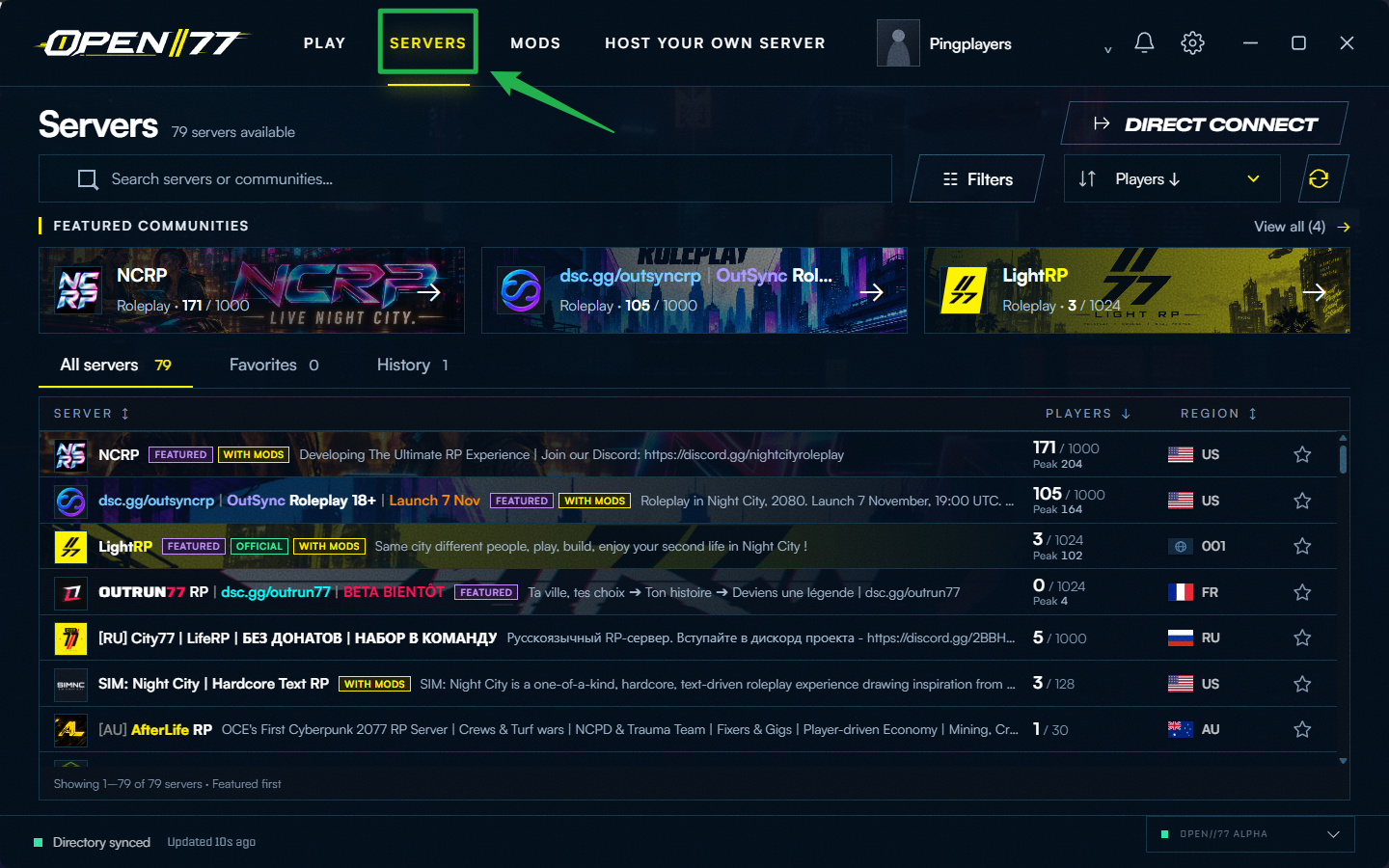
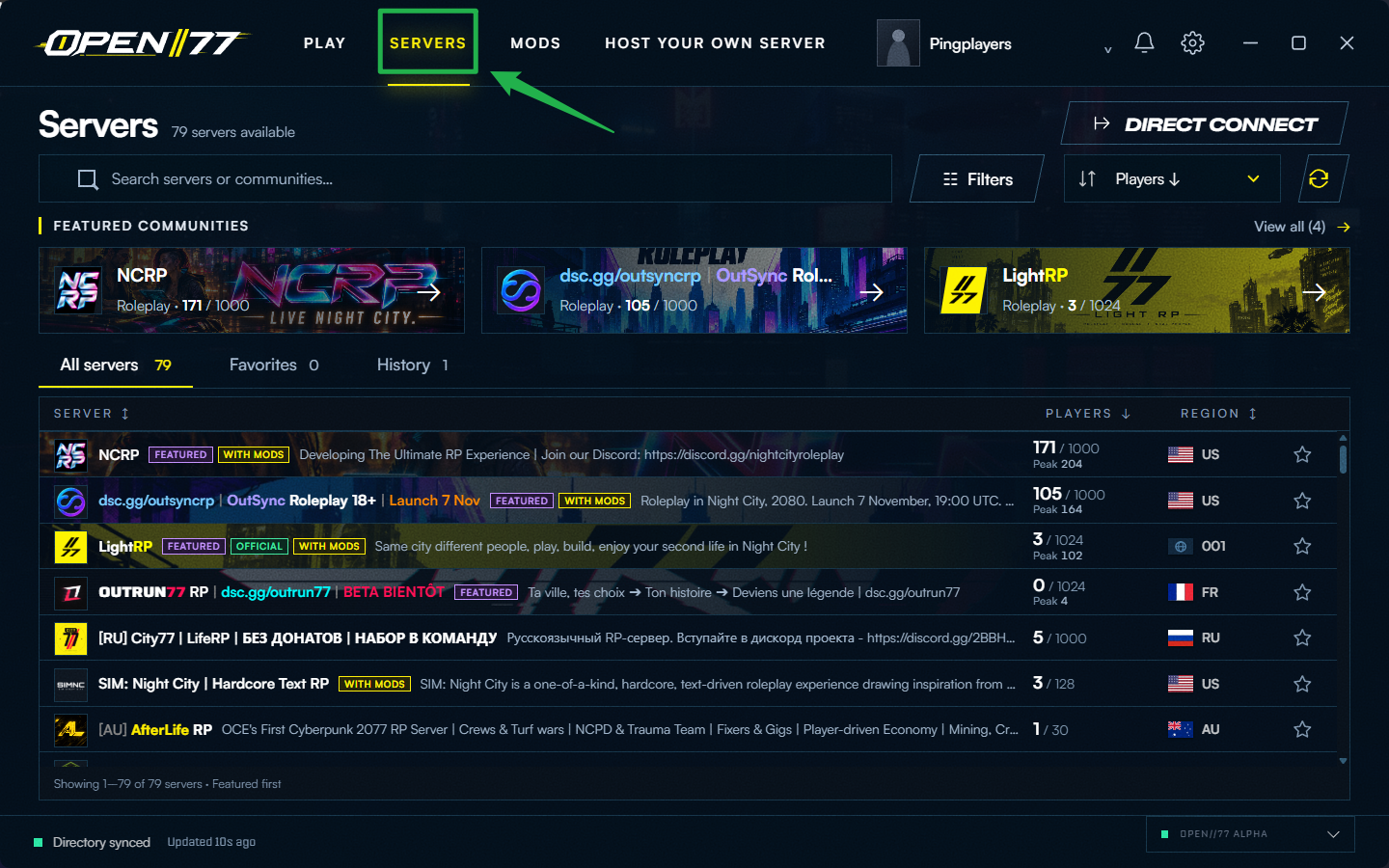
Open the server directory within the launcher by clicking on the Servers tab.
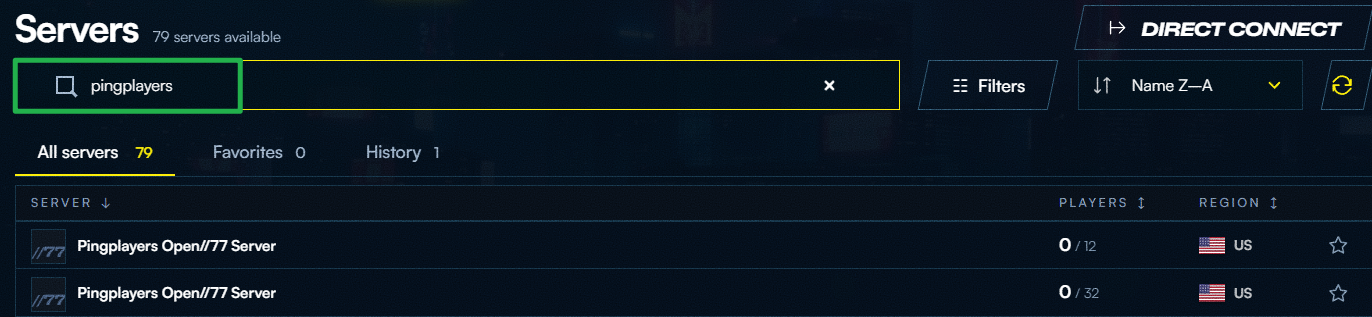
Scroll or search to find your server in the public list.
Select your server and click Join Server. The launcher will automatically handle starting Cyberpunk 2077 and routing you into the multiplayer world!

Method 2: Direct Connect via IP and Port
If your server is unlisted, private, or you just want to bypass the directory, you can connect directly.
Log into your main server dashboard and copy your exact server IP address and game port.
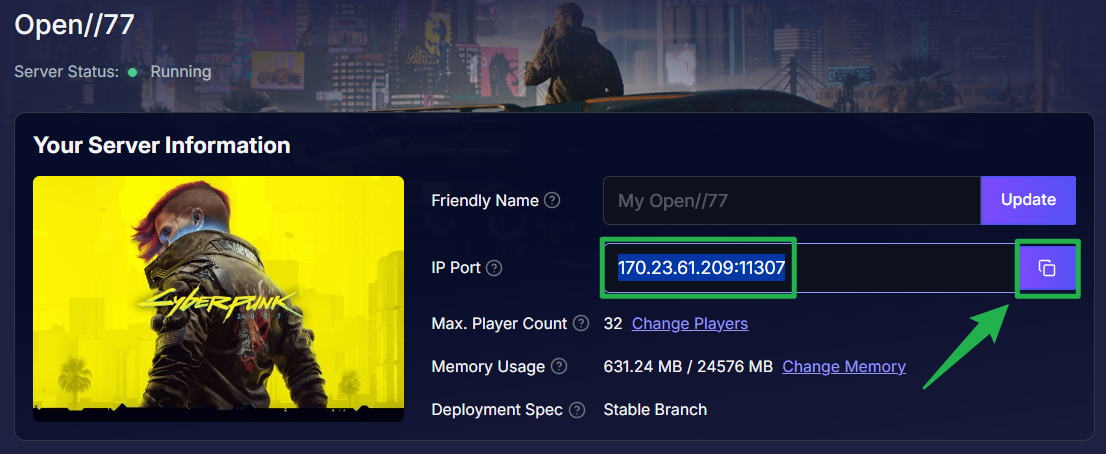
Click on the copy button to fully copy the IP and Port. Open the OPEN77 Launcher and navigate to the Servers tab.
Select the Direct Connect option.

Type or paste your copied server address into the field using the exact
IP:PORTformat and click connect to instantly load into the server.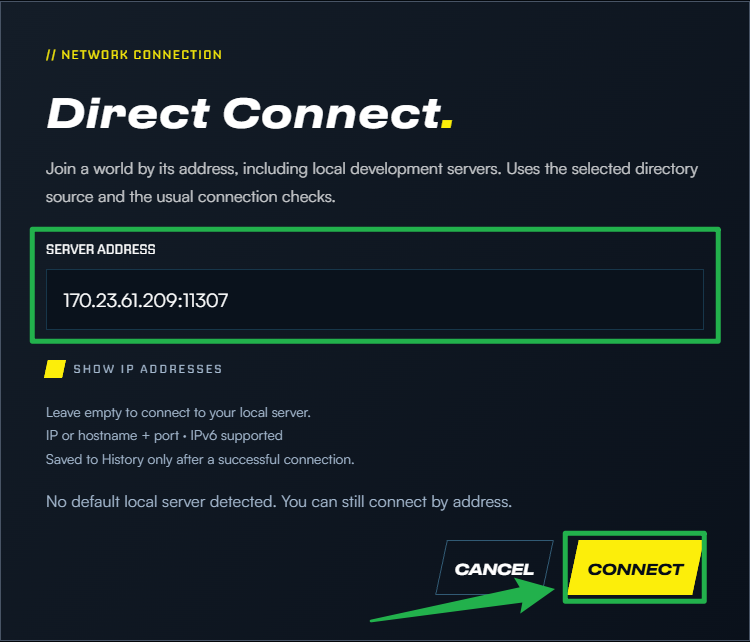
Troubleshooting and Tips
If your connection flatlines and you cannot get into the game, run through these quick troubleshooting checks:
- Missing From the Browser: If you cannot find your server in the public directory, ensure your Visibility is actually set to "Public" in your Basic Settings. Additionally, double-check that your OPEN77 License Key is valid, as the server cannot register with the Master Server without it.
- Direct Connect Works, but Public Fails: If you can connect via IP but cannot see the server on the list, your Visibility setting is likely configured as Unlisted or Private.
- Connection Rejected: If you can see the server but fail to connect, verify that your client game version matches the exact Cyberpunk 2077 build supported by the OPEN77 server. Both the launcher and your base game need to be fully up to date.
- Safe Reboots: Whenever you need to update your server settings (like changing your Visibility or License Key), navigate to Actions > Shutdown to bring the server offline safely. Once your edits are saved, click Action > Restart to boot the game back up with the new configurations applied.
Conclusion
You are officially wired in! Whether you choose to browse the public directory or use a direct IP connection, getting your crew onto your OPEN77 server is a straightforward process. Grab your iron, hit the streets, and start building your legacy.
If you encounter any issues or have further questions, feel free to contact our support team for assistance!