
How to Become an Admin on Your Wreckfest Server
Become an admin on your Wreckfest server: add Steam64 IDs in the panel, use in-game admin commands or First Player Owner, plus tips.
Wreckfest is all about chaotic, metal-crunching demolition derby action, but running a successful multiplayer lobby requires someone to steer the wheel. Assigning an administrator allows you to change tracks, manage players, and keep unruly drivers in check. Once you have admin privileges, you also unlock a dedicated in-game lobby menu packed with extensive server settings, allowing you to tweak your event configurations on the fly!
There are a few different ways to claim your admin rights, ranging from dashboard configurations to in-game claims. This guide will walk you through the simplest methods to get your admin permissions set up.
Step-by-Step Guide to Panel Configuration
The most reliable way to establish permanent admin rights is by assigning your Steam64 ID directly through your server panel. You can do this using either the Basic Settings menu or the Config Manager template.
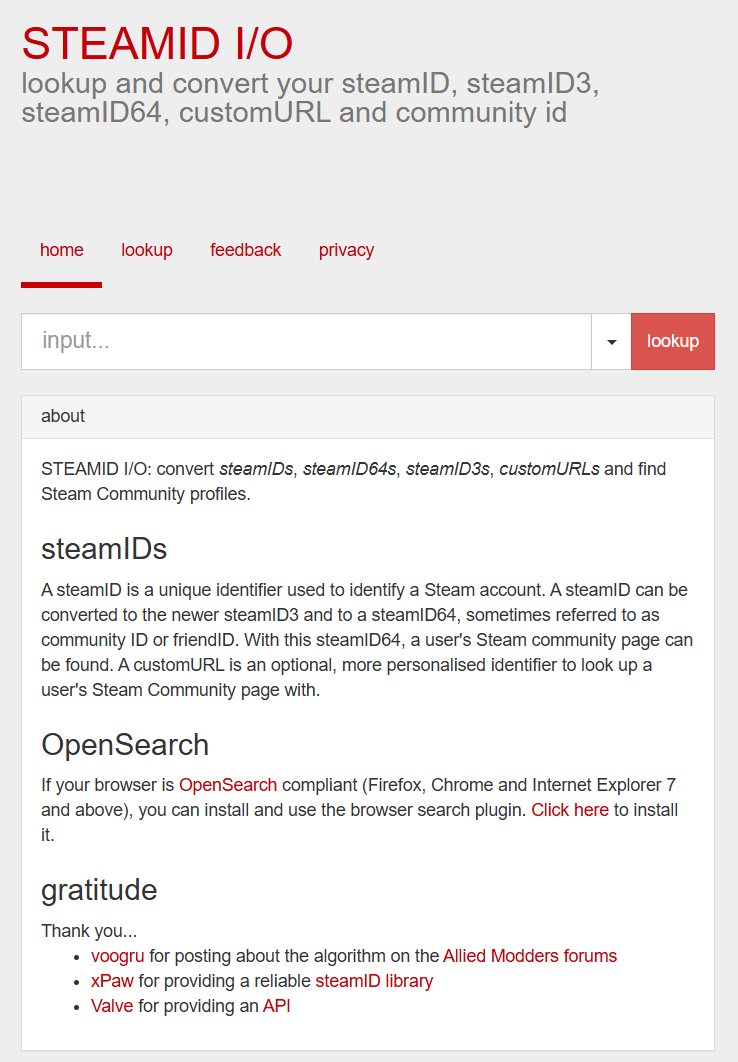
First, retrieve your unique Steam ID number by going to this link. You will need your SteamID64 (a long string of numbers, usually 17 digits) to identify your account to the server.
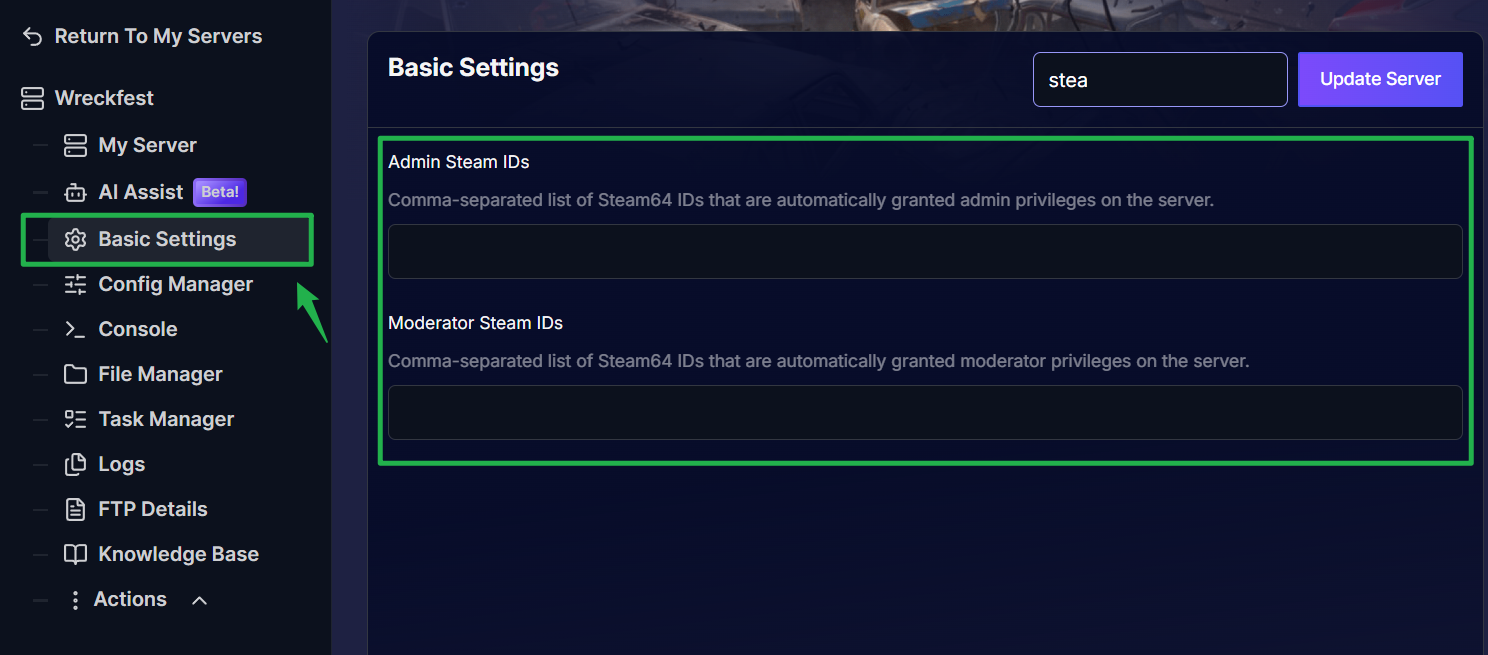
- Choose your preferred configuration method from the side menu:
Basic Settings Method: Navigate to the Basic Settings tab, locate the Admin Steam IDs input field, and paste your SteamID64 directly into the box.
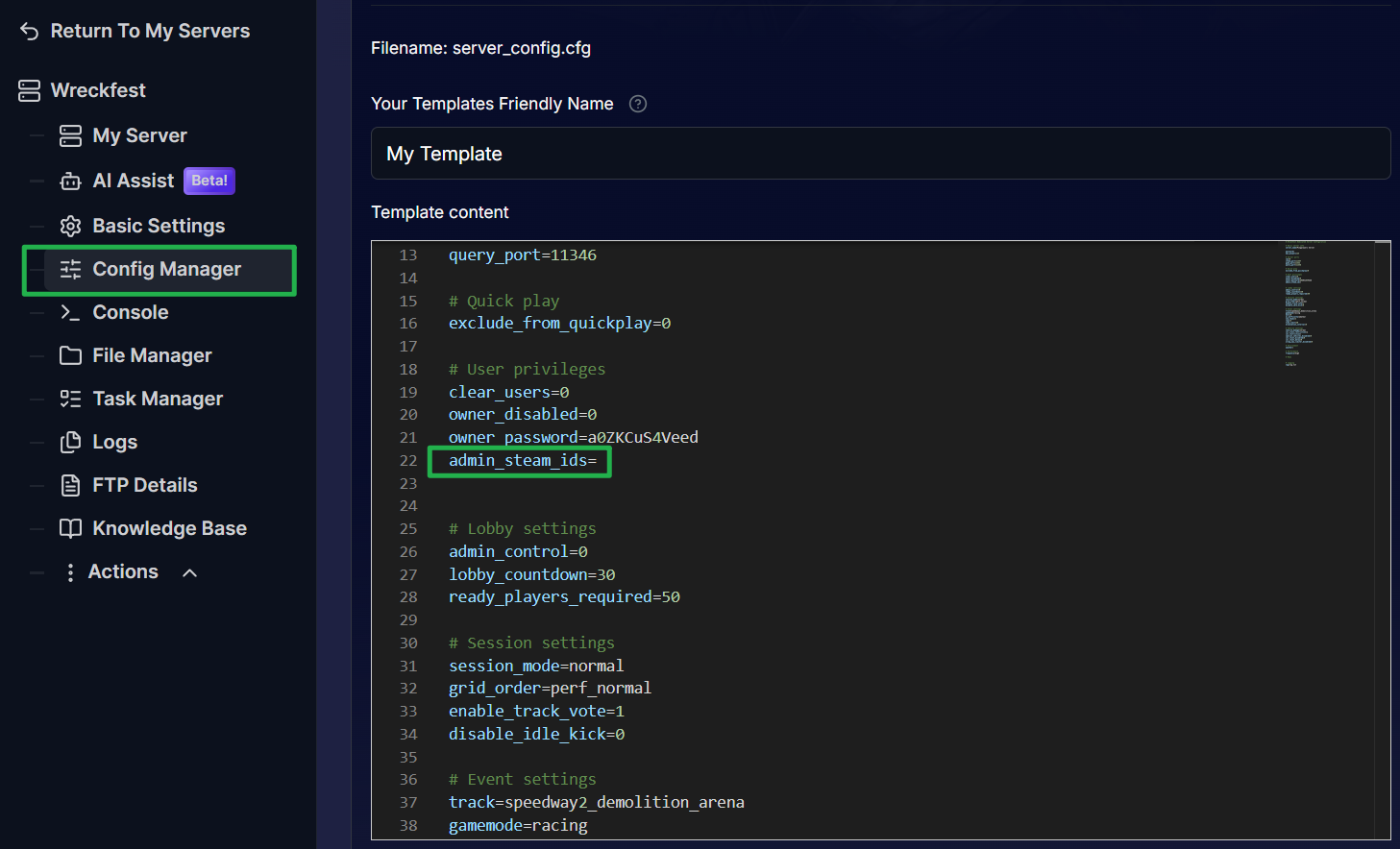
Config Manager Method: Navigate to the Config Manager tab, open your server configuration template, and locate the admin line. Paste your SteamID64 here.
- If you are adding multiple administrators at the same time, ensure that each Steam64 ID is separated by a comma (for example:
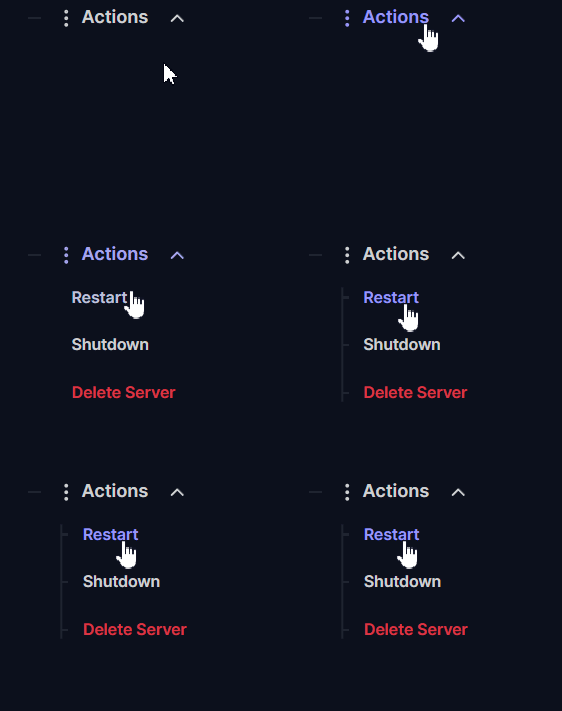
12345678901234567,76543210987654321). Do not use spaces between the commas. Save your changes, navigate to the Actions menu, and select Restart. The server must reboot to read the new admin assignments!
In-Game Admin Management
If you prefer to manage permissions while playing, Wreckfest includes a few built-in features to make on-the-fly administration easier.
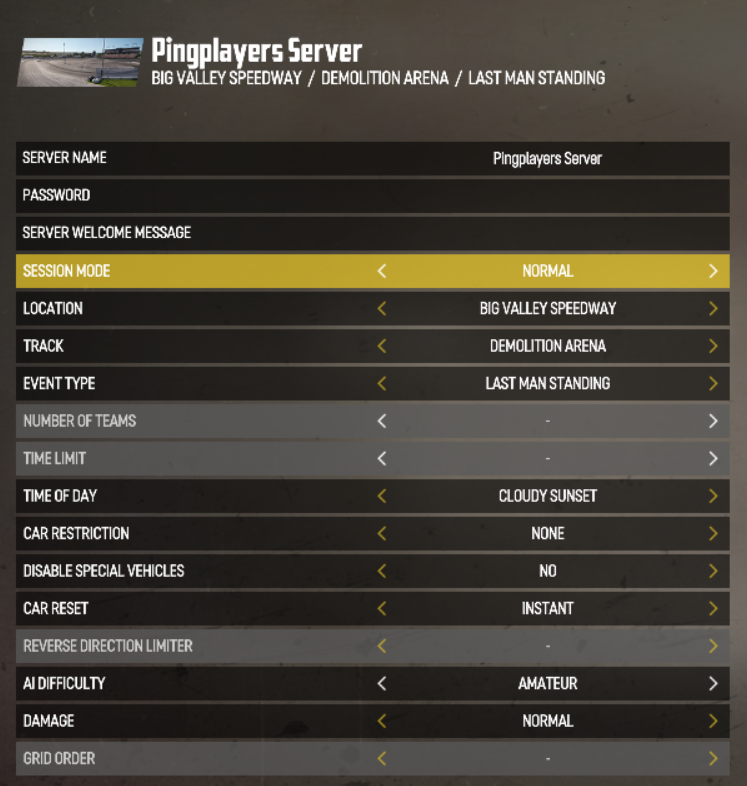
First Player Owner
Wreckfest includes a highly convenient setting that allows the very first player who joins an empty server to automatically become the Owner. If this setting is enabled in your configuration, you simply need to boot the server and be the first person to connect. Once you have owner status, you can freely manage the lobby settings.
Granting Access via Commands
If you are already an Owner or Admin, you can grant administrative access to other players currently in the server using the in-game chat commands:
- Type
admin PLAYERNAMEto grant access to a specific player in the lobby. - Type
adminsteamid STEAM64IDto grant access using their exact Steam ID.
Note: Using the adminsteamid command is highly recommended, as it ensures the player retains their persistent admin access even if they change their display name.
Troubleshooting and Tips
If you are struggling to get your commands to register or your lobby settings aren't saving, keep these pointers in mind:
- Unresponsive Commands: In theory, chat commands should work flawlessly when joined as an admin. However, the game can occasionally be finicky with in-game command recognition, and the web console for Wreckfest does not always support direct text input. If in-game commands are failing, default back to adding the Steam64 IDs manually via the Config Manager method.
- Comma Separation: The most common reason admin permissions fail to load is formatting. Ensure multiple IDs are separated only by commas.
- Instant Ping AI Fixes: If your server panel is throwing an error after editing your template, do not panic! Open your panel chat and ask Ping AI to read your configuration files. The assistant will scan your text, find the missing comma or syntax error, and tell you exactly how to fix it immediately.
Conclusion
Getting the keys to your Wreckfest server gives you total control over the carnage. By utilizing your server panel to lock in your Steam64 IDs and leveraging the extensive in-game lobby menus, you can easily curate the perfect demolition derby for your friends.
If you encounter any issues or have further questions, feel free to contact our support team for assistance!