
How to Change Tracks on Your Wreckfest Server
Learn how to change tracks on your Wreckfest server via in-game settings or server panel, match internal track IDs and restart to apply.
Smashing through metal and tearing up the asphalt in Wreckfest is incredibly satisfying, but keeping the high-octane action fresh for your community means mixing up the arenas. Whether you want to switch from a high-speed oval to a chaotic demolition derby pit, changing the map rotation keeps your drivers on their toes.
Tracks can be selected and updated in two different ways: seamlessly from inside the game client or directly through your server configuration tools. This guide will show you both methods to ensure your next event loads perfectly!
Method 1: In-Game Server Settings
If you are actively hosting an event and don't want to leave the game client, you can modify the active track on the fly as long as you have the proper administrative privileges.
- Launch Wreckfest and connect to your server.
Ensure you are successfully logged in or recognized by the server as an Admin or the Owner.
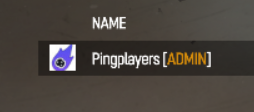
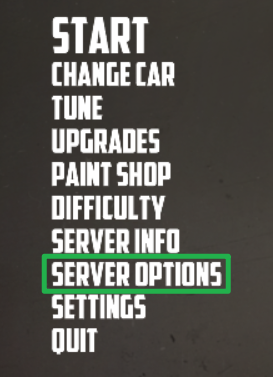
Open the Server Settings menu from the lobby screen.
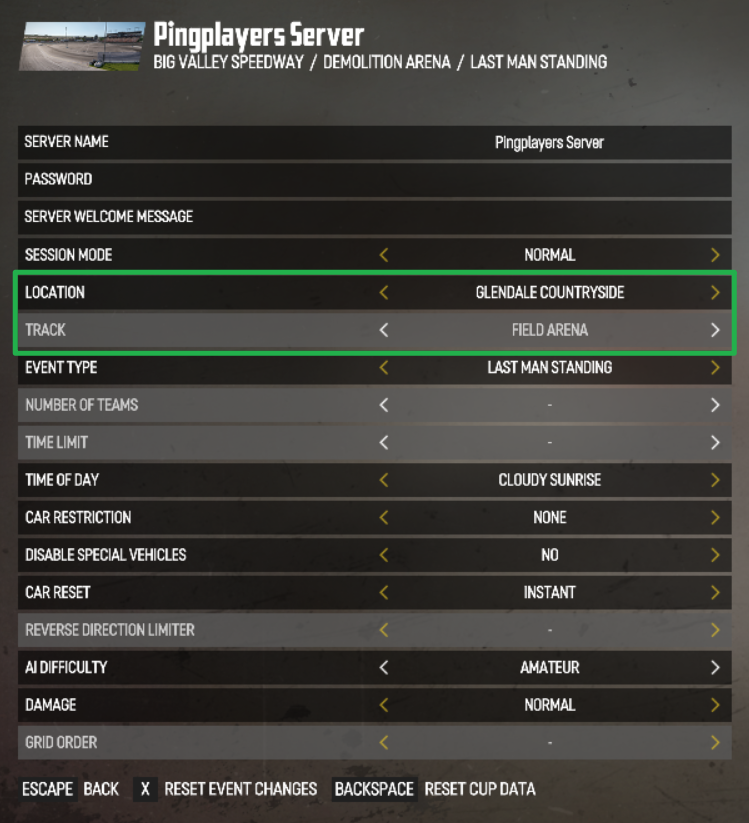
Browse the list of available maps, choose your desired track configuration, and save your changes.
Method 2: The Server Panel (Basic Settings or Config Manager)
If you are setting up a permanent map playlist or want to configure your server before players join, you can manage your track selection directly from your dashboard panel.
- Log into your server dashboard and ensure your server instance is running.
To adjust it manually, navigate to the Basic Settings tab on the left side menu and look for the Track variable. Alternatively, you can open the Config Manager tab and modify the track entry inside your server configuration template.
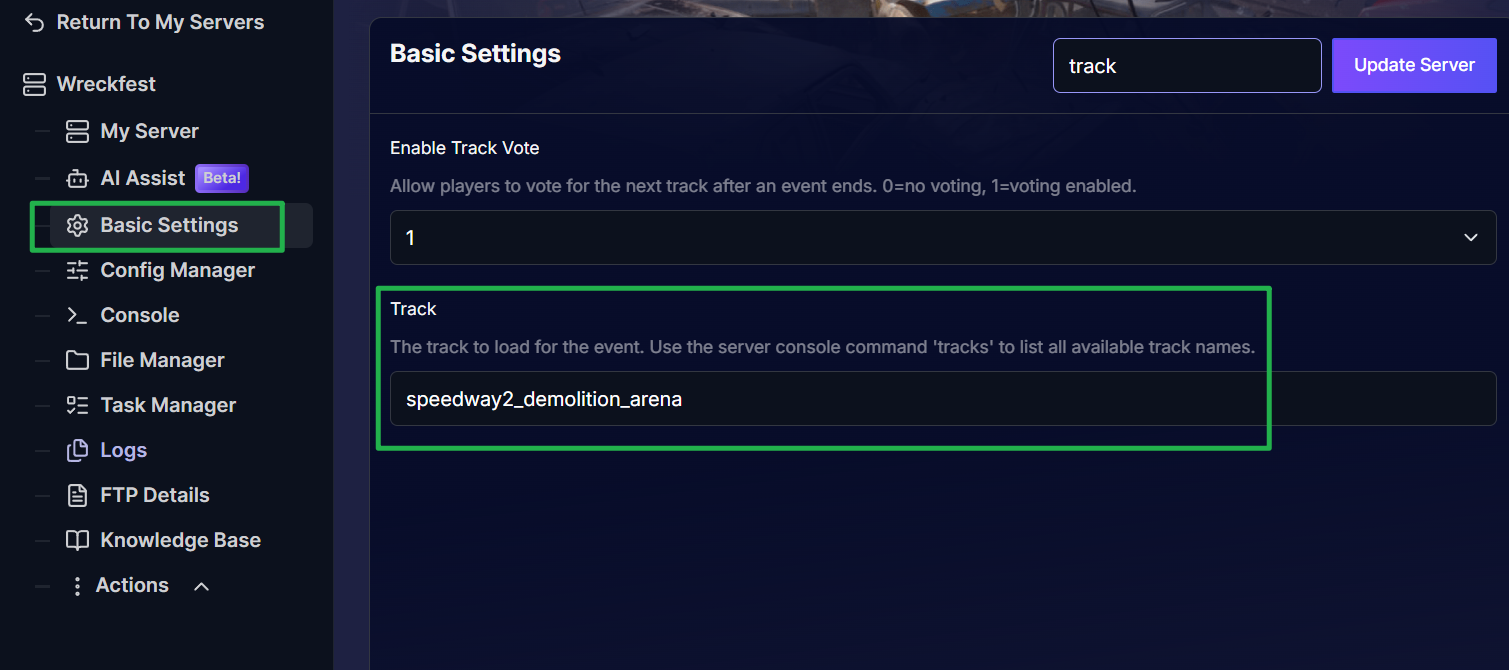
Basic Settings Option 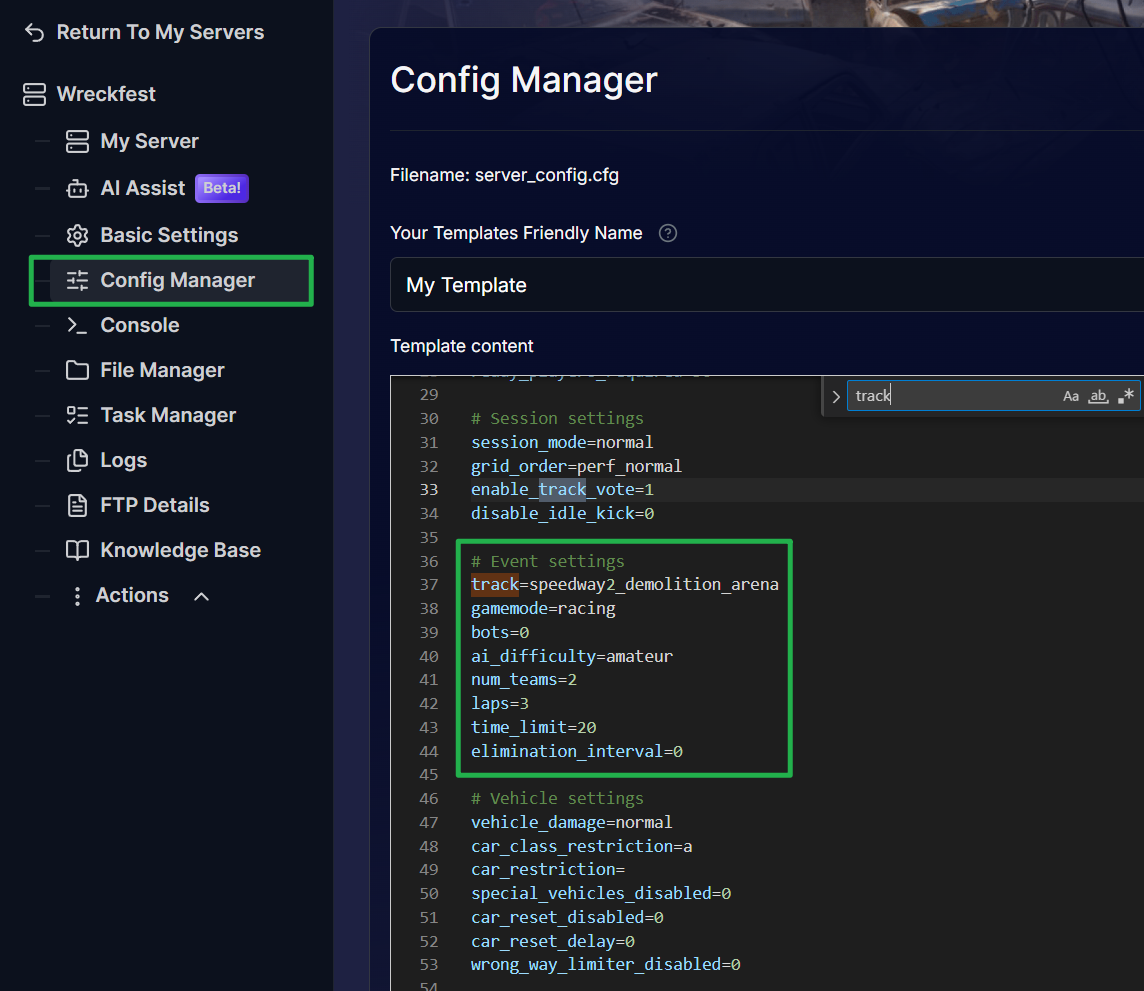
Config Manager option Input your desired map value.
The value you enter must match the internal Track ID exactly, not just the display name shown in menus. (For a complete list of these IDs, you can go to this link.)

- Incorrect:
Crash Canyon - Main Circuit Correct:
crash_canyon_main_circuit
- Incorrect:
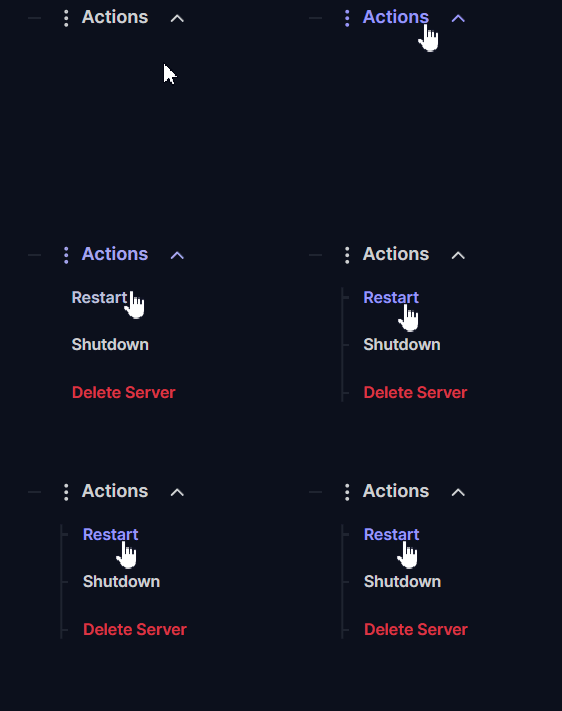
Save your changes and navigate to the Actions menu and Restart your server (or load the next scheduled event in-game) for the new track assignment to take effect.
Troubleshooting and Tips
If your server crashes or fails to change arenas properly, keep these handy tips in mind:
- Typographical Errors: If you misspell a track ID or include any capital letters, the server engine won't recognize it, causing the track setting to break or default back to a basic map. Always double-check your spelling against the official track list.
- Track Fails to Advance: If you updated your settings but the old track is still loading, make sure you actually restarted the server panel instance or forced the current in-game match session to end. Changes do not apply mid-race.
- Instant Ping AI Fixes: If you save your track settings but the server continues to load with errors, do not panic! Open your panel chat and ask Ping AI to read your latest console logs. The assistant will scan your configuration files, find the exact line causing the crash, and guide you through fixing it immediately.
Conclusion
Swapping out tracks for your Wreckfest server ensures that your community's demolition events never get stale. By leveraging the live in-game menus or matching the internal track IDs exactly in your server panel, you can easily queue up the next arena and get right back to the carnage. Always remember to restart your server or advance the current event for your panel changes to take effect!
If you encounter any issues or have further questions, feel free to contact our support team for assistance!